Manage storage vaults
A storage vault is a cloud-based repository in Cloud Backup that stores your backup and archived data, including backup vaults and archive vaults. On the Storage Vaults page in the Cloud Backup console, you can create general backup vaults, create mirror backup vaults, view details of all storage vaults, add tags to storage vaults, configure backup vault replication, and modify their basic information and permissions.
Access the feature
-
Go to the Cloud Backup console > Storage Vaults. In the top navigation bar, select the region where your resources are located.
-
On the Storage Vaults page, view and manage the list of storage vaults.
The Storage Vaults page displays all backup vaults and archive vaults in Cloud Backup. You can view details for each storage vault, including its name, ID, storage vault type, number of backup plans, source data size, stored data size, and status. For more information about storage vault types, see Storage vault types.
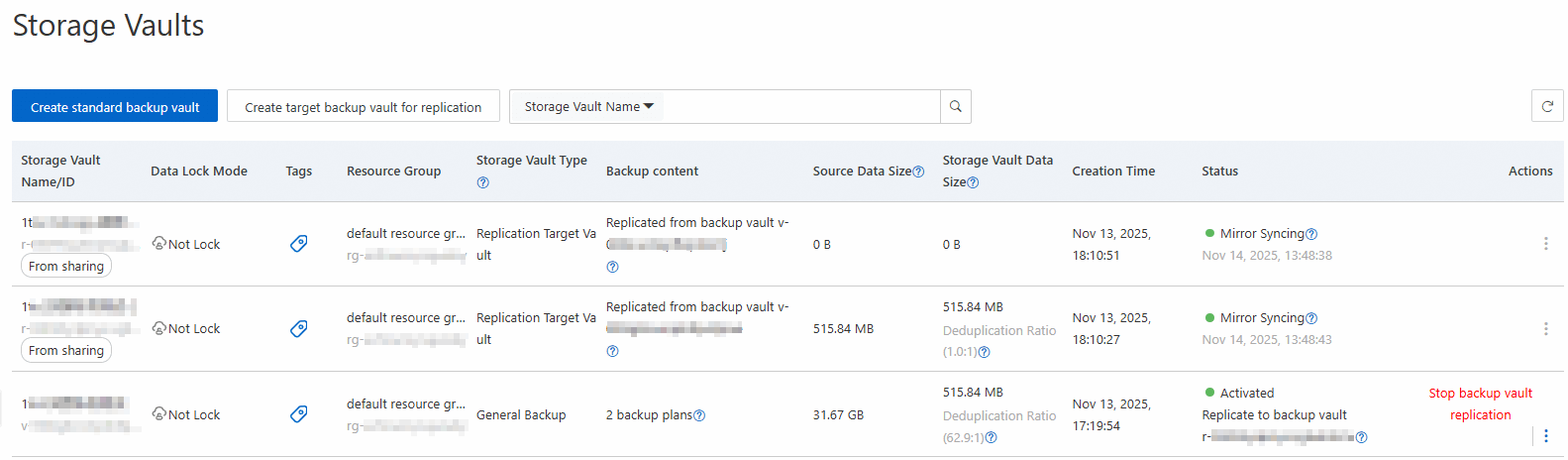
Create a storage vault
You can create general backup vaults and mirror backup vaults.
Create a general backup vault
-
On the Storage Vaults page, click Create General Backup Vault.
-
In the Create General Backup Vault panel, configure the following parameters.
Parameter
Description
Vault Name
Enter a name for the general backup vault.
Vault description
Enter a description for the general backup vault.
Vault Resource Group
Select the resource group to which the general backup vault belongs.
Vault Encryption Method
By default, Cloud Backup-managed encryption uses the service's built-in encryption method.
ImportantIf you use KMS encryption, do not delete or disable the KMS key. Otherwise, you cannot back up data to or restore data from the backup vault.
To use a customer-managed key from Alibaba Cloud Key Management Service (KMS) for encryption, click KMS and select a KMS Key ID. You can select the Use KMS Alias checkbox to identify the key by its alias. For more information, see Select a KMS key.
Important-
After you encrypt a backup vault with a KMS key, you cannot change the KMS key.
-
To encrypt a backup vault with a KMS key, you must first create a KMS key in Key Management Service (KMS). For more information, see Create a CMK.
-
-
Click OK.
Create a mirror backup vault
-
On the Storage Vaults page, click Create Replication Target Vault.
-
In the Create Replication Target Vault panel, configure the parameters.
Parameter
Description
Target Region
Select the region for the mirror backup vault based on your cross-region backup scenario.
-
Cross-region replication: The target region must be different from the region of the source backup vault.
-
Cross-account replication (same region): The target region must be the same as the region of the source backup vault.
-
Cross-account and cross-region replication: The target region must be different from the region of the source backup vault.
Vault Name
Enter a name for the mirror backup vault.
Vault description
Enter a description for the mirror backup vault.
Vault Resource Group
Select the resource group to which the mirror backup vault belongs.
Vault Encryption Method
ImportantThe mirror backup vault must use the same encryption method as the source vault.
Select an encryption method for the mirror backup vault. By default, Cloud Backup-managed encryption is used, which relies on the built-in encryption method of the backup service.
ImportantIf you use KMS encryption, do not delete or disable the KMS key. Otherwise, you cannot back up data to or restore data from the backup vault.
To use a customer-managed key from Alibaba Cloud KMS for encryption, click KMS and select a KMS Key ID. You can select the Use KMS Alias checkbox to identify the key by its alias. For more information, see Select a KMS key.
Important-
After you encrypt a backup vault with a KMS key, you cannot change the KMS key.
-
To encrypt a backup vault with a KMS key, you must first create a KMS key in Key Management Service (KMS). For more information, see Create a CMK.
-
-
Click OK.
Work with tags
Add tags to a storage vault
Tags help you categorize and manage your storage vaults. You can use tags to label storage vaults that share the same purpose, owner, or business attributes. This practice simplifies searching and bulk operations.
You can add different tags to different storage vaults. For example, in team or project management, you can tag vaults by project or department, such as project:a, to group them. By filtering by tags, you can quickly find and manage a set of storage vaults, improving management efficiency.
Usage notes
-
Each tag consists of a key-value pair.
-
A tag key must be unique per client.
For example, if a client is tagged with
company:a, and you later add the tagcompany:b, the original tag is automatically overwritten bycompany:b. -
Tags are specific to a region. For example, a tag created in the China (Hangzhou) region is not visible in the China (Shanghai) region.
Limitations
|
Item |
Limit |
|
Maximum length of a key |
128 characters |
|
Maximum length of a value |
128 characters |
|
Maximum number of tags per resource |
20 |
|
Key requirements |
|
|
Value requirements |
Cannot contain |
-
On the Storage Vaults page, click the
 icon in the Tags column for the target storage vault.
 -
In the dialog box, click Edit.
-
Enter a key-value pair in the Key and Value fields, and then click Save.
To add multiple tags, click Add a Row.
Search for storage vaults by using tags
On the Storage Vaults page, select Tags from the search filter drop-down list, enter the tag information, and then click the  search icon.
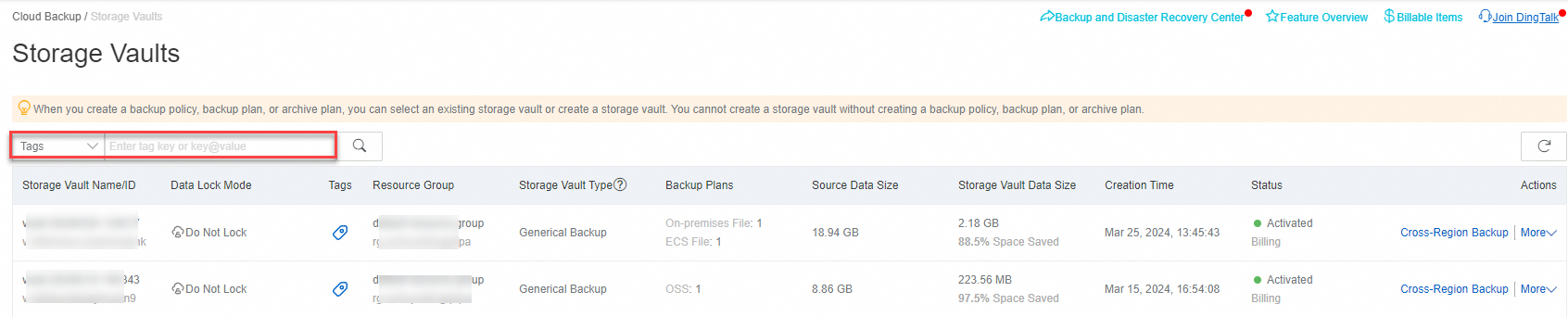
You can search for a resource by using a key, as shown in the following example:
aaaYou can search for a resource by using a key-value pair, as shown in the following example:
aaa:bbbYou can search for a resource by using multiple key-value pairs, as shown in the following example:
aaa:bbb,ccc:ddd
Use backup vault replication
Configure backup vault replication
You cannot configure backup vault replication for archive vaults or mirror backup vaults.
For disaster recovery, you can create a mirror backup vault for a source backup vault. Data from the source vault is automatically synchronized to the mirror backup vault to enable cross-region and cross-account backups. For more information, see Cross-region backup and Cross-account replication for backup vaults.
Stop backup vault replication
Stopping backup vault replication is an irreversible action. Proceed with caution. The unlinked mirror backup vault can be used only for data recovery or deletion.
Go to the region of the source backup vault. In the Actions column for the source backup vault, click Stop Vault Replication and confirm the operation.
After replication is stopped, new data in the source backup vault is no longer replicated to the mirror backup vault. The data that has been replicated to the mirror backup vault can still be used for recovery.
Configure a backup vault
Enable search and immutable backup
In the Actions column for the backup vault, choose ⋮ > Modify Backup Vault to configure the vault name and enable features such as search and immutable backup.
-
The backup search and immutable backup features are available only for backup vaults for which the Storage Vault Type is General Backup. After you enable these features, you cannot disable them.
-
After you enable immutable backup, the backup vault and the backups within it cannot be modified or deleted during the retention period. For more information, see Immutable backup.
-
Enabling immutable backup does not affect normal backup and restore operations.
Set a retention period for database vaults
-
This operation applies only to backup vaults whose Storage Vault Type is Database Backup. The backup data is automatically deleted after the specified retention period expires.
-
For archive vaults, the retention period can be set only when you create an archive plan and cannot be modified later.
Hover over the ┇ icon in the Actions column for the database backup vault and select Set Retention Period. You can set a specific retention period or retain backups permanently.
-
A value of 0 indicates that backups are retained permanently.
-
Changes to the retention period apply to existing backups. The changes can take up to 24 hours to take effect.
-
Incremental, cumulative incremental, and log backups depend on a complete preceding backup chain. This chain must include the initial full backup and all subsequent incremental, cumulative incremental, or log backups. In a backup chain that includes full, incremental, cumulative incremental, or log backups, the entire backup chain is retained in the database backup vault until the last backup in the chain expires, which consumes storage space.
Configure permissions for a backup vault
-
Hover over the ┇ icon in the Actions column for the backup vault and select Modify Backup Vault.
-
Grant a RAM user permissions to perform only backup and restore operations on this backup vault.
-
In the Cloud Backup console, click the
 icon to copy the policy template. Then, go to the RAM console to create a custom policy and attach it to the target RAM user.
Configure an archive vault
Enable immutable archive
Hover over the ┇ icon in the Actions column for the archive vault and select Configure Archive Vault. You can then configure the vault name and enable immutable archive.
-
The immutable archive feature applies only to archive vaults (where the Storage Vault Type is Archive). After this feature is enabled, it cannot be disabled.
-
After you enable immutable archive, the archive vault and all archived data within it cannot be modified or deleted during the retention period. For more information, see Immutable backup.
-
Enabling immutable archive does not affect normal archiving operations.
Configure permissions for an archive vault
-
Hover over the ┇ icon in the Actions column for the archive vault and select Configure Archive Vault.
-
Grant a RAM user permissions to perform only archive and retrieval operations on this archive vault.
-
In the Cloud Backup console, click the
 icon to copy the policy template. Then, go to the RAM console to create a custom policy and attach it to the target RAM user.
Configure alerts for a storage vault
By default, Cloud Backup emails alert notifications to the message recipients for your primary account when a backup job fails or a client is disconnected from the server. You can configure alert settings for a storage vault to disable notifications or specify custom recipients.
Hover over the ┇ icon in the Actions column for the storage vault and select Alert Settings. The following options are available:
-
Disabled: No alert notifications are sent.
-
Notify Alibaba Cloud Account: Alert notifications for this storage vault are sent by email to the message recipients of your Alibaba Cloud primary account by default.
-
Custom: Select one or more contacts or contact groups. Alert notifications for this storage vault are then sent to the selected recipients.
Use resource sharing
Only mirror backup vaults that belong to your account can be shared. After a mirror backup vault is shared, the recipient account can use it only for backup vault replication. Other operations are not supported.
Share a mirror backup vault
To use cross-account replication for a backup vault, you must use Resource Directory and Resource Sharing to share a mirror backup vault with another account.
Modify shared resource principals
You can also modify a resource share in the Resource Sharing console.
-
On the Storage Vaults page, hover over the ┇ icon in the Actions column for the archive vault and select Resource Sharing.
-
In the panel that appears, click Edit in the Resource Principals section.
-
Click Add Resource Principals.
-
In the Add Resource Principals dialog box, select a Principal Type, set the Principal ID, and then click OK.
Delete a storage vault
Deleting a storage vault permanently removes all its backup and archived data. This action cannot be undone. Proceed with caution.
Hover over the ┇ icon in the Actions column for the storage vault and select Delete. In the confirmation dialog box that appears, confirm the deletion.