SAP HANA backup FAQ
This topic answers common questions about backing up SAP HANA with Cloud Backup and provides solutions.
Overview
You can use Cloud Backup to manage backup services for your SAP systems on Alibaba Cloud.
Cloud Backup is SAP HANA Backint-certified and compatible with SAP HANA 1.0 and 2.0. You can use the backup client to back up SAP HANA instances that are deployed on ECS instances and restore databases as needed. For more information, see SAP HANA feature overview.
Cloud Backup provides simple, native data protection for various data types on Alibaba Cloud, including ECS files, Oracle and MS SQL Server databases, NAS services, and OSS data. For more information, see What is Cloud Backup.
Scope
SAP HANA instances deployed on Alibaba Cloud ECS.
Backint supports Multitenant Database Containers (MDC) for SAP HANA 1.0 SPS 09 (Revision 94) and later, and SAP HANA 2.0 SPS 01 and later. SAP HANA 1.0 in single-container mode is not supported.
Check client status and logs
After you register the instance in the Cloud Backup console, its status changes to Registered.
Default log path: /opt/alibabacloud/hbrclient/logs
Run ps axu|grep hybrid to check the backup client status. If process information is returned, the client is running properly.
root     11472  0.0  0.0   9288  1552 pts/2    S+   16:11   0:00 grep --color=auto hybrid
root     30480  0.0  0.2  56296 17028 ?        Ssl  13:26   0:04 /opt/alibabacloud/hbr/client/hybridbackup -p 0
Troubleshoot initialization failures
Symptom
After you register an SAP HANA instance in the Cloud Backup console, the instance status shows "Initialization Failed".
Troubleshooting
Check
/opt/alibabacloud/hbr/logs/hybridbackup.logand the Backint logs in/usr/sap/{SID}/SYS/global/hdb/logs/to identify the error.
Backup log paths
HANA database backup client logs: /opt/alibabacloud/hbr/logs
HANA database Backint logs: /usr/sap/{SID}/SYS/global/hdb/logs/
HANA database backup logs: /usr/sap/{SID}/HDB{InstanceNumber}/{hostname}/trace/DB_{DBNAME}/backup.log
SAP HANA automatically manages and stores log records. You can use SAP HANA Studio or other related tools to run the following SQL statement to retrieve the content of these log backups.
select CAT.* from SYS_DATABASES.M_BACKUP_CATALOG CAT JOIN SYS_DATABASES.M_BACKUP_CATALOG_FILES FILS on CAT.BACKUP_ID = FILS.BACKUP_ID where CAT.entry_type_name = 'log backup' and CAT.state_name = 'successful' and FILS.DESTINATION_TYPE_NAME = 'backint' and CAT.database_name = 'SYSTEMDB' order by sys_end_timeFix "Multiple opt paths found" error
Log on to the target ECS instance.
Rename the
/usr/sap/<SID>/SYS/global/hdb/optdirectory of the SAP HANA instance that you do not want to back up to/usr/sap/<SID>/SYS/global/hdb/opt_backup.Return to the Cloud Backup console and reinstall the backup client for the SAP HANA instance.
Resolve connection failures during restore
If you cannot connect to the database when creating a restore job to the source instance, do the following:
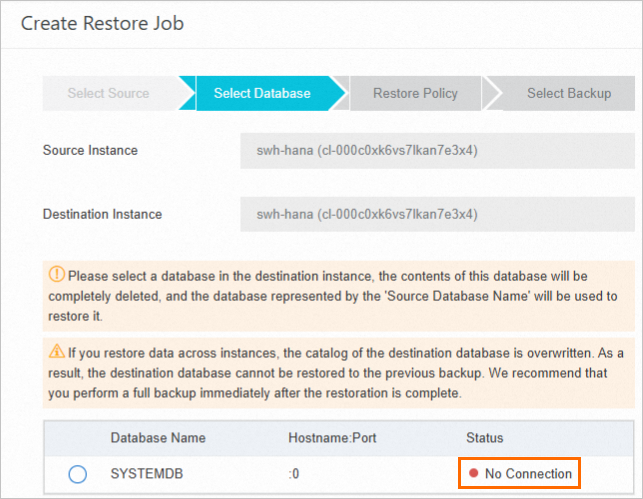
Check whether the HANA database is started.
Check whether the SSL certificate has expired. If so, choose one of the following options:
Replace the certificate.
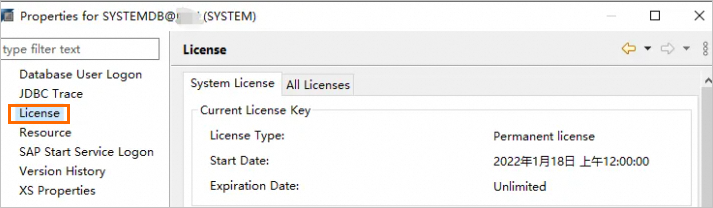
In the console, configure the system to skip SSL certificate verification.
Resolve data retrieval failures during restore
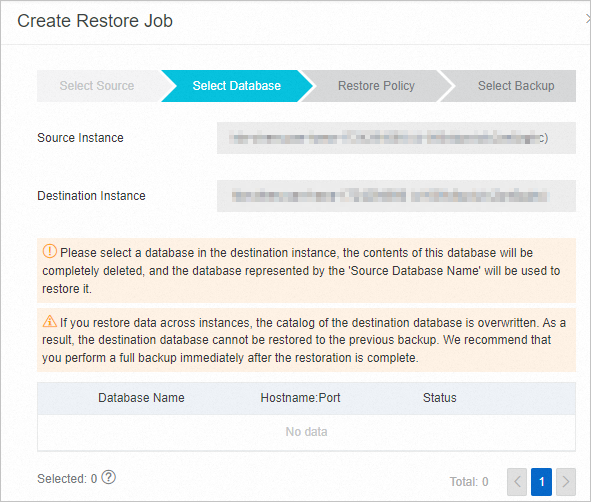
When creating a restore job to the source instance, if no backup data is available, check whether the backup client is running correctly.
Troubleshoot missing backup records
Symptom
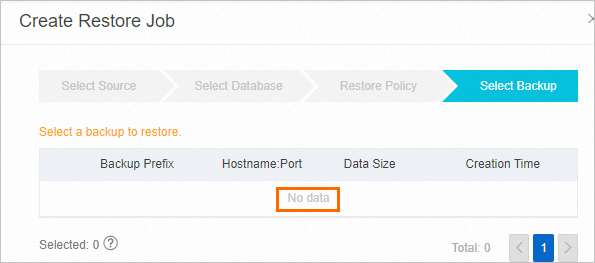
When you create a restore job after you reinstall the operating system, roll back a snapshot for an ECS instance, or reinstall an SAP HANA database, you may not find any backup records.
Root cause
When you restore data to the source instance, the Cloud Backup service searches for backup records in the preconfigured SAP HANA backup path. If you reinstall the operating system, roll back a snapshot for the ECS instance, or reinstall the SAP HANA database, these actions may clear the stored HANA backup records.
Solution
If you enabled Use Backint for Catalog Backup before the backup, you can restore the data. Procedure:
Go to the source SAP HANA instance and delete the ECS instance node.

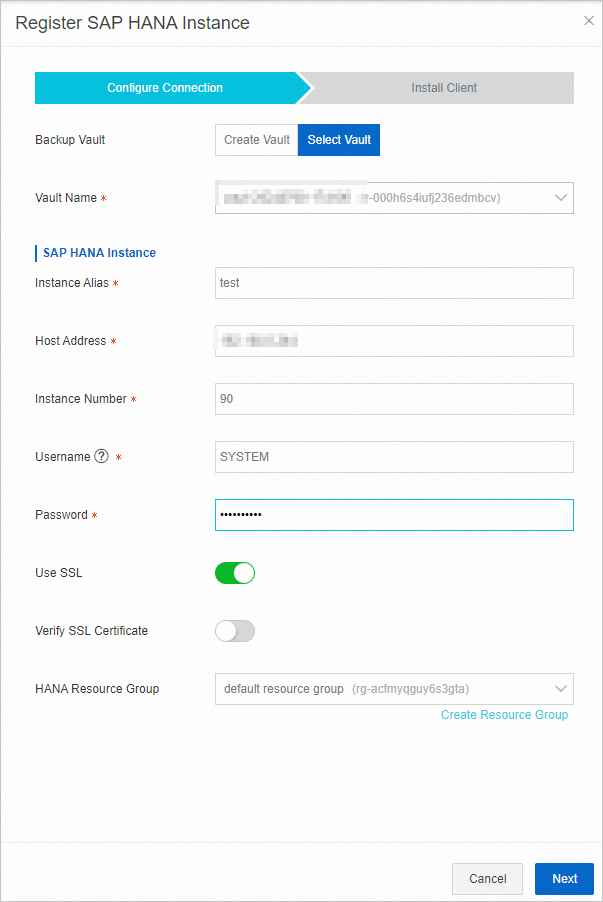
Register the new HANA instance with the same parameters as the previous instance. Install the backup client and add the deleted ECS instance node.

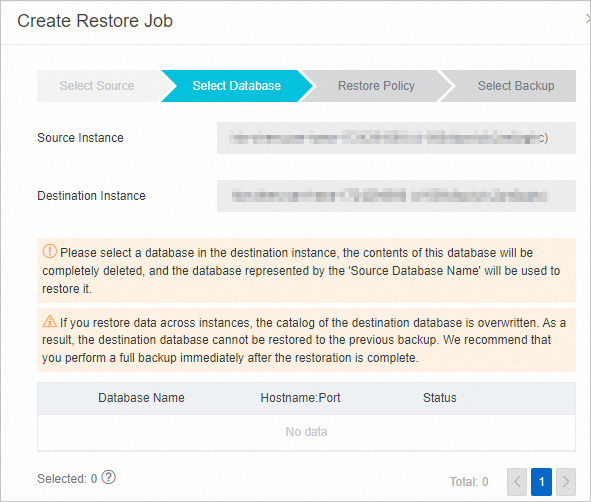
Create a restore job. Select the newly registered HANA instance to initiate a cross-instance restore from the source instance.
After you confirm that the restore is complete and the backup data of the source instance is no longer needed, you can delete the source instance. If you did not enable Use Backint for Catalog Backup during the backup, you cannot find the backup records, but the backup data still exists. To restore this data, see Restore an SAP HANA database by using a prefix.

Resolve SQL execution failures
The HANA log space may be full, which can cause SQL execution failures. Clear the disk space and try again.
Manually delete backup records
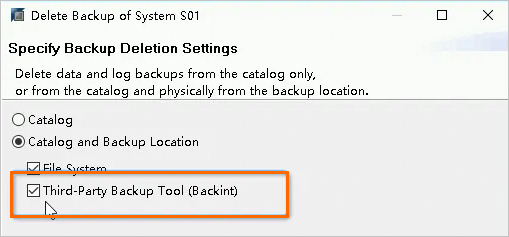
You cannot manually delete SAP HANA backup data from Cloud Backup. To delete the records early, use SAP HANA Studio and select the option shown in the following figure.
The instance is activated, but the database page shows an internal error
If an error appears on the SAP HANA backup page in the Cloud Backup console, check the HANA license. Connect to SYSTEMDB and run the following SQL statement to verify that all databases have a valid license. An empty result indicates that a database is missing a license.
SELECT * FROM M_LICENSEFor more information, see https://launchpad.support.sap.com/#/notes/2619291.
Common backup failures and solutions
During an SAP HANA backup, the backup client connects to the HANA instance and sends a SQL statement to start the backup job. After the SQL statement is executed, the client queries HANA for the backup progress and final status. When a backup fails, error details are recorded in the client logs. Use the job timestamp and log entries to troubleshoot the issue. The following are common errors:
If the /opt/alibabacloud/hbr/logs/hybridbackup.log file contains the following error message, the local time differs significantly from the server time. Adjust the local time or, preferably, enable Network Time Protocol (NTP) synchronization.
time="2021-11-04T16:24:17+08:00" level=info msg="InvalidTimeStamp.Expired retry, retryDelay: 5000 ms, retry times: 14" file=client.go line=377If backup jobs fail or are automatically canceled, and the backup.log file shows a "No space left on device" error, the local disk is full. Free up space and retry the backup.
If the /opt/alibabacloud/hbr/logs/hybridbackup.log file contains the following error message and the console shows no errors, another scheduled backup job may be conflicting with the SAP HANA backup job.
time="2021-08-29T01:10:00+08:00" level=error msg="Execute hana backup failed : hbr: client returned error: ErrorCode=HanaSqlError, ErrorMessage=SQL Error 447 - backup could not be completed: [110122] A data backup cannot be created because another data backup is running or a storage snapshot has been prepared., Data=, values=map[]" file=hanabackupjob.go line=98If an unexpected backup failure or an unexecuted job alert occurs and no completed backup record appears in the backup history, an MQTT request timeout may be the cause. Check the logs in /opt/alibabacloud/hbr/logs/hybridbackup.log at the corresponding time.
If the /opt/alibabacloud/hbr/logs/hybridbackup.log file contains the following error message, the password may have expired and must be updated.
time="2023-11-26T00:00:08+08:00" level=error msg="SAP Error: SQL Error 447 - backup could not be completed: [110203] Not all data could be written: Expected 4096 but transferred 0, [110507] Backint exited with exit code 1 instead of 0. console output: Internal Error: The user account is in unknown status. " file=errorwrapper.go line=28If the /opt/alibabacloud/hbr/logs/hybridbackup.log file contains the following error message, the server may have rejected the request due to an inaccurate timestamp.
time="2024-06-23T01:36:46+08:00" level=error msg="HBR DescribeUserBusinessStatus returns hbr: service returned error: StatusCode=400, Code=InvalidSecurityToken.Expired, Message=Specified SecurityToken is expired., RequestId=A6CDF56F-CA56-53E8-9342-24E19F768D40" file=client.go line=428Use one of the following methods to check the timestamp:
Run the following command and check the System Time in the output. This value indicates the difference between the current system time and the NTP time. If the deviation is within a few milliseconds, the timestamp is normal.
sudo chronyc trackingRun the following command and check the offset in the output. This value indicates the difference between the current system time and the NTP time. If the deviation is within a few milliseconds, the timestamp is normal.
ntpd -q
If no failure record exists in the console and the /opt/alibabacloud/hbr/logs/hybridbackup.log file contains the following error message:
SQL Error 447 - backup could not be completed: [110122] A data backup cannot be created because another data backup is running or a storage snapshot has been prepared.Check the following items:
Check whether other backup software is running HANA backups at the same time.
Ensure that data is backed up before you restart the HANA instance. For more information, see SAP HANA Knowledge Base.
If the /opt/alibabacloud/hbr/logs/hybridbackup.log file contains the following error message:
[447] backup could not be completed, [1000002] Allocation failed ; $size$=16777216; $name$=DataPage; $type$=pool; $inuse_count$=6; $allocated_size$=17104896; $failure_type$=GLOBAL_ALLOCATION_LIMIT; $failure_flag$= (early exit)And the console shows a failure record.
This issue is typically caused by SAP HANA being unable to allocate more memory (OOM). For more information, see SAP HANA backup failing due to out of memory.
For a solution, see SAP HANA Solution.
For causes of OOM, see SAP HANA Support.
If the /opt/alibabacloud/hbr/logs/hybridbackup.log file contains the following error message:
"SQL Error 3584 - distributed SQL error: [2617] executor: plan operation execution failed with an exception.exception:exception 30160: Failed to read password from key store. $name=$M_BACKUP_CONFIGURATION. $col=$IS_ROOT_KEY_BACKUP_PASSWORD_SET. $ci=$23\n,Exception in executor plan00468@$spdr-db:31001 while executing pop 1, Data=[], values=[]map[]"And the status of the backup job in the console is "Failed".
This error indicates that the SAP HANA system returned SQL error code 3584 when the backup SQL statement was run. The error occurred when the system read a password from the keystore. This usually indicates an issue with an SAP HANA component. Contact your SAP HANA administrator or vendor for help.
If the /opt/alibabacloud/hbr/logs/hybridbackup.log file contains the
InstanceRAMRoleNotFounderror or the following error message:Failed to get client credential from instance RAM role. hbr: client returned error: ErrorCode=InstanceRAMRoleNotFound, ErrorMessage=InstanceRAMRoleNotFoundAnd the restore job in the console remains in the Running state and cannot be stopped.
This error indicates that the AliyunECSAccessingHBRRole role on the ECS instance is revoked. Log on to the ECS console, reattach this role, and restart the backup client. For more information, see Why is the AliyunECSAccessingHBRRole role attached to an ECS instance, and can it be revoked?


The AliyunECSAccessingHBRRole role
To ensure that SAP HANA backups run as expected, you must install the backup client on the ECS instance that runs SAP HANA. The client relies on the AliyunECSAccessingHBRRole role to obtain a security token and communicate with the server. If this role is revoked, backup and restore operations fail. To ensure backups run as expected, do the following:
Log on to the ECS console to reattach the AliyunECSAccessingHBRRole role. For more information, see instance RAM role.
Run the
systemctl restart hybridbackupcommand to restart the backup client, or uninstall and reinstall the client.
Resolving errors when viewing backup jobs
Symptom
When viewing a backup job, the following error appears.
The /opt/alibabacloud/hbr/logs/hybridbackup.log file contains the following error message:
time="2023-12-01T14:38:23+08:00" level=error msg="prepare stmt SELECT count(*) FROM sys_databases.M_BACKUP_PROGRESS error : SQL Error 437 - only commands for license handling are allowed in current state" file=db.go line=220Solution
Because HANA 2.0 requires license registration, you must use multi-user mode.
Resolve restore job failures
Symptom: A restore job fails if you perform a restore to an earlier point in time, and then attempt another point-in-time restore to a later point in time.
Solution: When performing consecutive restores, we recommend specifying a backup point instead of a time.
Back up on-premises SAP HANA instances
No. However, you can first back up SAP HANA to local storage, and then back up the data as files to Cloud Backup. For more information, see Back up on-premises files.
Storage for SAP HANA backup
No. Cloud Backup directly calls the backup API of SAP HANA through Backint. Backup data is piped to Cloud Backup's backend storage and does not use storage space on the SAP HANA ECS instance. You do not need to purchase other cloud storage products.
Back up single-container instances
No. The SAP HANA backup feature in the Cloud Backup console uses the Backint interface. You have two options:
Solution 1: Back up SAP HANA to the cloud disks of the ECS instance and use the on-premises file backup feature of Cloud Backup. For more information, see Back up on-premises files.
Solution 2: Convert SAP HANA from single-container mode to multi-container mode. For more information, see the official SAP documentation or consult your SAP partner.
Use different backup vaults for different environments
Yes. When you register an SAP HANA instance in the Cloud Backup console, you can create a backup vault or select an existing one. The following restore methods are supported:
Cross-region and cross-account backups
Yes, both cross-region backup and cross-account backup are supported.
Cross-region backup: This is implemented by using the cross-region backup feature.
Cross-account backup: This is implemented by using the cross-account backup vault replication or cross-account backup feature.
Configuration considerations
If your SAP HANA is deployed in a high-availability architecture, use the HAVIP as the host address when you register the SAP HANA instance. This ensures that backup jobs run as expected after a cluster failover.
By default, the option to back up SAP HANA logs and catalogs by using Backint is not enabled. You must manually enable this option for both the System DB and each Tenant DB to ensure that databases can be restored properly.
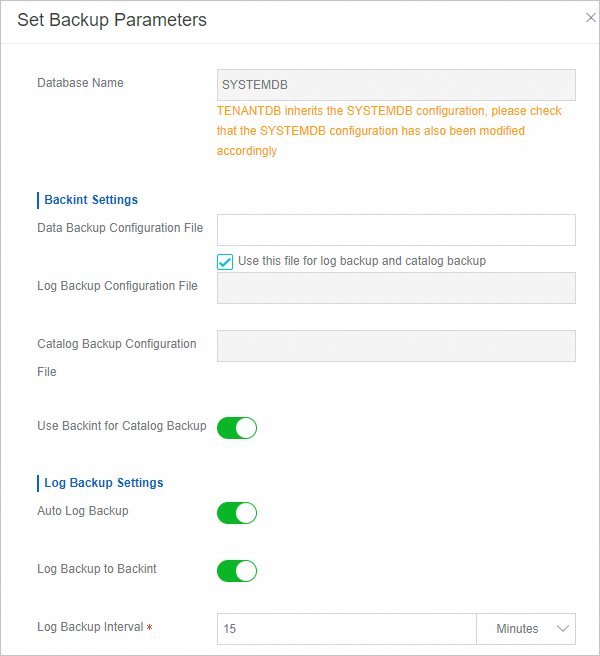
A Tenant DB inherits parameter settings from the System DB. Check the settings for each database to ensure they are configured correctly.
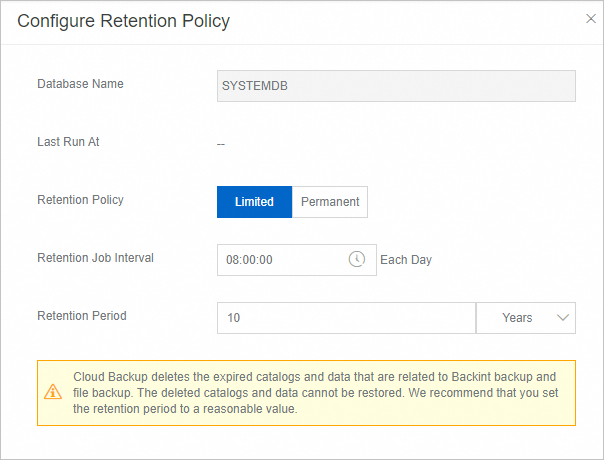
Set the backup retention period
Log on to the Cloud Backup console and select the instance.
On the Database tab, select a System DB or Tenant DB, and then click More > Configure Retention Policy.
The default backup retention period is Permanent. You can change this setting based on your business requirements.
Parameter
Description
Retention policy
Limited
If you select this option, you can customize the daily retention job execution time and the backup retention period.
Permanent
If you select this option, Cloud Backup permanently retains your backup data.
Retention job execution time
This parameter is required only when you set Retention policy to Limited. Select the time to run the retention job every day. The time is accurate to the second.
NoteWe recommend running this job during off-peak hours to avoid conflicts with backups or other services.
Backup retention period
This parameter is required only when you set Retention policy to Limited. Select the retention period for backup data.
Unit: day, week, month, or year. The minimum retention period is 1 day and the maximum retention period is 10 years.
NoteAfter the backup retention period of SAP HANA expires, the backup service automatically deletes expired Backint backups, catalog records related to file backups, and data. This data cannot be recovered after deletion. Set the backup retention period carefully based on your business needs.
Changes to the retention period apply to existing backups. The data retention job runs once a day, but backup vault statistics are updated with a 12-to-24-hour delay. As a result, it may take up to three days for changes to the source data volume to appear. For large adjustments, such as from two years to two months, the process of reducing the stored data volume may take longer.


Failure alerts for successful backups
Symptom
You receive an SMS message or email alert that contains the following information: "The backup of database XXX in your SAP HANA instance XXX (Instance ID: cl-xxxxxxxx) has failed. Backup ID: 0. Log on to the console to view and fix the issue." However, when you log on to the Cloud Backup console, the backup record is displayed as Completed and no exception is reported.
Cause
This can happen if other backup software is running simultaneously or if there is an issue with SAP HANA. You can check the log file in the
/opt/alibabacloud/hbrclient/logs/hybridbackup.logpath for a log entry similar to the following around the time of the alert:time="2024-08-29T01:35:01+08:00" level=error msg="Execute sql `BACKUP DATA FOR PRD USING BACKINT ('/usr/sap/XXX/SYS/global/hdb/backint/DB_HHH/COMPLETE_DATA_BACKUP_2024_08_29_01_30') ASYNCHRONOUS` failed : SQL Error 447 - backup could not be completed: [110122] A data backup cannot be created because another data backup is running or a storage snapshot has been prepared." file=db.go line=163 time="2024-08-29T01:35:01+08:00" level=error msg="SAP Error: SQL Error 447 - backup could not be completed: [110122] A data backup cannot be created because another data backup is running or a storage snapshot has been prepared." file=errorwrapper.go line=28This error indicates that the Cloud Backup client connected to SAP HANA and executed a backup SQL statement, but SAP HANA returned error code 447. The backup triggered by this command may still execute successfully in the SAP HANA background. For more information, see the SAP HANA official documentation.
Solution
If this is an isolated incident and the backup jobs page confirms the backup was successful, you can ignore the alert. If the issue persists, restart the HANA instance during off-peak hours. Before restarting, ensure your services will not be affected.
Alert time mismatch
SMS alerts have a nighttime suppression feature. Alerts triggered between 20:00 and 08:00 are sent after 08:00 the next morning. Email alerts do not have this restriction and are sent immediately.
Abnormal increase in source data volume
Cause
Cloud Backup periodically queries the SAP HANA database for all historical Backint backup records, including those from other backup software that have not been deleted. The resulting source data volume statistics do not affect billing. You are billed only for the storage your backups occupy in the backup vault.
Solution
You can run SQL statements in the HANA database to delete unneeded backup records that were not created by Cloud Backup. Before deleting, confirm that the records are no longer required.
Duplicate database names during restore

When you create an SAP HANA restore job, if you find multiple databases that have the same name but different services when you select a database, you can select any one of them for the restore.
Migrate an instance to a new vault
This example shows how to migrate two HANA instances, e1 and e2, from an old backup vault (v1) to a new one (v2).
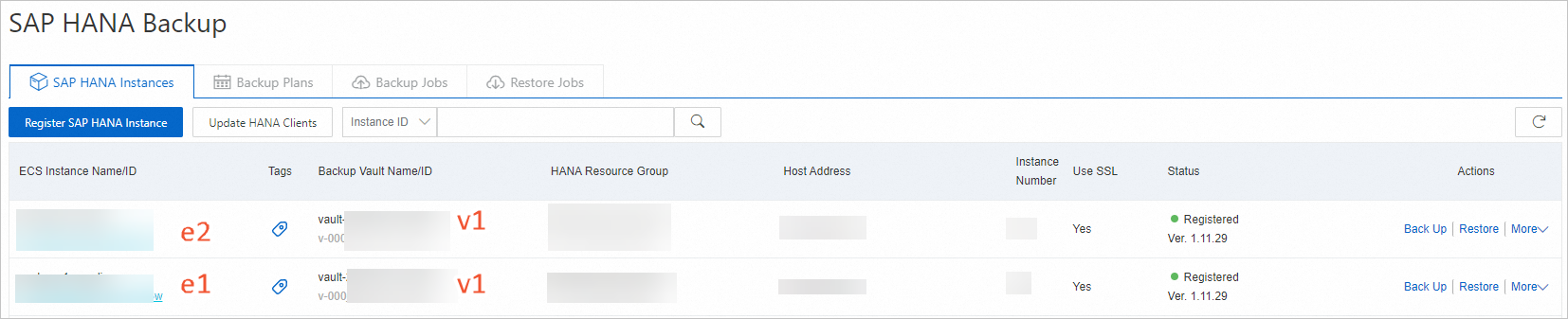
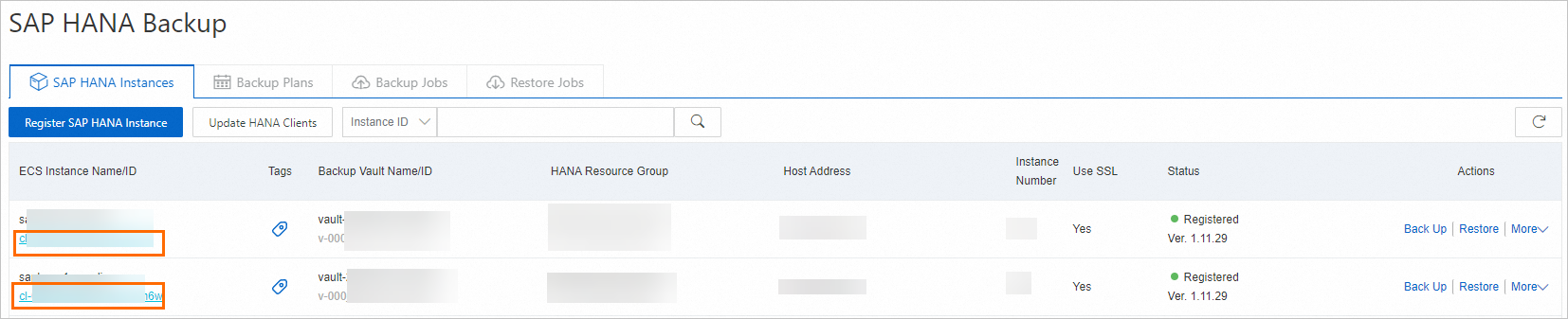
Remove the HANA nodes from the old backup vault.
ImportantConfirm you no longer need the original instance's backup data before proceeding. Deleting an instance also deletes all existing backup data.
This step removes e1 and e2 from the node list of the old backup vault to prepare for adding them to the new backup vault v2. Procedure:
Click the instance ID to go to the node information page.
On the node information page, delete the corresponding node.
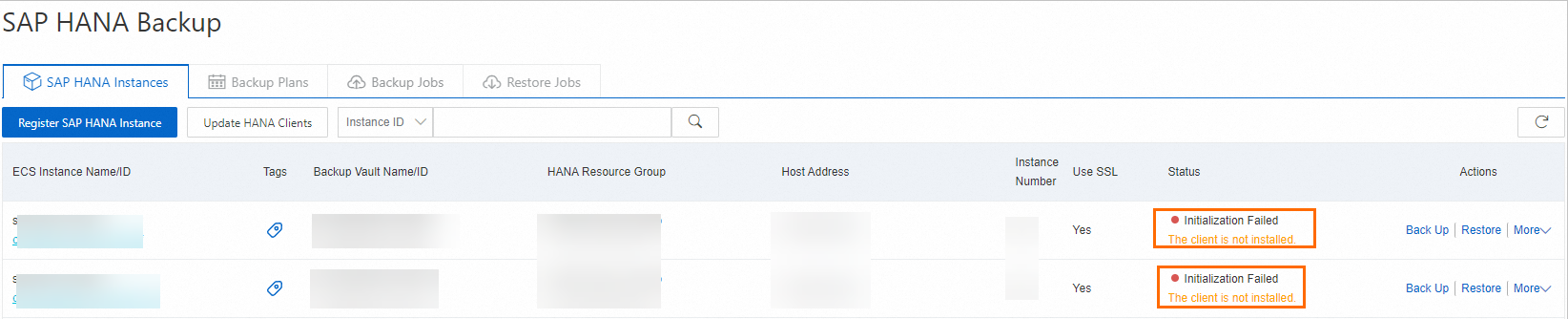
After the deletion, the Status of HANA instances e1 and e2 changes to "Initialization Failed".
Migrate the HANA nodes to the new backup vault.
The following procedure uses HANA instance e1 as an example. Repeat the same steps for e2, substituting its information where applicable.
Click Register HANA Instance.
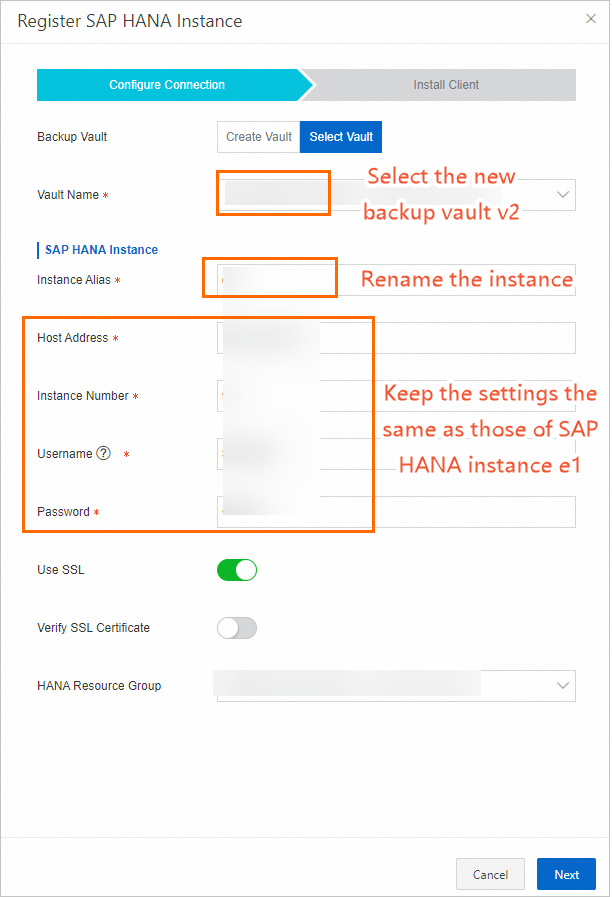
In the Register HANA Instance panel, configure the connection information for the SAP HANA instance and install the client.
On the Configure Connection page, select the new backup vault v2 as the backup vault and rename the new HANA instance. Use the same Host, Instance Number, Username, and Password as the original e1 instance. Complete the remaining configurations and click Next.
On the Install Client page, select the HANA instance e1 and click Create.
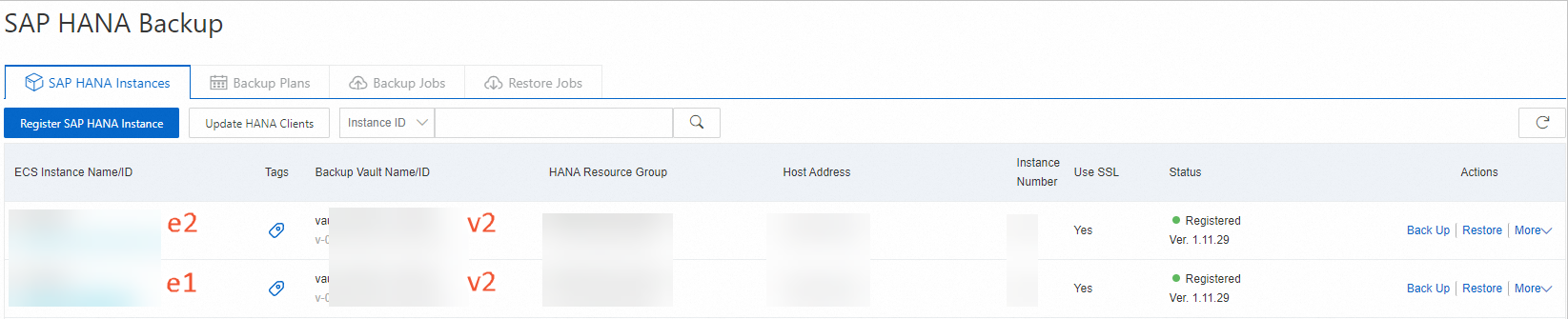
After you complete the configurations for both HANA instances e1 and e2, the new backup vault v2 displays the information shown in the following figure. Verify that the information for the two new HANA instances is correct. Click the ID of each instance to view its details page, confirm that the node information is correct, and ensure that the database connection is successful.
After confirming the configuration, immediately perform a full backup. This ensures you have at least one complete recovery point in the new vault.
NoteYou cannot restore backup data from one backup vault to an instance associated with a different vault. Therefore, after the migration, you cannot restore data from the old vault to the new HANA instance.


Limit client CPU utilization
To limit the CPU usage of the backup client, create an hbr.config file in the /opt/alibabacloud/hbr/client/ directory and add the line cpu_max_procs=1. This setting limits each backup subprocess to one CPU core.