Attach ECS instances in CloudBox to CLB
Classic Load Balancer (CLB) is a traffic distribution service that distributes inbound traffic among multiple backend Elastic Compute Service (ECS) instances based on forwarding rules. CLB improves the availability and reliability of your applications and is ideal for services that receive large volumes of traffic. This topic describes how to create a CLB instance in a CloudBox and attach ECS instances in the CloudBox to the CLB instance to distribute and control traffic.
Background information
Alibaba Cloud Server Load Balancer is available in three types: Application Load Balancer (ALB), Network Load Balancer (NLB), and Classic Load Balancer (CLB). CloudBox supports only CLB. Note the following:
-
ALB, NLB, and CLB instances in the cloud cannot use ECS instances in a CloudBox as backend servers.
-
CLB instances in a CloudBox can use only ECS instances from the same CloudBox as backend servers. They cannot use ECS instances from other CloudBoxes or the cloud as backend servers.
This topic describes how to create a CLB instance in a CloudBox and add ECS instances from the CloudBox as backend servers. The network architecture is shown in the following figure.
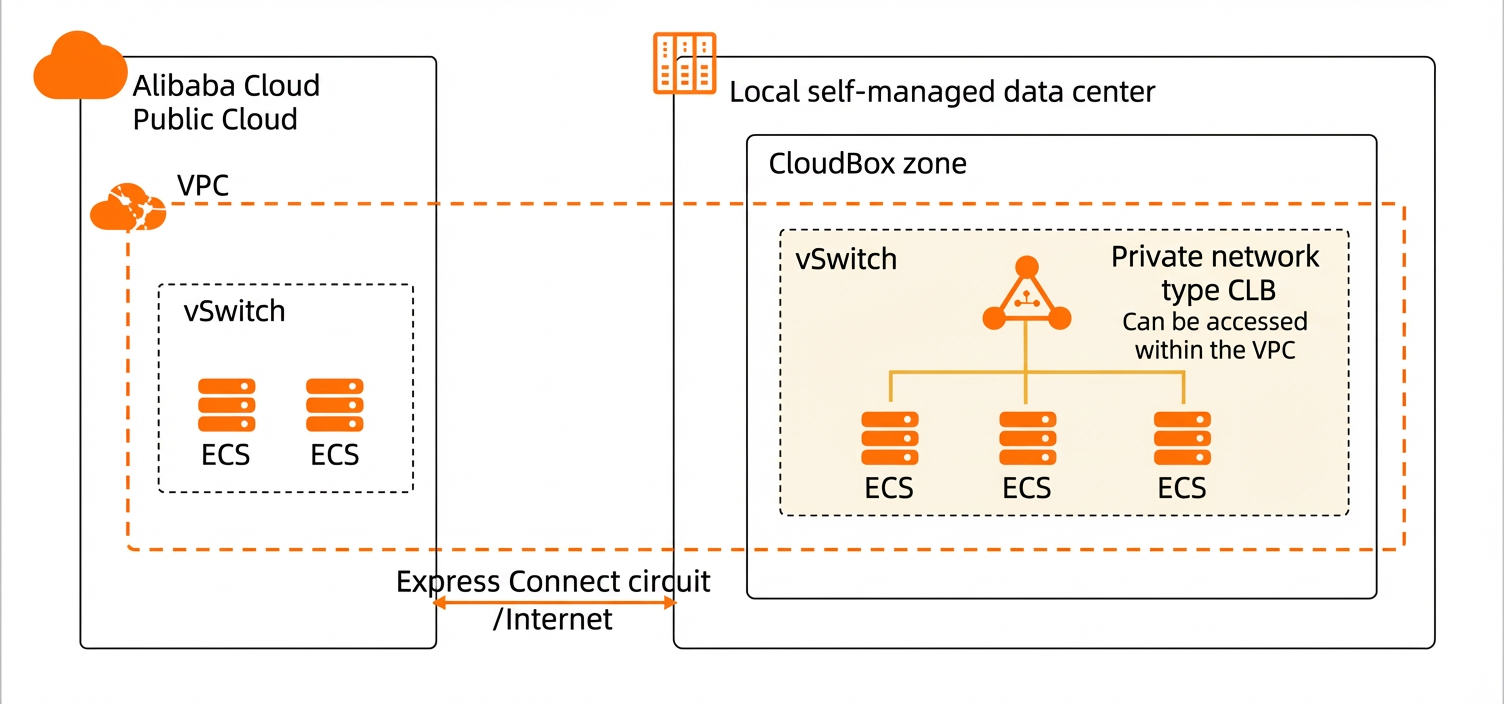
A CLB consists of three components: a CLB instance, backend servers, and a listener. To use the load balancing service, you must create a CLB instance and add at least one listener and at least two backend servers.
-
CLB instance: A running instance of the load balancing service that receives and distributes traffic to backend servers.
ImportantCLB instances in a CloudBox support only the private network type. To enable public network access, you must associate an Elastic IP Address (EIP) from the CloudBox with the instance. For more information, see Configure public network access for ECS instances in CloudBox.
-
Backend servers: A group of servers that receive and process incoming requests.
-
Listener: A listener listens for client requests and forwards them to backend servers. A listener is configured with settings such as the protocol, port, and scheduling algorithm.
For more information, see What is Classic Load Balancer?.
Prerequisites
You have created multiple ECS instances in a CloudBox and deployed your services on them.
-
To learn how to create an ECS instance in a CloudBox, see Procedure.
-
This topic uses static web pages deployed on ECS instances as an example. You can deploy other services based on your requirements.
Procedure
Create a CLB instance
A CLB instance is a running instance of the CLB service. Before you start, determine the required configuration of the CLB instance, such as its region, type, and billing method. For more information, see Preparations.
-
Log on to the Classic Load Balancer (CLB) console.
-
On the Manage Instance page, click Create CLB.
-
Configure the instance parameters and click Buy Now.
Note the following parameters. For more information, see Create an instance.
Parameter
Description
Region and Zone
Select the region and zone where the ECS instances in CloudBox are located.
CLB does not support cross-region deployment. Make sure the selected region is the same as the region of the ECS instances.
Instance Type
If you want to add an ECS instance in a CloudBox as a backend server, the CLB instance must be in the same VPC as the ECS instance, so you can only select Internal-facing.
NoteFor a private network CLB instance, the system assigns a private endpoint. The load balancing service can only be accessed over the internal network.
VPC
If you want to add ECS instances from CloudBox as backend servers, you must select the VPC and vSwitch to which the ECS instances belong.
-
Confirm the instance configuration, select the Terms of Service, and complete the payment.
-
Verify the status and IP address of the CLB instance.
When the status changes to Running, the CLB instance is successfully created. The IP address displayed is a private endpoint that is automatically assigned by the system.
Configure the CLB instance
After you create a CLB instance, you must configure it to forward traffic. This involves adding at least one listener and a group of backend servers, which are the ECS instances in your CloudBox.
-
On the Instances page, find the new CLB instance and click Configure Listener.
-
On the Protocol & Listener wizard page, configure the listener and click Next.
Configure the protocol type, port number, and other listener settings as needed. For more information, see CLB listeners. This topic uses the following example configurations:
-
Protocol: TCP
-
Listener Port: 80
-
Other settings: Use the default configurations.
-
-
On the Backend Servers wizard page, select a server type, add ECS instances, and then click Next.
This topic uses the Default Server Group. Click Add More and select the ECS instances in your CloudBox from the panel that appears.
ImportantWhen a CLB instance is in a CloudBox zone, you can add only ECS instances that are in the same CloudBox, are in the Running state, and are in the same VPC as the CLB instance.
-
After you add the ECS instances, configure the weight and backend port for each instance as needed.
-
Weight: A higher weight value indicates that more requests are forwarded to the corresponding server.
-
Port: The port on the backend ECS instance that is used to receive requests.
-
-
On the Health Check wizard page, use the default configurations and click Next.
After you enable health checks, if a backend ECS instance fails a health check, Server Load Balancer stops forwarding requests to it and distributes them among the other healthy ECS instances. When the failed instance passes the health check again, Server Load Balancer automatically resumes forwarding requests to it.
-
On the Configuration Review wizard page, confirm the configuration and click Submit.
-
Return to the Instances page and check the health check status of the ECS instances.
If the health check status is Healthy, the ECS instances are ready to process requests forwarded by the Server Load Balancer.
Result Verification
To test the load balancing service, access the private IP address of the CLB instance from within the VPC. For example, if you deployed a different static web page on each backend ECS instance, you can access the private IP address of the CLB instance multiple times from a browser. If a different web page is loaded with each attempt, the CLB instance is successfully forwarding traffic to different ECS instances.