Enable and use website acceleration
Website acceleration uses Alibaba Cloud DCDN (Dynamic Route for Content Delivery Network) to accelerate your entire site. Setup is fast and configuration is simplified. You do not need to change your existing business structure. Simply add your domain and configure DNS records on the Website Acceleration page in the Cloud Web Hosting Management Console to quickly enable website acceleration.
Prerequisites
- Register and complete identity verification for your domain name. You can register a domain name through Alibaba Cloud Domain Names or another domain registrar. Alibaba Cloud Domain Names is an integrated platform for domain registration, trading, monitoring, and protection. For more information, see Alibaba Cloud Domain Names.
- Complete ICP filing for your domain name. If your domain name provides Internet Information Services in the Chinese mainland, you must apply for ICP filing. For more filing information, see What is ICP filing.
Key features
The website acceleration feature for Cloud Web Hosting offers the following benefits:
-
Flexible and intelligent: Supports HTTP and HTTPS Layer 7 acceleration. It intelligently identifies static and dynamic resources and automatically applies the optimal acceleration strategy for full-site acceleration.
-
High availability: Built on a global network of over 2,800 edge nodes with elastic scalability to ensure high availability for your business.
-
Cost-effective: Offloads your computing power, bandwidth, and connections to DCDN edge nodes to reduce your IT costs.
Limits
Important notes
When enabling domain acceleration after purchasing a website acceleration package, note the following:
-
If your traffic or request quota runs out, you can purchase additional acceleration packages to restore service, but you must manually re-enable acceleration for each domain.
-
Website acceleration is bound to your host site. If the host site is released, the associated website acceleration service becomes unavailable—even if unused traffic or requests remain.
-
After adding a domain on the Website Acceleration page, you must configure CNAME records in the Alibaba Cloud DNS console using the provided CNAME address to ensure proper domain functionality.
-
If you manually enable or disable HTTPS for a domain on the Domain Binding page, the HTTPS setting for that domain on the Website Acceleration page will sync automatically.
-
If you delete a domain from the Domain Binding page, it is also removed from the Website Acceleration page, and acceleration stops for that domain.
-
If you change your host’s operating system or data center, you must reconfigure website acceleration. Remaining traffic and request quotas are preserved.
Procedure
(Optional) Step 1: Claim a free website acceleration package
Step 2: Purchase a website acceleration package
This example uses the Dedicated Standard Enhanced Edition. Each acceleration package includes 100 GB of traffic and 1 million requests. You can purchase up to 20 packages at a time.
- Log on to the Cloud Web Hosting management page.
-
On the Cloud Web Hosting page, find the Cloud Web Hosting instance for which you want to activate a website acceleration package, and select
 > Website Acceleration in the corresponding Actions column.
 -
On the Confirm Purchase page, set the number of packages to purchase and click Next.
ImportantPurchasing an acceleration package is a one-time transaction. Refunds are not supported after successful purchase.
-
After verifying your package details, click Submit.
- On the payment page, select a payment method and payment type, then click Pay.
-
On the Payment Successful page, click Go to Cloud Web Hosting Console.
-
On the Cloud Web Hosting page, find your instance and click Manage in the Actions column.
-
In the navigation pane on the left, choose to view your purchased package.
On the Website Acceleration page, you can see that your activated website acceleration package (Available Traffic and Available Request Count) is active.
NoteTraffic and request data update hourly. Available requests include HTTP static, HTTPS dynamic, and static accesses.
Step 3: Configure domain acceleration for your website
Each Cloud Web Hosting instance supports acceleration for up to three domains. For more information, see Limits.
-
On the Website Acceleration page, click Add Domain.
-
On the Bind Domain page, select your origin domain and click Confirm.
The origin domain is selected from your already-bound domains in Cloud Web Hosting. Only domains with completed ICP filing can be accelerated.
NoteDomain acceleration configuration takes about 10 minutes. Please wait patiently.
After configuration, the Acceleration Status column shows Accelerating, and the CNAME Configuration Status column shows Waiting for Configuration, indicating that CNAME records still need to be set. The page also displays your current available traffic and request quotas.
-
Log on to the Alibaba Cloud DNS console to configure CNAME records for your domain.
For more information about adding CNAME records, see Add DNS records. After configuration, the CNAME Configuration Status changes to Configured.
NoteThe website acceleration service takes effect only after you attach a domain name and configure CNAME records for the domain. If you have already configured the correct CNAME record for the domain, the CNAME Configuration Status for the domain might still show as Pending Configuration (there may be a delay). Please ignore this status information.
-
In the domain list on the Website Acceleration page, find your domain and perform actions as needed.
After successful binding, you can perform the following actions:
Feature
Scenario
Steps
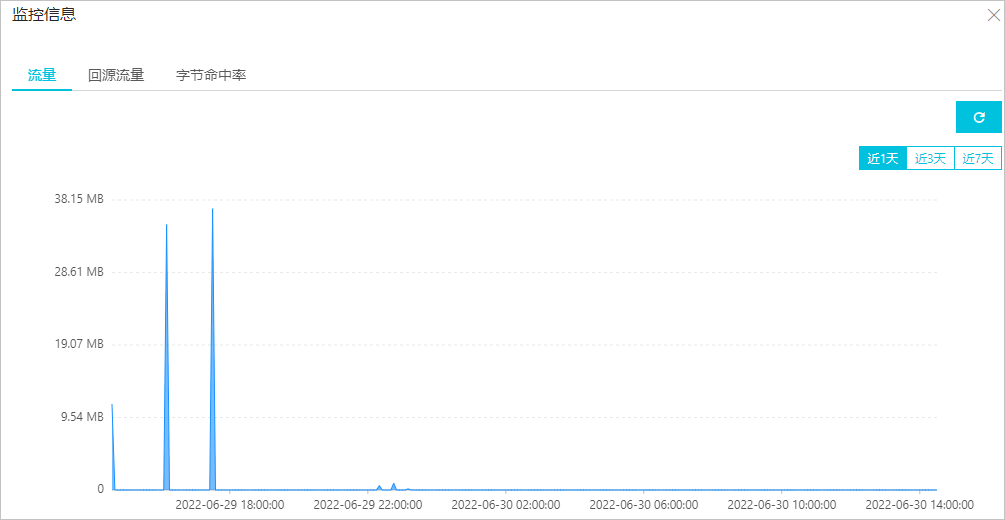
View monitoring data
To view detailed monitoring data for an accelerating domain—such as traffic, back-to-origin traffic, and byte hit ratio—go to the monitoring details page.
NoteOnly domains with Accelerating status support this feature.
In the domain list on the Website Acceleration page, find the added domain and click the
 icon under the corresponding Monitoring Information column.
Refresh cache
-
After updating or upgrading website resources, refresh the cache to ensure users access the latest content instead of stale cached versions.
-
If your site contains non-compliant content, even after deleting it from the origin, cached copies may remain accessible. Manually refresh the cache to remove them.
NoteYou can refresh the cache up to three times per day per domain.
In the domain list on the Website Acceleration page, click Refresh Cache in the Actions column.
Delete domain
If you no longer need acceleration for a domain, delete it from the acceleration list.
In the domain list on the Website Acceleration page, click Delete in the Actions column.
Enable acceleration
To resume acceleration for a domain, simply enable it again.
In the domain list on the Website Acceleration page, click Enable in the Actions column.
Disable acceleration
If you temporarily don’t need acceleration, disable it.
In the domain list on the Website Acceleration page, click Stop in the Actions column.
Monitoring information appears as follows:
-