Website management FAQ
This article covers common issues you may encounter when using an FTP client to connect to Alibaba Cloud Web Hosting and upload website files.
-
Permission issues:
-
Connection issues:
-
How can I troubleshoot FTP connection failures to a Web Hosting instance?
-
What are the common errors when using an FTP client to connect to a Web Hosting instance?
-
Why can't I connect to the FTP server using Internet Explorer as an FTP client?
-
How can I use the Robots protocol to block search engines from crawling my website content?
-
How can I protect my website on a Web Hosting instance from hacker attacks?
-
What should I do if the web space on my Web Hosting instance is full?
-
Linux web hosting directories
The table below lists the common directories on a Web Hosting instance that runs the Linux operating system.
| Directory | Description | Permissions |
| / | The FTP root directory. | read-only permission |
| /awstats | Stores log analysis and statistical reports. This directory is currently empty. | read-only permission |
| /ftplogs | Stores FTP access logs. | read-only permission |
| /htdocs | The root directory of your website. Upload your web application or web page files to this directory. | read/write permission |
| /myfolder | Content in this directory is not accessible to web users. You can use it to temporarily store private content, such as site backups and database backups. | read/write permission |
| /php_upload_tmp | Stores temporary PHP upload cache files, such as session information. | read/write permission |
| /wwwlogs | Stores WWW access logs. | read-only permission |
File size limit for web uploads
-
Simple Application Server and Exclusive Web Hosting
Language
Windows
Linux
ASP
10 MB
Not applicable
ASP.NET
30 MB
Not applicable
PHP
2 MB
200 MB
-
Shared Web Hosting
Language
Windows
Linux
ASP
2 MB
Not applicable
ASP.NET
30 MB
Not applicable
PHP
2 MB
200 MB
Failure to change file permissions with FTP on Windows
By default, a Windows virtual host grants full control to the IIS process user. Therefore, you cannot change file permissions with an FTP client.
Open ports on Web Hosting
Web Hosting accepts inbound connections on ports 21, 80, and 443. The following table describes each port:
|
Port |
Service |
Description |
|
21 |
FTP |
Enables file uploads and downloads via FTP. |
|
80 |
HTTP |
Enables external access for HTTP services, such as IIS, Apache, and Nginx. |
|
443 |
HTTPS |
Used for the HTTPS protocol, which encrypts data for secure web connections. |
Troubleshoot FTP connection failures
If you cannot connect to Web Hosting over FTP, troubleshoot the connection by checking the following:
-
Check the FTP connection method.
Use a more secure and feature-rich FTP client, such as FileZilla or CuteFTP, to connect to Web Hosting. For more information, see Manage website application files by using FileZilla and Manage website application files by using CuteFTP.
-
Check the error message in the FTP client.
If the error message is 331 Please specify the password or 530 Login incorrect, the FTP password is incorrect. Re-enter the password.
NoteIf you forget the password, reset it in the management console. For more information, see Reset the management console password and FTP password.
-
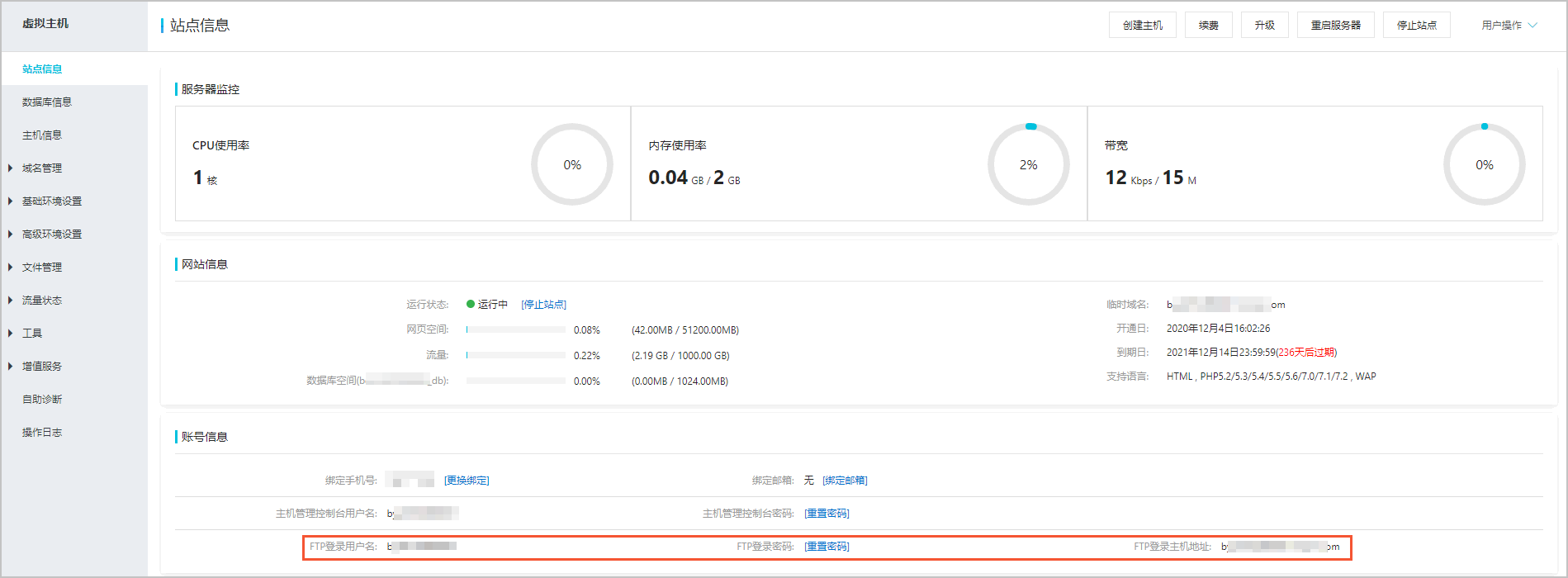
Check your FTP login details.
Obtain your FTP login details on the site information page of the management console and verify that the details you entered in the FTP client are correct.
-
Check the network status.
-
Run the ping command to check your connection to the Web Hosting FTP address.
The following output indicates that the network connection to the FTP address is normal.
C:\Users\xxx>ping xxx Pinging xxx [xxx] with 32 bytes of data: Reply from xxx: bytes=32 time=28ms TTL=50 Reply from xxx: bytes=32 time=28ms TTL=50 Reply from xxx: bytes=32 time=28ms TTL=50 Reply from xxx: bytes=32 time=29ms TTL=50 Ping statistics for xxx: Packets: Sent = 4, Received = 4, Lost = 0 (0% loss), Approximate round trip times in milli-seconds: Minimum = 28ms, Maximum = 29ms, Average = 28ms -
If the ping command fails or you do not receive the expected output, there may be a network issue. Run the tracert command to trace the route and identify the point of failure.
Run the tracert command:
tracert <Web Hosting FTP address>This output indicates a network issue. You can identify the point of failure by locating the hop where 'Request timed out' messages begin.
C:\Users\xxx>tracert xxx Tracing route to xxx [xxx] over a maximum of 30 hops: 1 3 ms 4 ms 2 ms xxx 2 1 ms 3 ms 16 ms xxx 3 16 ms 3 ms 2 ms xxx 4 3 ms 4 ms 3 ms xxx 5 24 ms 24 ms * xxx 6 30 ms 31 ms 29 ms xxx 7 25 ms 25 ms 25 ms xxx 8 * * * Request timed out. 9 * * * Request timed out. 10 * * * Request timed out. 11 *NoteIf the issue persists, submit a ticket.
-
Common FTP connection errors
|
Error message |
Cause |
Solution |
|
530 Login incorrect |
|
|
|
USER anonymous |
The logon type is set to Anonymous in the FTP connection settings. |
In the FTP connection settings, change the logon type to Normal. |
|
426 Data connection closed, transfer aborted |
A firewall on your network or local host is restricting ports. |
|
|
AUTH TLS |
The FTP client is configured to use session encryption for the FTP connection. |
In the FTP connection settings, for Protocol, select FTP - File Transfer Protocol, and for Encryption, select Only use plain FTP (insecure). |
|
EAI_NONAME - The nodename or servname is not provided, or not known |
The FTP host address is incorrect, possibly due to a typo or extra spaces. |
Check that the FTP host address is correct. |
For more information, see "Connection refused" error when connecting to a host using FTP, Garbled characters when you use FileZilla to connect to a site, and Errors when connecting to a Web Hosting instance with FileZilla.
Slow FTP transfers
Slow FTP transfers can be caused by issues with either the FTP client or the FTP server. Possible causes include:
-
International link congestion when accessing Web Hosting in a region outside the Chinese mainland.
-
High resource consumption on the FTP server.
-
A DDoS attack on the FTP server.
-
Low network bandwidth on the FTP client.
-
Large file transfers that occupy FTP server resources for an extended time.
-
Uploading a large number of files at once.
To resolve the issue, try the following solutions:
-
If your Web Hosting instance is in a region outside the Chinese mainland, request a refund for it and purchase a new one in a region within the Chinese mainland.
-
Restart the FTP client.
-
Use a different FTP client to upload the files.
-
Check your network status and resolve any issues you find.
-
Compress the files before uploading them to your Web Hosting instance.
FTP connection failure using Internet Explorer
Possible cause: Clients without a public IP can only connect to an FTP server in PASV mode. However, Internet Explorer uses PORT mode by default, which causes the connection to fail.
Solution:
-
If you are using Internet Explorer 6.0 or later, follow these steps:
-
Open Internet Explorer.
-
From the menu bar, select .
-
In the Internet Options window, click the Advanced tab.
-
On the Advanced tab, in the Settings section, select Use Passive FTP (for firewall and DSL modem compatibility).
-
Click OK.
-
-
If you are using a version of Internet Explorer earlier than 6.0, or if connection details are not visible, troubleshooting can be difficult. We recommend using dedicated FTP client software, such as FileZilla or CuteFTP, to connect to the FTP server.
Handle a DDoS suspension notice
If you use shared web hosting and receive a suspension notice similar to the one shown below, follow the solutions in this article.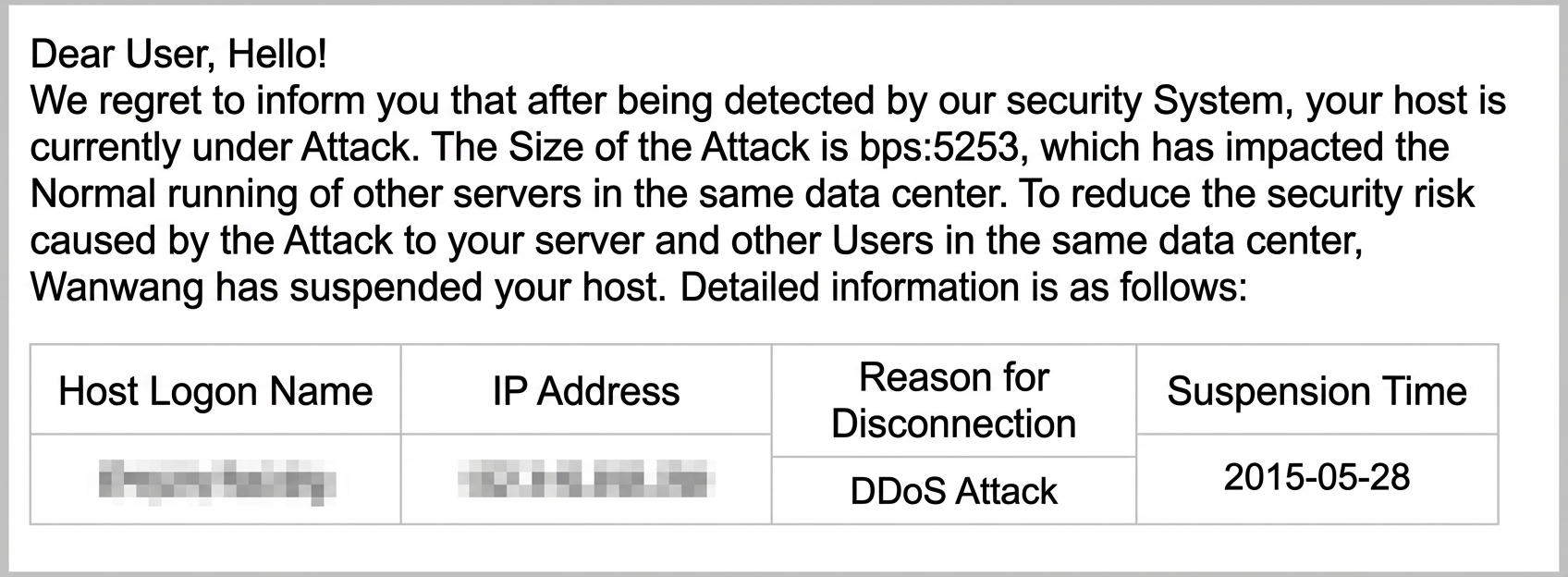
Alibaba Cloud also suspends websites that contain illegal or non-compliant content by blocking access to their domain names. To resolve this, you need to identify and remove the non-compliant content from your website, and then request to lift the access block. For more information, see Handle illegal or non-compliant information on a domain name.
Solutions:
|
Scenario |
Solution |
|
Websites on a shared web hosting plan share a single IP address. This means multiple websites operate on the same IP. If one of these websites is under a DDoS attack, all websites using that IP are temporarily suspended. Note
The suspension period typically ranges from 30 minutes to 24 hours. |
No action is required on your part. Wait for the system to automatically lift the suspension. The system assigns a suspension duration based on the attack type and automatically restores access to the website. Meanwhile, the security system continues to monitor for threats. If the attack persists or a new DDoS attack is detected after access is restored, the system will reapply the same mitigation rules. |
|
DDoS attacks against shared web hosting are typically Layer 4 attacks that target the shared IP address. Because the platform cannot pinpoint which specific website is the intended target, all websites sharing the IP are suspended as a protective measure. |
To avoid downtime caused by attacks on other domain names that share your IP, consider upgrading to a dedicated web hosting plan with a dedicated IP. Dedicated web hosting plans offer enhanced security compared to shared web hosting. For instructions, see Upgrade your web hosting instance. |
|
While your shared web hosting instance is suspended, you cannot connect using an FTP tool. This prevents you from directly downloading your backup data. |
To download your backup data during a suspension, you can try connecting to an adjacent IP address with your FTP tool. For example, if the IP address of your suspended instance is 127.0.0.1, try connecting to 127.0.0.2. Your username and password remain the same. |
Handle website compromises or CAC notices
Possible cause: This issue typically occurs when an attacker exploits vulnerabilities in your website's application code, leading to a defaced homepage or other unauthorized modifications.
Solution:
-
Log in to the Alibaba Cloud Web Hosting console to back up your website data. For instructions, see back up and restore data.
-
Analyze your website access logs to identify and resolve the vulnerability. For instructions on how to view the access logs, see Download or delete website logs.
For example, if you find malicious code in your application, delete it or re-upload the original, clean source code to your Alibaba Cloud Web Hosting instance. Alternatively, work with your application developer to resolve the issue.
If the issue persists, consider using Alibaba Cloud Web Application Firewall (WAF). WAF provides comprehensive security for your website or app. For more information, see What is Web Application Firewall? and Tutorials.
Note-
All WAF editions support Exclusive Web Hosting. You can enable and configure WAF directly.
-
Shared Web Hosting uses a shared IP address, and its origin server is used by multiple customers. Therefore, configuring WAF for an individual site on this plan is not recommended. We recommend upgrading to Exclusive Web Hosting. For instructions, see Upgrade an Alibaba Cloud Web Hosting instance.
-
Blocking search engines with the robots protocol
The robots protocol, officially named the Robots Exclusion Protocol, is a standard a website uses to instruct search engine crawlers which pages they can and cannot access. This helps prevent crawlers from consuming excessive traffic and bandwidth. For more information about the robots protocol, see external documentation.
robots.txt parameter configuration
If certain pages on your website are resource-intensive and you do not want them crawled by a search engine, you can place a robots.txt file in the root directory. This file lets you block search engines or define rules that specify which files they can crawl. The following table describes the parameters for configuring the robots.txt file.
The robots protocol is not an enforceable standard. While a robots.txt file can help prevent search engines from indexing some of your files and can help control a crawler's path, some crawlers may not adhere to this protocol. The methods described below are ineffective against non-compliant crawlers.
|
Parameter |
Description |
|
|
Specifies the target crawler. The asterisk ( Note
For more information about the mapping between search engines and user-agents, see Common search engines and their user-agents. |
|
|
Disallows crawling content in the admin directory. |
|
|
Disallows crawling content in the require directory. |
|
|
Disallows crawling content in the ABC directory. |
|
|
Disallows crawling all URLs ending with |
|
|
Disallows crawling all URLs on the website that contain a question mark (?). |
|
|
Disallows crawling all images with a |
|
|
Disallows crawling the |
|
|
Allows crawling content under the cgi-bin directory. |
|
|
Allows crawling the entire tmp directory. |
|
|
Allows crawling URLs that end with |
|
|
Allows crawling URLs that end with |
|
|
Specifies the location of the sitemap, which informs the crawler about the site's structure. |
Search engines and user-agents
|
Search engine |
User-agent |
|
Baidu |
Baiduspider |
|
|
Googlebot |
|
Yahoo Web Pages |
Googlebot |
|
Netscape |
Googlebot |
|
AltaVista |
Scooter |
|
Infoseek |
Infoseek |
|
Hotbot |
Slurp |
|
AOL Search |
Slurp |
|
Goto |
Slurp |
|
MSN |
Slurp |
|
Iwon |
Slurp |
|
LooksmartWebPages |
Slurp |
|
Excite |
ArchitextSpider |
|
WebCrawler |
ArchitextSpider |
|
Lycos |
Lycos |
|
NorthernLight |
Gulliver |
|
Fast |
Fast |
|
DirectHit |
Grabber |
Examples
This section provides examples of how to use the robots protocol to block search engine crawlers from accessing website content.
-
Example 1: To block all search engines from accessing any resource on the website, use the following rules:
User-agent: * Disallow: / -
Example 2: To allow all search engines to access all resources, use the following rules:
User-agent: * Allow: /NoteYou can also create an empty
/robots.txtfile, and set theAllowvalue to/robots.txt. -
Example 3: To block a specific search engine, such as Google, from accessing the website, use the following rules:
User-agent: Googlebot Disallow: / -
Example 4: To allow a specific search engine, such as Baidu, to access the website, use the following rules:
User-agent: Baiduspider Allow: / -
Example 5: To block all search engines from accessing specific directories, use the following rules:
User-agent: * Disallow: /cgi-bin/ Disallow: /tmp/ Disallow: /data/ -
Example 6: To allow crawling of a specific file within a disallowed directory, such as allowing
b.htmin theadirectory, use the following rules:User-agent: * Allow: /a/b.htm Disallow: /a/
Prevent hacker attacks on your website
To protect your website on Web Hosting, follow these security best practices:
-
Follow strong password policies for all credentials, including member, FTP, email, database, and admin passwords.
-
A secure password must be 8 to 30 characters long and include an uppercase letter, a lowercase letter, and a number. Adding a special character increases its strength. For example, a password like
d9C&v6Q0is strong. -
Regularly rotate your passwords, for example, every few months, to maintain security.
-
Practice good password hygiene. Regularly clear your temporary files and avoid using password-saving features, such as the "Remember Me" option in browsers or connection dialogs.
-
-
Avoid using insecure file upload mechanisms that lack proper validation. This creates a common vulnerability, allowing hackers to upload a trojan and compromise your website.
-
Implement CAPTCHA on your backend management portal. This helps prevent automated brute-force attacks.
-
If you use an Access database, avoid using the
.mdbextension for the database file. Instead, use an extension that is executed by the server, such as.aspor.asa. This prevents hackers from directly downloading the database file. -
Use obscure names for your database files and directories. For example, you can start the database filename with a special character like
#and place it in a non-obvious directory. This makes it more difficult for hackers to locate the file.
Improve website security
Follow these best practices to secure your website:
-
Secure the username and password for your website's backend.
-
Disable the FTP feature on your Web Hosting instance when not in use. For instructions, see Enable and disable FTP.
-
Regularly rotate your management console password, FTP login password, and database password.
Handling a full web space
Possible cause: Your web space can fill up due to increased website traffic or large application or website files. This can prevent your website from functioning properly.
Resolution: To resolve the issue, use one of the following methods.
-
Delete unnecessary website files, such as data, images, or posts.
-
Increase your web space. For shared web hosting, you can purchase additional web space. For instructions, see Increase web space for shared web hosting.
-
Upgrade your web hosting. If your web hosting plan supports upgrades, you can get more web space by upgrading. For instructions, see Upgrade your web hosting.
Switch to static-file-only mode
The PHP environment in Cloud Web Hosting cannot be directly disabled. If your website consists only of static files and contains no dynamic programs, such as PHP, you can configure permissions to switch it to a static-file-only mode.
Before you configure permissions, ensure that all dynamic files on your website have been converted to static files, such as HTML, CSS, or images.
- Log on to the Cloud Web Hosting management page.
- Find the Cloud Web Hosting instance that you want to manage and click Manage in the Actions column.
- In the navigation pane on the left, choose .
-
On the File Manager page, upload your website's static files.
For more information, see Upload files.
-
Click the site root directory, select the uploaded website files and directories, and then click Batch Set Permissions.
-
On the Permission Settings page, select Read and Write (Script execution disabled) and click Confirm.
-
Visit your website again.
If your website loads correctly, static-file-only mode is enabled.