Dynamic text widget
This topic describes the attributes and rendering effects of a dynamic text widget.
Left margin and top margin
You can click the up or down arrow in the spin box for the left or top margin to fine-tune the margin. You can also drag and drop the widget on the canvas to adjust the left and top margins. After the left and top margins are modified, the widget is moved to the location specified by the margins.
Font and color
You can adjust the following attributes of the font: type, weight, size, and color. The available colors vary based on the device on which the widget is displayed. For example, if the widget is displayed on a tricolored electronic paper display (EPD), the available colors are black, white, and red.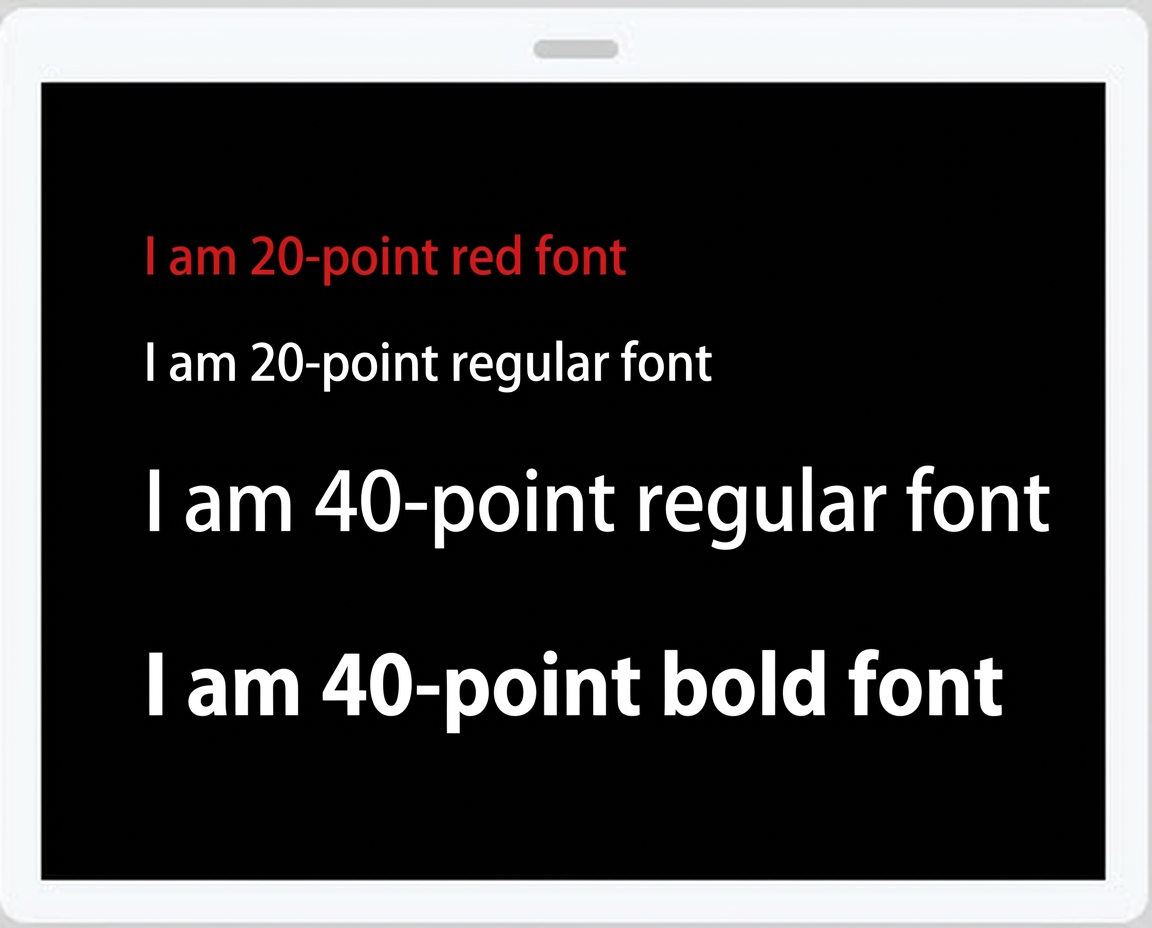
Alignment
The alignment of the widget determines the definition of the left margin. The dynamic text varies based on the commodity, and long text may not be fully displayed. The alignment attribute is provided to prevent this issue.
Left indicates that the left margin is the distance between the far left of the canvas and the far left of the widget.
Right indicates that the left margin is the distance between the far left of the canvas and the far right of the widget.
Medium indicates that the left margin is the distance between the far left of the canvas and the middle of the widget.
Content
You can select a content attribute from the Content Field drop-down list. After you bind a commodity to an electronic shelf label (ESL), the system dynamically populates the dynamic text widget with the value of the selected attribute on the ESL.
Prefix and suffix
You can specify a fixed prefix and a fixed suffix for the dynamic text widget. For example, the price of a commodity is often prefixed with a currency sign, such as $1000. However, the Integer Price attribute of a commodity stores only numbers. In this case, you can specify a fixed prefix, such as the dollar sign ($), to be displayed before the price amount.
Time format
You can specify a time format for the widget. This way, the values of time-related fields can be displayed in the specified format. The time format takes effect on the following commodity attributes: Promotion Start Time, Promotion End Time, and Custom Display a to z. Specify the time format based on the requirements for dataformat.
If you select a custom attribute among Custom Display a to z as the content field, make sure that the custom attribute is specified for the commodity and the values of the custom attribute are timestamps.
Line break
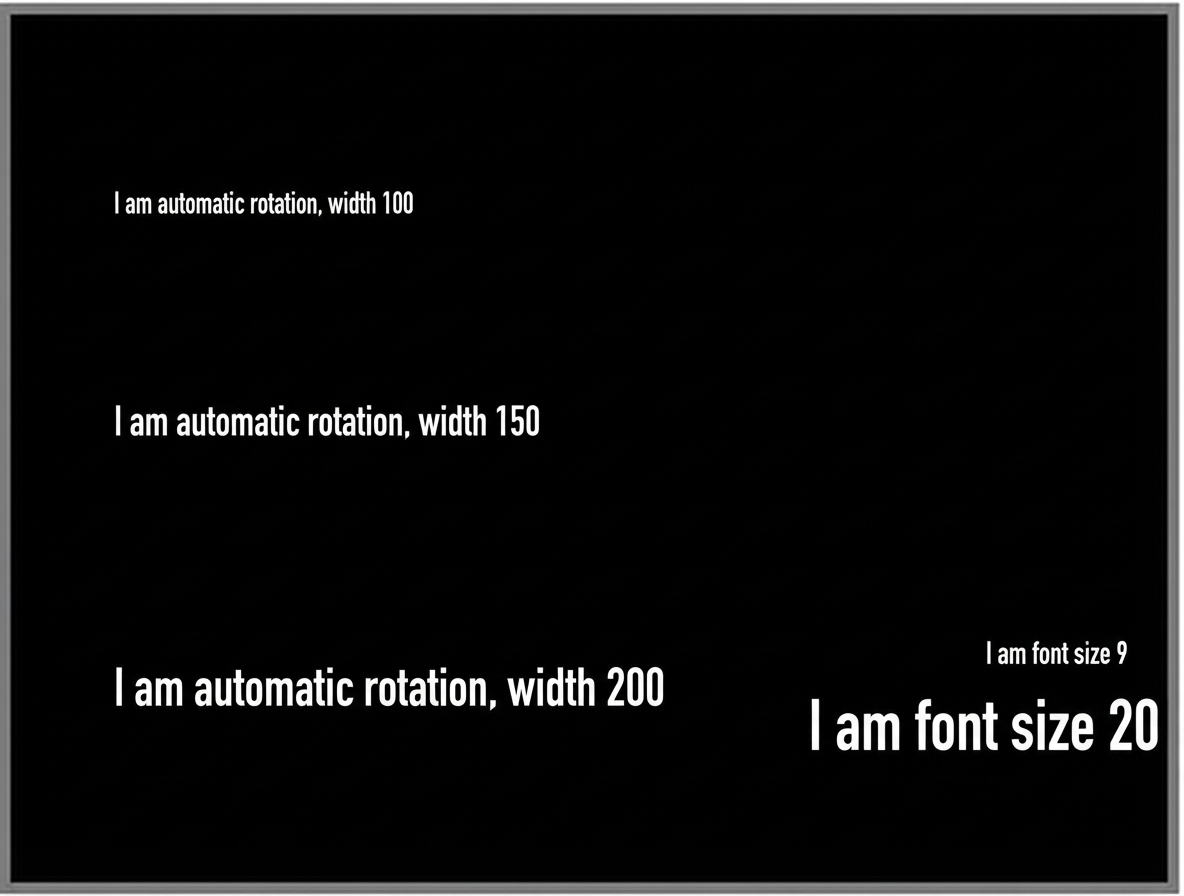
The content to be displayed varies with commodity attributes. The display space of an ESL is limited. You can set the Line Break attribute to Yes to enable auto wrapping. If the content to be displayed exceeds the width of the dynamic text widget, the system wraps the content around. Then, the system checks whether the height of the content exceeds the height of the dynamic text widget. If the height of the content exceeds the height of the dynamic text widget, the system reduces the font size until the text can be displayed in the dynamic text widget or the minimum font size 9 is reached.
The Line Break attribute must be used together with the Height and Width attributes.
Adaptive
The content to be displayed varies with commodity attributes. The display space of an ESL is limited. You can set the Adaptive attribute to Yes to enable auto adaptation. If the content to be displayed exceeds the width of the dynamic text widget, the system reduces the font size until the text can be displayed in the dynamic text widget or the minimum font size 9 is reached.
The Adaptive attribute can be used only with the Width attribute.