Quick start for scheduling migration
Overview
LHM migrates scheduling tasks to DataWorks from open-source schedulers (DolphinScheduler, Azkaban, Oozie), other cloud platforms (Huawei DataArts, Tencent WeData), and other DataWorks workspaces. This guide walks through scheduling migration using a DolphinScheduler workflow.
After this guide, you can:
-
Migrate a DolphinScheduler workflow.
-
Understand the LHM scheduling migration process.
Alibaba Cloud products used
Prerequisites
-
You have deployed DolphinScheduler and created the project and workflow to migrate.
-
You have activated and bound a DataWorks resource group and workspace.
-
You have configured an LHM resource group and service agent.
Resource group and service agent setup
LHM runs on a DataWorks resource group. Activate and bind a resource group before proceeding.
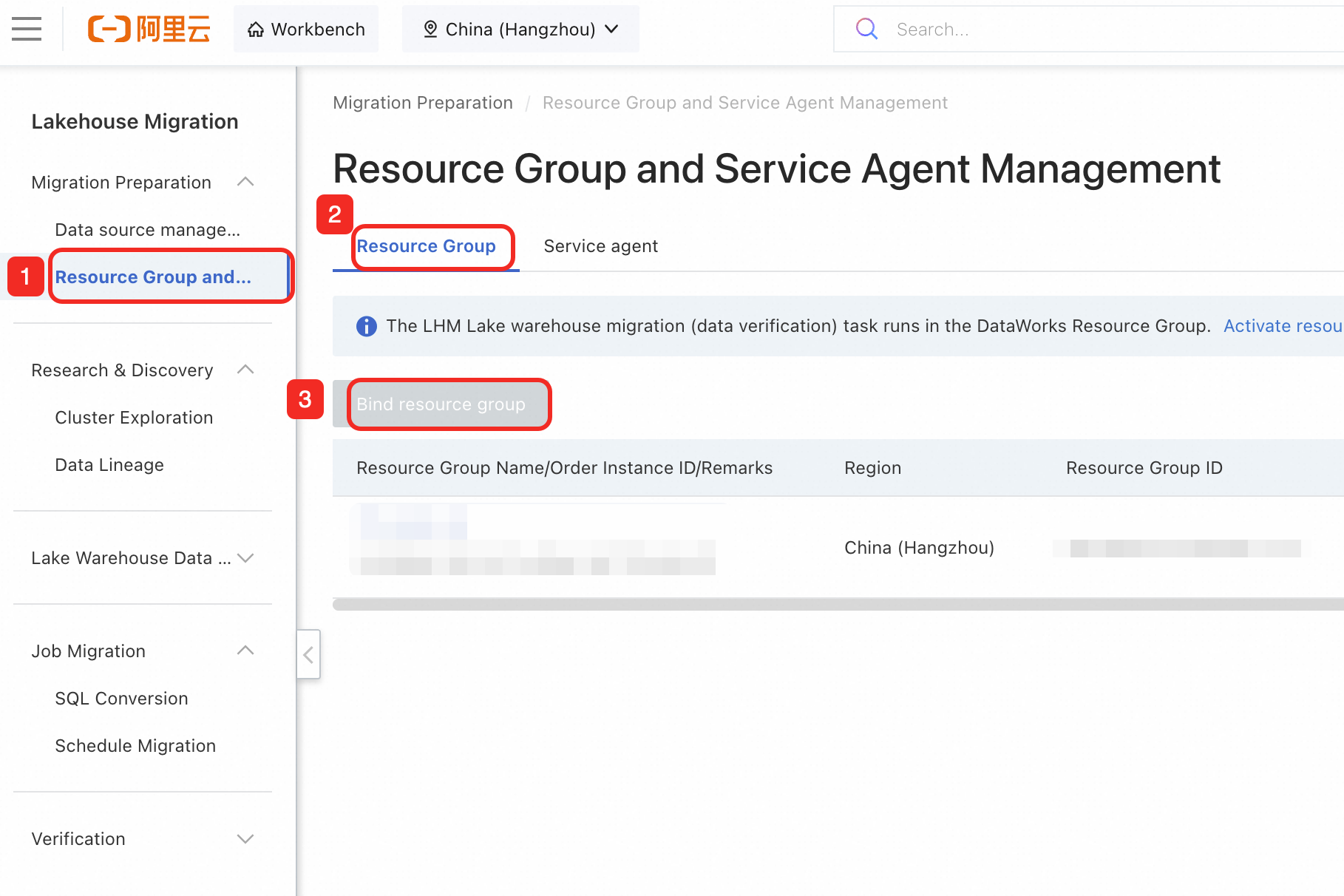
Install the service agent as shown below.
Note: To install the service agent, you must grant the AliyunECSAssistantFullAccess permission to the RAM user. Alternatively, you can grant the ecs:DescribeInvocations, ecs:DescribeCloudAssistantStatus, and ecs:RunCommand permissions separately.
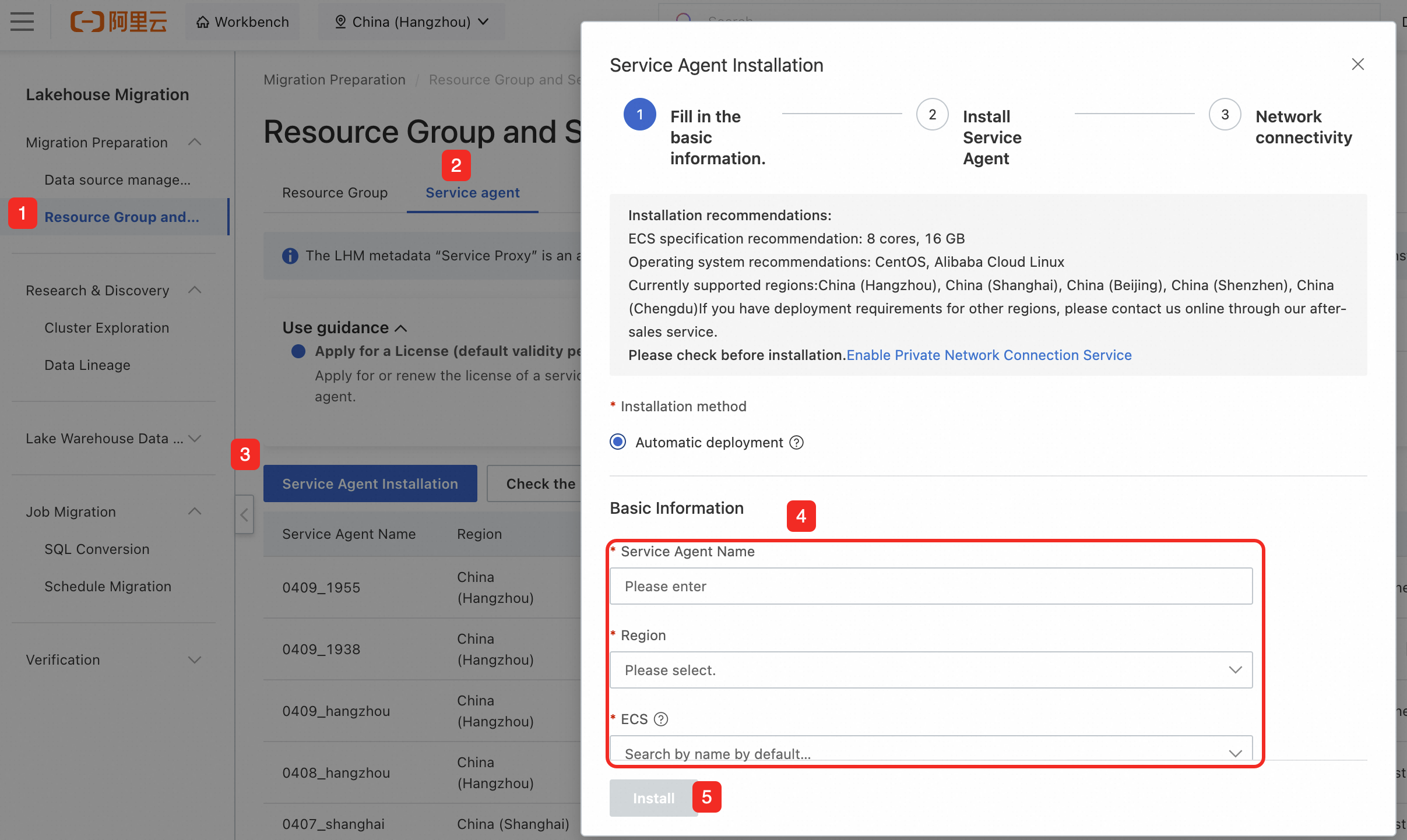
Procedure
Create a source scheduling data source
Create a source scheduling data source as shown below.
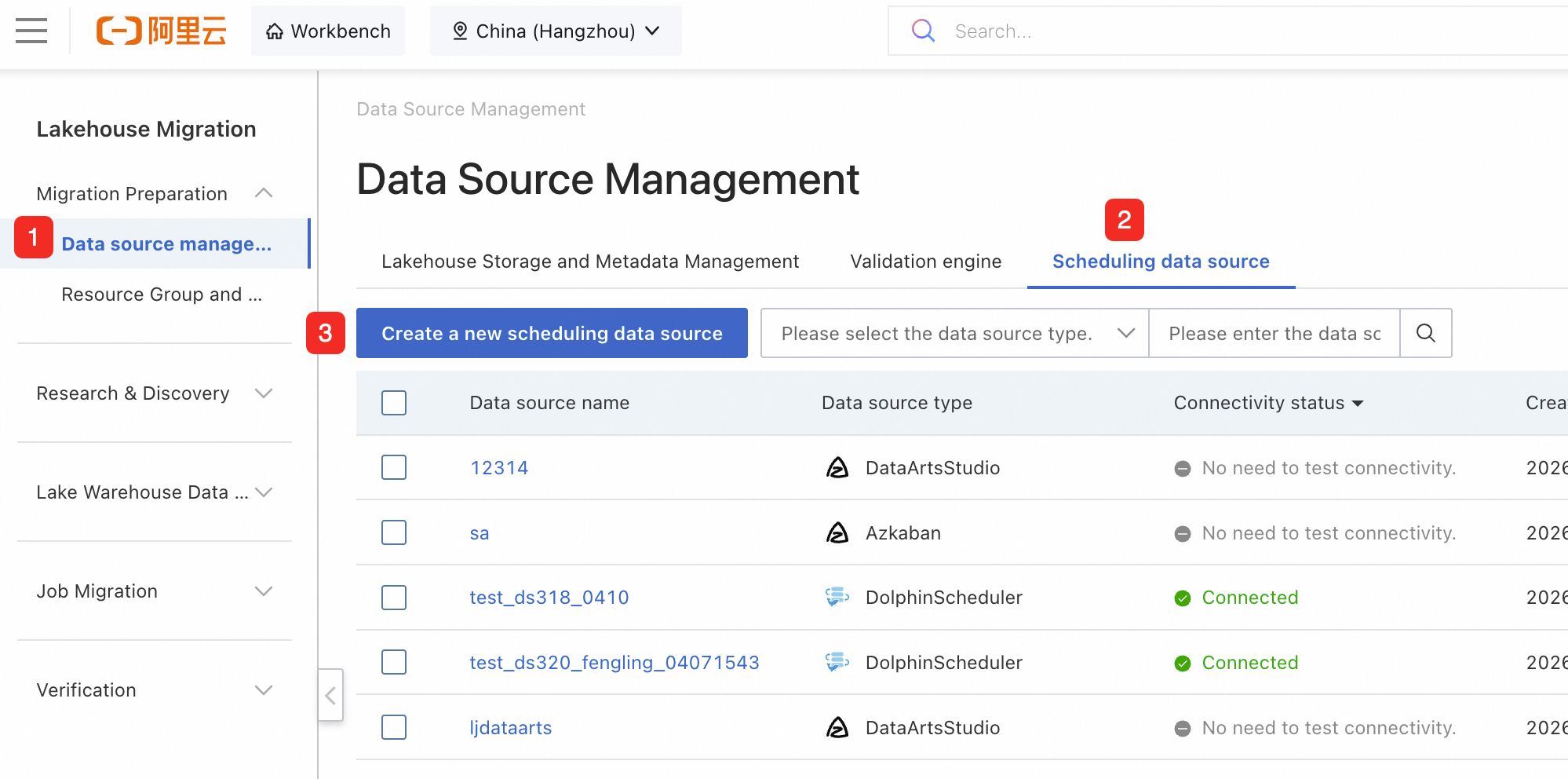
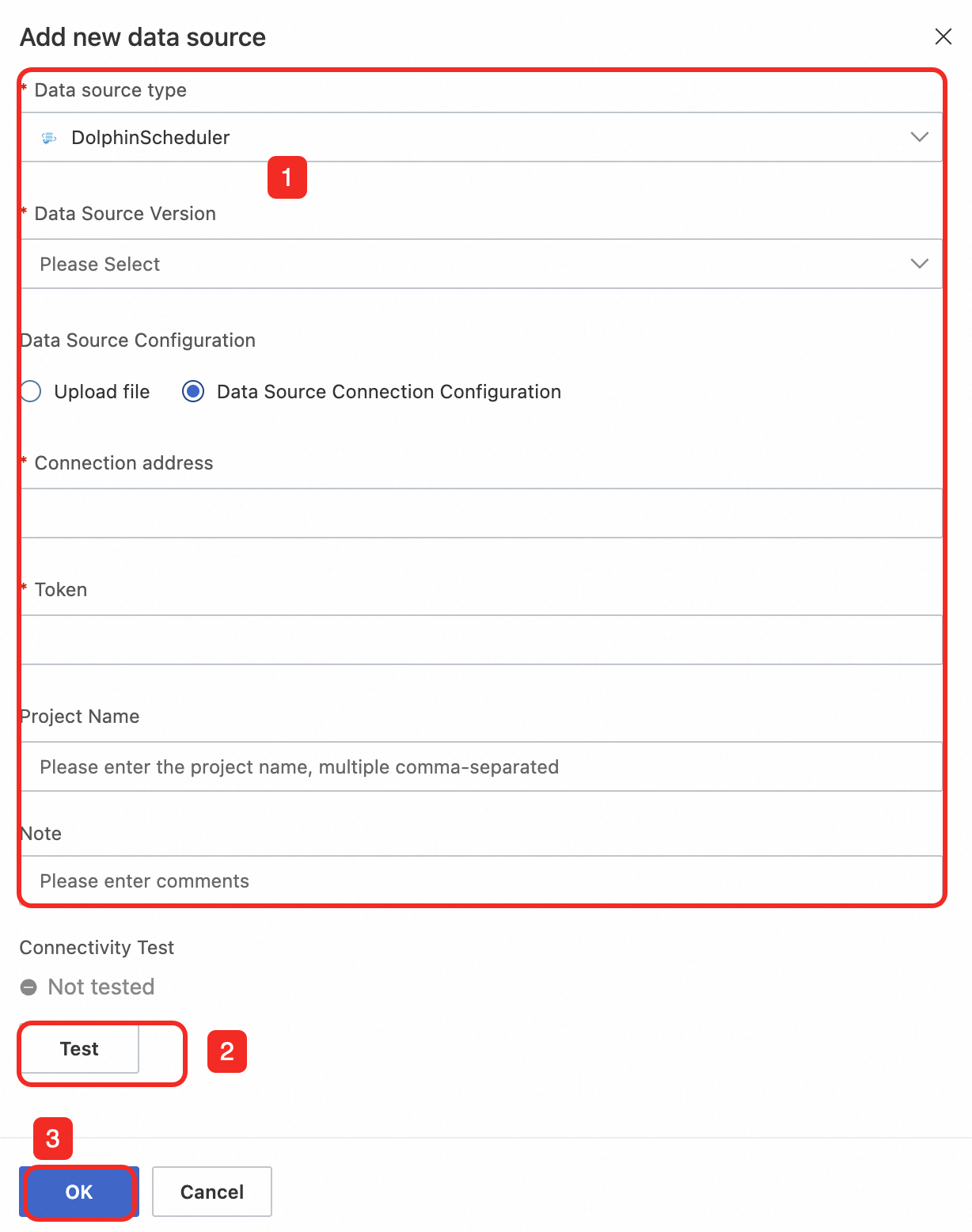
Enter the data source information in the side panel and run a connectivity test. Click OK after the test passes.
|
Parameter |
Description |
|
Data source name |
Only letters, digits, and underscores (_). Chinese characters and special characters are not supported. |
|
Data source type |
The source scheduler type. |
|
Version |
The version of the scheduler. |
|
Data source configuration |
Upload file: The format exported by the reader tool. Data source connection configuration: Configure the connection parameters for the data source. |
|
Connection URL |
URL prefix of the DolphinScheduler console. Format: |
|
Token |
The DolphinScheduler token. See the "Getting a token" section below. |
|
Project name |
The DolphinScheduler project name. See the "Getting the project name" section below. |
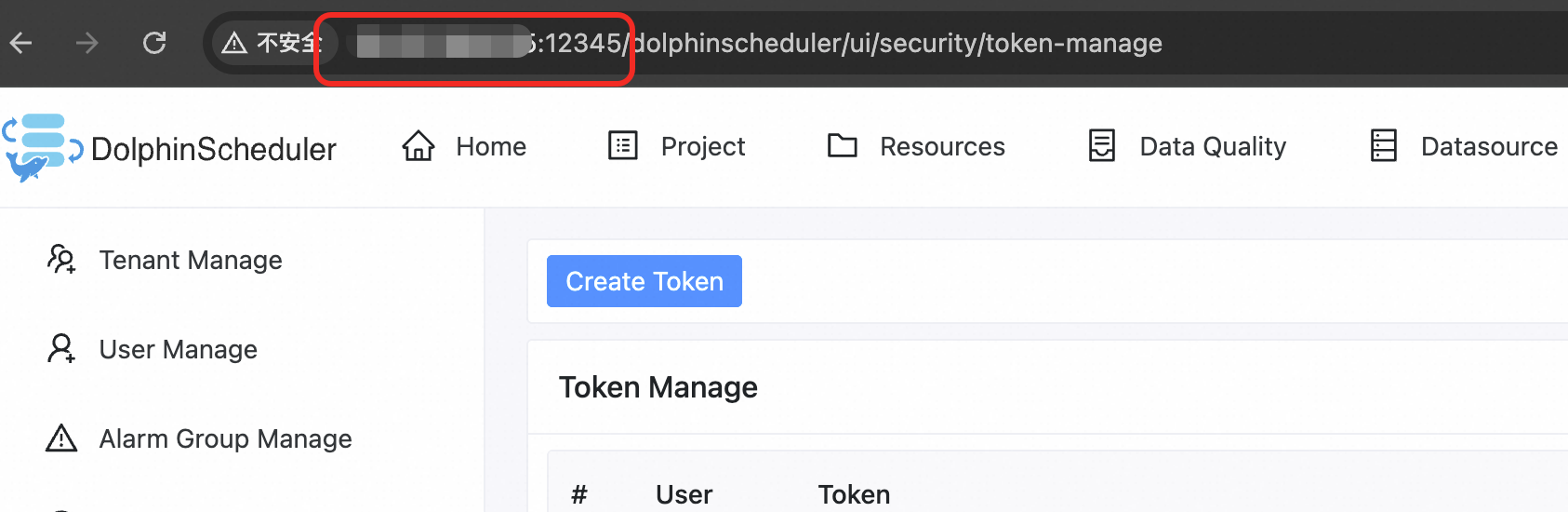
Connection URL
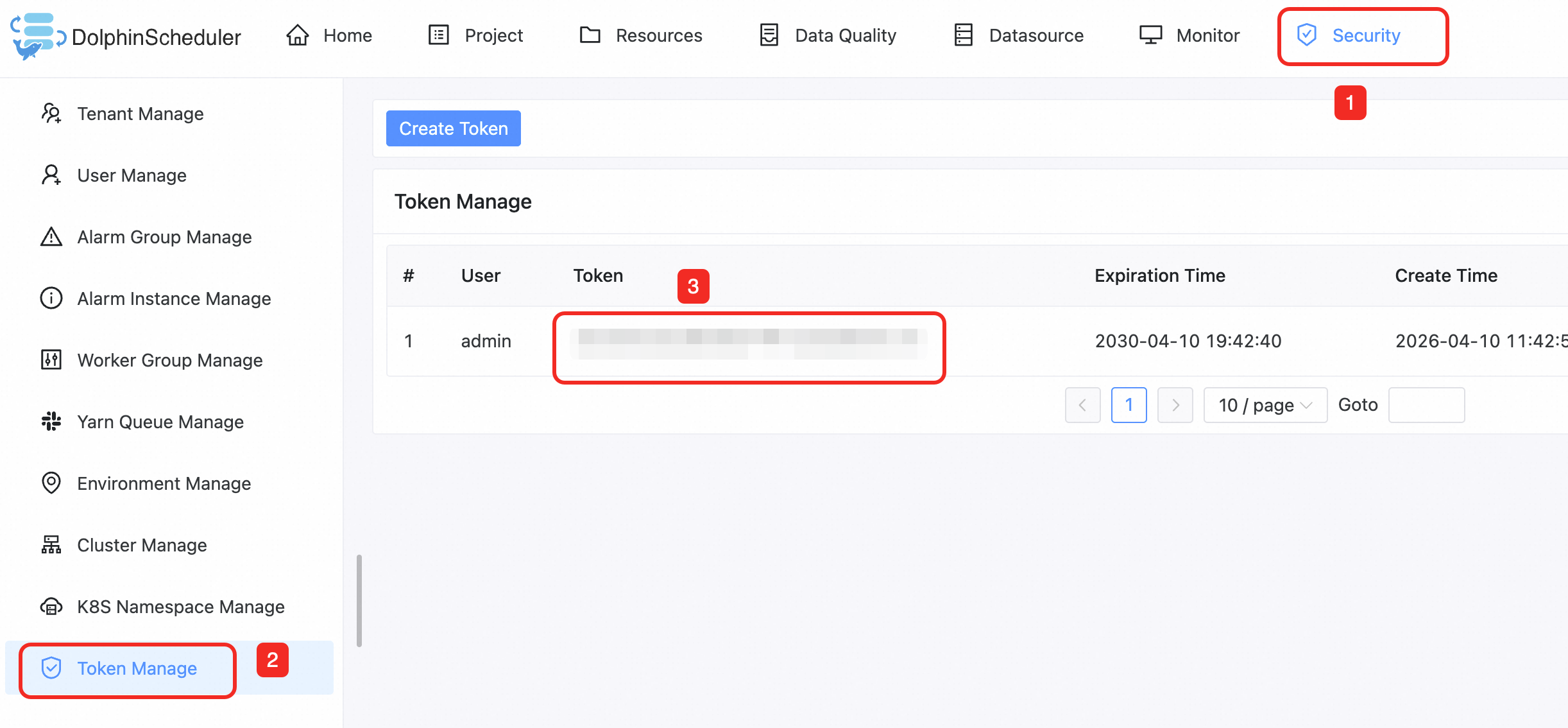
Getting a token
Get a token as shown below. The token user must have the required permissions.
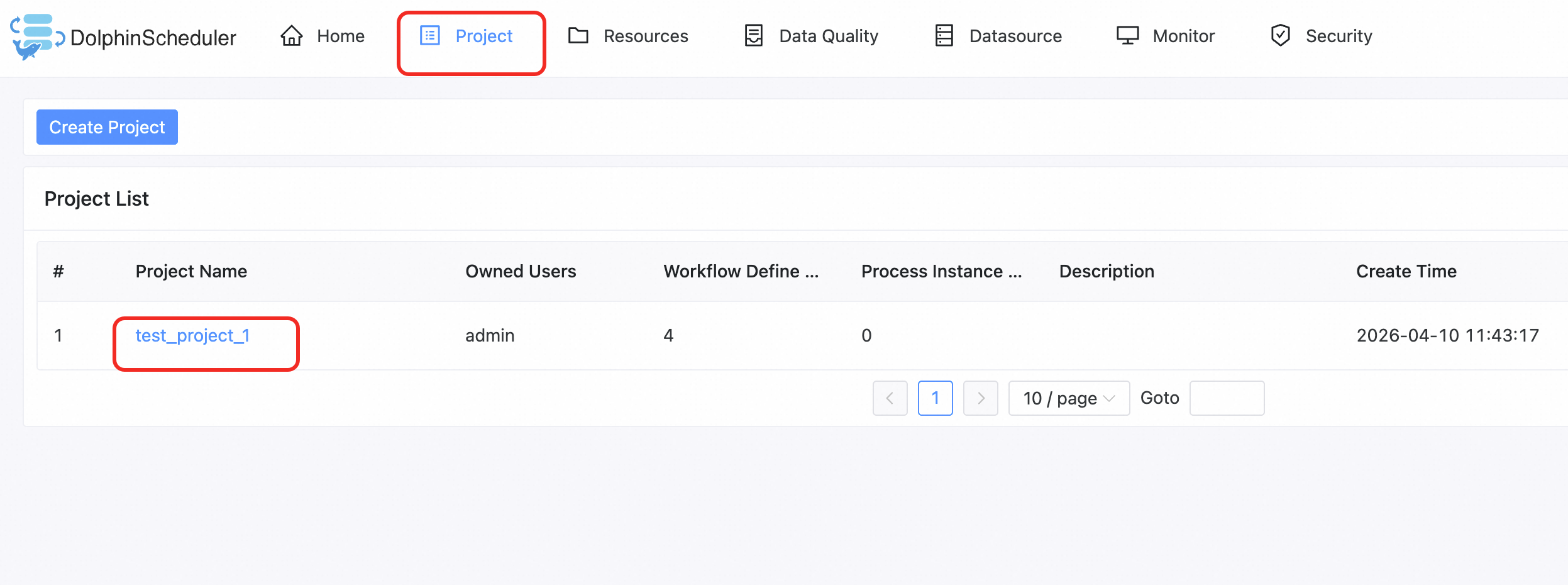
Getting the project name
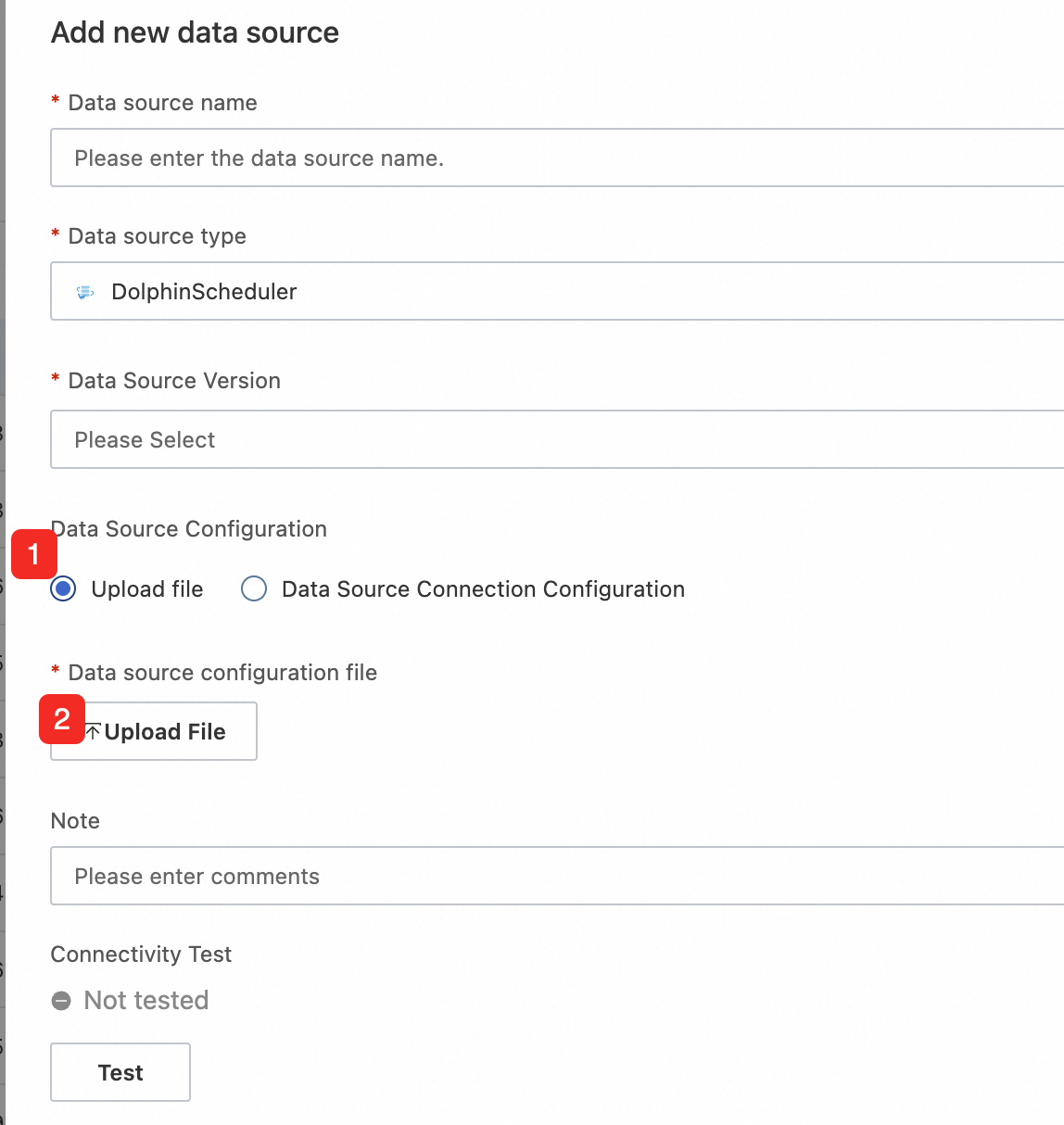
If the API is unreachable due to network issues, create an offline data source by uploading a project file instead.
After creation, use the buttons on the right to test connectivity or edit the data source.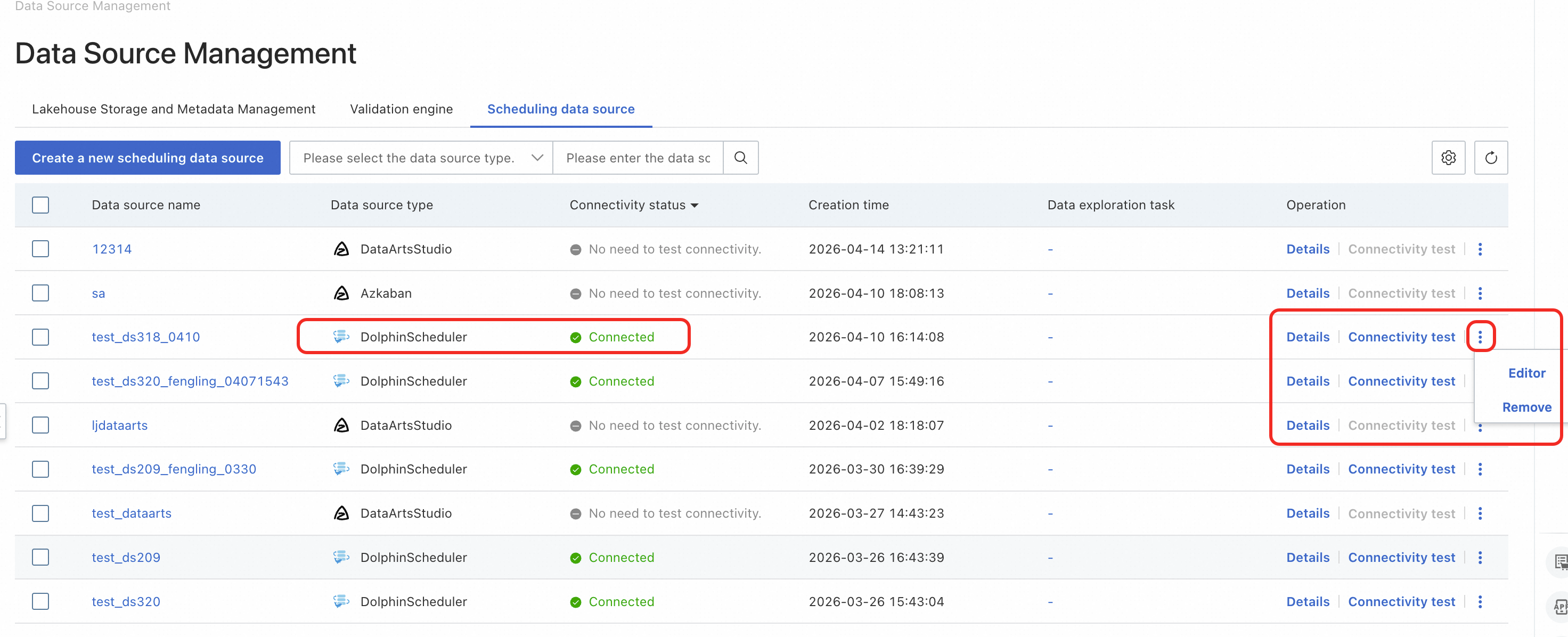
Create a target scheduling data source
Create a target scheduling data source the same way. For a DataWorks data source, specify the endpoint and workspace name, and provide an AccessKey ID and AccessKey Secret with read and write permissions for that workspace.
Public endpoint for China (Hangzhou): dataworks.cn-hangzhou.aliyuncs.com
VPC endpoint for China (Hangzhou): dataworks-vpc.cn-hangzhou.aliyuncs.com
For other regions, replace the region ID in the endpoint. Example: for China (Shanghai), replace cn-hangzhou with cn-shanghai.
Create a data source discovery task
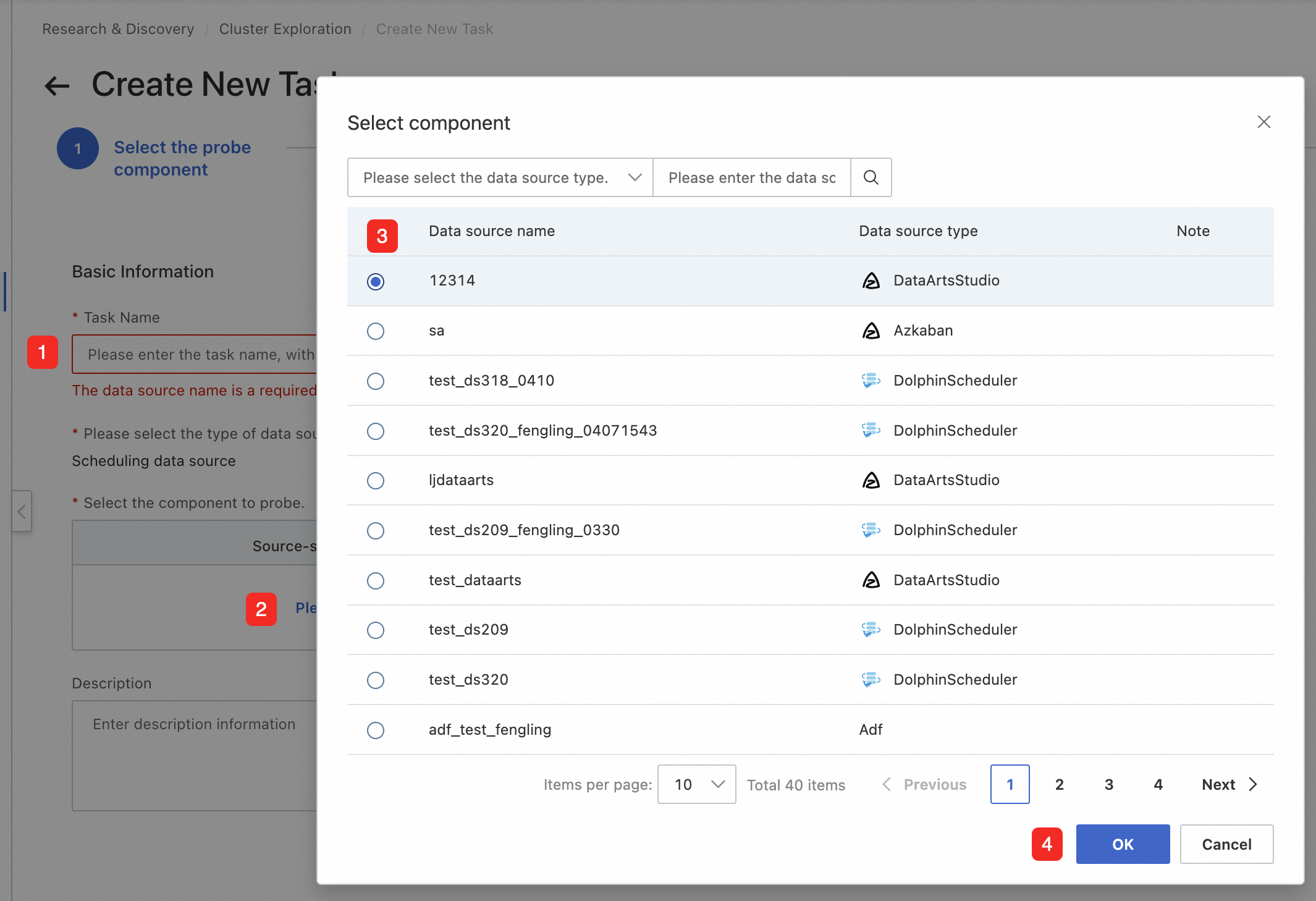
Create a discovery task as shown below.

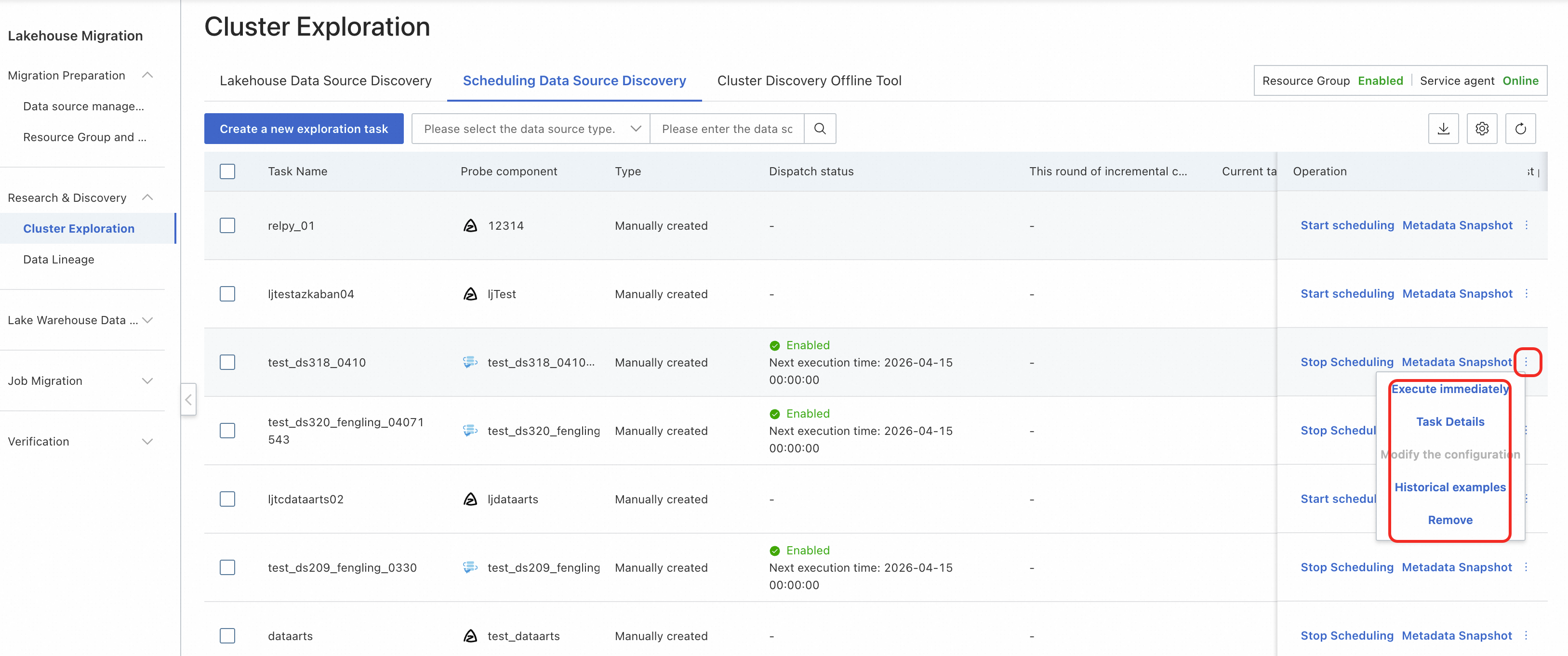
The task list appears after creation. By default, discovery runs automatically at midnight daily. To run manually, click More in the Actions column and select Execute Now.
After clicking Execute Now, wait for the task to complete. Click Metadata Snapshot to view the discovery results.
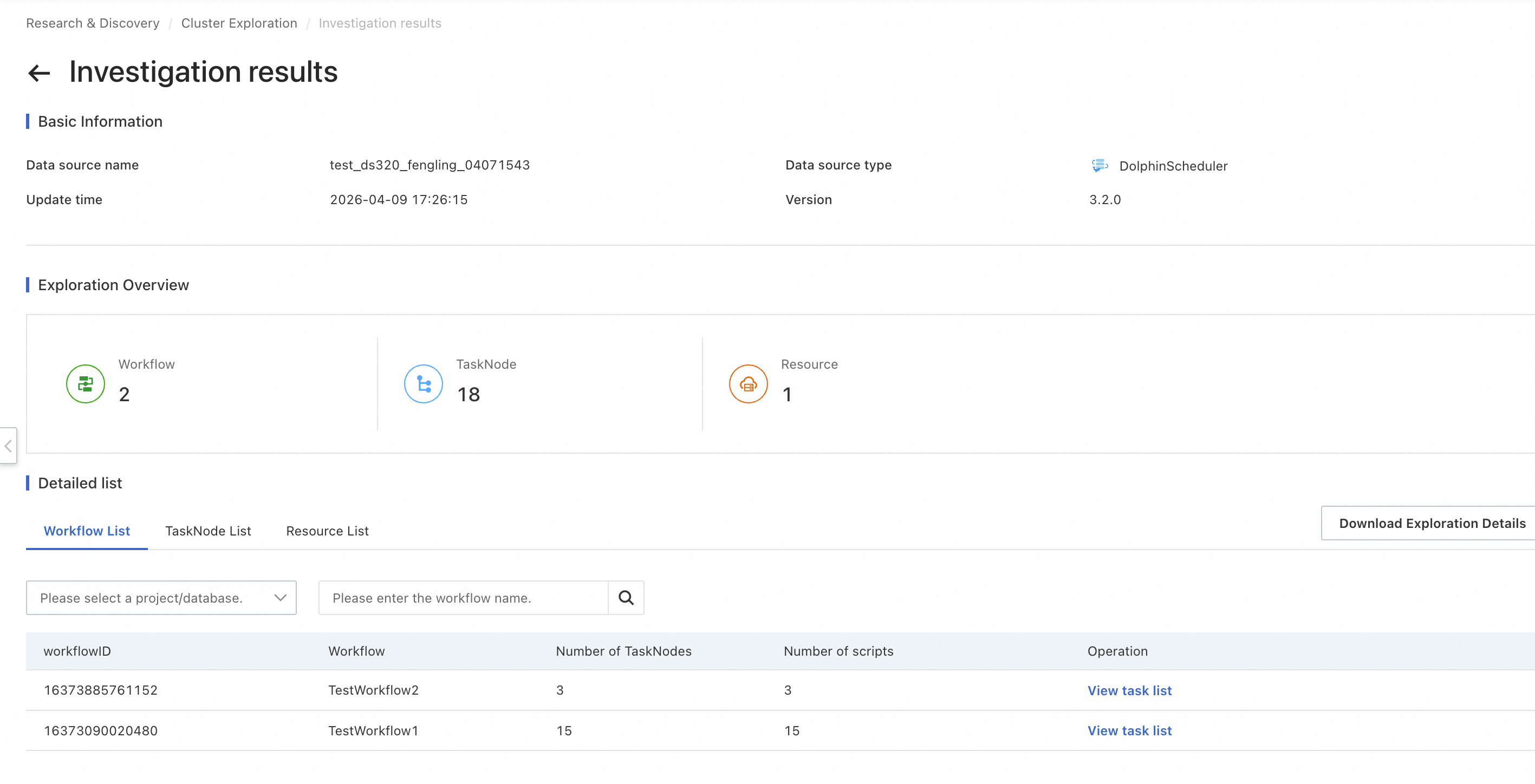
Verify the discovery results, then proceed to scheduling migration.
Create a scheduling migration task
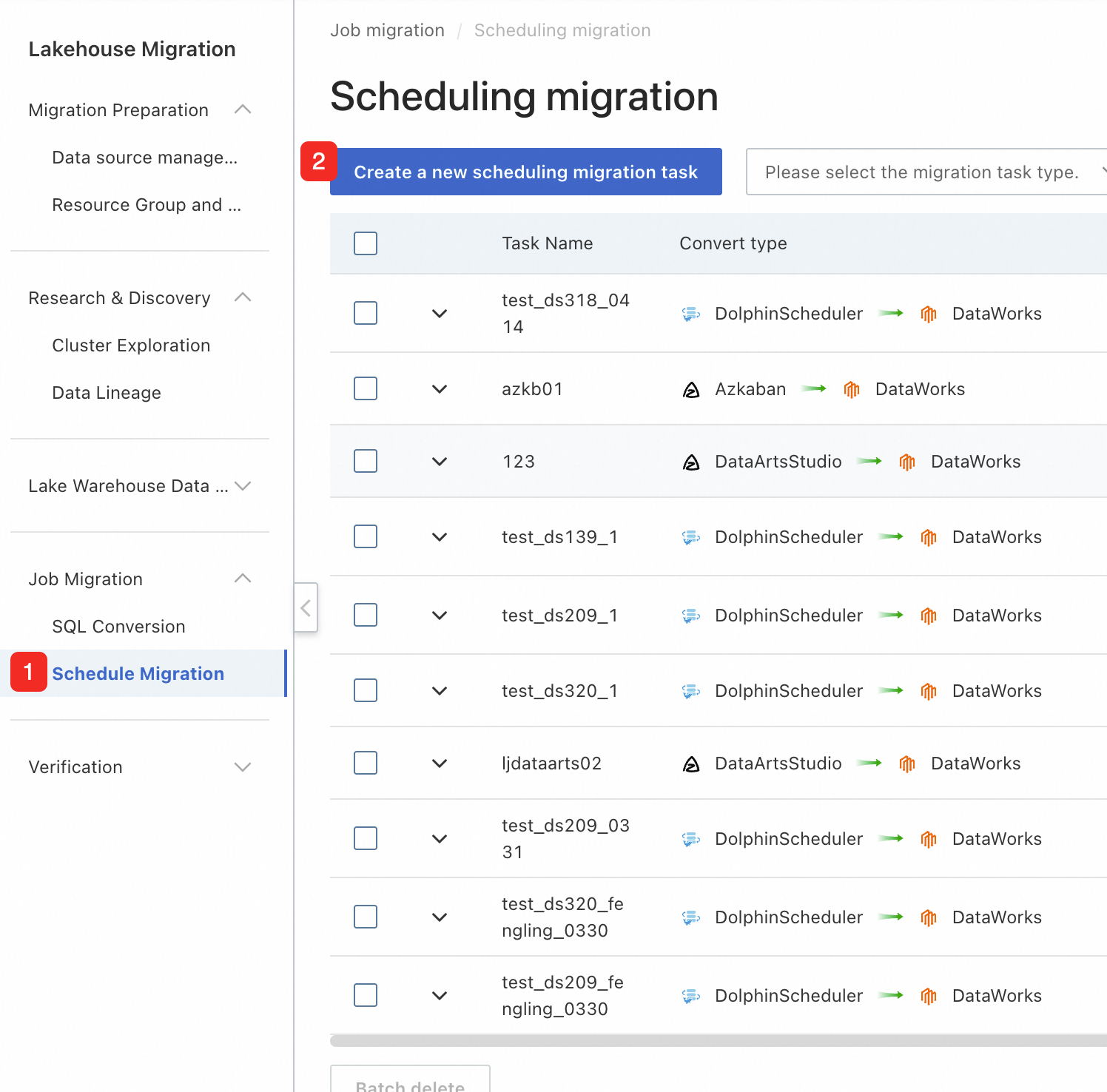
On the Scheduling Migration page, create a scheduling migration task.
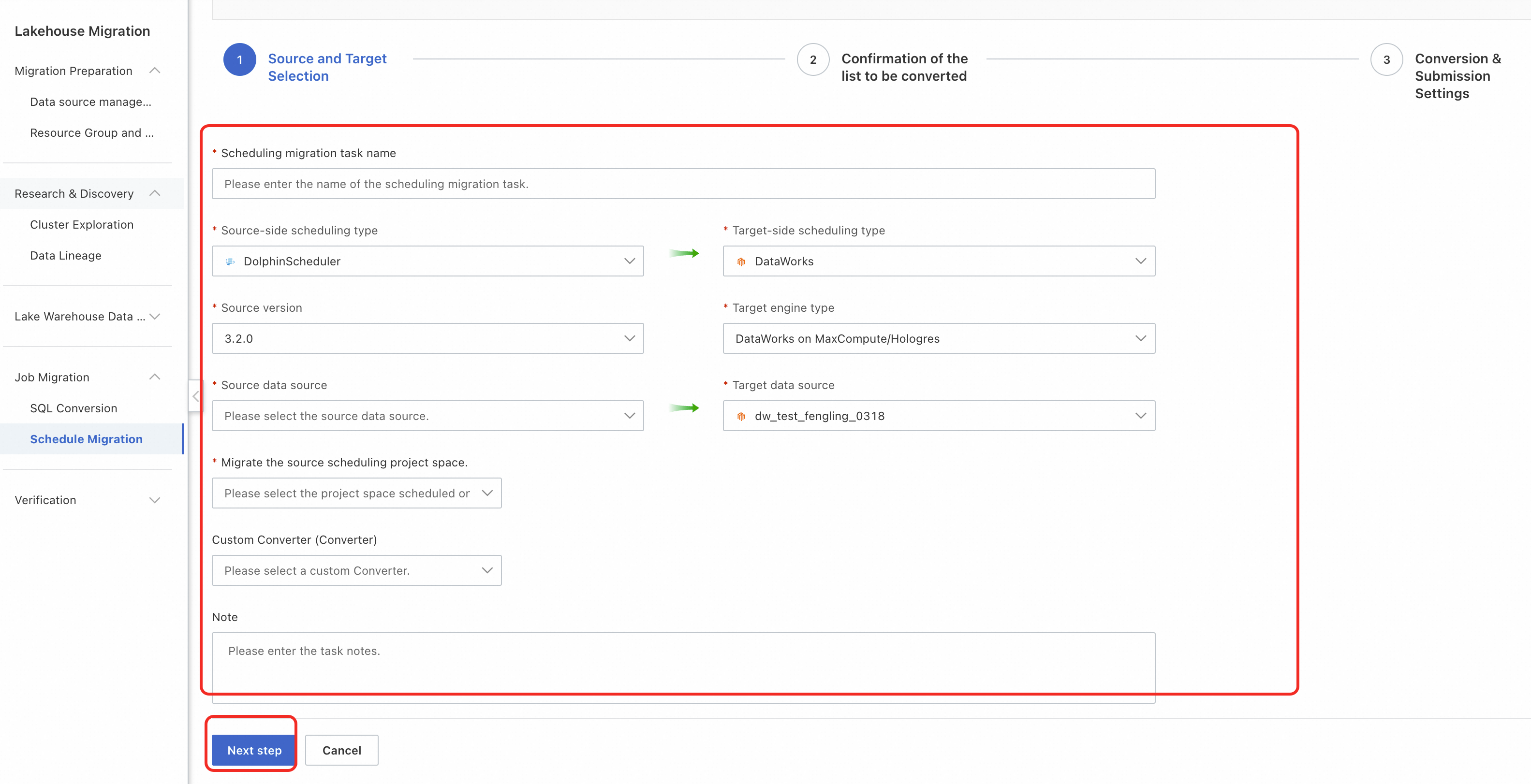
Enter the basic information. The source data source status must be "Discovery Successful".
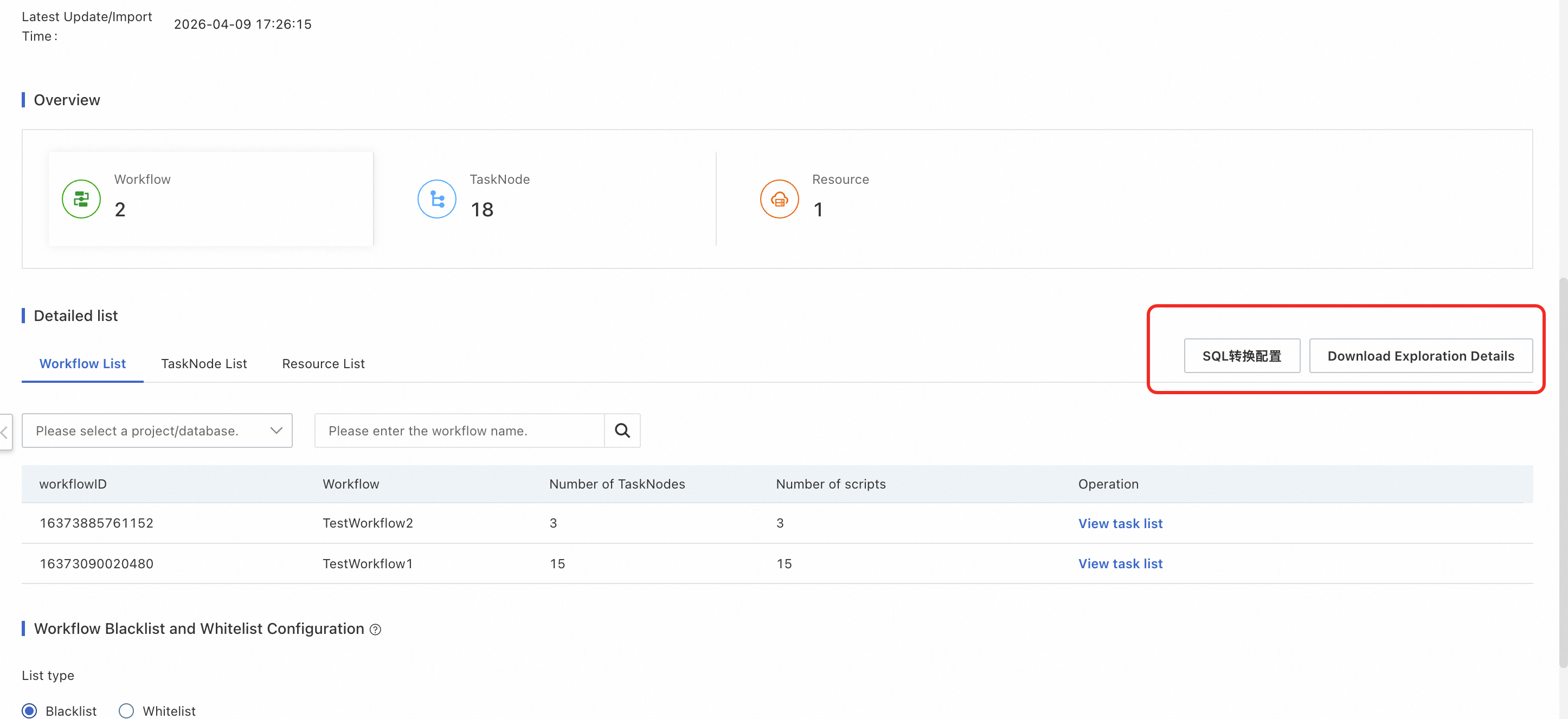
Confirm the conversion items. Configure SQL conversion settings if needed.
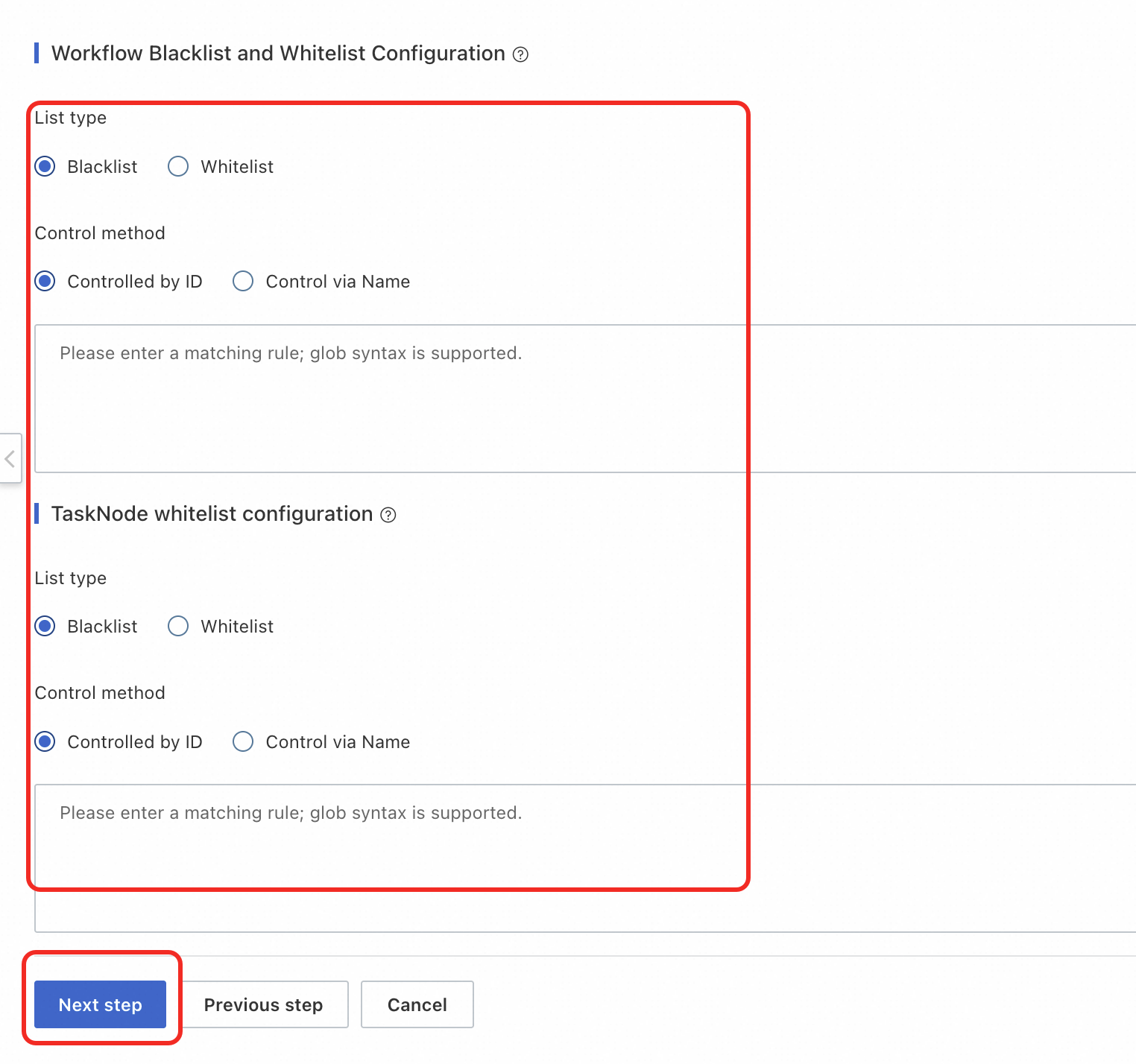
Configure the blacklist and whitelist. Skip this step by clicking Next if not needed.
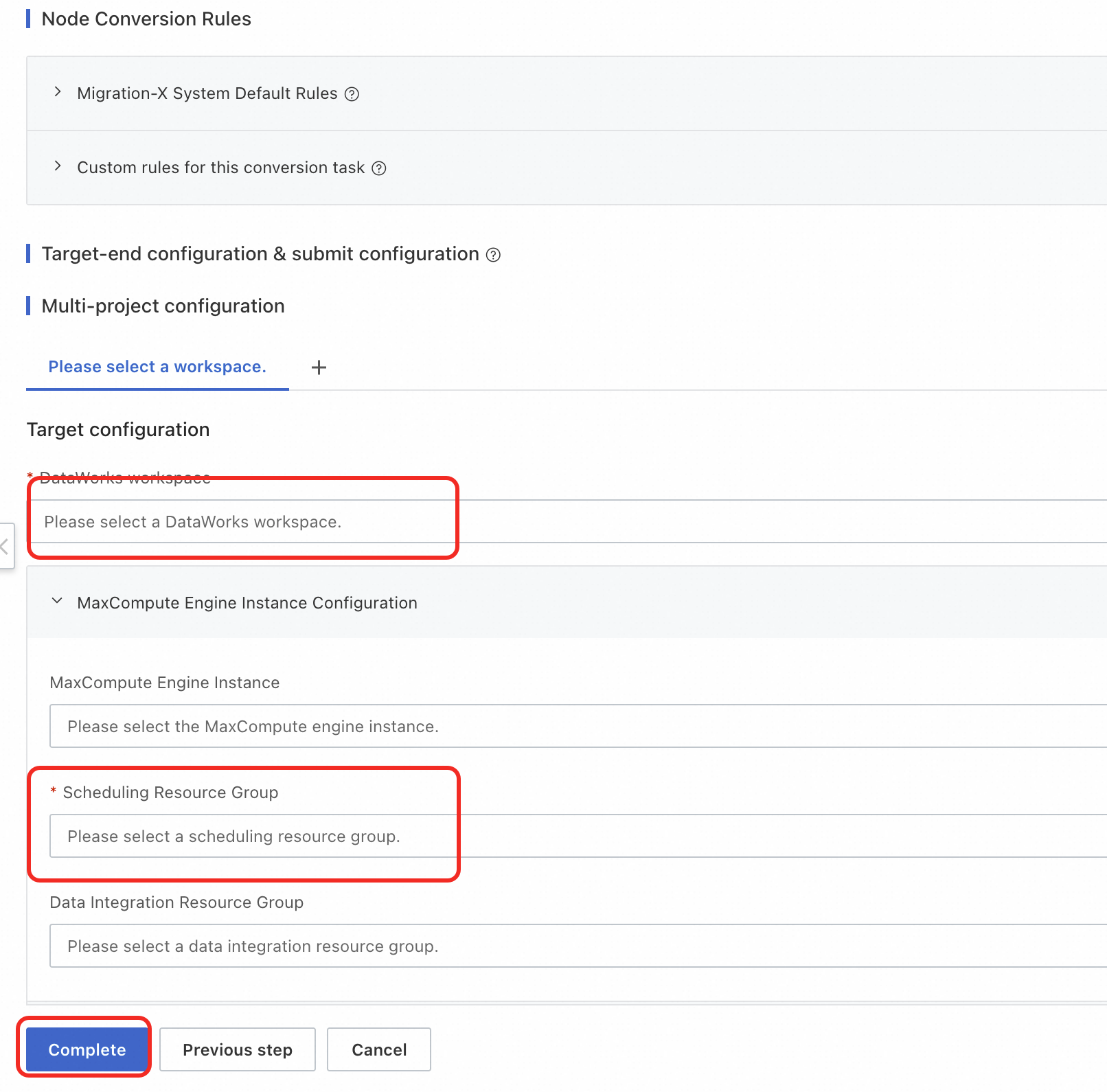
Configure conversion and submission settings. The target DataWorks workspace and scheduling resource group are required. Keep the defaults for other options, then click Finish.
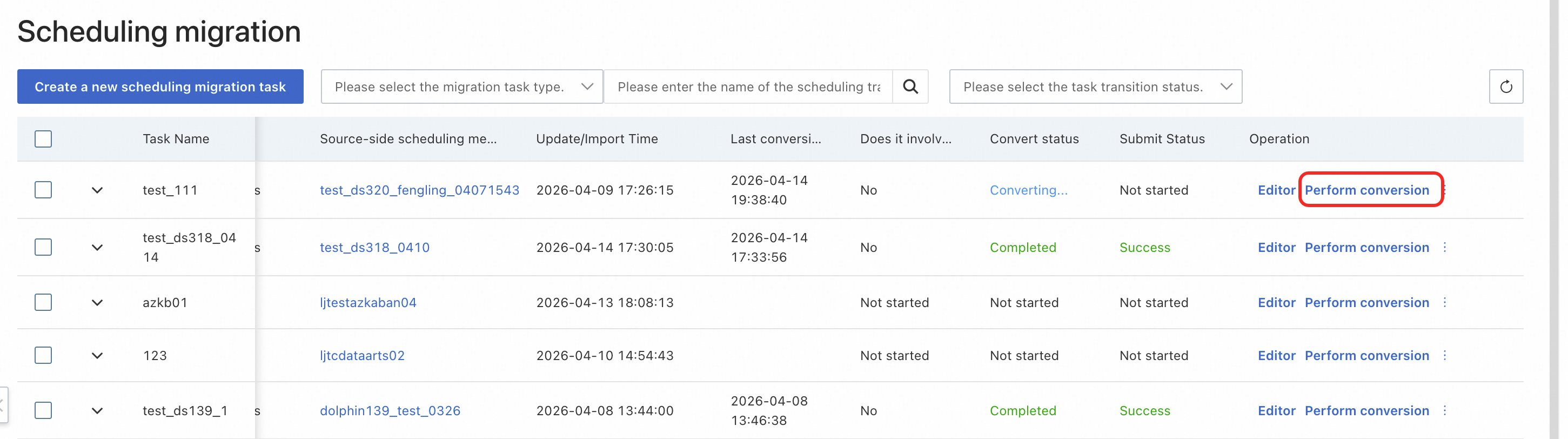
In the task list, find the task and click Execute Conversion.
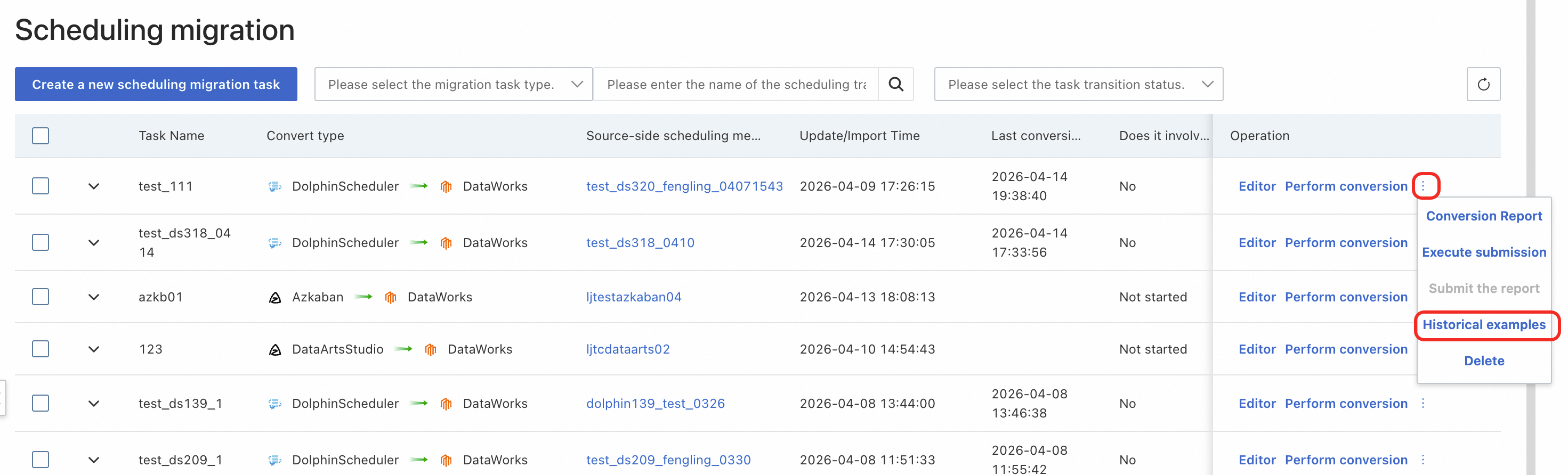
Click History Instances to view conversion progress and logs.
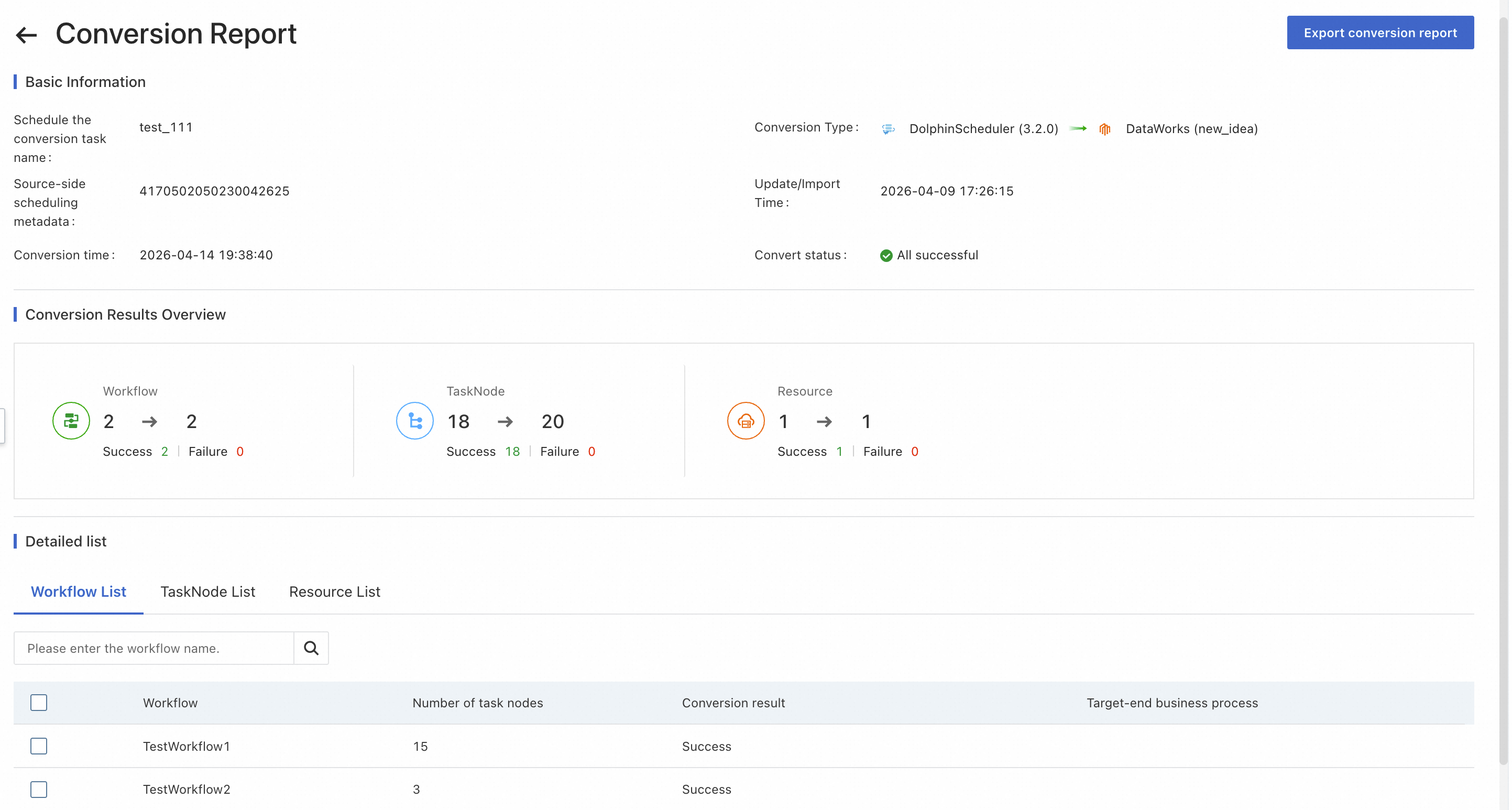
View the conversion report.
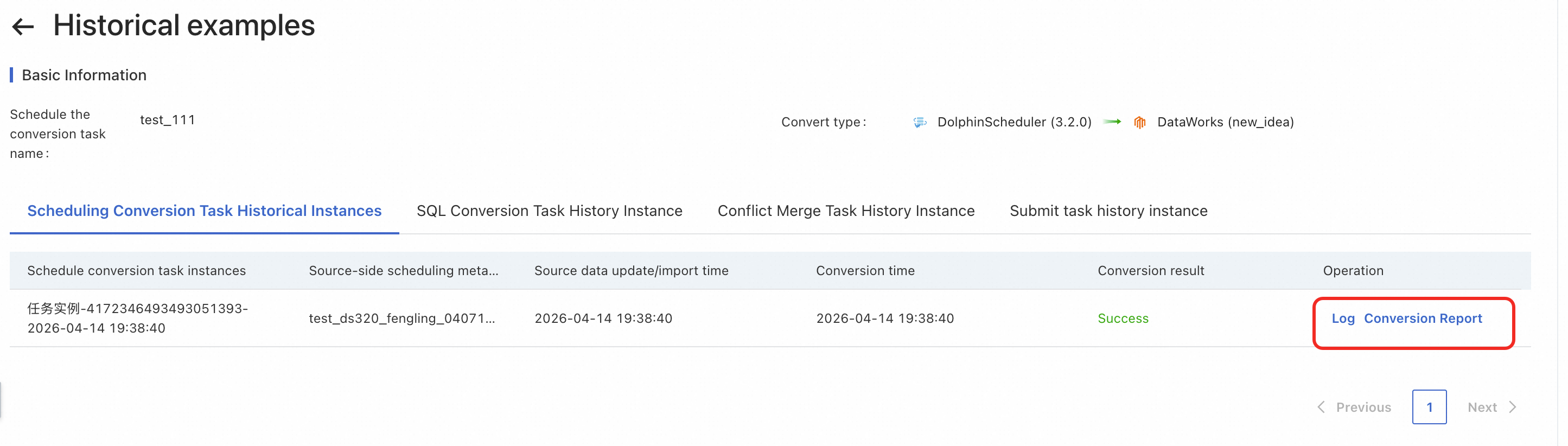
The conversion report:
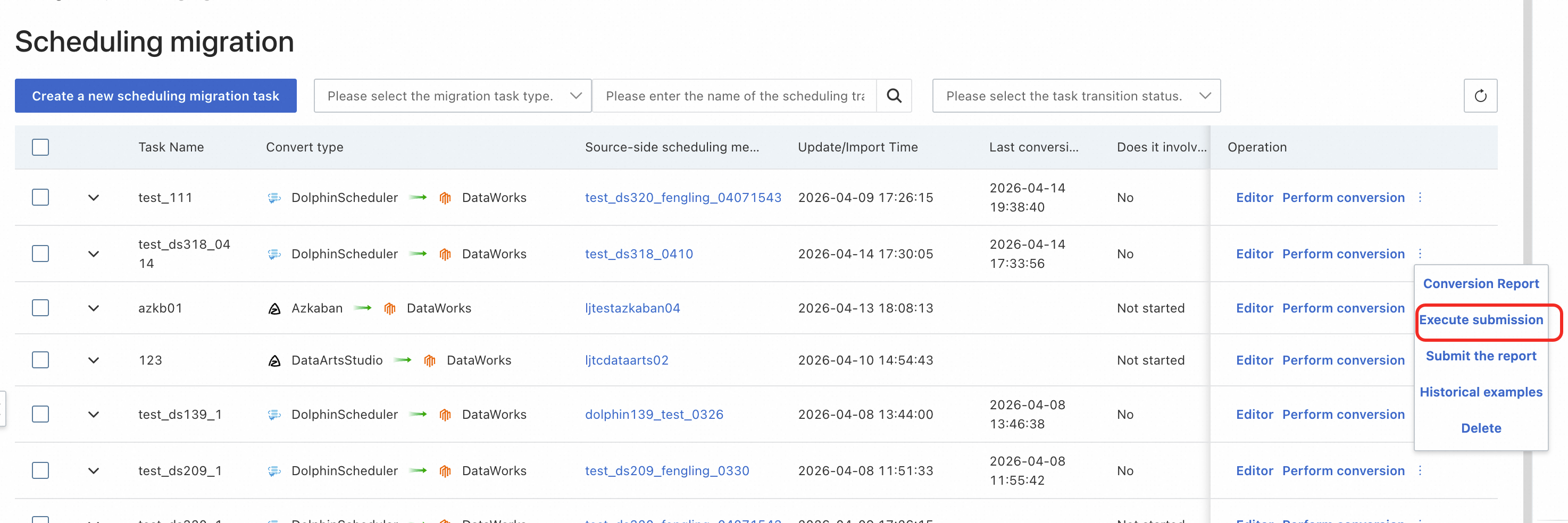
After conversion succeeds, click Execute Submission in the task list to write the workflow to the target DataWorks workspace.
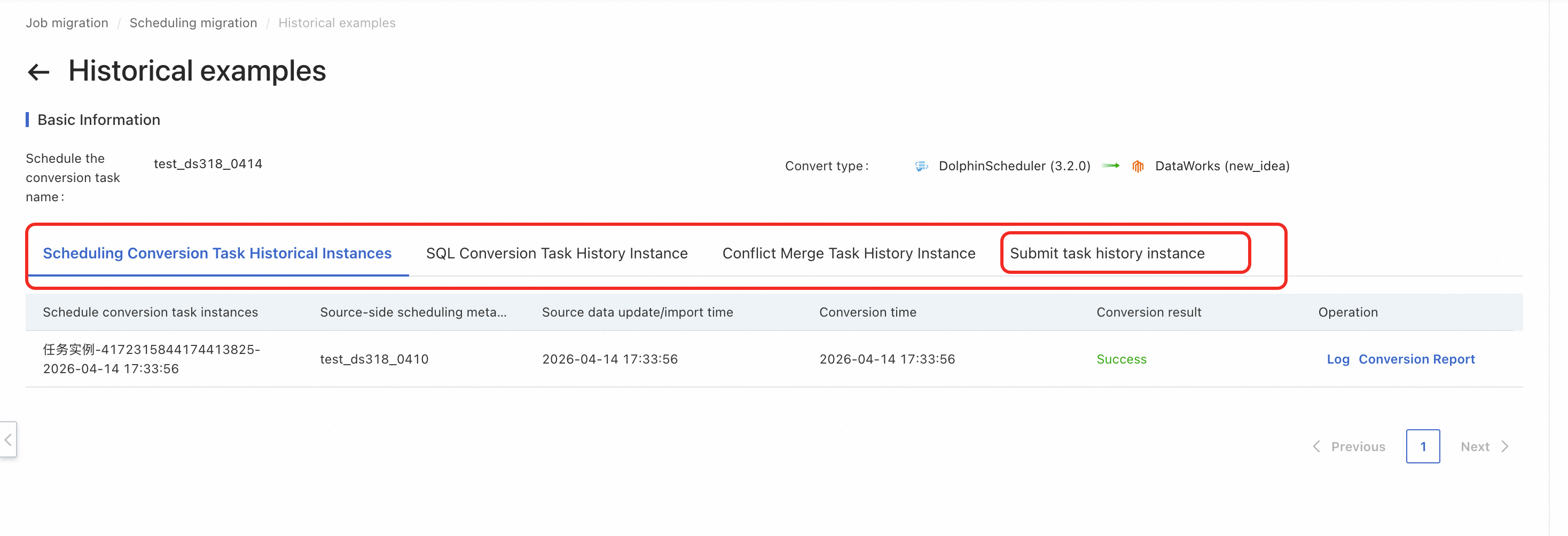
Open the Submitted Task History Instances tab to view the submission report.
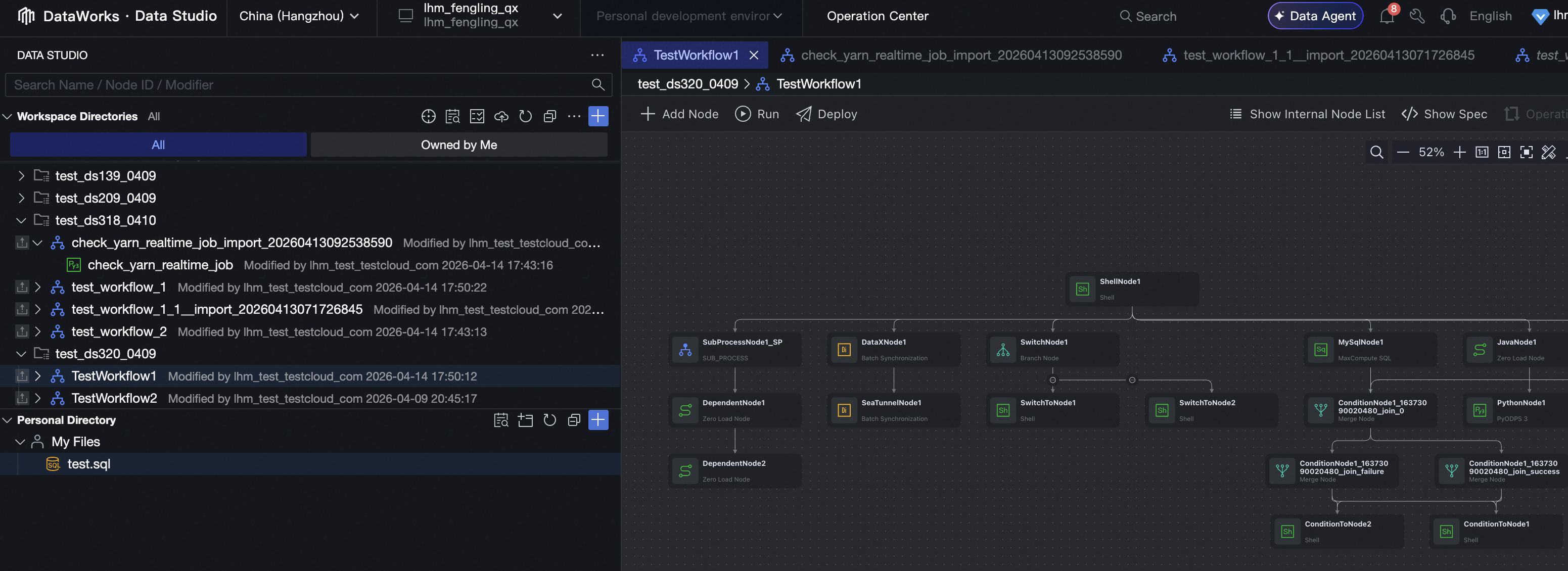
The migrated workflow is now available in your DataWorks workspace.
FAQ
1. An "agent is not active" error occurs when creating a scheduling data source.
Cause: The service agent is not running.
Solution: Install the service agent. See the "Prerequisites" section.
2. The discovery task does not respond after being started.
Symptom: You click Execute Now for a data source on the Scheduling Data Source Discovery page. The submission message appears, but the task status remains empty instead of showing "Running".
Cause: A resource group might not be bound.
Solution: Verify that a resource group is correctly bound. See the "Prerequisites" section.
After troubleshooting, the status should appear as shown below.
