Network traffic analysis
Network traffic analysis provides a more in-depth analysis of traffic composition and flow than standard traffic monitoring. For example, when an alert indicates congestion on a device port, an operations and maintenance (O&M) engineer can use network traffic analysis to pinpoint which protocols or IP addresses are consuming the most bandwidth. This helps resolve the congestion.
Prerequisites
a. The device must support either the sFlow or NetFlow protocol. To configure network traffic analysis for your hardware model, see the documentation from your hardware manufacturer.
b. Activate a Cloud Managed Network (CMN) instance. Then, deploy and install the plugins for receiving and analyzing traffic. To obtain the plugins, contact us on DingTalk at p1vdh38.
Procedure
The device's traffic push configuration is complete, and the network traffic analysis plugin is installed.
View top 10 traffic usage
1. In the navigation pane on the left of the console, click Network Monitoring > Network Traffic Analysis.
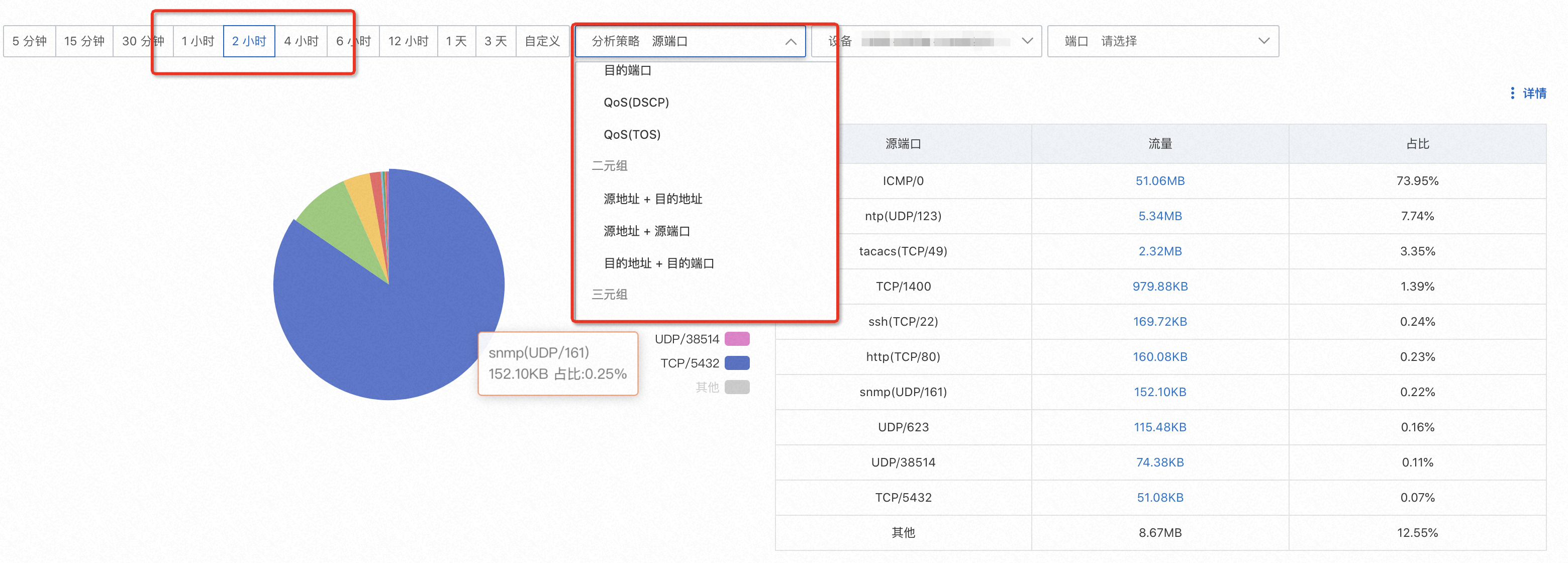
2. Select a time range and an analysis policy to view the top 10 traffic analysis results by device or by port.
Analysis policy: Built-in analysis policies are provided, ranging from 1-tuple to 5-tuple. Examples include 1-tuple policies (source address, destination address, source port, destination port, Quality of Service (QoS)) and 2-tuple policies (source address + destination address, source address + source port).
Device view (no port specified): Displays statistics for bidirectional traffic on all ports of a device where network traffic analysis is configured.
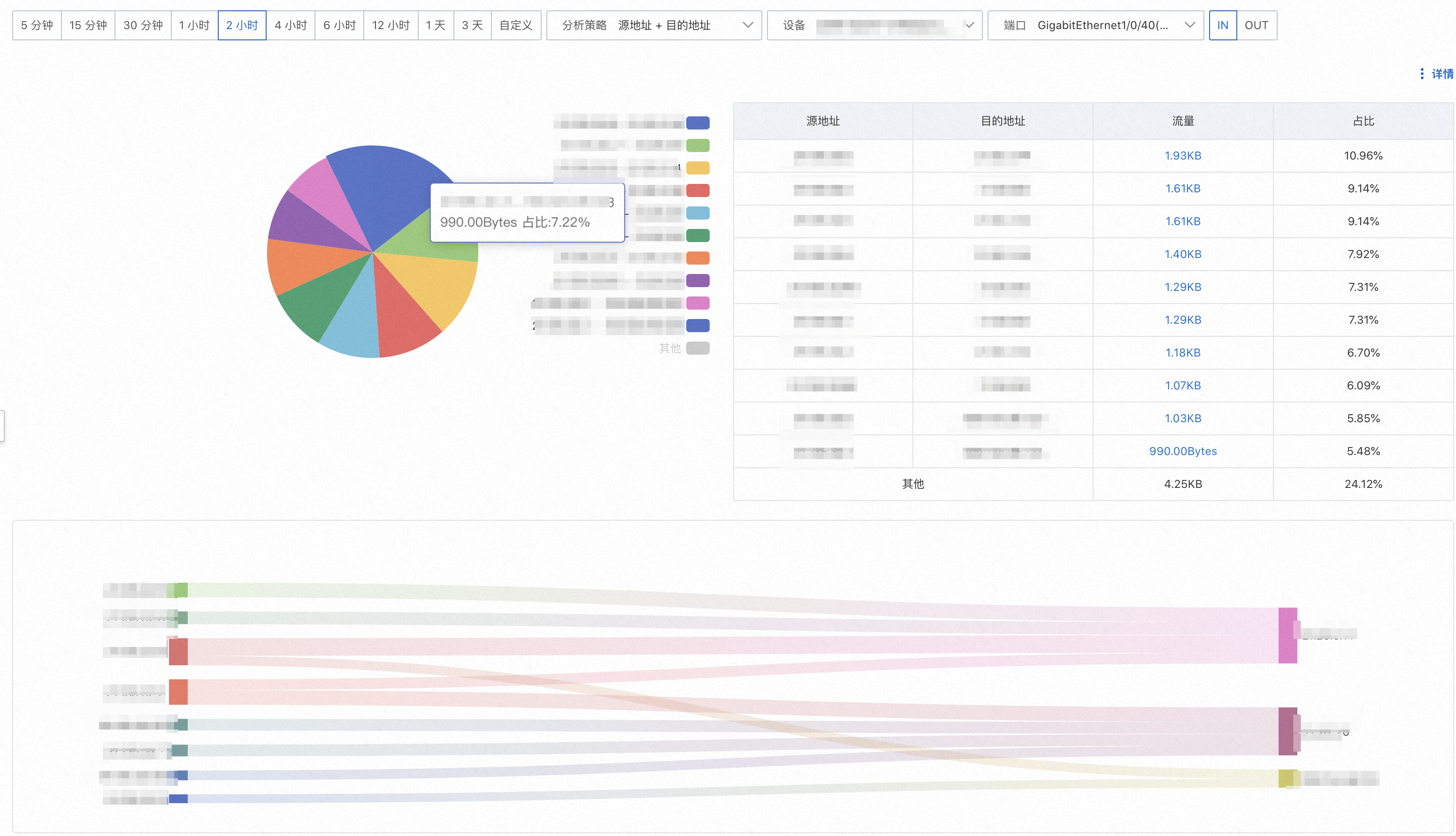
Port view: Displays network traffic analysis statistics for a specific port, separated into inbound and outbound traffic.
Traffic Trend graph
Select an item, such as an IP address or session, depending on your chosen analysis policy. You can then view its traffic trend over time. To view the traffic trend for a specific time range, click a traffic value in the top view.
Retrieve traffic details for a specific IP address
Sometimes you need to retrieve traffic details for a specific IP address. The Top N view might not show this information if the IP address is not in the top 10.
Traffic details
Select an analysis policy and a device or port, and then click Details. In the window that opens, enter the IP address that you want to query. This action retrieves all traffic information for that IP address within the specified time range.
Click a traffic value in the list to view the traffic trend for the specified time range.
Pass parameters through a URL
You can pass query parameters in the URL for faster queries, instead of selecting them on the CMN page. The following table describes the URL parameters.
Parameter |
Description |
Example value |
Start |
Query start UNIX timestamp |
1692597185 |
End |
Query end UNIX timestamp |
1692597185 |
Dimension |
Analysis policy |
SrcAddr: Source address SrcPort: Source port DstAddr: Destination address DstPort: Destination port DSCP: QoS (DSCP) IPtos: QoS (TOS) SrcAddr,DstAddr: Source address + Destination address SrcAddr,SrcPort: Source address + Source port DstAddr,DstPort: Destination address + Destination port SrcAddr,DstAddr,ProtoName: Source address + Destination address + Protocol SrcAddr,SrcPort,DstAddr: Source address + Source port + Destination address SrcAddr,DstAddr,DstPort: Source address + Destination address + Destination port SrcAddr,DstAddr,SrcPort,DstPort: Source address + Destination address + Source port + Destination port SrcAddr,DstAddr,SrcPort,DstPort,ProtoName: Session |
IpProtocolVersion |
Address type |
IPv4 or IPv6 |
DeviceIp |
Device IP |
127.0.0.1 |
PortIndex |
Port index |
28 |
PortDirection |
Traffic type |
IN or OUT |