Consolidate alert notifications
If multiple resources in your Alibaba Cloud account trigger the same alert rule within a single cycle, Cloud Monitor consolidates the notifications to reduce alert fatigue and resource usage. After the initial alert, subsequent consolidated notifications are sent at one-minute intervals.
Notification methods
Notification consolidation applies to phone, SMS, email, and DingTalk chatbot notifications. The consolidated behavior varies by method:
-
Phone calls and SMS display detailed information only for the first resource. To view details for other resources, you must follow the link in the SMS message to open the Cloud Monitor console.
-
Email and DingTalk chatbot notifications display details for a maximum of 20 resources.
Threshold alert rule for an application group
Example: Create an alert rule namedtest_cpu_alarm to monitor the(Agent) Host.cpu.total (Recommended) metric for ECS instances in thetestGroup application group. Alert notifications are sent to theAlarm_Group alert contact group viaSMS, email, and DingTalk chatbot. Before you begin, create thetestGroup application group and theAlarm_Group alert contact group.
-
Log on to the Cloud Monitor console.
-
In the left-side navigation pane, click Application Groups.
-
On the Application Groups tab, click the application group name testGroup.
-
In the left-side navigation pane of the target application group, click Alert Rule.
-
Click Create Alert Rule.
-
In the Create Alert Rule panel, set Product to Elastic Compute Service (ECS).
-
Click Add Rule, configure the alert rule for the ECS instances, and then click OK.
Parameter
Example
Rule name
test_cpu_alarm
Metric
(Agent) Host.cpu.total (Recommended)
Threshold
>=10%
Alert level
Warning
Notification methods
SMS+Email+DingTalk chatbot
-
Set Alert Contact Group to Alarm_Group and click OK.
After you configure the alert rule, if multiple resources trigger the alert within the same cycle, notifications are automatically consolidated. The content varies by notification method:
-
SMS
-
The first alert notification contains the alert details for the first resource in the application group.
-
After one minute, Cloud Monitor consolidates alerts for other resources. The consolidated SMS message displays details for only the first resource. To view details for other resources, you must log in to the Cloud Monitor console.
-
-
Email
-
The first alert notification contains the alert details for the first resource in the application group.
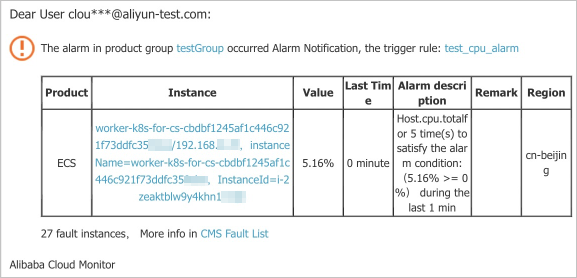
-
After one minute, Cloud Monitor consolidates alerts for other resources. The consolidated email displays details for a maximum of 20 resources.
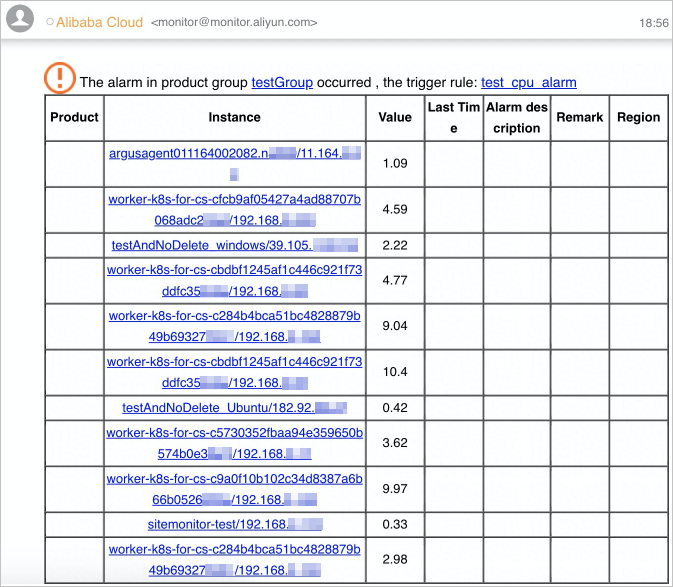
-
-
DingTalk chatbot
-
The first alert notification contains the alert details for the first resource in the application group.
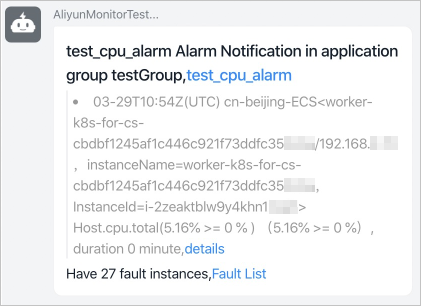
-
After one minute, Cloud Monitor consolidates alerts for other resources. The consolidated DingTalk chatbot message displays details for a maximum of 20 resources.
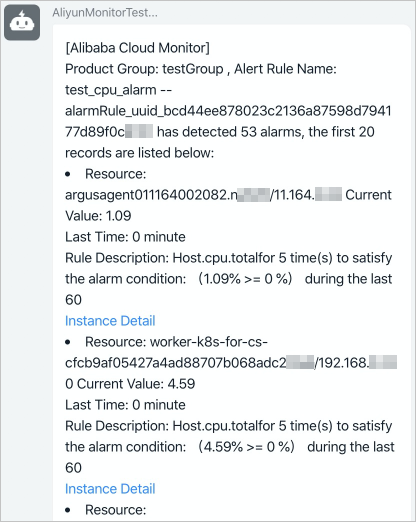
-
-
Threshold alert rule for all resources
Example: Create an alert rule namedtest_cpu_alarm to monitor the(Agent) Host.cpu.total (Recommended) metric for all ECS resources. Alert notifications are sent to theAlarm_Group alert contact group viaSMS, email, and DingTalk chatbot.
-
Log on to the Cloud Monitor console.
-
In the left-side navigation pane, choose .
-
On the Alert Rules page, click Create Alert Rule.
-
In the Create Alert Rule panel, configure an alert rule and notification method for the specified metric of all ECS resources.
Parameter
Example
Product
ECS
Resource range
All Resources
Rule name
test_cpu_alarm
Metric
Instance dimension / (Agent)cpu.total
Cycle
1 minute
Threshold
Maximum >= 10%
Consecutive cycles
5
Alert level
Warn
Notification methods
SMS+Email+DingTalk chatbot
Alert contact group
Alarm_Group
-
Click Confirm.
After you configure the alert rule, if multiple resources trigger the alert within the same cycle, notifications are automatically consolidated. The content varies by notification method:
-
SMS
-
The first alert notification contains the alert details for the first resource in the application group.
-
After one minute, Cloud Monitor consolidates alerts for other resources. The consolidated SMS message displays details for only the first resource. To view details for other resources, you must log in to the Cloud Monitor console.
-
-
Email
-
The first alert notification contains the alert details for the first resource in the application group.
-
After one minute, Cloud Monitor consolidates alerts for other resources. The consolidated email displays details for a maximum of 20 resources.

-
-
DingTalk chatbot
-
The first alert notification contains the alert details for the first resource in the application group.
-
After one minute, Cloud Monitor consolidates alerts for other resources. The consolidated DingTalk chatbot message displays details for a maximum of 20 resources.
-
-
Threshold alert rule for a specific instance
Example: Create an alert rule namedtest_node_alert to monitor theAverage bytes per request for a proxy metric for the specific instancer-bp1vfufnlnkt2c****-name(r-bp1vfufnlnkt2c****) of ApsaraDB for Redis (Cluster Edition). Alert notifications are sent to theAlarm_Group alert contact group viaSMS, email, and DingTalk chatbot.
-
Log on to the Cloud Monitor console.
-
In the left-side navigation pane, choose .
-
On the Alert Rules page, click Create Alert Rule.
-
In the Create Alert Rule panel, configure an alert rule and notification method for the specified metric of the specific ApsaraDB for Redis (Cluster Edition) instance.
Parameter
Example
Product
ApsaraDB for Redis (Cluster Edition)
Resource range
Instance
Region
China (Hangzhou)
Instance
r-bp1vfufnlnkt2c****-name(r-bp1vfufnlnkt2c****)
Rule name
test_node_alert
Metric
Average bytes per request for a proxy
Cycle
1 minute
Threshold
Average >= 0 Byte
Consecutive cycles
5
Alert level
Warning
Notification methods
SMS+Email+DingTalk chatbot
Alert contact group
Alarm_Group
-
Click Confirm.
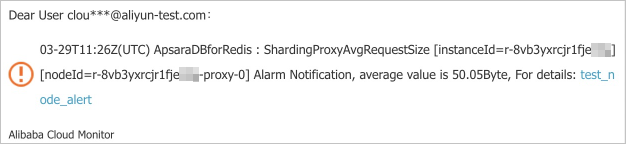
After you configure the alert rule, if multiple nodes of the instance trigger the alert within the same cycle, notifications are automatically consolidated. The content varies by notification method:
-
SMS
-
The first alert notification contains the alert details for the first node that triggered the alert.
-
After one minute, Cloud Monitor consolidates alerts for other nodes of the specific instance. The consolidated SMS message displays details for only the first node. To view details for other nodes, you must log in to the Cloud Monitor console.
-
-
Email
-
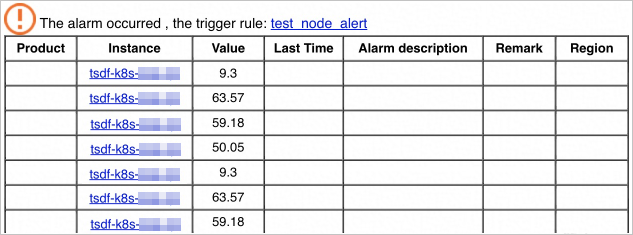
The first alert notification contains the alert details for the first node that triggered the alert.
-
After one minute, Cloud Monitor consolidates alerts for other nodes of the specific instance. The consolidated email displays details for a maximum of 20 nodes.
-
-
DingTalk chatbot
-
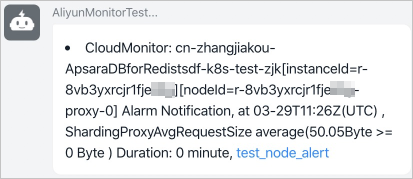
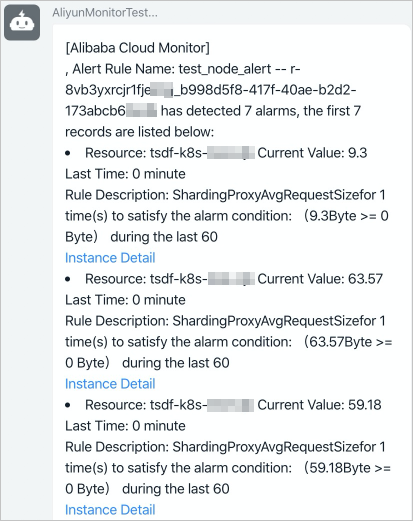
The first alert notification contains the alert details for the first node that triggered the alert.
-
After one minute, Cloud Monitor consolidates alerts for other nodes of the specific instance. The consolidated DingTalk chatbot message displays details for a maximum of 20 nodes.
-
-
Event alert rule from event monitoring
Example: Create an event alert rule named test_config_alarm, which monitors the target ApsaraDB for Redis cluster instance r-bp1vfufnlnkt2c****-name (r-bp1vfufnlnkt2c****) for the Average bytes per request for a proxy metric and sends alert notifications to the alert contact group Alarm_Group via email and a DingTalk chatbot. You must create the alert contact group Alarm_Group in advance.
-
Log on to the Cloud Monitor console.
-
In the left-side navigation pane, choose .
-
On the Event Monitoring tab, click Save as Alert Rule.
-
In the Create/Modify Event-triggered Alert Rule panel, configure an alert rule and notification method for system events from Cloud Config.
Parameter
Example
Alert rule name
test_config_alarm
Product type
Cloud Config
Event type
Notification
Event level
Info
Event name
configuration item change
Resource range
All Resources
Alert method
Select the Alert Notification checkbox.
Alert contact group
Alarm_Group
Notification method
Info (Email+DingTalk chatbot)
-
Click OK.
After you configure the alert rule, if multiple events trigger the alert within the same cycle, notifications are automatically consolidated. The content varies by notification method:
-
Email
-
The first alert notification contains details about the first Cloud Config event.
-
After one minute, Cloud Monitor consolidates notifications for other Cloud Config events from the same period. The consolidated email displays information for a maximum of 20 events.
-
-
DingTalk chatbot
-
The first alert notification contains details about the first Cloud Config event.
-
After one minute, Cloud Monitor consolidates notifications for other Cloud Config events from the same period. The consolidated DingTalk chatbot message displays information for a maximum of 20 events.
-
-