Agent upgrade
An Agent Manager upgrade on Alibaba Cloud replaces the sandbox image, startup command, or runtime parameters and migrates running Agent sandboxes to the new configuration. The upgrade rebuilds the selected sandboxes and can cause a brief interruption. Verify the upgrade process on a test sandbox first.
Prerequisites
Prepare working backup and recovery commands before you upgrade. For instructions, see Create a backup point and restore data from it.
Confirm that your business can accept a brief interruption and that no upgrade task is in progress in the same namespace.
Only one unfinished upgrade task can exist in a namespace at a time. If a task is in the Pending, Upgrading, or Failed state, wait for it to finish, delete it, or fix it first.
Confirm that a sandbox meets the upgrade conditions
If the target sandbox does not appear on the Instance Upgrade page, or the instance is marked Not Safe to Upgrade, check the following conditions:
| Check item | Requirement |
| SandboxSet | Contains both the agent-runtime and csi runtimes so that /backup can be mounted. |
| Instance | The backup mount information was written when the instance was created. Modifying only the SandboxSet does not automatically fix a running instance. |
| Agent type | The pre-upgrade backup command and the post-upgrade recovery command are saved. |
| Backup directory | /backup is writable and the backup command generates a non-empty file. |
New instances generate the backup mount from the corrected SandboxSet. If an existing instance has no mount information from creation time, rebuild the instance. Alternatively, ask an administrator to add the mount through the cluster operations process before the upgrade.
Procedure
Configure the pre-upgrade backup and post-upgrade recovery commands
Configure a pre-upgrade backup command and a post-upgrade recovery command for the Agent type. The underlying Pod is rebuilt during the upgrade, and only the data that is written to /backup and successfully restored is kept.
Open Agent Manager and go to Agent Configuration.
Open the details of the target Agent type and go to Backup & Upgrade Configuration.
Confirm the associated SandboxSet, namespace, target image, and command timeout.
Enter a Pre-upgrade Command that writes the data you want to keep to
/backup.Enter a Post-upgrade Recovery Command that restores the data from
/backupto the working directory of the new Pod.Save the configuration.
The commands must cover the actual data directories of the Agent. The example commands shown on the Backup & Upgrade Configuration page apply only to the default directory of that Agent type. To restore an earlier backup file, specify the file name in the recovery command instead of relying on the automatic selection of the latest file.
Start a single or batch sandbox upgrade
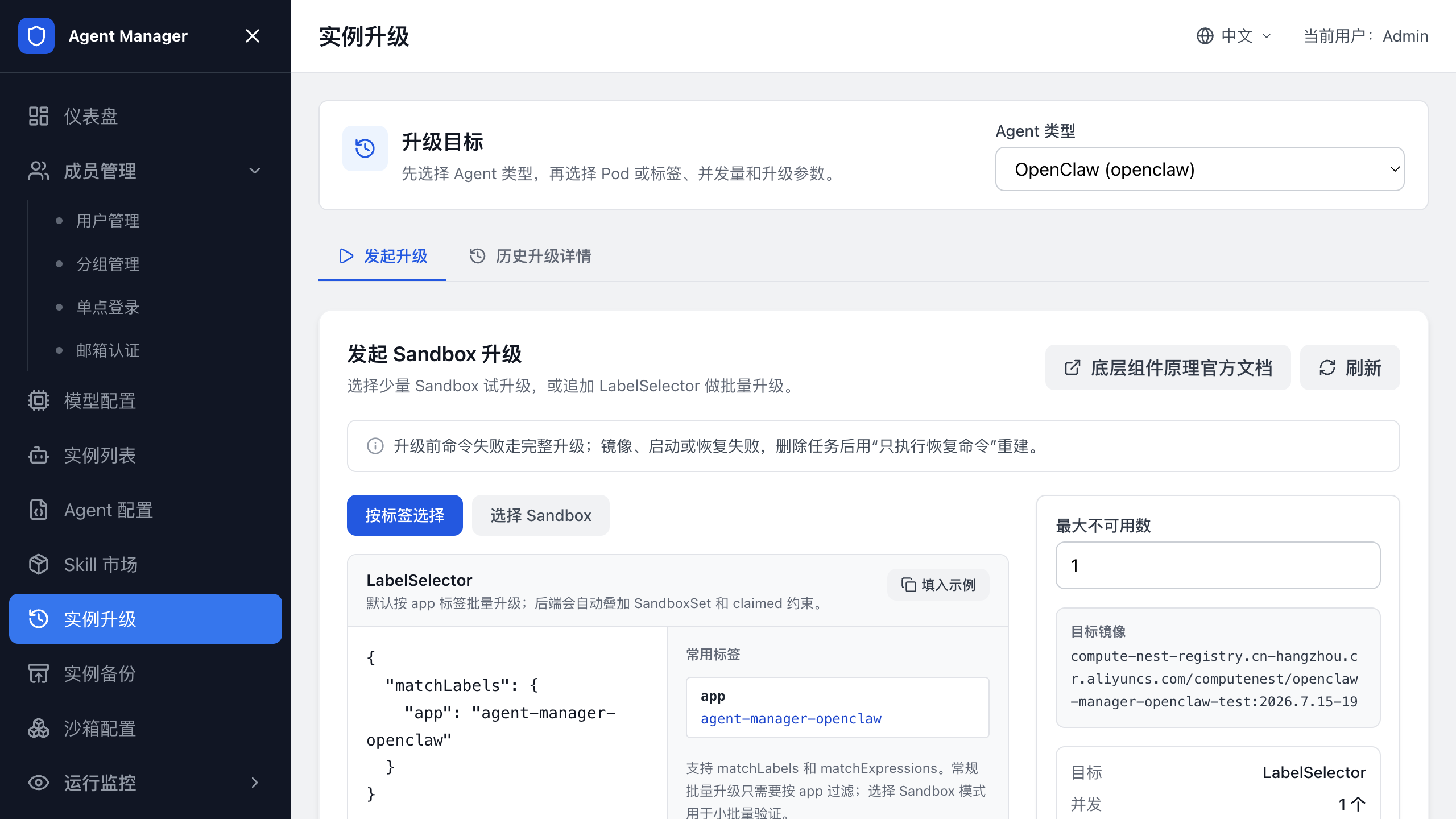
Open Agent Manager and go to Instance Upgrade.
Select the Agent type and wait for the list of upgradable sandboxes to load.
Select a few sandboxes for a trial upgrade, or switch to Select by Label to define the batch scope.
Set the maximum number of unavailable sandboxes and the command timeout.
Click Start Full Upgrade.
Check the progress and the failed objects in Upgrade History Details.
The image, command, environment variable, and mount changes that the upgrade needs are generated from the latest SandboxSet. You do not need to specify the underlying upgrade resources.
Verify the upgrade result
Run an upgrade on a test sandbox first and confirm that the data and the application access work as expected.
Retry after a failed upgrade
Use Run Recovery Command Only only when the pre-upgrade backup command has already succeeded. Otherwise, run a full upgrade again so that a new backup is generated before the sandbox is replaced.
Open Upgrade History Details and check the failed stage, Reason, and Message. Then handle the failure as described in the following table:
| Failed stage | Resolution |
| The pre-upgrade command failed | Check the directory to back up, the /backup mount, and the command exit code. After you fix the issue, start a full upgrade again. |
| The image or Pod failed to start | Check the target image, the startup command, and the probes. Delete the failed task and start the upgrade again. |
| The post-upgrade recovery command failed | Check the backup file path, the recovery directory, and the verification file. Delete the failed task and select Run Recovery Command Only. |
| An unfinished task already exists in the namespace | Wait for the task to finish, or delete or fix the failed task in the history details. |