Website HTTPS
This topic describes how to enable HTTPS for your website.
Background information
HTTPS is more secure than HTTP. It uses encryption in transit and identity authentication to protect data. Websites that use HTTPS do not display "not secure" warnings in browsers.
Configure a free HTTPS certificate
There are two types of free HTTPS certificates: One-click Configuration and Alibaba Cloud Free HTTPS Certificate Configuration. The One-click Configuration method is recommended for its simplicity. Click . After the configuration is successful, click OK. The certificate is valid for 90 days and is automatically renewed one week before it expires.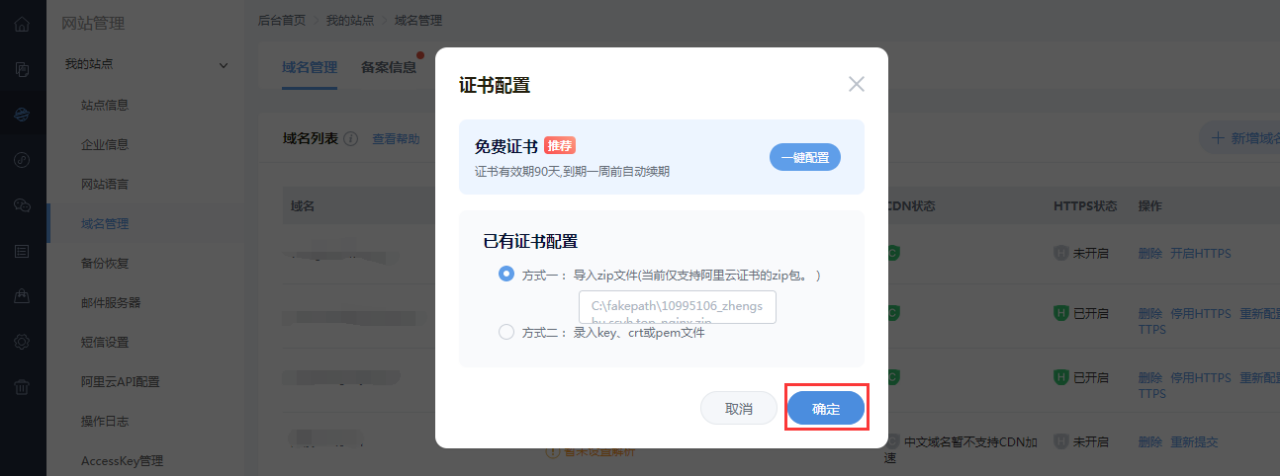
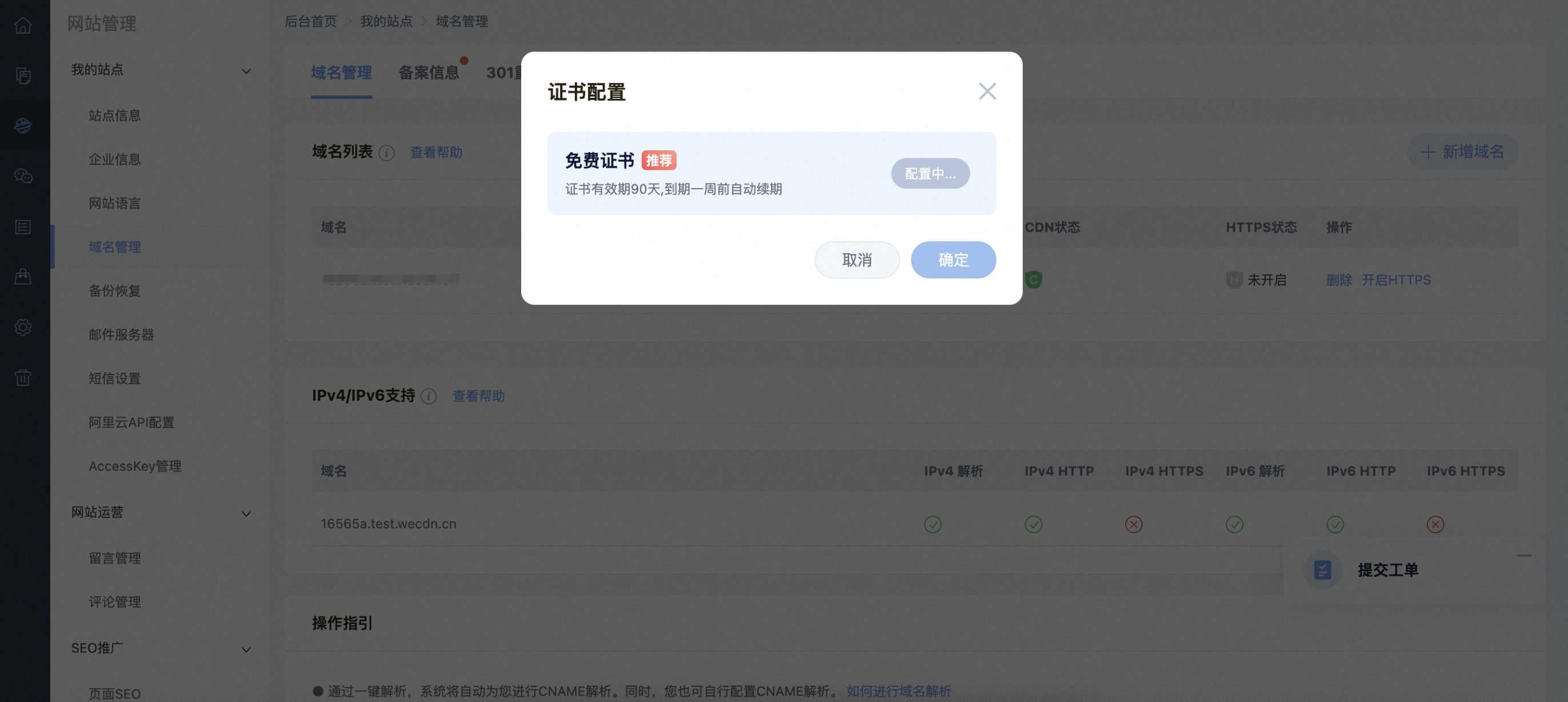 The following steps describe how to use the Alibaba Cloud Free HTTPS Certificate Configuration method.
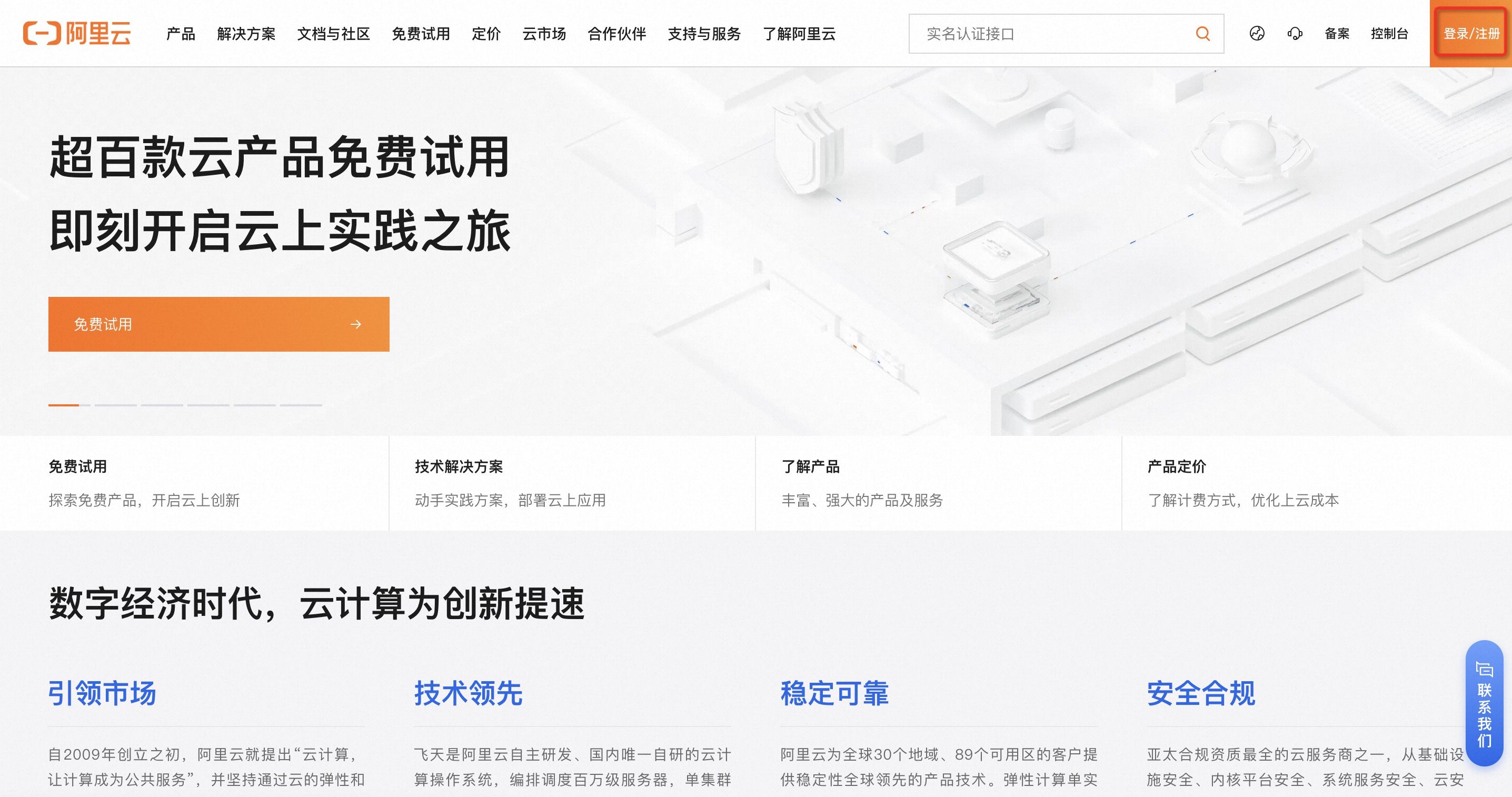
Go to https://www.aliyun.com/ and log on to your Alibaba Cloud account. Use the account that owns the domain name or the product. Using the account that owns the domain name is recommended.
-
Note
If your domain name already has an HTTPS certificate, skip to Step 6.
After you log on, click Console.
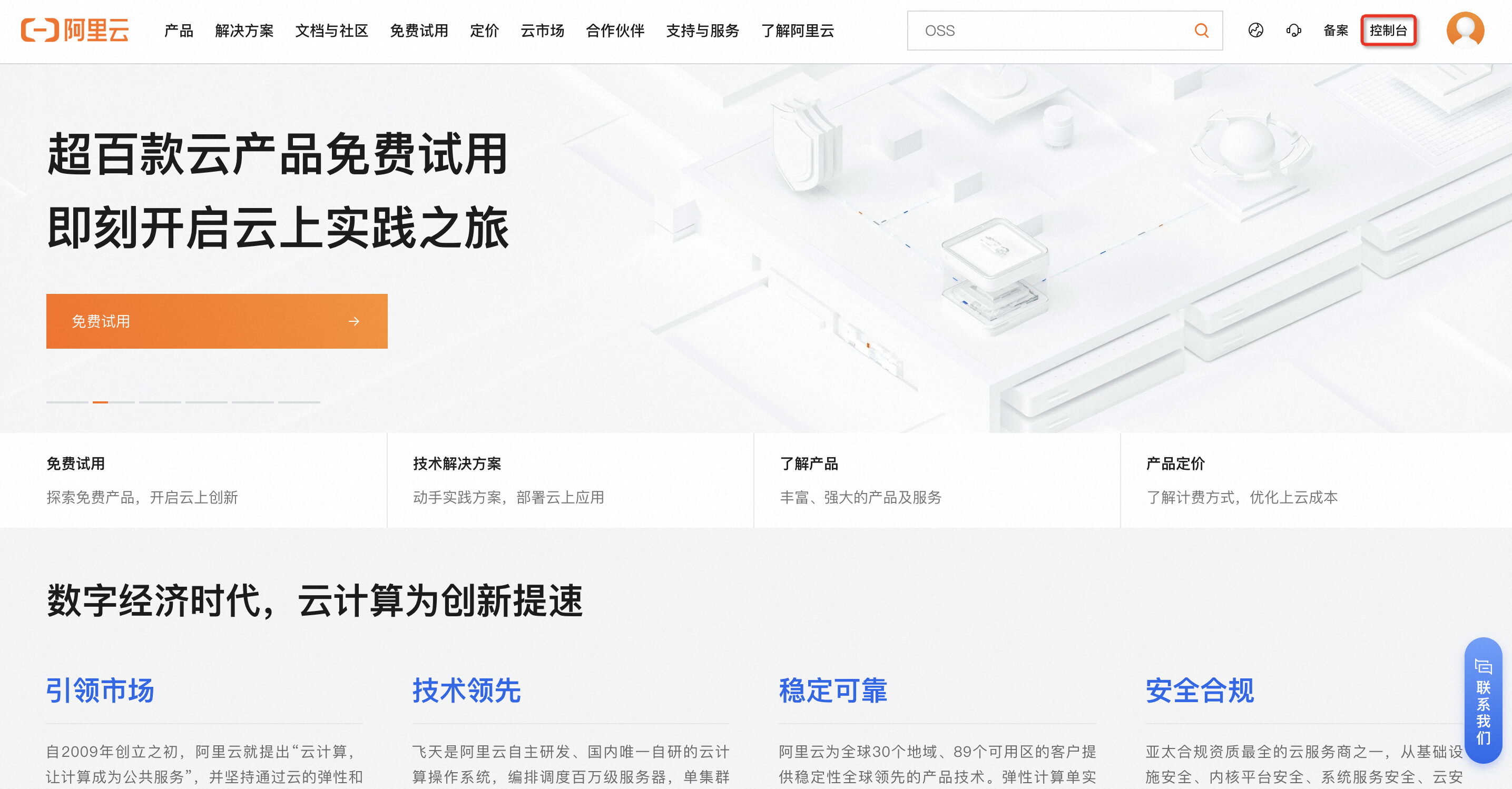
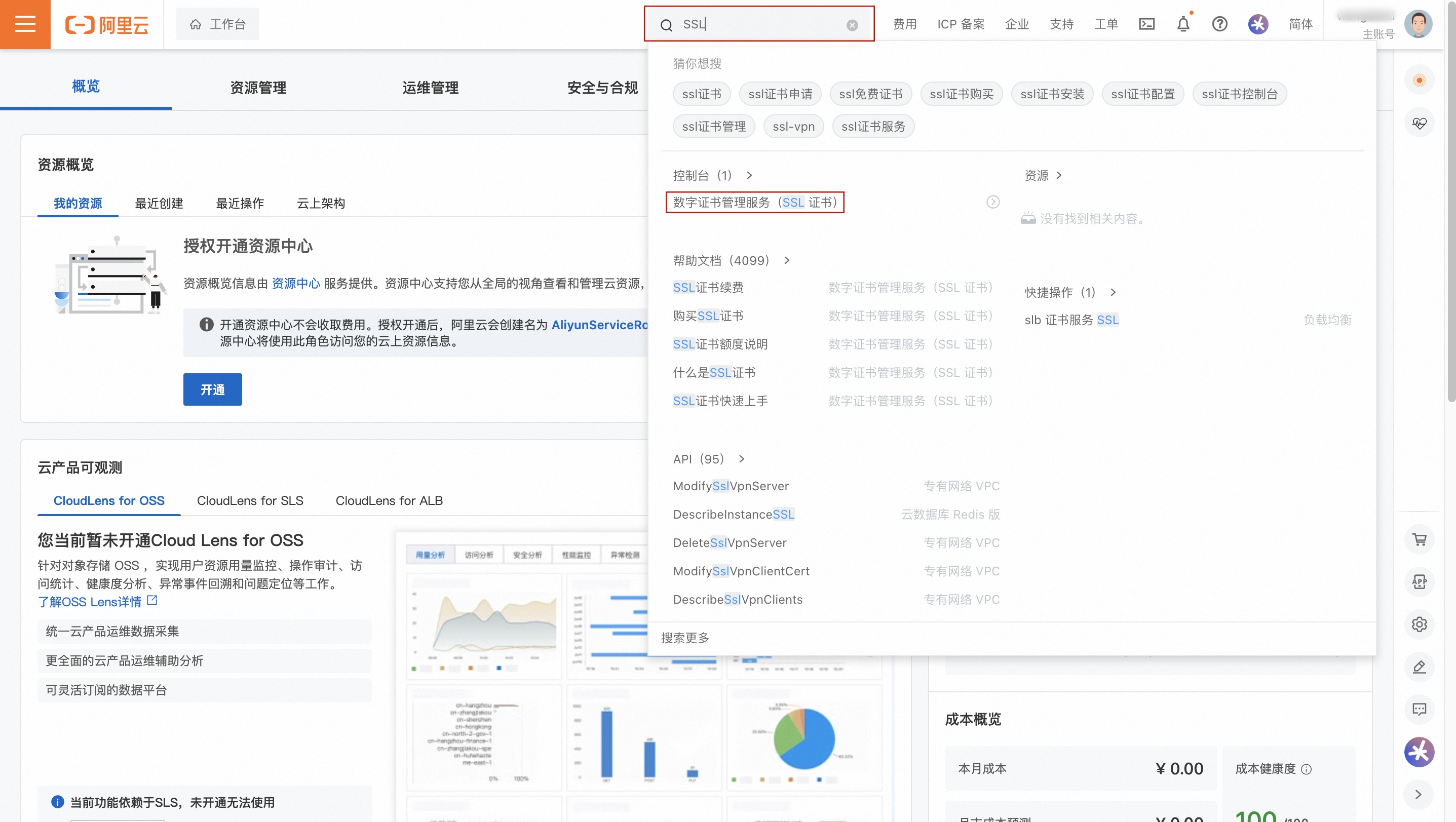
Search for SSL and click Certificate Management Service (SSL Certificate) to go to the service console.
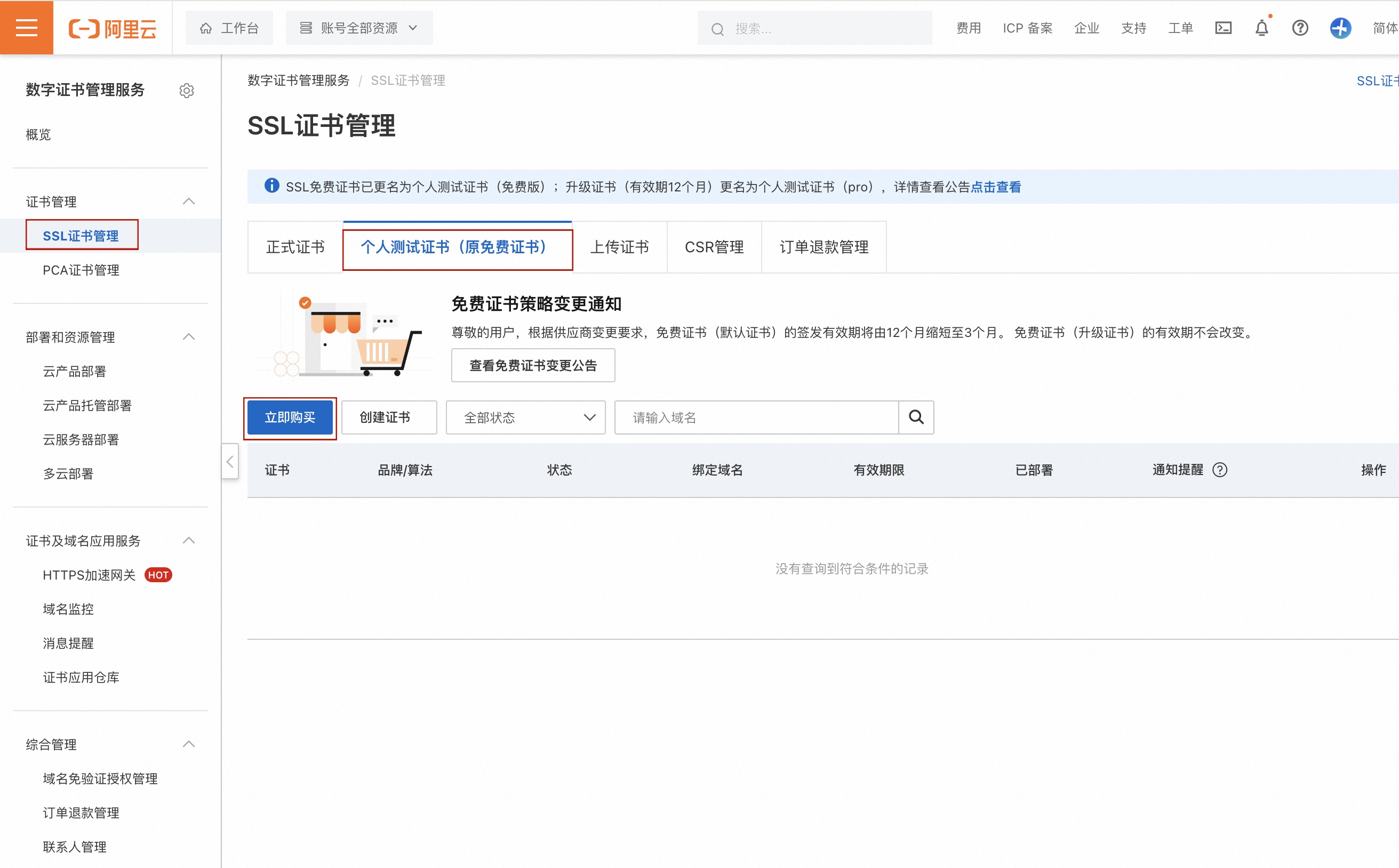
Click .
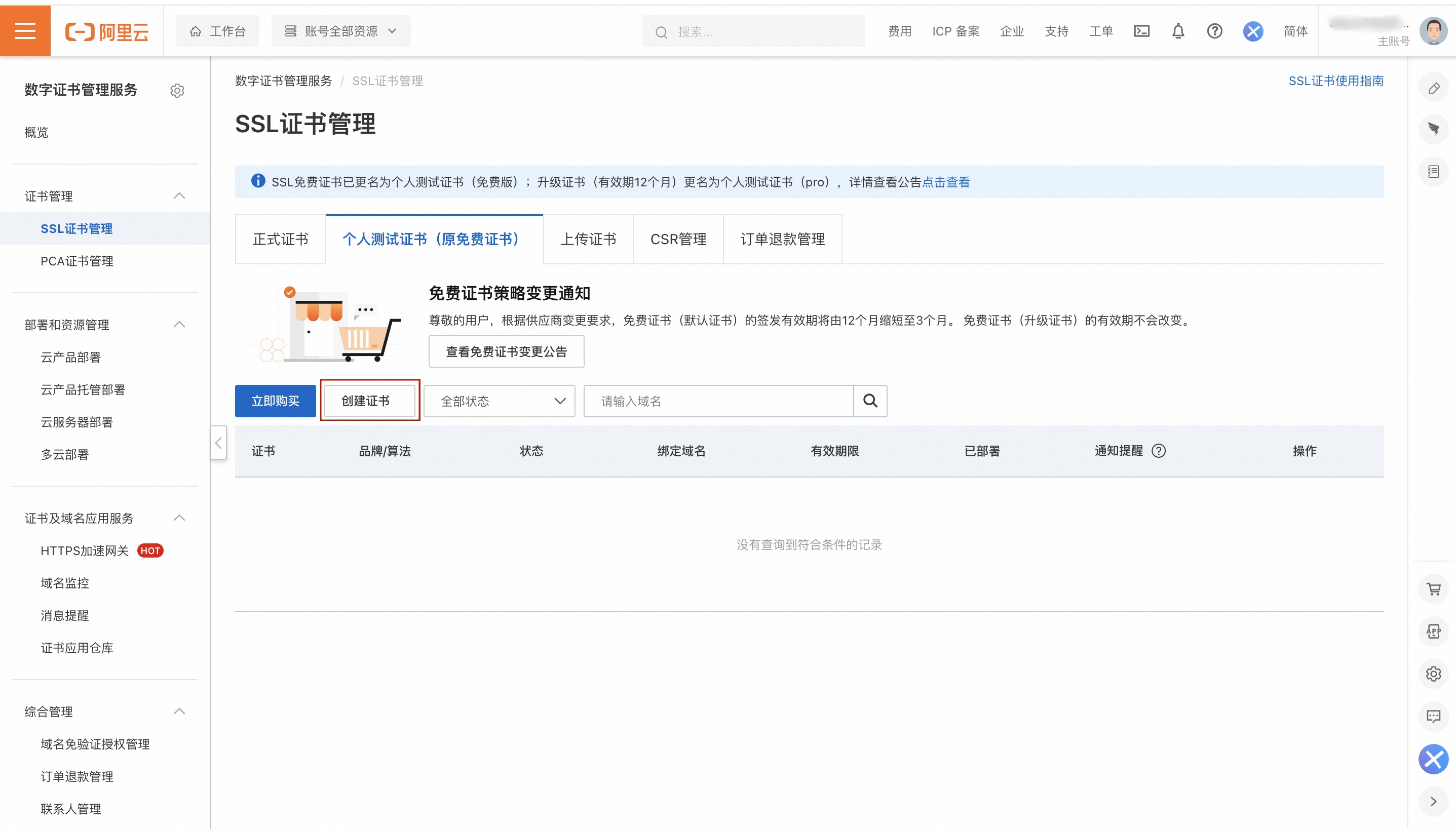
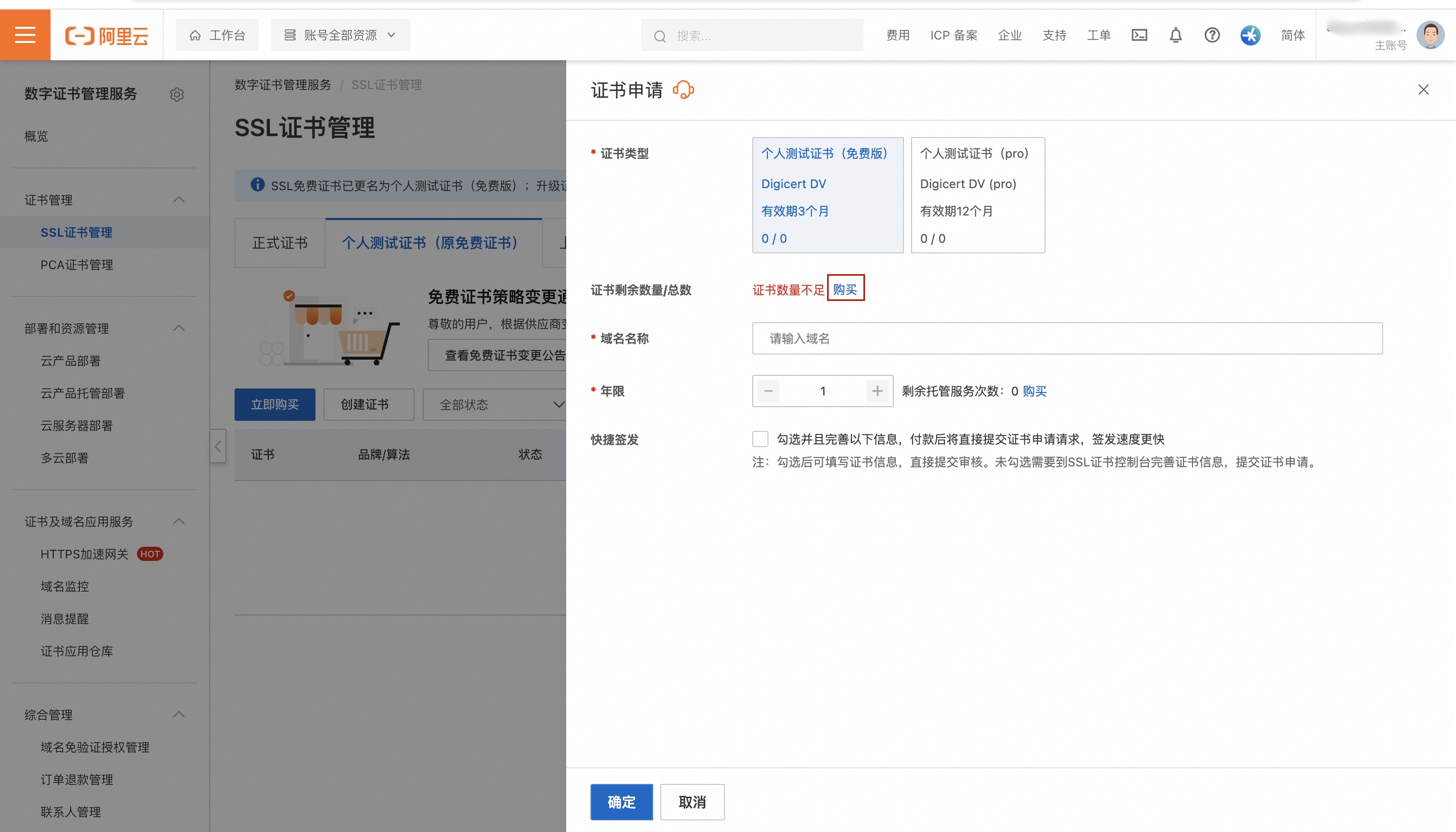
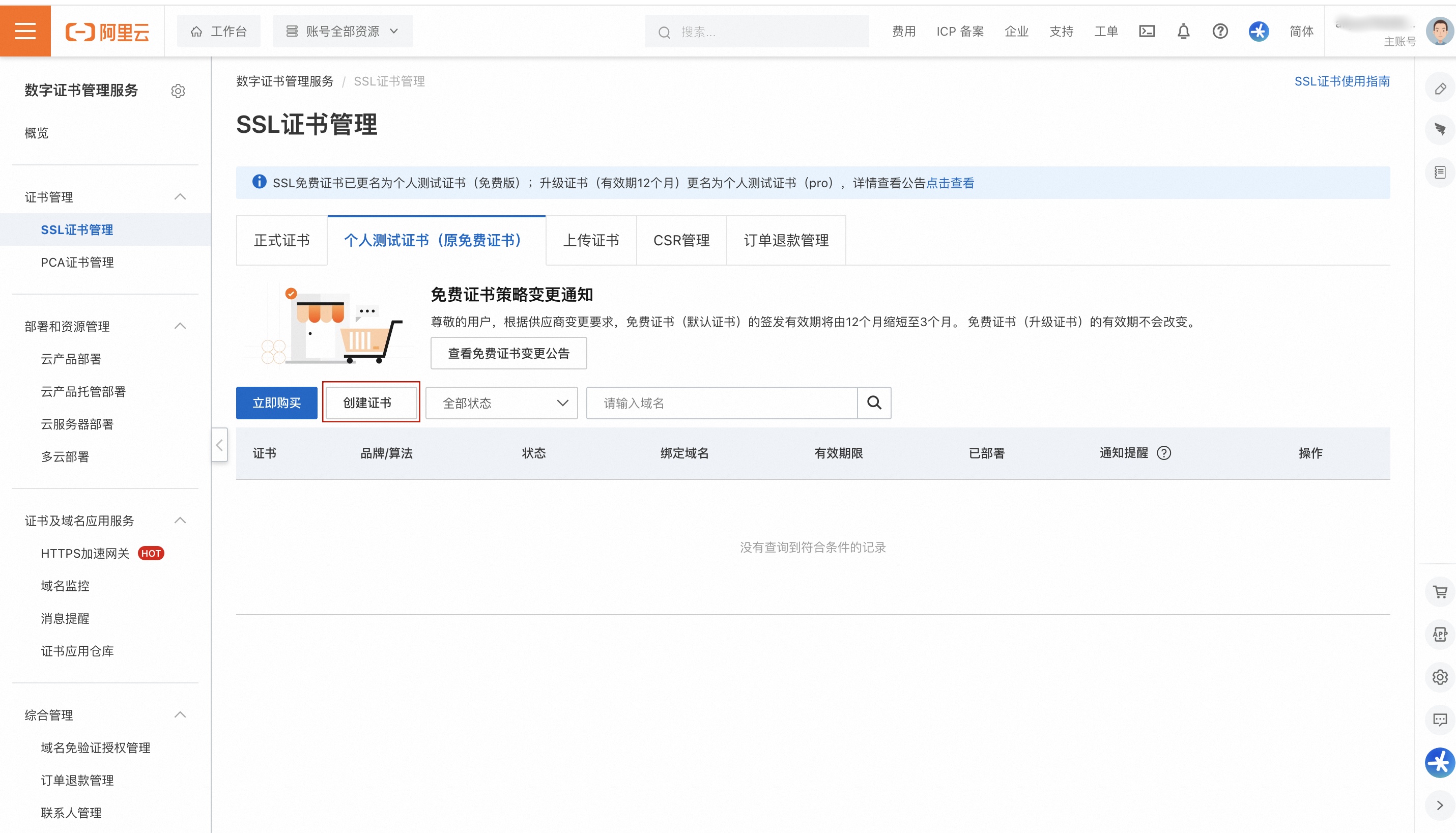
Click Create Certificate. If a message indicates an insufficient number of certificates, click Purchase. This redirects to the same page as clicking Buy Now. Follow the instructions for the Buy Now operation.

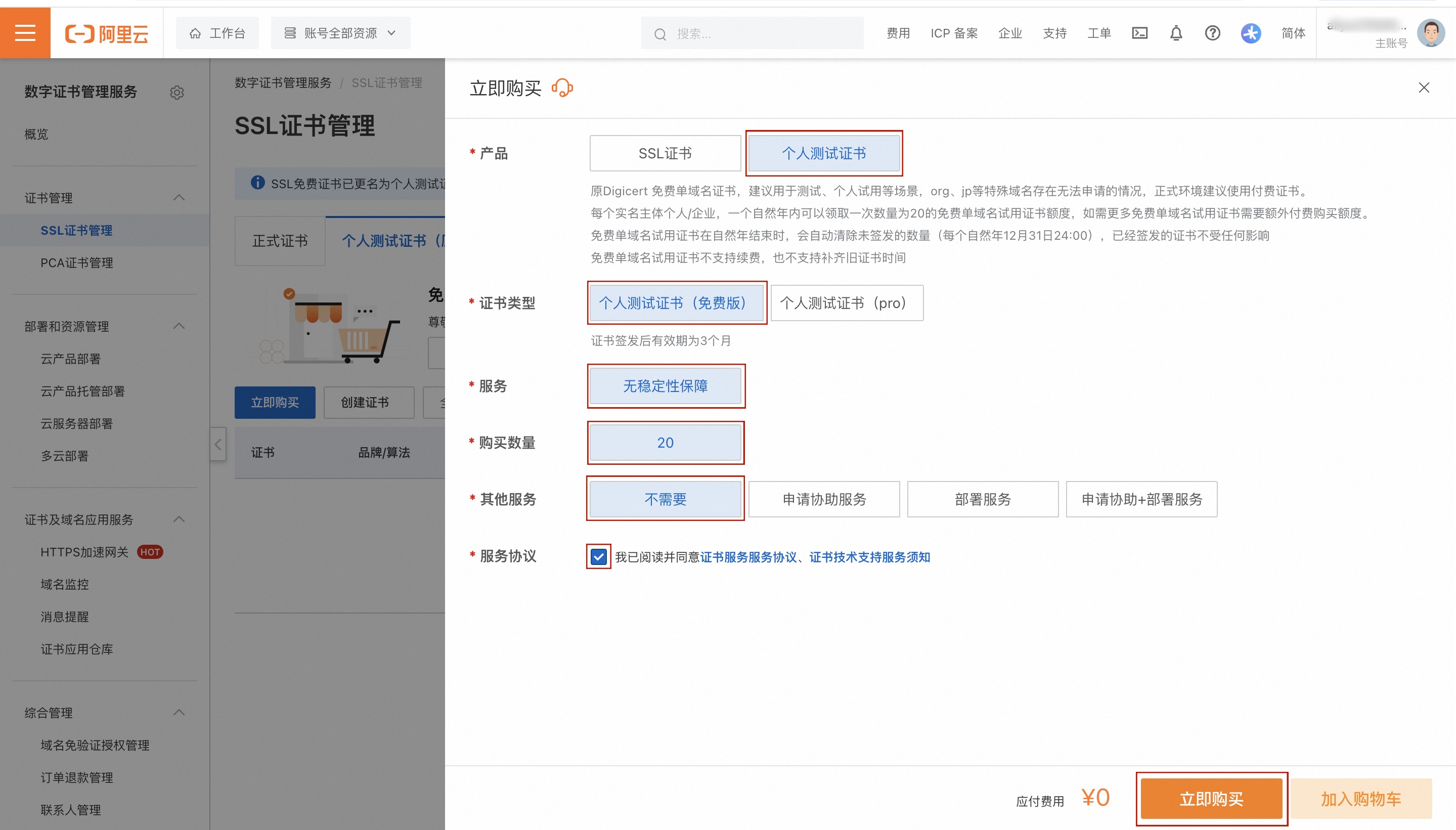
Click Buy Now.
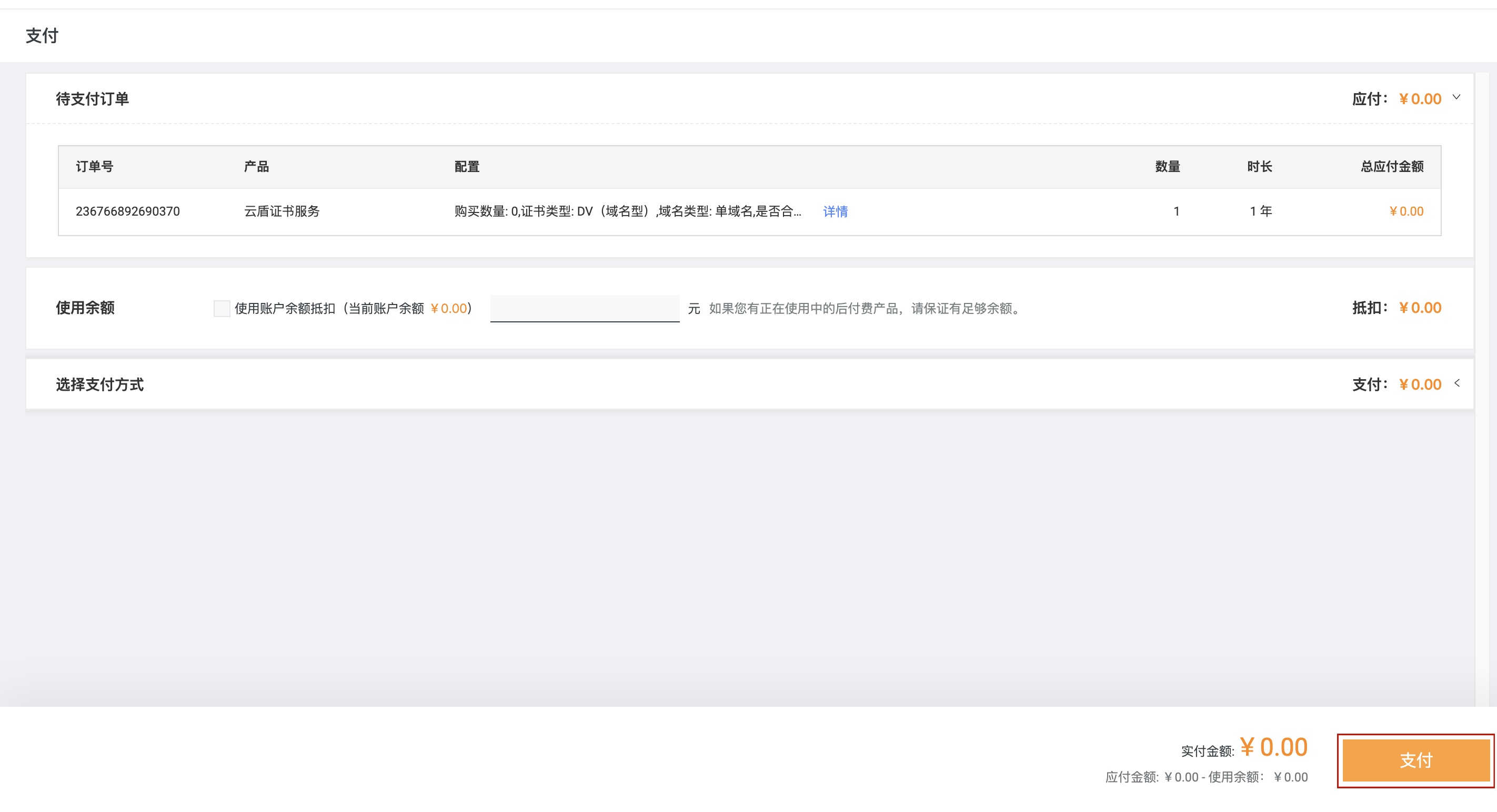
Select . Set the quantity to 20. Select Not Required. Select the Certificate Terms of Service checkbox. Click Buy Now and complete the payment.
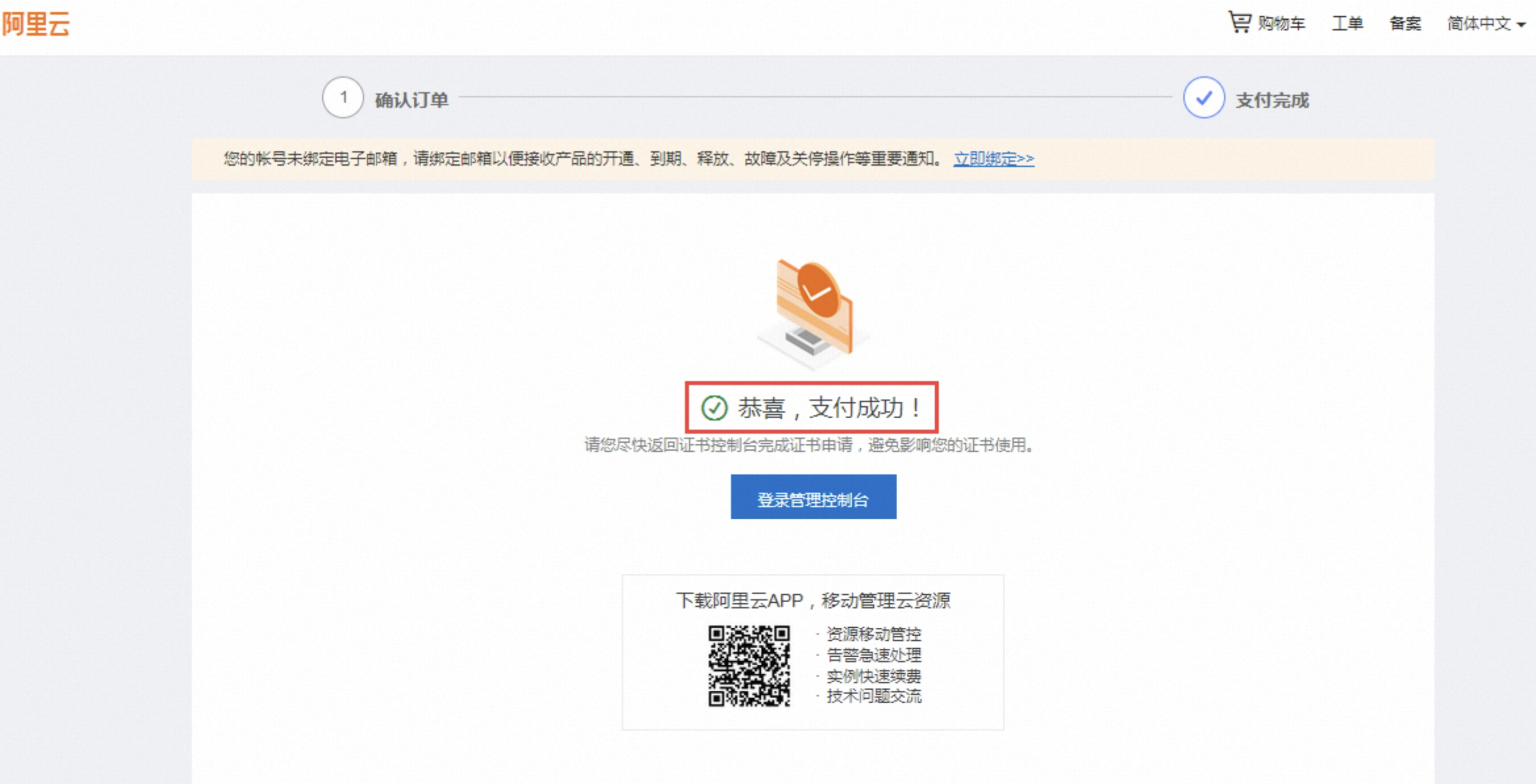
After the Congratulations, payment successful message appears, return to the SSL Certificate Management console page.
After the payment is successful, click Create Certificate. The number of certificates that can be created is displayed. Enter the domain name and click OK. The certificate status changes to Pending Request.
Click Certificate Request to attach the domain name to the certificate.
Attach Domain Name to Certificate: Enter the domain name to attach to the certificate. Keep the default values for the other options. Click Submit for Review.
Add a verification record and wait for the certificate to be reviewed and issued.
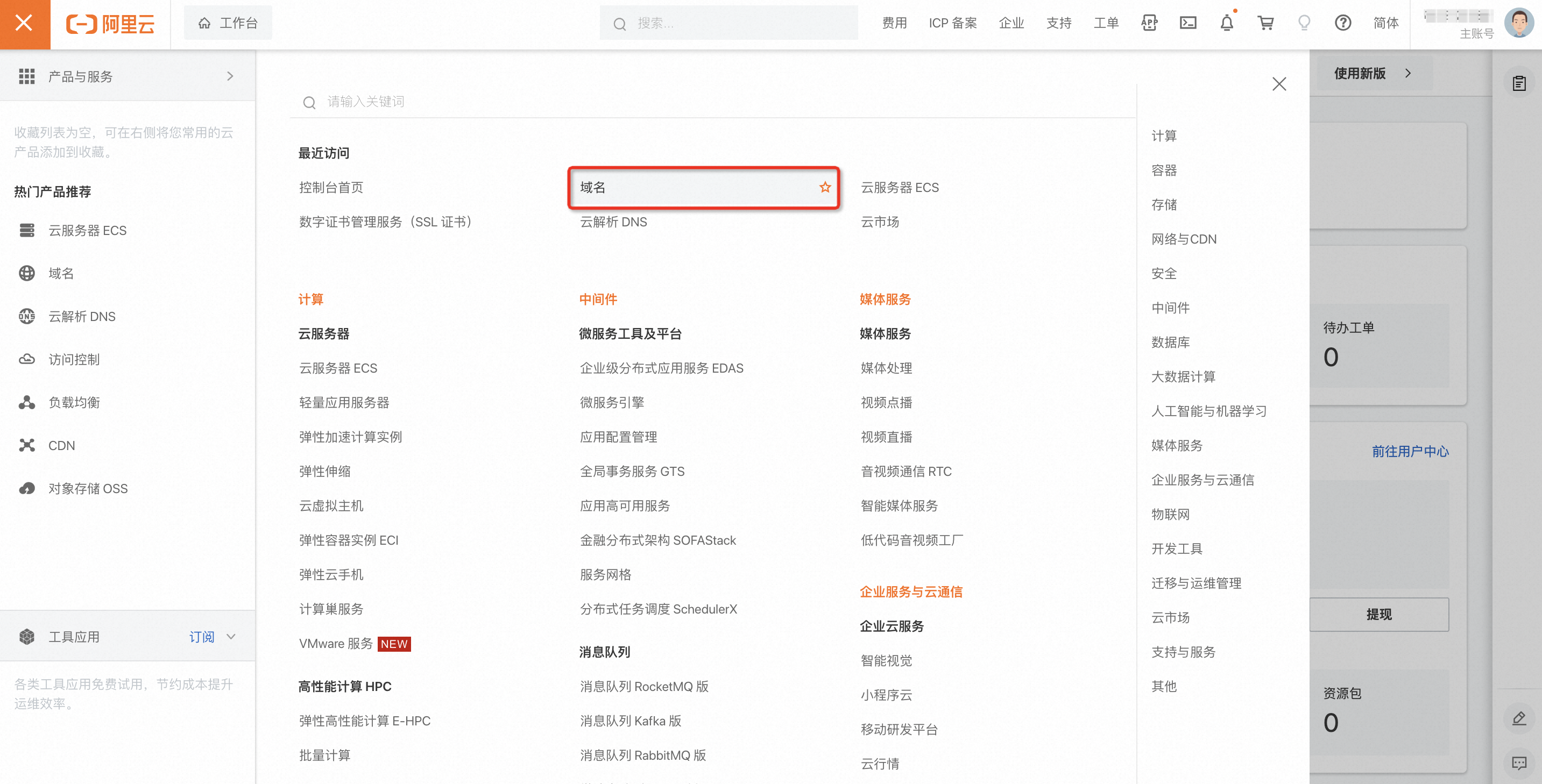
If the domain name was purchased from Alibaba Cloud, log on to the Alibaba Cloud account that you used to purchase the domain name. Click to go to the Domain Names console.
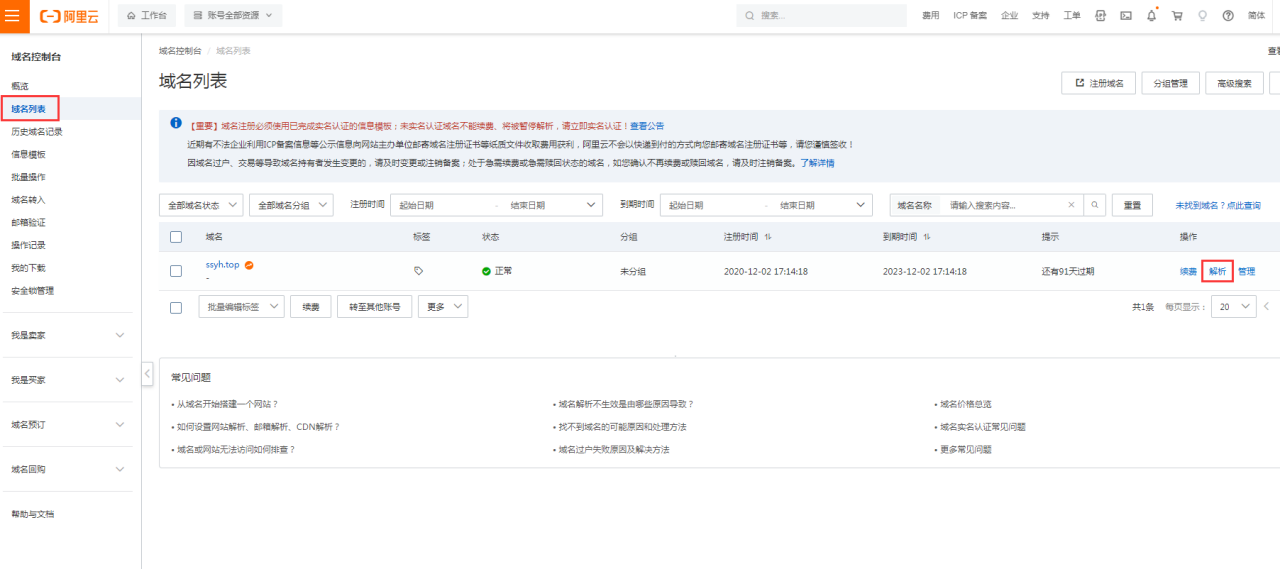
Click Domain Name List. Find the domain name that you purchased and click Parse.
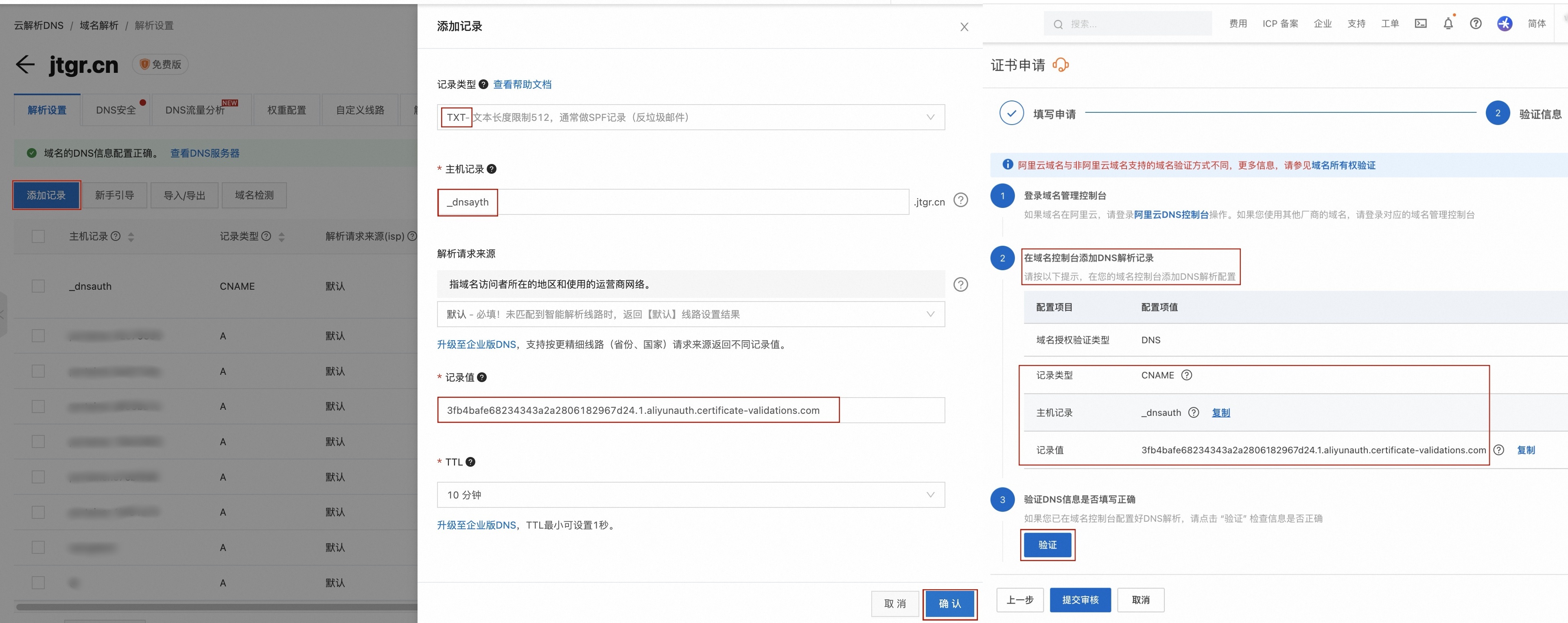
Click Add Record. For **Record Type**, select TXT. Copy the **Host Record** and **Record Value** from the SSL Certificate console and paste them into the corresponding fields. Then, click Confirm.
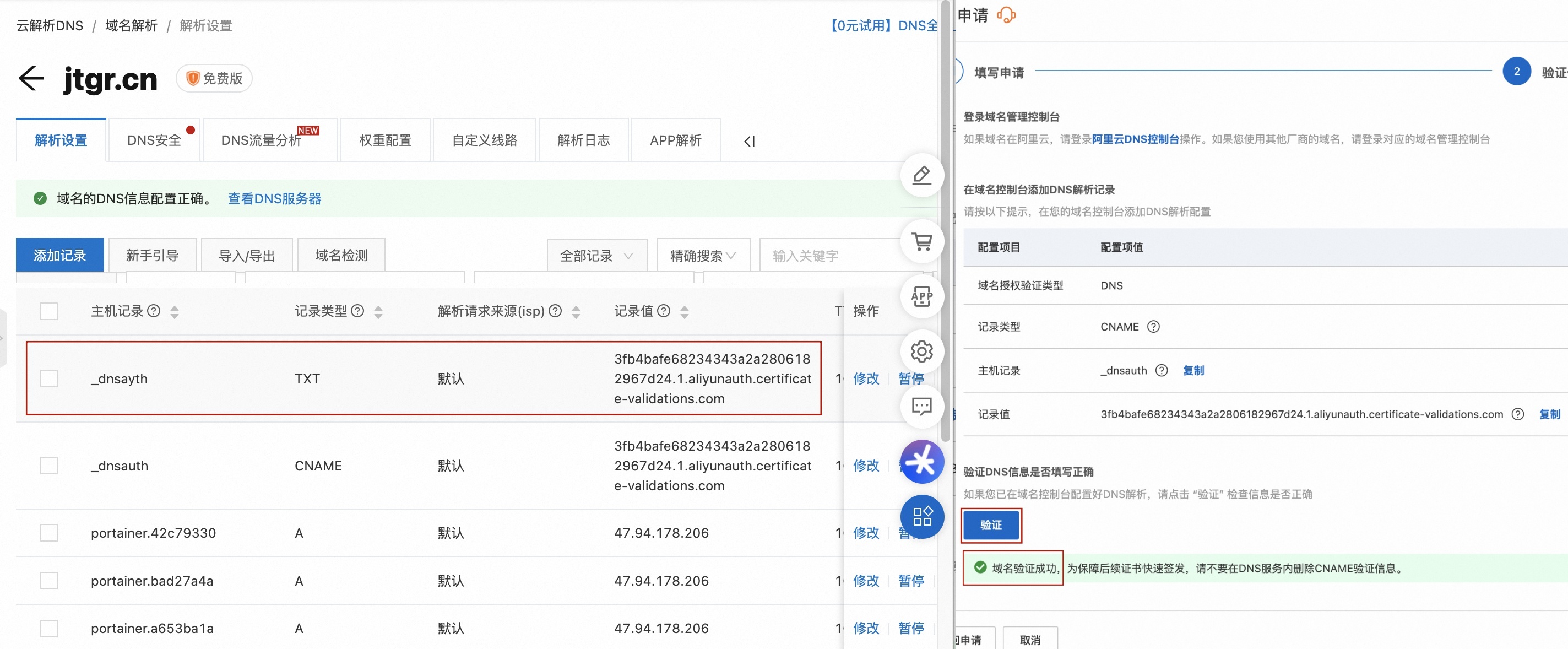
After you add the DNS record, return to the SSL Certificate console and click Verify. After the Domain validation successful message appears, wait for the certificate to be issued.
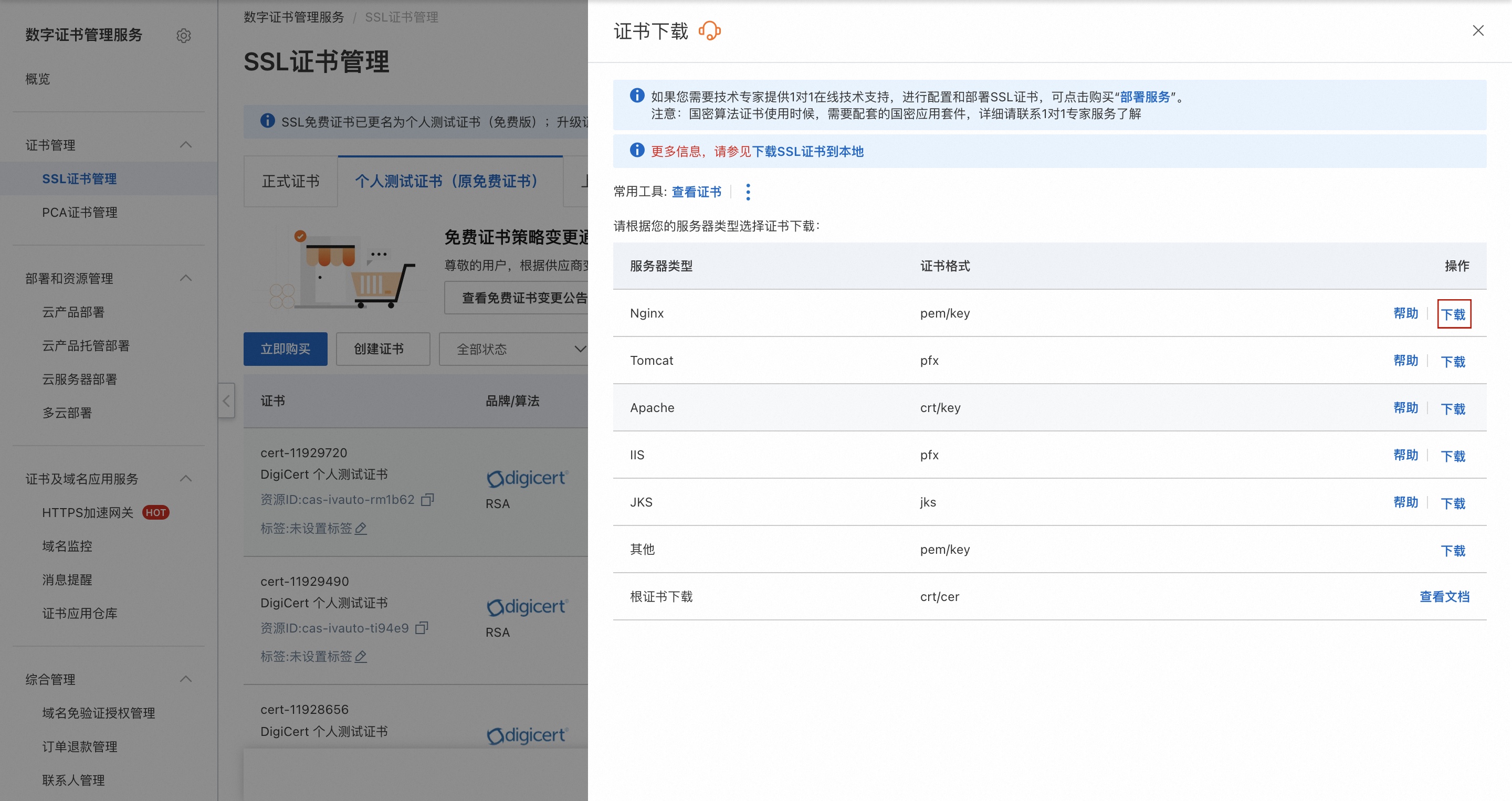
After the estimated issuance time has passed, refresh the page and check the Status. When the status is Issued, click .
Enable HTTPS. Log on to your website's backend. Click . Wait for the system to detect the attached HTTPS certificate. The Enable HTTPS button appears in the Actions column. Click Enable HTTPS. In the dialog box that appears, select Method 1: Import ZIP file to enable HTTPS for your website.
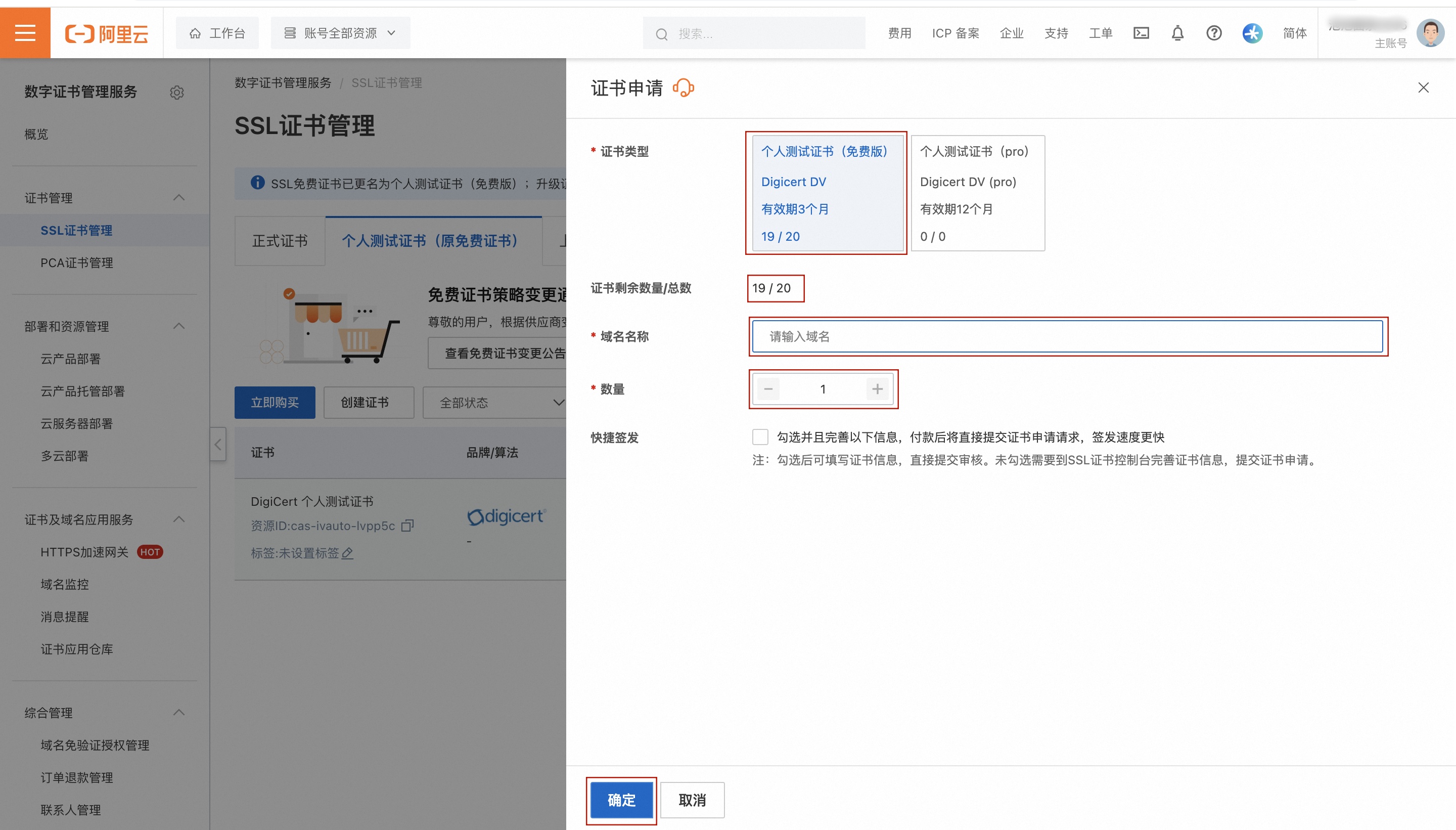
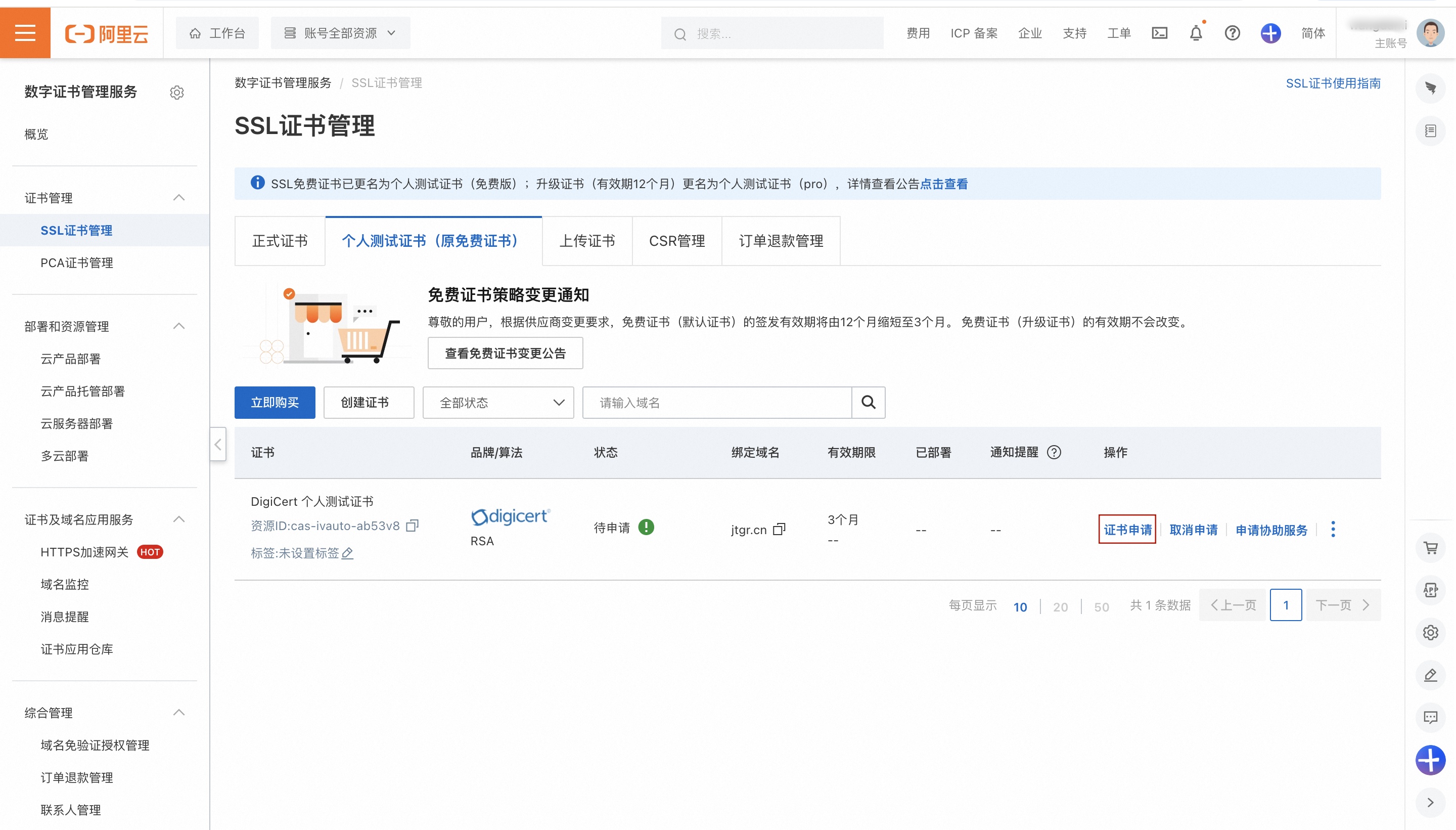
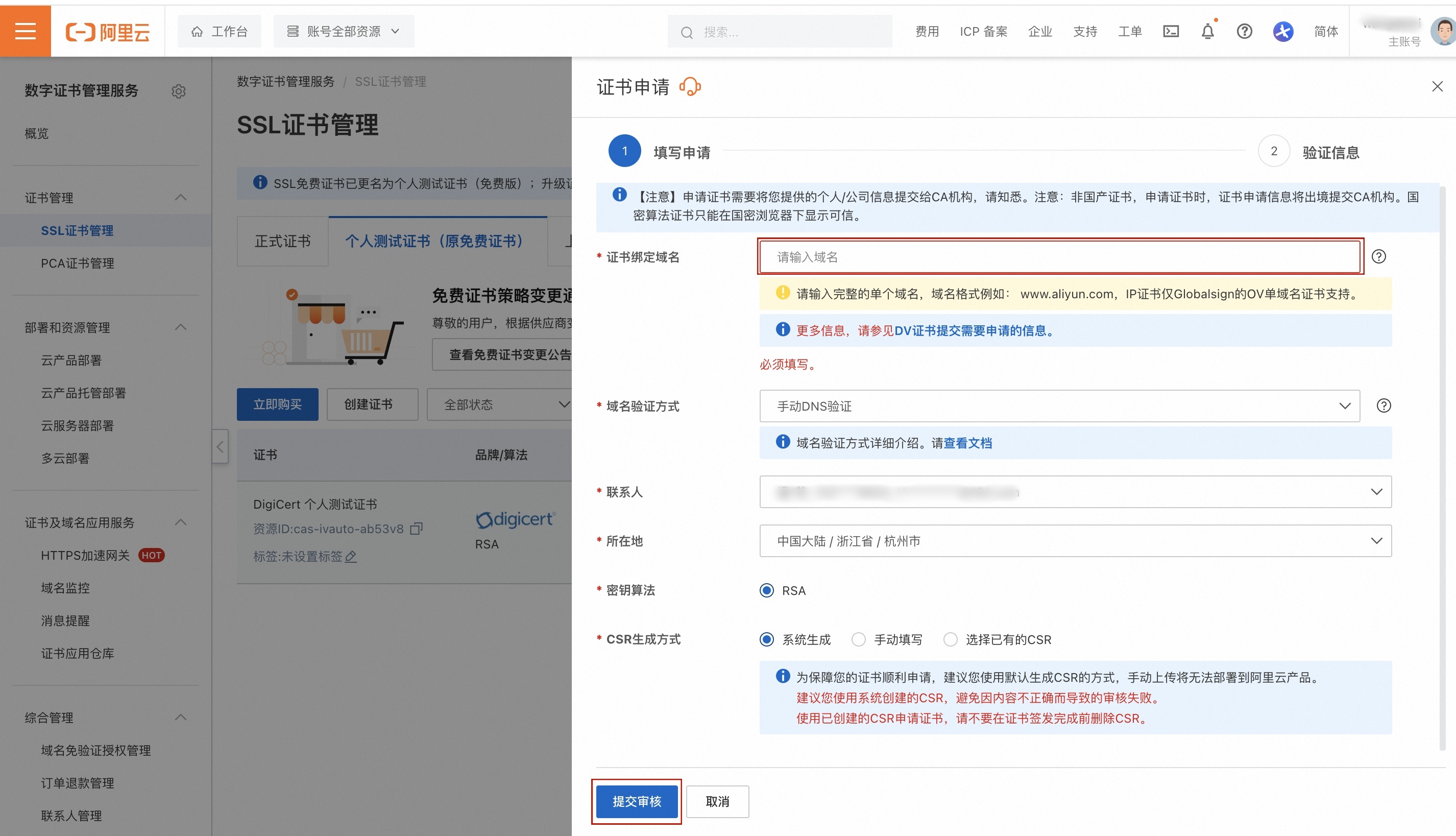
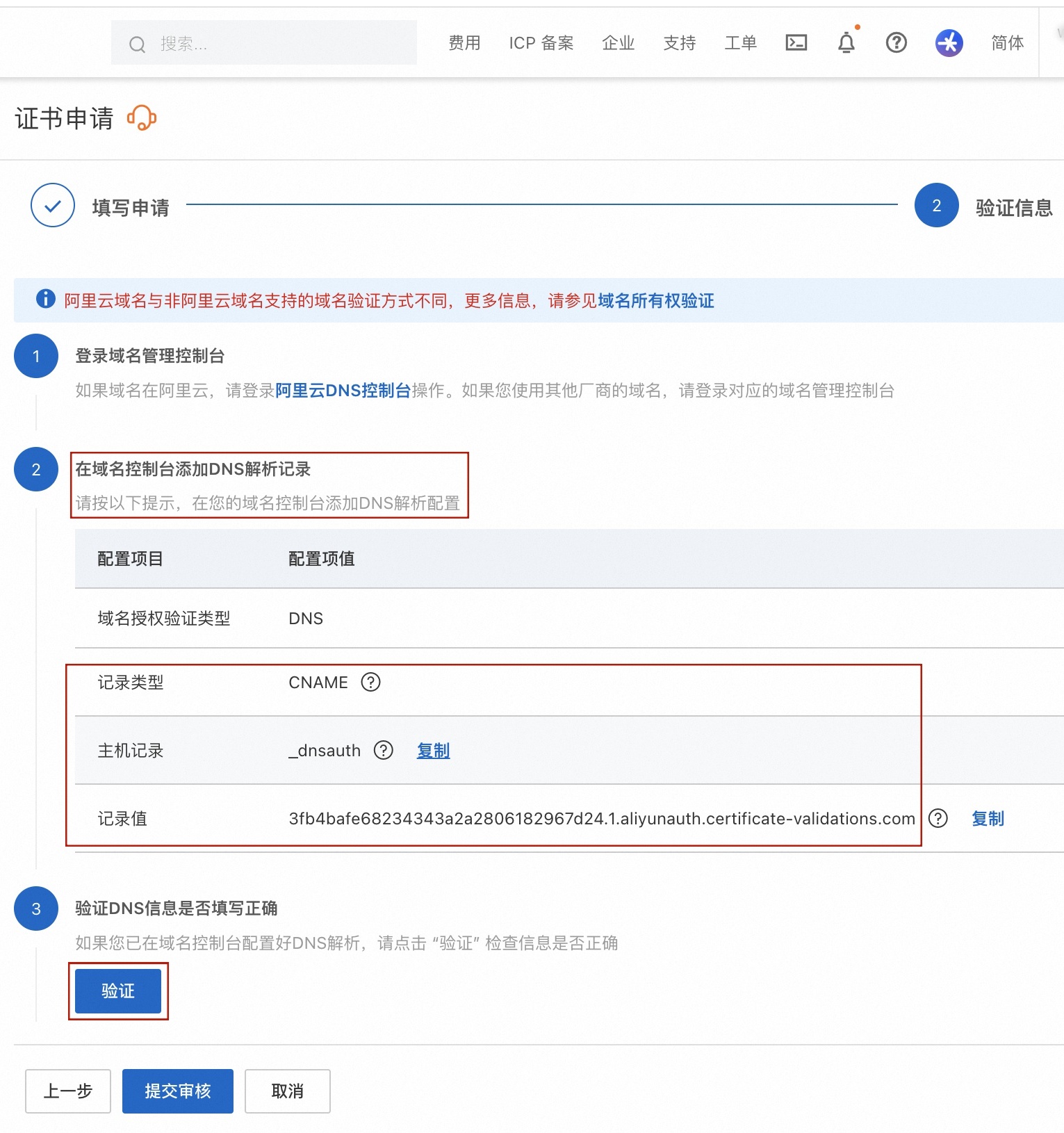
To purchase a more advanced certificate, click Purchase Certificate.
After you configure the security certificate, publish your website to make the changes take effect.
Troubleshoot "not secure" warnings after enabling HTTPS
Scenario 1: The Alibaba Cloud Personal Test Certificate (Free Edition) is valid for three months. If it has expired, your website will show a "not secure" warning.
Solution: Follow the Alibaba Cloud Free HTTPS Certificate Configuration steps described above to purchase a new Personal Test Certificate (Free Edition). Then, enable HTTPS again.
Scenario 2: The webpage loads external resources, such as .js files, .css files, or image URLs, over insecure HTTP connections.
Solution: Update the references to these resources to use HTTPS, or remove them.
Scenario 3: The domain name entered during the certificate request does not match the domain name used to access the site.
Solution: Request a new certificate and enter the correct domain name.
Scenario 4: An untrusted root certificate was used.
Solution: Request a new certificate by following the steps described above.