Render traffic conditions using platform capabilities
This topic uses a traffic industry application, Zhitongxing Traffic Management, as an example to show how to render traffic conditions using data from the Cloud Traffic Control Center.
Background
Zhitongxing Traffic Management is a traffic application from Alibaba Cloud that is built on the Cloud Traffic Control Center. The application helps you quickly identify and solve urban traffic problems. It offers features such as city congestion pattern analysis, real-time and recurring congestion analysis for intersections and road segments, green wave discovery, and vehicle trajectory analysis.
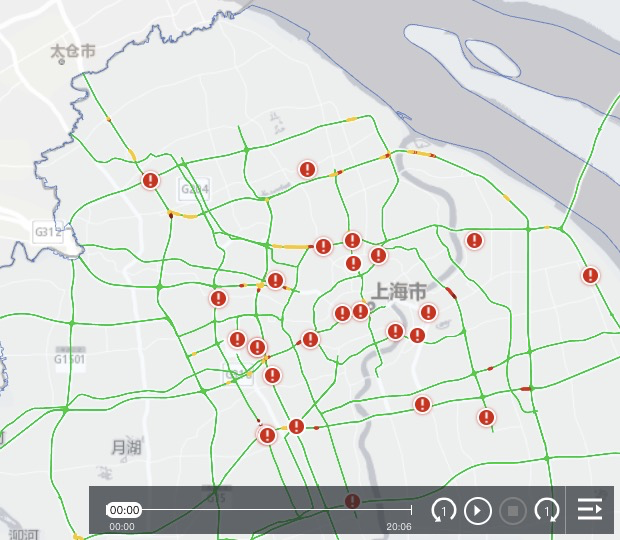
As shown in the following figures, the application includes features such as real-time traffic display and historical traffic playback for periods such as the last month or week.
Real-time traffic display
Historical traffic playback
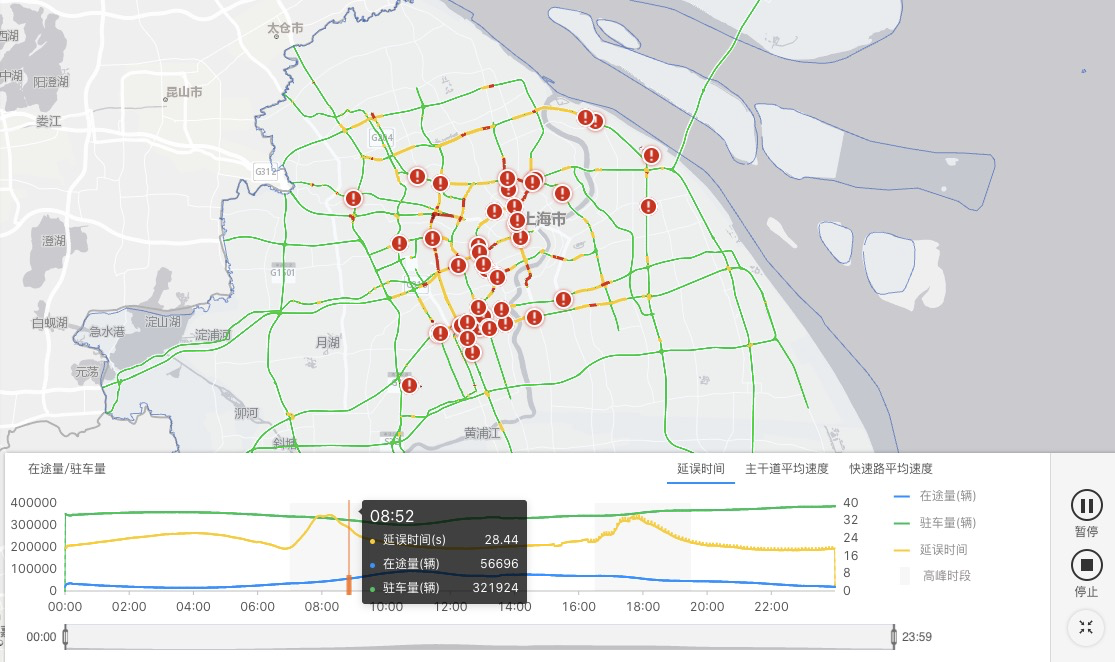
This topic uses real-time traffic congestion as an example to explain how Zhitongxing displays real-time traffic conditions for all road levels across the city. It also describes how to play, pause, and stop the traffic display, and how to control the playback time by dragging.
Prerequisites
Technical components
DB: This topic uses RDS (MySQL) as an example. The specific DB depends on the database where the data tables are stored in your project.
In Cloud Traffic Control Center > Data > DataService Studio > Data Tables, search for the table name to confirm the database where the table is stored.
GIS Server: TMS, WFS
Map: GAS (Mapbox 1.x)
Data
The following data tables are involved in rendering real-time traffic conditions:
Basic road segment information table: dwd_tfc_bas_rdnet_ioiseg_info
Real-time traffic conditions table: dws_tfc_state_ioi_nd_lastmultispeed_rt
To perform historical playback, the following data tables are also required:
7. 30-day historical playback data: adm_tfc_state_ioi_tpdoe_speedindex_d
Monthly historical playback: adm_tfc_state_ioi_tpdoe_speedindex_m
Same-day historical playback: adm_tfc_state_ioi_tp_multispeed_rt
The following steps use the dwd_tfc_bas_rdnet_ioiseg_info table as an example to show how to retrieve table data:
In DataService Studio > Data Tables, search for the table name.
Click the table name to go to its details page. On this page, you can view details such as the table's fields, data lineage, and rules.
Services
Base map
Projects usually purchase base map engine products from vendors such as Tumeng or Qianxun. You can contact your project manager to obtain the service. This topic uses an open source map engine as an example to explain how to use it for traffic condition rendering.
Service format: WMTS
Service source: https://map.geoq.cn/ArcGIS/rest/services/ChinaOnlineStreetGray/MapServer/tile/{z}/{y}/{x} (Replace {z}, {y}, and {x} with your actual parameters. z represents the level, and x and y represent the row and column.)
Basic road segment information table
Service format: TMS (vector tiles)
Service source: dwd_tfc_bas_rdnet_ioiseg_info
Real-time traffic conditions
Service format: TMS (vector tiles)
Service source: dws_tfc_state_ioi_nd_lastmultispeed_rt JOIN dwd_tfc_bas_rdnet_ioiseg_info
Rendering
The frontend rendering engine is GAS, which is developed based on Mapbox 1.x. In traffic condition scenarios, GAS can be treated as Mapbox. It primarily uses the layer capabilities of Mapbox. For more information, see the official Mapbox documentation.
Procedure
Step 1: Prepare the data source
Add the geometry spatial field to the dwd_tfc_bas_rdnet_ioiseg_info basic road segment information table. The code is as follows:
Add a new field:
ALTER TABLE `dwd_310000`.`dwd_tfc_bas_rdnet_ioiseg_info` ADD COLUMN `geometry` LINESTRING NULL COMMENT 'Longitude and latitude string in geometry format'Transform and insert the spatial field:
UPDATE `dwd_310000`.`dwd_tfc_bas_rdnet_ioiseg_info` SET `geometry` = GeomFromText(CONCAT('LINESTRING(', REPLACE(REPLACE(lnglat_seq, ',', ' '), ';', ','), ')'), 4326)Set the field to NOT NULL:
ALTER TABLE `dwd_310000`.`dwd_tfc_bas_rdnet_ioiseg_info` modify COLUMN `geometry` LINESTRING NOT NULLCreate an index:
CREATE SPATIAL INDEX i_geometry ON `dwd_310000`.`dwd_tfc_bas_rdnet_ioiseg_info`(geometry);
Step 2: Insert the data sources into GeoServer
Query the underlying road network structure
SELECT t.road_level,t.geometry AS the_geom
FROM  dwd_310000.dwd_tfc_bas_rdnet_ioiseg_info  t
Query real-time traffic conditions
SELECT
    t.road_level,
    p.jam_state_drawing,
    t.geometry AS the_geom
FROM
    dws_310000.dws_tfc_state_ioi_nd_lastmultispeed_rt p
RIGHT JOIN dwd_310000.dwd_tfc_bas_rdnet_ioiseg_info t
ON p.ioi_id = t.start_ioi_id
WHERE
    p.dt = curdate()
AND p.jam_state_drawing IN ( 2, 3, 4 )
AND p.tp = '1mi'
Publish the service
Create a data source
Open the GeoServer management interface. Follow the prompts to select the data source type that you want to configure. Then, configure its data source name, workspace, and other information.
Create a service
Using the base road as an example, set the name to "shanghai_ioi_base".
Service authentication
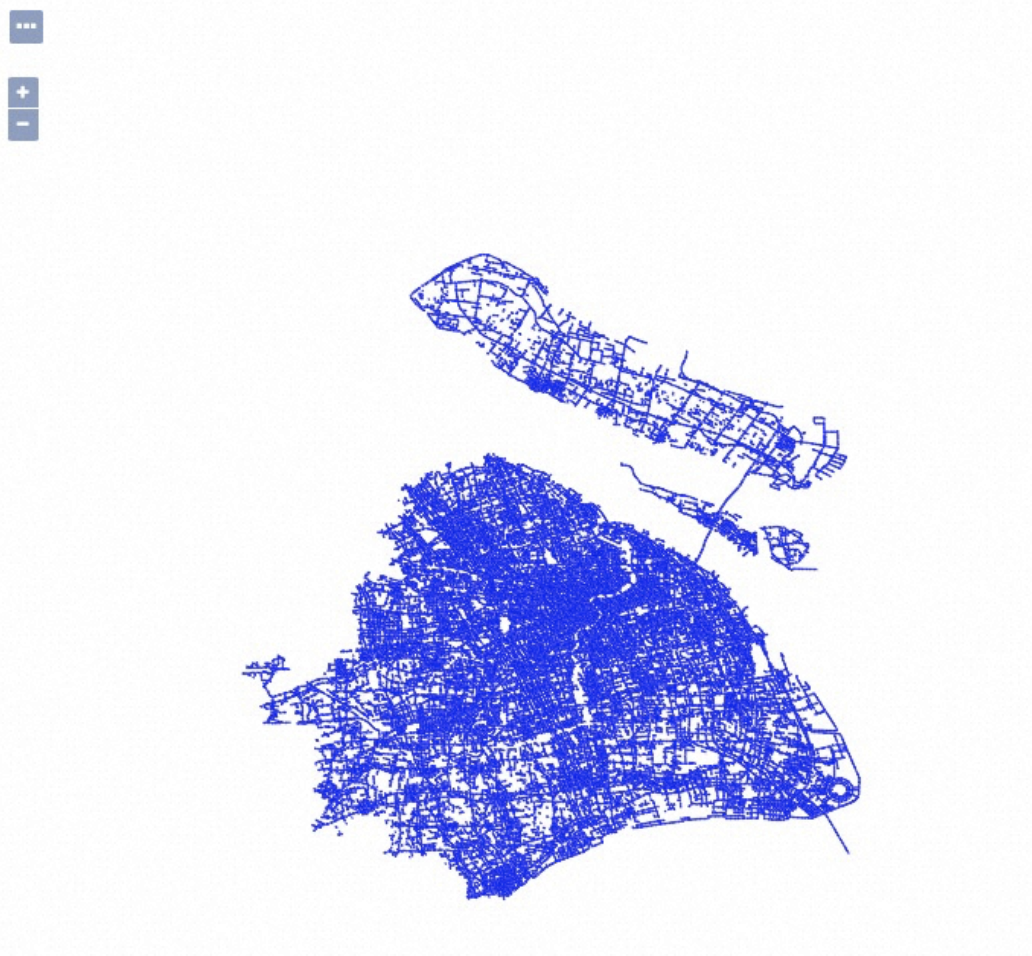
Find the corresponding service and select OpenLayers.
Frontend call
The following code is an example of how to call the base road network.
mapboxgl.accessToken = 'your_token';
var map = new mapboxgl.Map({
    container: 'map',
    center: [120.373917, 36.065276],
    zoom: 13
});
map.on('load', function() {
    map.addSource('my_source', { // source ID
        'type': 'vector',
        'scheme': 'tms',
        'tiles': ['https://[YOUR_GIS_SERVER]/geoserver/gwc/service/tms/1.0.0/[YOUR_SERVICE_NAME]@EPSG:3857@pbf/{z}/{x}/{y}.pbf']
    });
    map.addLayer({
        'id': ' traffic_condition ', // layer id
        'source': 'my_source', // Must be the same as the source ID above
        'source-layer': ' YOUR_LAYER_NAME ',
        type: 'line',
        layout: {
          'line-join': 'round',
          'line-cap': 'round'
         },
        'paint': {
          'line-color': {
            type: 'categorical', // Render by category
            property: ' YOUR_PROPERTY_NAME ', // Rendering property
            stops: [// Render traffic conditions by level
              [1, '#11d127'],
              [2, '#fecb00'],
              [3, '#E02001'],
              [4, '#8D100A']
            ],
            default: '#11d127' // Default road color
          },
          'line-width': 3 // Line width
        }
    });
});Congestion status is defined in four categories: 1 (Clear), 2 (Slow), 3 (Congested), and 4 (Severely Congested).
Set the base road network to green by default. This corresponds to status 1 (Clear). In the congestion data, query only for statuses 2, 3, and 4. This reduces the data volume of the traffic condition output table and improves efficiency.