Performance insight (Old version)
Quickly assess database load, pinpoint performance issues, and improve database stability through simple charts.
Prerequisites
The following database engines are supported:
-
ApsaraDB RDS for MySQL
-
ApsaraDB MyBase for MySQL
Notice
DAS now supports Performance Insight (New Version). Building on the capabilities of the old version, the new version uses MySQL's Performance Schema to aggregate SQL information. This allows you to quickly identify metrics for all SQL statements, including Resource Usage, Executions, Scanned Rows, and Execution Duration. You can also throttle and optimize target SQL statements.
Data sources
Performance Insight (Old Version) collects data from the following sources:
-
If Performance Schema is enabled on the target instance, DAS collects and analyzes data directly from Performance Schema.
-
If Performance Schema is not enabled on the target instance, DAS collects and analyzes data from active sessions.
Procedure
Log on to the DAS console.
In the navigation pane on the left, click .
Find the target instance and click the instance ID to open the instance details page.
-
In the left-side navigation pane, click Performance Insight.
-
Click Back to Previous Version to go to the previous version of the Performance Insight page.
-
Click Enable Performance Insight. In the dialog box that appears, click OK to enable Performance Insight.
NoteIf you no longer use the Performance Insight feature, you can click Disable Performance Insight on the Performance Insight page to disable this feature.
-
On the Performance Insight page, select a time range and click Search.
NoteWhen you select a time range, the end time must be later than the start time:
-
You can use Performance Insight to view data for up to seven days within the past month.
-
You can use Average Active Sessions to view session data from the last three days.
-
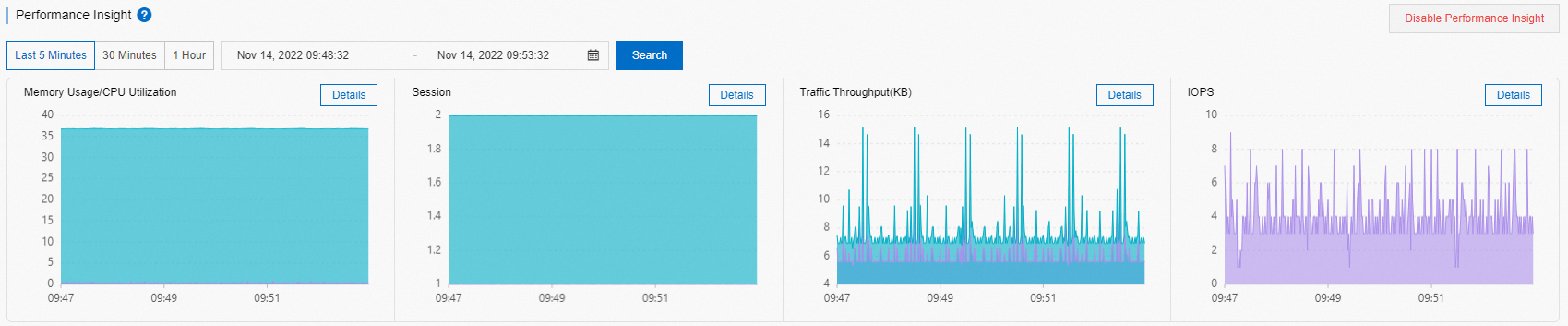
The Performance Insight area displays database performance over the selected period.
To view the details of a specific performance metric, such as Memory Usage/CPU Utilization, click Details next to the metric name.
-
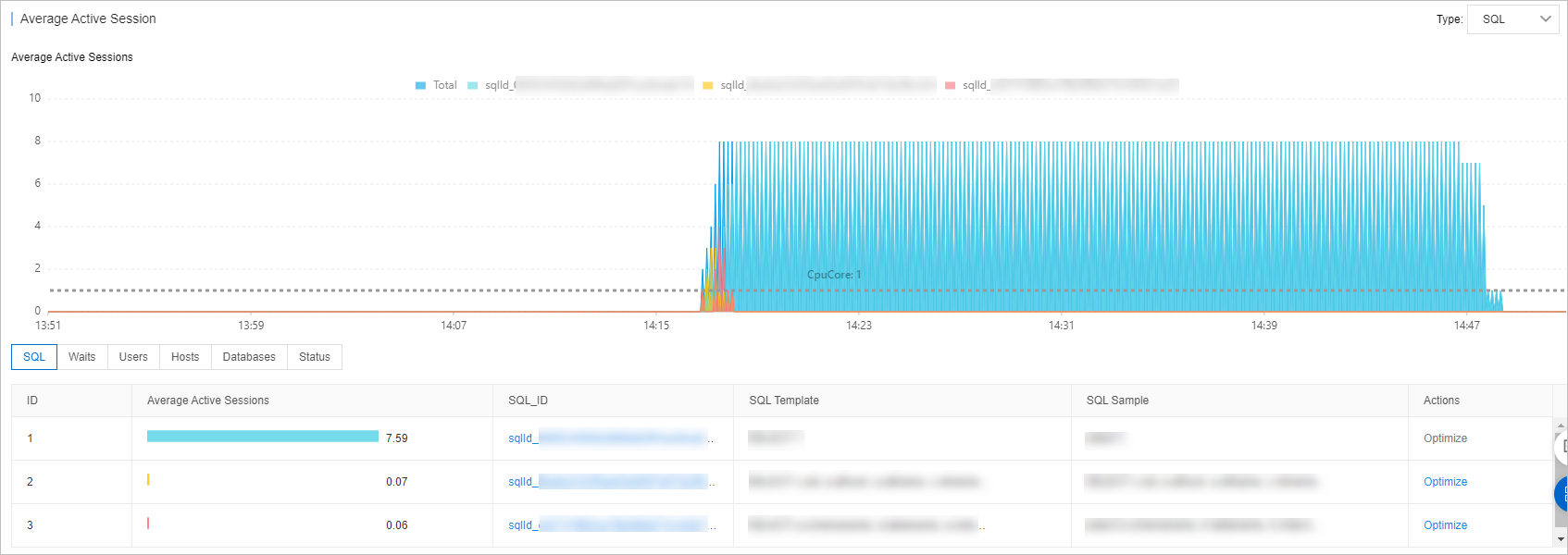
In the Average Active Sessions area, you can view trend charts for different session categories and a multi-dimensional load breakdown to identify the source of performance issues.
In the SQL category, click Optimize in the Actions column to open the SQL Diagnosis Optimization page, which displays the corresponding SQL statement, execution plan, and diagnosis result.
-
FAQ
Why are SQL statements in Performance Insight or SQL Explorer incomplete or truncated?
When an SQL statement is too long, the system truncates it by default. You can adjust instance parameters to increase the SQL retention length to avoid truncation. Configure the parameters as follows:
-
RDS for MySQL and PolarDB for MySQL 5.6 or 5.7: Adjust the
loose_rds_audit_max_sql_sizeparameter. -
RDS for MySQL and PolarDB for MySQL 8.0: Adjust the
loose_rds_audit_log_event_buffer_sizeparameter.