Create a real-time computing template
Real-time computing templates help you develop real-time computing tasks more efficiently. This topic describes how to create and manage these templates.
Scenarios
In a typical scenario, real-time computing tasks must run 24/7 to ensure timely data output. This requirement makes stability, low latency, and robust disaster recovery crucial. To meet these needs, production environments often use dual or multiple links for active-standby disaster recovery of real-time tasks. However, more links increase the cost and difficulty of maintenance. For example, modifying a task requires manual updates, which can easily lead to inconsistencies. In this scenario, create a real-time computing template in Dataphin. Then, reference the template to instantiate tasks. For future maintenance, edit the template to update all related real-time tasks at once. This saves development and maintenance costs and reduces the risk of errors during changes.
Procedure
On the Dataphin home page, click Develop > Data Studio in the top menu bar.
On the Data Studio page, select a project and environment. In the navigation pane on the left, click Template. Click the Create
 icon and select Real-time Computing Template. The Create Template dialog box appears.
In the Create Template dialog box, configure the parameters.
Parameter
Description
Template Name
Enter a name for the template. The name cannot be changed after the template is created. It can contain only letters, digits, underscores (_), and hyphens (-).
Select Directory
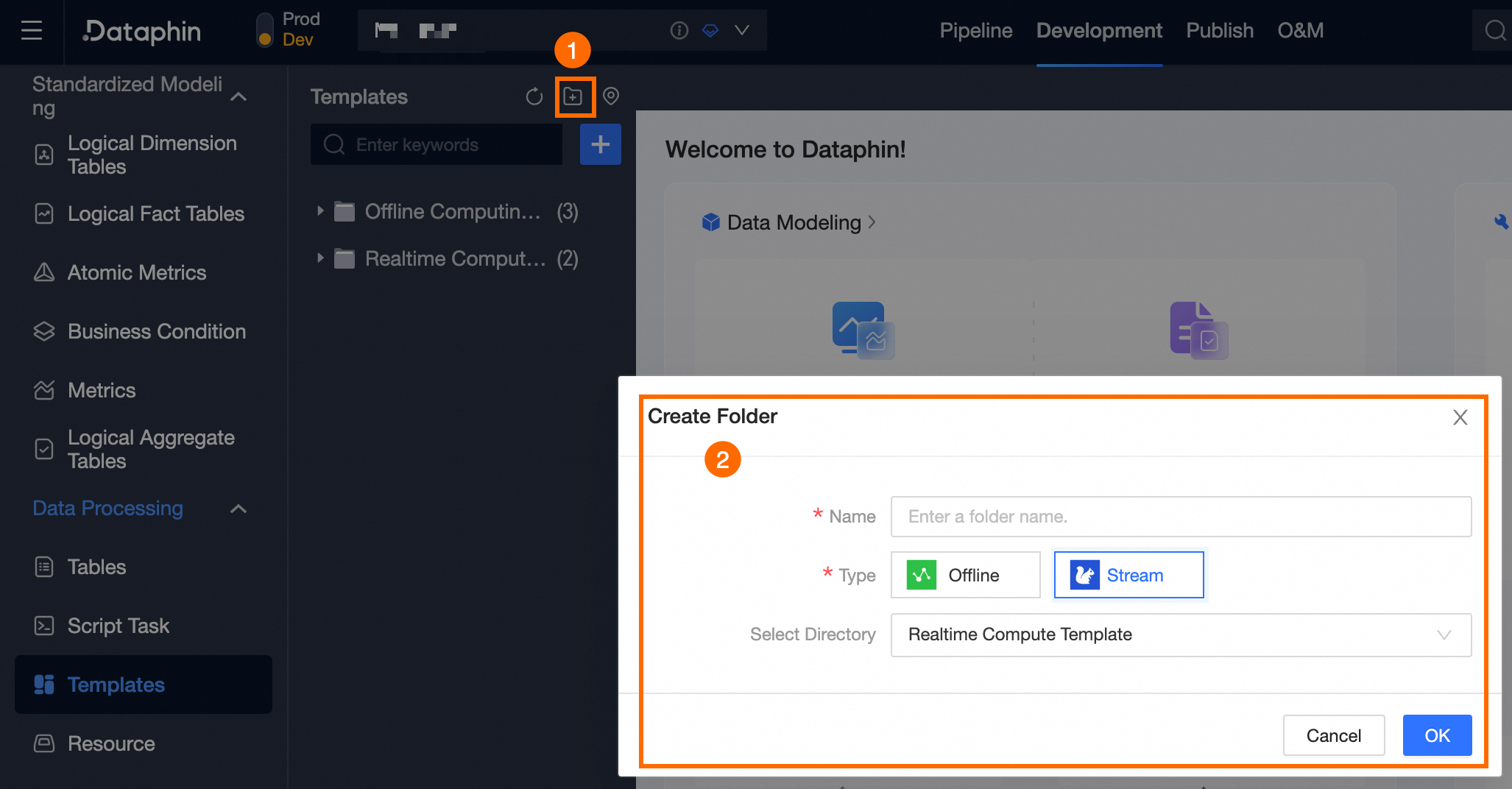
Select a folder for the template. If the folder you need does not exist, follow the instructions in the figure to create a new one.
Description
Enter a brief description of the template. The description can be up to 1000 characters long.
Click OK.
On the code development page for the real-time computing template, write the template code.
ImportantThe template code must contain at least one parameter to compile and submit successfully. The parameter format is:
@@{parameter_name}.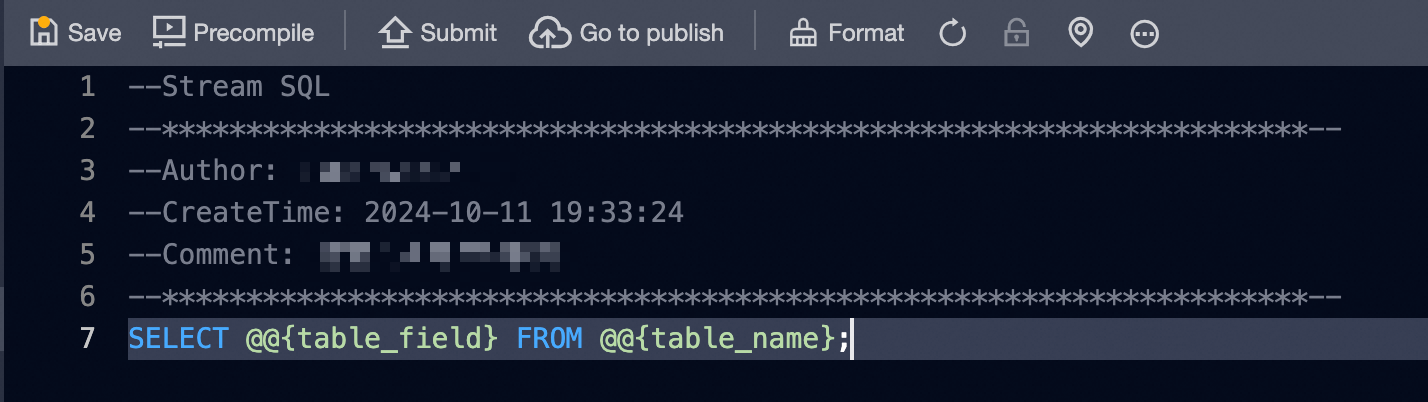 Note
NoteYou can click the
 button in the upper-right corner of the page to automatically format the SQL code.
After you write the template code, click the
 button in the upper-left corner of the page. In the Enter Parameters dialog box, select an Engine Version and enter parameter values.
Parameter
Description
Engine Version
Select the engine version to precompile the code.
Parameter Entry
Enter the parameter values for precompilation. If you do not configure parameter values, check Fill with Empty Value or All Empty.
Click OK to check the syntax and permissions of the code task.
NoteAfter a successful precompilation, a pop-up window with a
 icon appears at the top of the page.
If the precompilation fails, a
pop-up window appears at the top of the page. Click Console at the bottom of the page to view the precompilation failure log.
After development and precompilation, configure the description and default value for the parameters of the real-time computing template. Configure the parameters in the Property dialog box as shown in the following figure.
Parameter
Description
Parameter description
The description of the input parameter. The maximum length is 128 characters.
Default value
Enter the default value of the parameter.
NoteDataphin lets you configure runtime parameters in a real-time template. Real-time tasks created from this template inherit the configured runtime parameters. For more information, see Configure runtime parameters for a real-time template.
Click the
button in the upper-left corner of the page. In the Submit Code Template dialog box, enter a Version Name and Remarks.Click OK and Submit.
 icon appears at the top of the page.
 pop-up window appears at the top of the page. Click Console at the bottom of the page to view the precompilation failure log.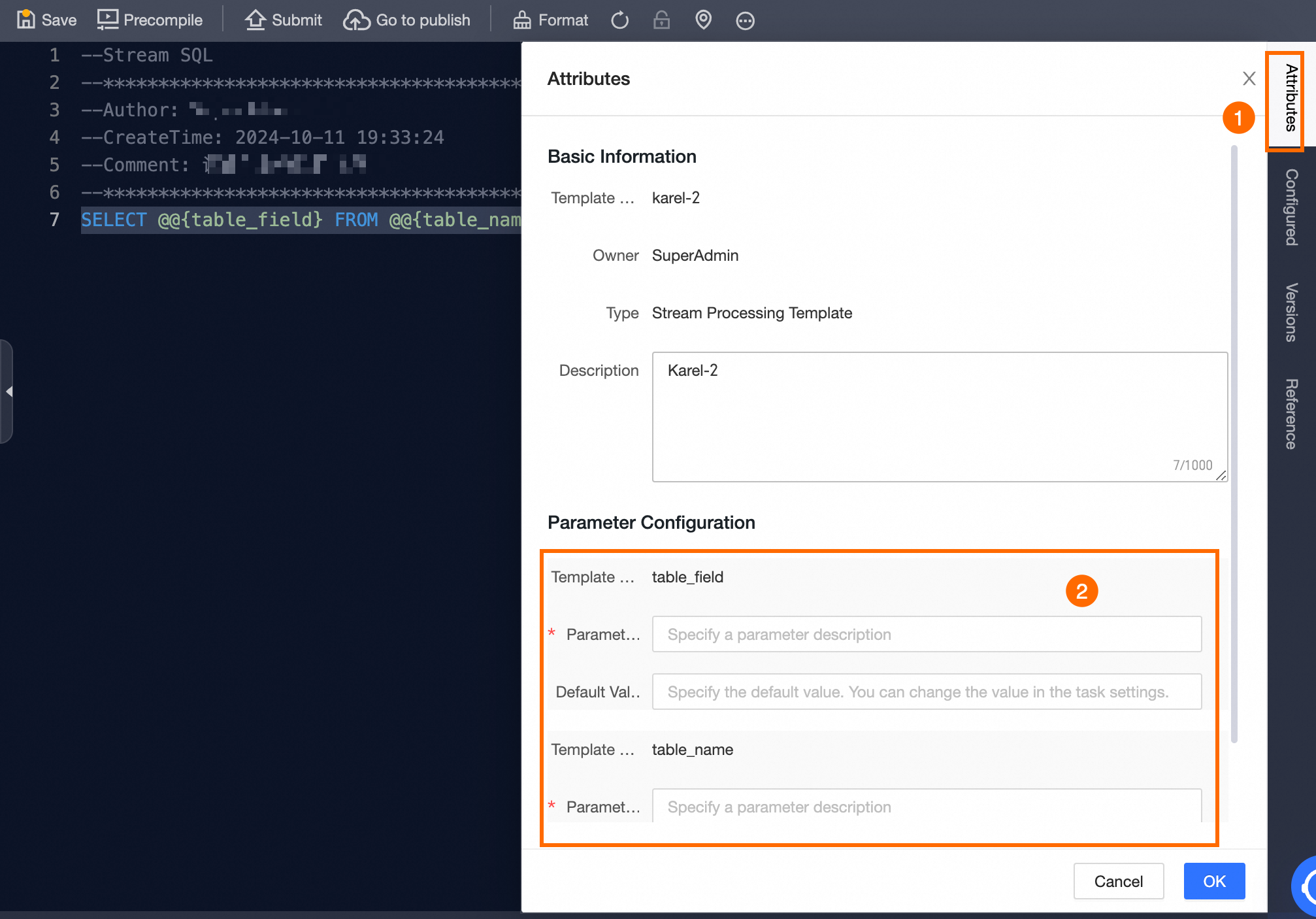
 button in the upper-left corner of the page. In the Submit Code Template dialog box, enter a Version Name and Remarks.
If the project mode is Dev-Prod, you must publish the real-time computing template to the production environment. For more information, see Manage release tasks.
What to do next
After the template is published, you can view and manage the real-time computing template task in the Operation Center. For more information, see Manage real-time tasks.