Dataphin enables the monitoring and auditing of permissions for data tables and data sources, allowing for the swift identification and resolution of inappropriate authorizations to maintain a robust permission system and prevent unauthorized access. This topic outlines the procedures for reviewing and auditing permissions associated with data tables or data sources.
Limits
Superusers, system administrators, and security administrators are authorized to export permission audit details for data sources or data tables.
Asset permissions audit entry
On the Dataphin home page, navigate to the top menu bar and select Management Center > Permission Management.
Click Asset Permissions Audit in the left-side navigation pane to access the Asset Permissions Audit page.
Data table permissions audit
Within the Data Table tab, you can review the authorization details for the specified data table or download the permission audit details in Excel format for offline analysis. 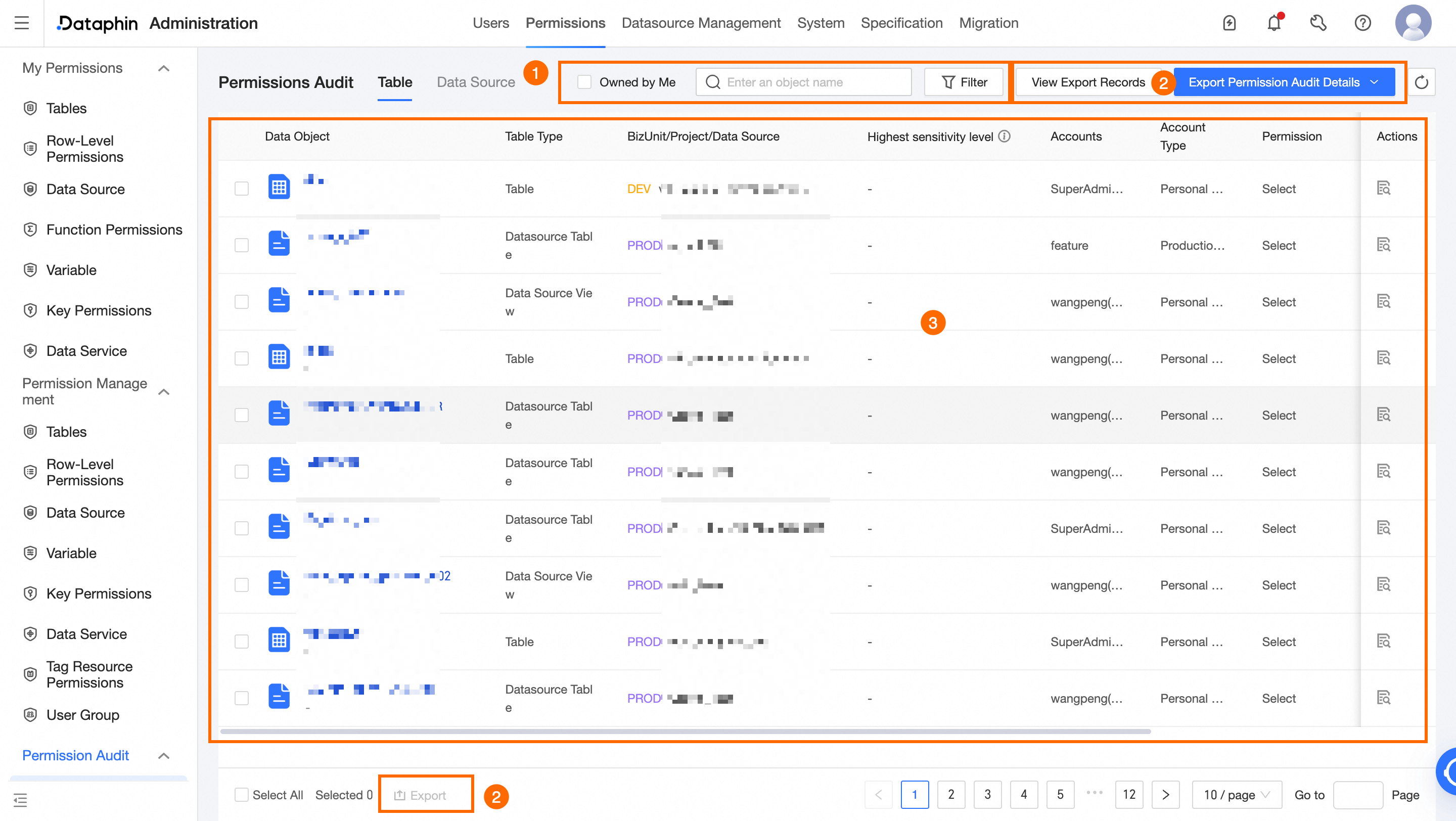
Area | Description |
①Filter and search area | Utilize fuzzy search with the data object's name keyword, or select Owned By Me to display data tables managed by your account. You can also filter data tables by associated board/project/data source, table type, data owner, account type, permission account, permission type, highest sensitivity level, and operation scope. |
②Export area | View Export Records: Enables the review of permission audit export records. In the Export Records dialog box, click the export  icon to download the permission audit details file for the selected data table to your local device. Only the last 30 days' export records are available. icon to download the permission audit details file for the selected data table to your local device. Only the last 30 days' export records are available. Export Permission Audit Details: Allows you to export the permission audit details of the data table to your local device as needed. Method 1: Hover over the Export Permission Audit Details button. Choose either Full Export or Export By Current Filter Conditions. The Full Export option includes both User Resource Permission Details and User Resource Operation Details. For User Resource Operation Details, you must select a Time Range, which offers options such as Yesterday, Today, Last 30 Days, Last 1 Year, or a custom range. Export By Current Filter Conditions will download the permission audit details based on the current filter settings.
Method 2: In the data table display list (illustration ③), select the data table for which you wish to export permission audit details. Click the Export button at the bottom to download the permission audit details file for the chosen data table to your local device (saved in CSV format).
|
③List area | This section displays the data object's name, table type, associated board/project/data source, highest sensitivity level (requires enabling the asset security feature), permission account, account type, permission type, operation scope, validity period, and data owner information. Additionally, you can view the user field permission details for the data table. Highest Sensitivity Level: Shows the highest classification level of the fields involved in the current record. View user field permission details: To see the details of field permissions, simply single click the data object's name or the View icon in the Actions column.
|
Data source permissions audit
In the Datasource tab, you can review the authorization details for the specified data source or download the permission audit details in Excel format for offline analysis. 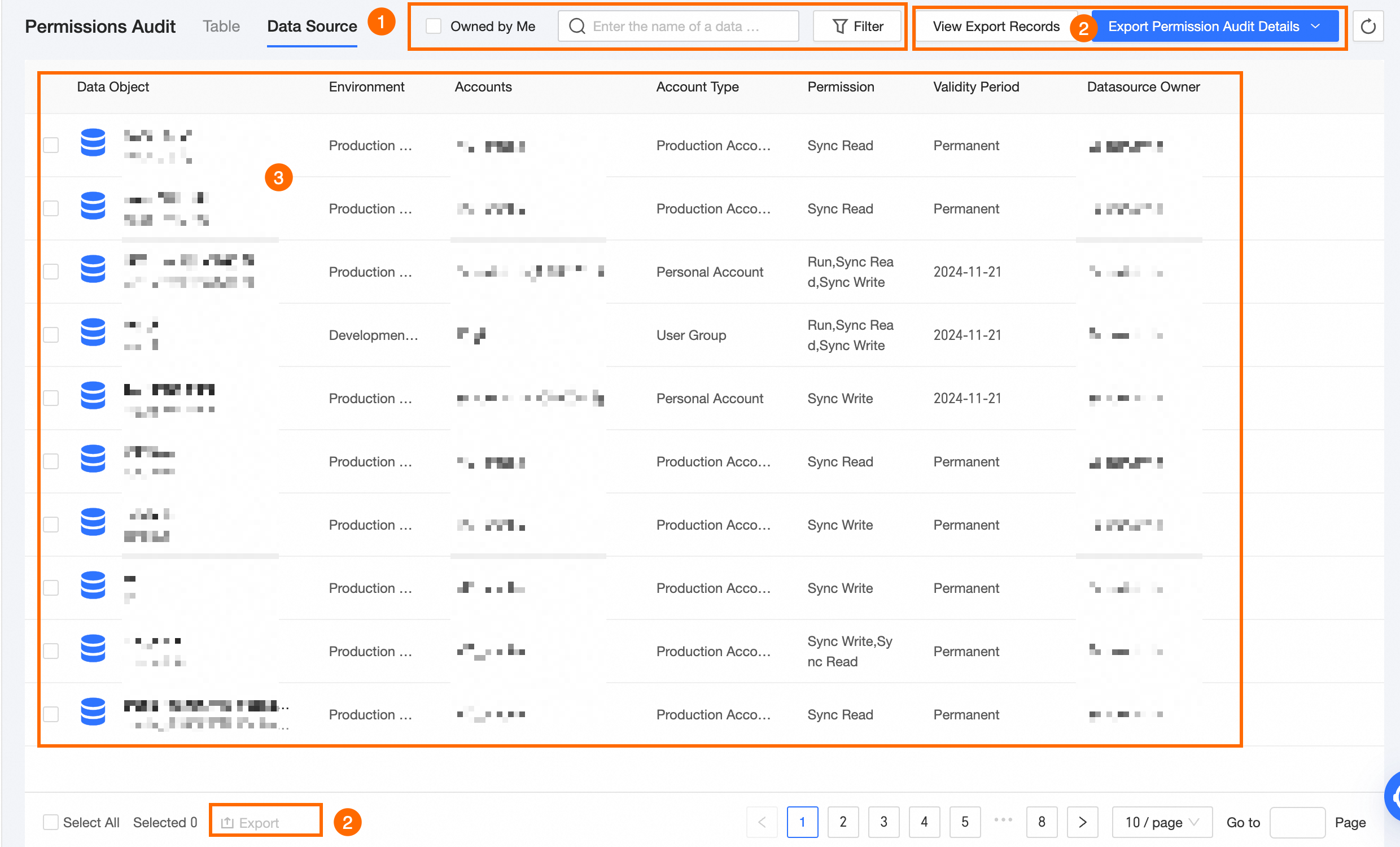
Area | Description |
①Filter and search area | Perform a fuzzy search using the data source's name keyword, or select Owned By Me to filter data sources managed by your account. Filters can also be applied based on data source type, environment, owner, account type, permission account, and permission type. |
②Export area | View Export Records: View the export records of permission audits. In the Export Records dialog box, click the export icon to download the permission audit details file for the target data source to your local device. Only the last 30 days' export records are displayed. Export Permission Audit Details: Export the permission audit details of the data source to your local device as needed. Method 1: Hover over the Export Permission Audit Details button. Select Full Export or Export By Current Filter Conditions as needed. The Full Export option includes both User Resource Permission Details and User Resource Operation Details. For User Resource Operation Details, you must select a Time Range, which offers options such as Yesterday, Today, Last 30 Days, Last 1 Year, or a custom range. Export By Current Filter Conditions will download the permission audit details based on the current filter settings.
Method 2: In the data source list area (illustration ③), select the data source for which you need to export permission audit details. Click the Export button at the bottom to download the permission audit details file for the selected data source to your local device (saved in CSV format).
|
③List area | This section presents the data source's name, environment, permission account, account type, permission type, validity period, and owner information. |