Grant and revoke dataset permissions
To enable data sharing across projects, you can grant permissions for your datasets to users or production accounts from other projects, or request access to the datasets you require. This topic describes how to grant and revoke dataset permissions in bulk.
Prerequisites
Using dataset permissions requires the unstructured data feature.
Permissions
Super administrators, system administrators, and custom global roles with the Permission Management - View permission can grant dataset permissions.
Project administrators of a dataset's project and dataset owners can also grant dataset permissions.
Batch grant dataset permissions
In the top menu bar on the Dataphin homepage, select Admin Center > Permission Management.
In the left navigation bar, select Permission Management > Dataset Permission, and on the Dataset Permission Management page, click the Batch Grant button on the Manage Permissions tab.
In the Batch Grant dialog box, configure the parameters.
Parameter
Description
Project
If you select a project, you can only select datasets in that project. If you do not select a project, you can select any dataset within the current tenant.
Dataset
Select the datasets for which you want to grant permissions. You can use keywords to search for datasets by name.
Permission Type
Select the permission type that you want to request. The Usage permission is supported.
Authorized Account
Depending on your business scenario, you can grant dataset permissions to a personal account, a production account, and a user group simultaneously or individually.
Personal Account: Used for data development in the development environment. Data developed with this account can be published to the production environment. You must set an expiration date for the permissions.
Production Account: Used to manage and run tasks submitted to the production environment.
User Group: Permissions granted to a user group apply to all its members. You must set an expiration date for the permissions.
Reason for Grant
Enter the reason for the grant. This helps reviewers understand the request. The reason must be between 5 and 128 characters long.
Click OK to complete the dataset permission authorization.
Batch revoke dataset permissions
On the Manage Permissions tab, click the Batch Revoke button.
In the Batch Revoke dialog box, configure the parameters.
Parameter
Description
Authorized Account
Select the account from which you want to revoke permissions. The account can be a personal account, production account, or user group.
Project
Select the project from which to revoke permissions.
Dataset
Select the datasets from which to revoke permissions for the selected account.
Reclamation Reason
Enter a reason for revoking dataset permissions that is 5 to 128 characters long.
Click OK to revoke the dataset permissions.
Dataset permission management
On the Dataset Permission Management page, you can view the details of dataset permissions and Operation Records.
Manage permissions
This section displays the dataset name, its associated project, the dataset owner, and the number of permissions granted.
You can search for a dataset by name or filter the list by project and dataset owner.
You can perform the following actions on the filtered datasets.
Actions
Description
View Dataset Permission Details
You can click the dataset name or the
 icon in the Actions column to view the dataset permission details. For more information, see View Dataset Permission Details.
Grant
You can grant permissions on a single dataset by configuring the Account Type and Reason for Authorization. For more information, see Batch Grant Dataset Permissions.
Revoke
You can revoke permissions for a single dataset by configuring the user for revocation and reason for revocation. For more information, see Batch Revoke Dataset Permissions.
View dataset permissions
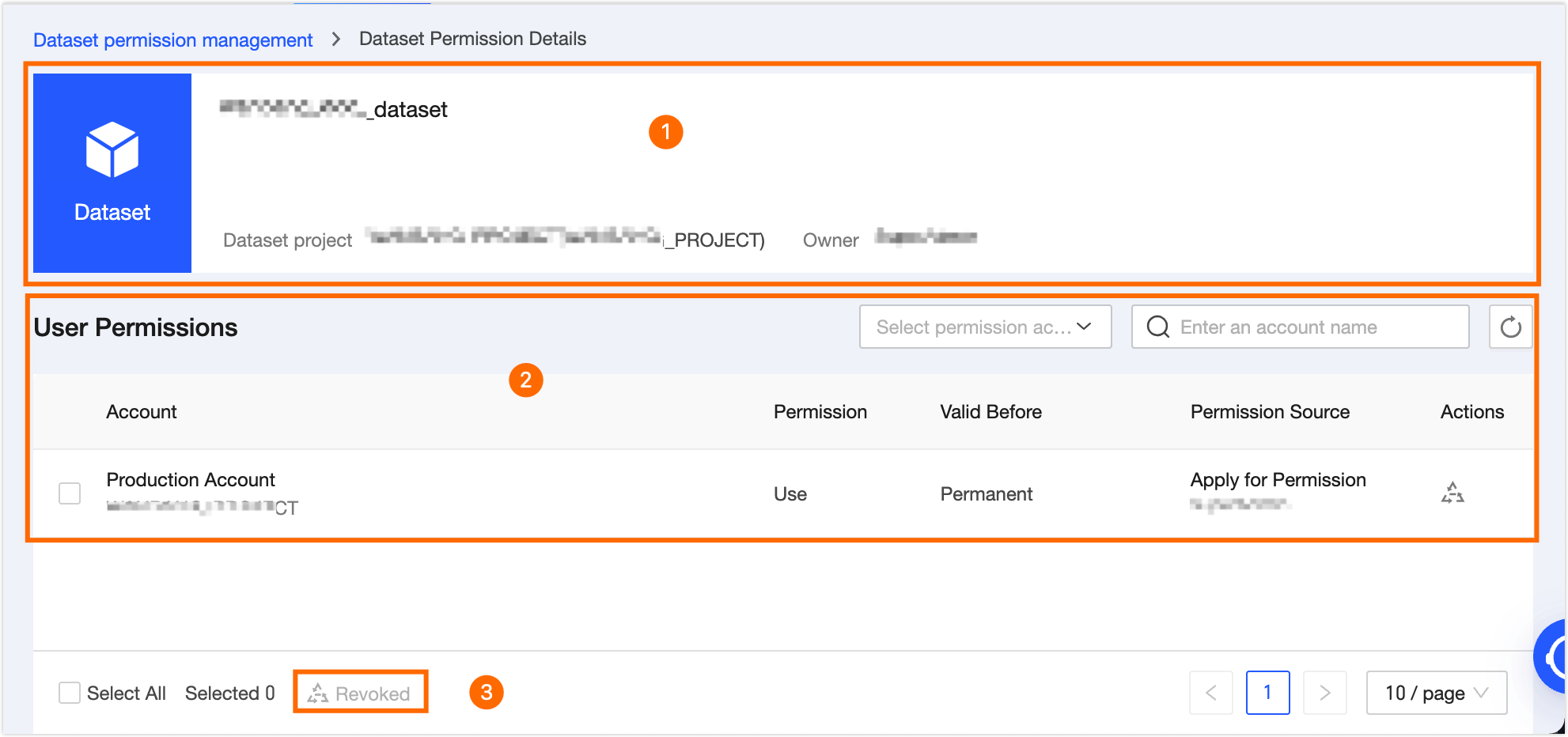
Area | Parameter |
① Basic Information Area | Displays the dataset name, its associated project, and the dataset owner. |
② List Area |
|
③ Batch Operations Area | Batch Revoke: Revokes dataset permissions from accounts in a batch. In the Batch Revoke Dataset Permissions for Accounts dialog box, enter a Revocation Reason from 5 to 128 characters, and click OK. |
Operation records
You can search for a dataset by name or filter the list by operation type.
The list displays the Operation Records for the filtered datasets, including the dataset name, Operation Object, Operator, Operation Time, Permission Type, Operation Type, and Reason for the Operation.