Configure InfluxDB Output
The InfluxDB Output component writes data to an InfluxDB data source. It is used to specify the target data source when synchronizing data from other sources to InfluxDB. This topic describes the configuration process.
Prerequisites
You have an existing InfluxDB data source. For more information, see Create an InfluxDB data source.
Your account must have write permission for the data source. If not, you must apply for it. For more information, see Apply for, renew, and release data source permissions.
Procedure
In the top navigation bar of the Dataphin homepage, choose R&D > Data Integration.
In the top navigation bar of the data integration page, select a Project. In Dev-Prod mode, you also need to select an environment.
In the left-side navigation pane, click Batch Integration. In the Batch Integration list, click the batch pipeline that you want to develop.
In the upper-right corner of the page, click Component Library to open the Component Library panel.
In the Component Library panel, click Output in the left-side navigation pane. Find the InfluxDB component and drag it onto the canvas.
Click and drag the
 icon from an upstream component to connect it to the InfluxDB Output component.
On the InfluxDB Output component card, click the
 icon to open the InfluxDB Output Configuration dialog box.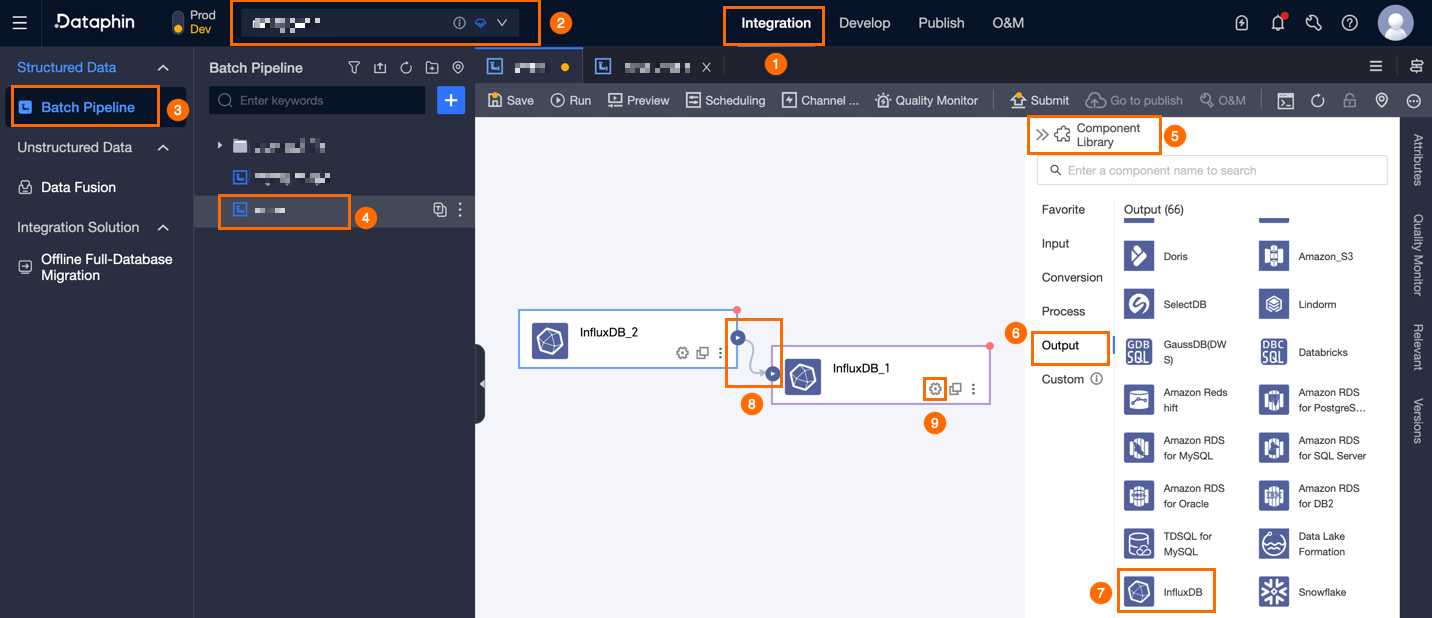
In the InfluxDB Output Configuration dialog box, configure the following parameters.
Parameter
Description
Basic Settings
Step Name
The name of the InfluxDB Output component. Dataphin automatically generates a step name, but you can enter a custom name. The name must meet the following requirements:
Can contain only Chinese characters, letters, underscores (_), and digits.
Can be up to 64 characters long.
Data Source
The drop-down list displays all available InfluxDB data sources, regardless of your write permission. You can click the
 icon to copy the name of the current data source.
If you lack write permission for a data source, click Apply next to its name to request it. For more information, see Apply for data source permissions.
If you do not have an InfluxDB data source, click the
 icon to create one. For more information, see Create an InfluxDB data source.
Bucket (Optional)
Select a bucket from the chosen data source. If you do not specify a bucket, the system uses the default bucket configured when the data source was registered.
Measurement
Select or enter the target measurement. The name can contain letters, digits, underscores (_), hyphens (-), and periods (.). If the specified measurement does not exist, the system creates it automatically.
Field Mapping
Input Field
Displays the input fields based on the output of the upstream component.
Output Field
Displays the output fields. You can perform the following operations:
Field Management: Click Field Management to select which fields to include in the output.

Click the
icon to move fields from Selected Input Fields to Unselected Input Fields.Click the
icon to move fields from Unselected Input Fields to Selected Input Fields.
Batch Add: Click Batch Add to add multiple fields at once using the JSON, TEXT, or DDL format.
Example for JSON format:
// Example: [{ "name": "user_id", "type": "String" }, { "name": "user_name", "type": "String" }]Notenamespecifies the name of the field to import, andtypespecifies the data type of the imported field. For example,"name":"user_id","type":"String"imports the field nameduser_idand sets its data type toString.Example for TEXT format:
// 示例:
user_id,String
user_name,String
The row delimiter separates each field entry. The default is a line break (
\n). Semicolons (;) and periods (.) are also supported.The column delimiter separates the field name from its data type. The default is a comma (
,).
Example for DDL format:
CREATE TABLE tablename (
    id INT PRIMARY KEY,
    name VARCHAR(50),
    age INT
);
New Output Field: Click + New Output Field, enter a name in the Field column, and select a Type. After configuring the field, click the
icon to save the new field.
Mapping
You can manually map input fields from the upstream component to the output fields for the target measurement. Quick Mapping provides two options: Map by Position and Map by Name.
Map by Name: Maps input fields to output fields with the same name.
Map by Position: Maps fields based on their order, allowing you to connect fields that have different names.
Click Confirm to complete the property configuration for the InfluxDB output component.
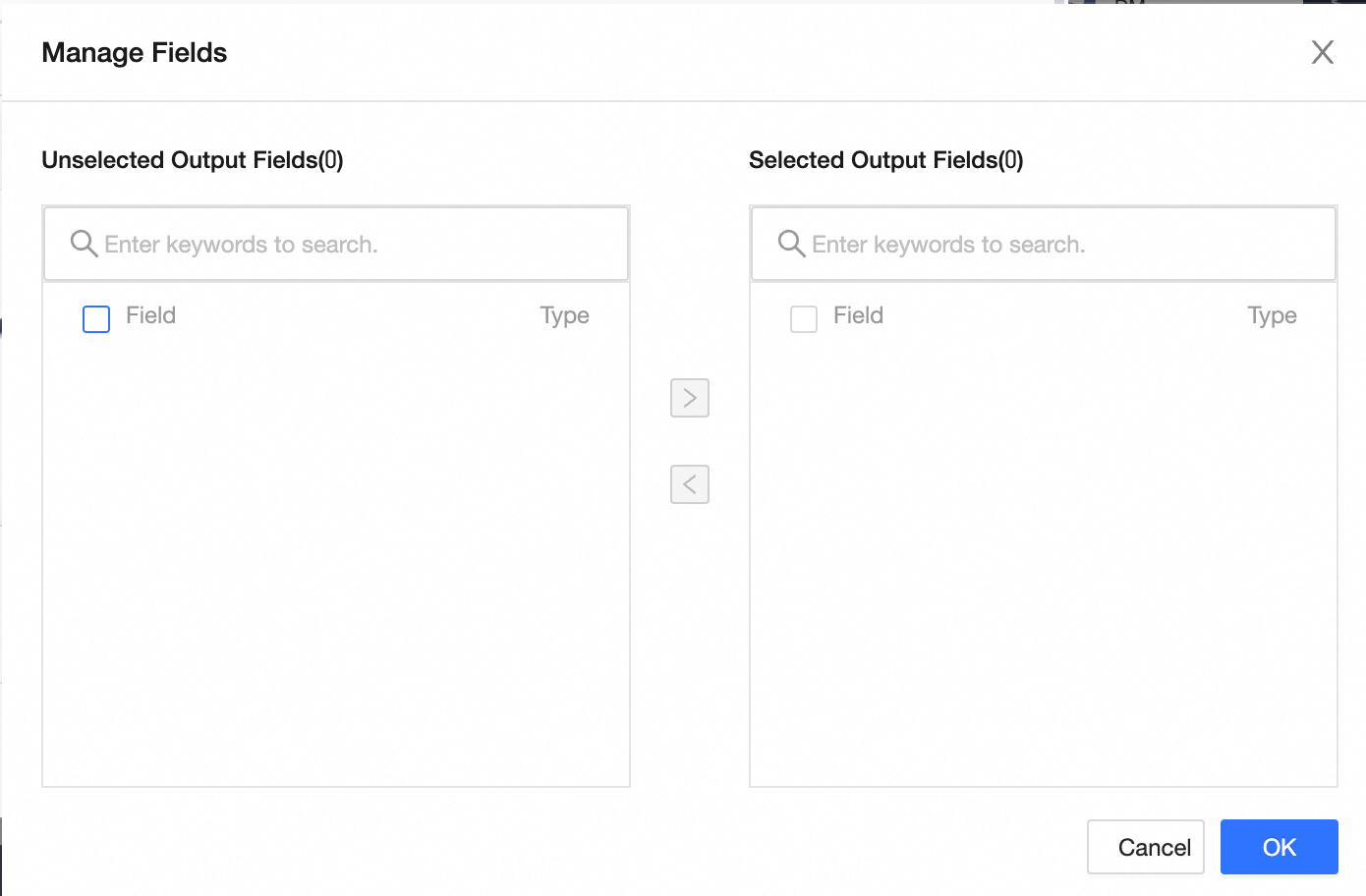
 icon to move fields from Selected Input Fields to Unselected Input Fields.
 icon to move fields from Unselected Input Fields to Selected Input Fields.
 icon to save the new field.