Configure GaussDB (DWS) Input Component
The GaussDB (DWS) input component retrieves data from a GaussDB (DWS) data source. To synchronize data from a GaussDB (DWS) data source to other data sources, first configure the source data source information for the GaussDB (DWS) input component. Then, configure the destination data source for data synchronization. This topic describes how to configure the GaussDB (DWS) input component.
Prerequisites
You have created a GaussDB (DWS) data source. For detailed steps, see Create a GaussDB (DWS) data source.
The account used to configure the GaussDB (DWS) input component properties must have read-through permission for the data source. If you do not have this permission, request data source permission. For more information, see Request data source permission.
Procedure
On the Dataphin home page, in the top menu bar, select Development > Data Integration.
On the Integration page, select Project from the top menu bar. In Dev-Prod mode, select an environment.
In the left navigation pane, click Offline Integration. In the Offline Integration list, click the offline pipeline that you want to develop to open its configuration page.
Click Component Library in the upper-right corner of the page. This opens the Component Library panel.
In the left navigation pane of the Component Library panel, select Input. In the input component list on the right, locate the GaussDB (DWS) component and drag it to the canvas.
Click the
 icon in the GaussDB (DWS) input component card. This opens the GaussDB (DWS) Input Configuration dialog box.
In the GaussDB (DWS) Input Configuration dialog box, configure the following parameters.
Parameter
Description
Step Name
The name of the GaussDB (DWS) input component. Dataphin automatically generates the step name. You can modify it as needed. Naming conventions are as follows:
Can only contain Chinese characters, letters, underscores (_), and numbers.
Length cannot exceed 64 characters.
Data Source
The data source drop-down list displays all GaussDB (DWS) data sources and project levels in Dataphin, including data sources with read-through permission. Click the
 icon to copy the current data source name.
For data sources without read-through permission, click Request after the data source to request read-through permission for the data source. For more information, see Request data source permission.
If you do not have a GaussDB (DWS) data source, click Create Data Source to create one. For more information, see Create a GaussDB (DWS) data source.
Schema (optional)
Supports selecting tables across schemas. Select the schema where the table is located. If not specified, the system uses the schema configured in the data source by default.
Source Table Quantity
Select the source table quantity. Source Table Quantity includes Single Table and Multiple Tables:
Single Table: Applies to scenarios where business data from one table is synced to one destination table.
Multiple Tables: Applies to scenarios where business data from multiple tables is synced to the same destination table. When data from multiple tables is written to the same data table, the union algorithm is used.
For more information about union, see INTERSECT, UNION, and EXCEPT.
Table Matching Method
Select General Rules or Database Regular Expression.
NoteThis option is configurable only when you select multiple tables for Source Table Quantity.
Table
Select a source table:
If you select Single Table for Source Table Volume, you can enter a table name keyword to search, or enter the exact table name and click Exact Match Search. After you select a table, the system automatically performs a table status check. Click the
 icon to copy the name of the currently selected table.
If you select Multiple Tables for Source Table Quantity, you can enter different expressions based on the table matching method to add tables.
If you select Generic Class Rules as the table matching method, enter a table expression in the input box to filter tables with the same structure. The system supports enumeration format, regex-like format, and mixed format. For example,
table_[001-100];table_102;.Select Database Regex as the table matching method: Enter a regular expression supported by the current database in the input field. The system uses this regular expression to match tables in the destination database. When the task runs, the system dynamically matches new tables to sync them.
After entering the expression, click Precise Search. In the Confirm Match Details dialog box, view the list of matched tables.
Shard Key (optional)
The system partitions data based on the configured shard key field. Use with concurrency configuration to achieve concurrent reads. Supports using a column in the source data table as the shard key. We recommend using a primary key or an indexed column as the shard key to ensure transfer performance.
ImportantWhen you select a date and time type, the system identifies the maximum and minimum values, performs a brute-force split based on the total time range and concurrency, and does not guarantee even distribution.
Batch Read Count (optional)
The number of data records read at one time. When reading data from the source database, configure a specific batch read count (such as 1024 records) instead of reading one by one. This reduces the number of interactions with the data source, improves I/O efficiency, and reduces network latency.
Input Filter (optional)
Configure filter conditions for extracting data. Detailed configuration instructions are as follows:
Configure a static field to extract corresponding data, such as
ds=20210101.Configure variable parameters to extract a portion of data, such as
ds=${bizdate}.
Output Fields
The Output Fields area displays all fields in the selected table and those that match the filter conditions. If you do not need to output certain fields to downstream components, delete the corresponding fields:
NoteWhen the tenant's compute engine is GaussDB (DWS), the output fields of the GaussDB (DWS) input component support viewing field categorization and classification. Non-GaussDB (DWS) compute engines do not support this.
Scenario for deleting a single field: To delete a small number of fields, click the
 icon in the Actions column to delete redundant fields.
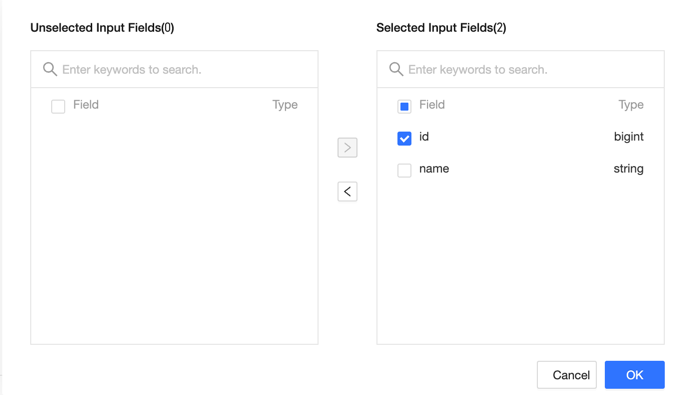
Scenario for batch deleting fields: To delete many fields, click Field Management. In the Field Management dialog box, select multiple fields, click the
 left-move icon, move the selected input fields to the unselected input fields, and click OK to complete batch deletion of fields.
Click OK to complete the property configuration for the GaussDB (DWS) input component.