Configure the Milvus output component
The Milvus output component writes data to a Milvus data source. This topic describes how to configure the component.
Prerequisites
You have created a Milvus data source. For more information, see .
You must have write permission for the data source. If you do not have the required permission, apply for it. For more information, see Apply for, renew, or release data source permissions.
Procedure
On the Dataphin home page, choose Develop > Data Integration in the top menu bar.
In the top menu bar of the Data Integration page, select a project. If you are in Dev-Prod mode, you must also select an environment.
In the left-side navigation pane, click Offline Integration. In the Offline Integration list, click the offline pipeline that you want to edit to open its configuration page.
Click Component Library in the upper-right corner to open the Component Library panel.
In the left-side navigation pane of the Component Library panel, select Output. In the list of output components on the right, find the Milvus component and drag it to the canvas.
Click and drag the
 icon of the source component to connect it to the Milvus output component.
Click the
 icon on the Milvus output component card to open the Milvus output configuration dialog box.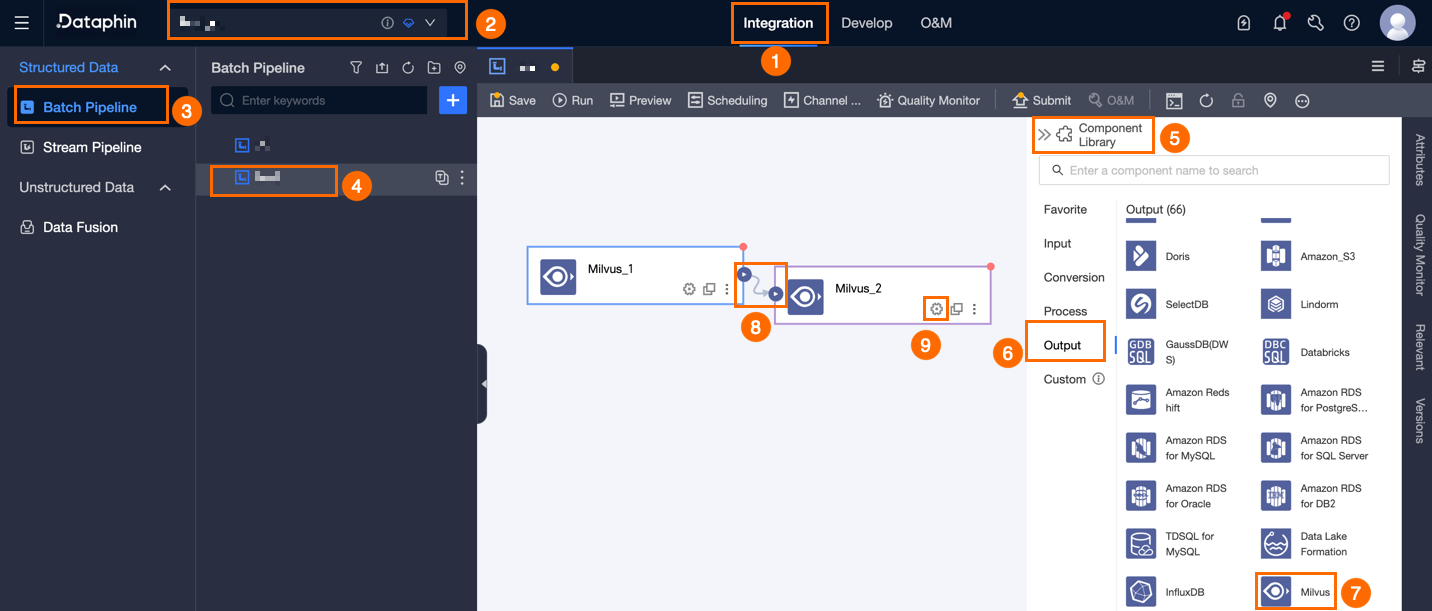
In the Milvus output configuration dialog box, configure the following parameters.
Parameter
Description
Basic settings
Step name
Enter a name for the Milvus output component. Dataphin generates a default name, which you can change. The name must meet the following requirements:
Can contain only Chinese characters, letters, underscores (_), and digits.
Cannot exceed 64 characters in length.
Data source
From the drop-down list, select a Milvus data source. The list displays all Milvus data sources in the current tenant that you are permitted to access, including those with and without write permission. Click the
 icon to copy the current data source name.
For a data source without write permission, click Apply next to the data source to request permission. For more information, see Apply for, Renew, and Return Data Source Permissions.
If you have not yet created a Milvus data source, click the
 icon to create one. For more information, see .
Database (Optional)
Select the database that contains the target collection. If left empty, Dataphin uses the default database specified when the data source was registered.
Partition (Optional)
Specify the partition, for example,
ds=1000. If you leave this parameter empty, data is written to the default partition.Collection
Select the target collection.
Loading policy
Select the policy for writing data. The available loading policy options are:
insert: If a primary key conflict occurs, the operation fails and an error is reported. Existing data remains unchanged.
upsert (update on primary key conflict): If the primary key exists, the operation updates the record. If not, it inserts a new record.
Batch write data volume (Optional)
The maximum data volume for a single batch write. You can set this parameter along with Batch write count. During the write operation, data is flushed when either this limit or the Batch write count is reached, whichever comes first. The default value is 32 MB.
Batch write count (Optional)
The number of records to write in a single batch. The default is 1,024 records. Data synchronization uses a batch write strategy, which is controlled by the Batch write count and Batch write data volume parameters.
A batch is written to the destination as soon as the accumulated data reaches either the configured record count or data volume.
For optimal performance, set the batch write count to a large value. For example, if a single record is 1 KB and the batch write data volume is 16 MB, set the batch write count to a value greater than 16,384 (16 MB / 1 KB), such as 20,000. This ensures that the write operation is triggered by the volume limit, not the count limit.
Field mapping
Input field
Displays input fields from the upstream component.
Output field
Displays the output fields. You can perform the following operations:
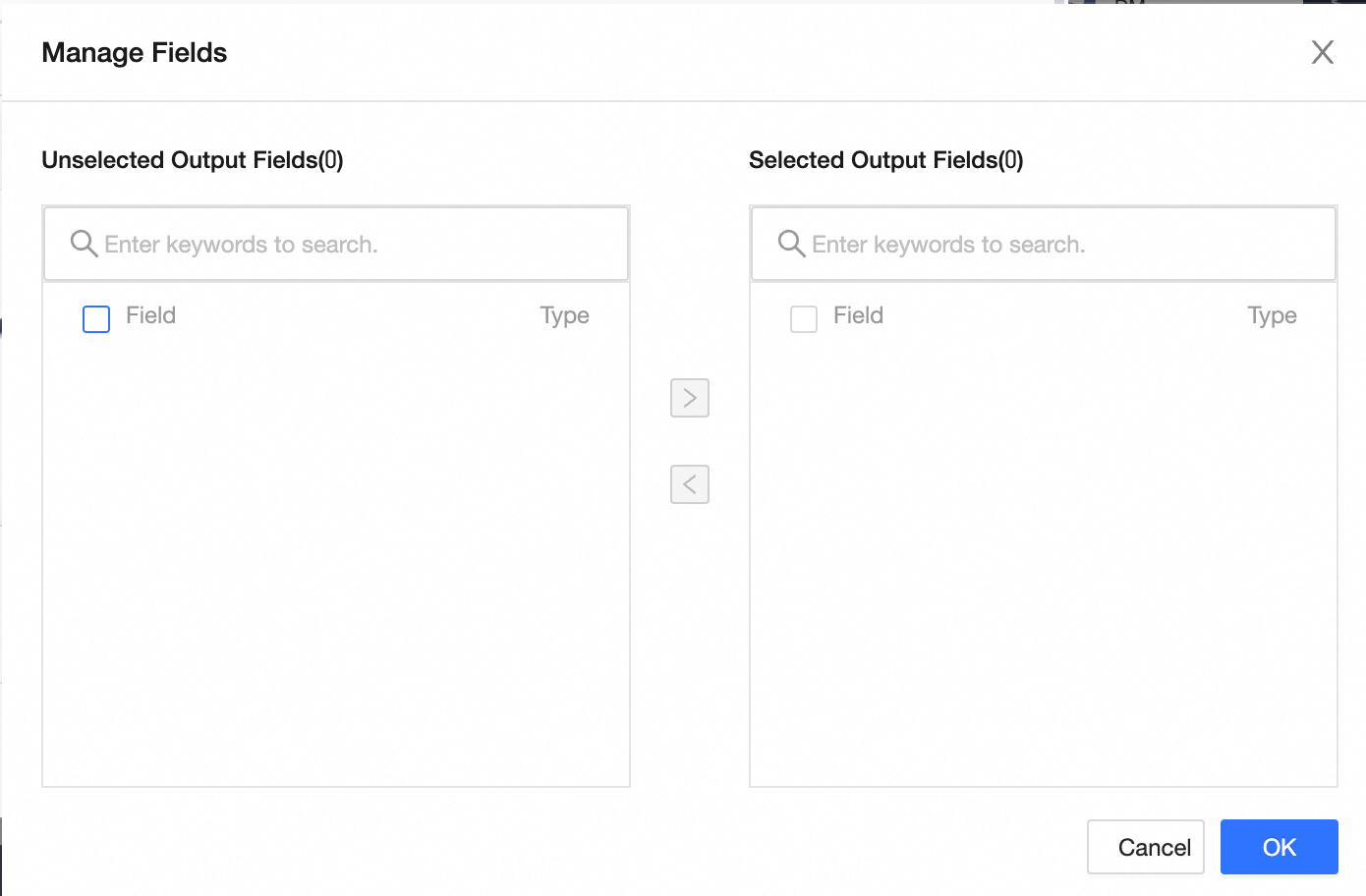
Field management: Click Field management to select output fields.

Click the
icon to move fields from Selected input fields to Unselected input fields.Click the
icon to move fields from Unselected input fields to Selected input fields.
Batch add: Click Batch add to configure fields in bulk using JSON, TEXT, or DDL format.
To configure in bulk using JSON format, for example:
[ { "name": "pk_int64", "type": "Long" }, { "name": "f_bool", "type": "Boolean" }, { "name": "f_int8", "type": "Long" }, { "name": "f_int16", "type": "Long" }, { "name": "f_int32", "type": "Long" }, { "name": "f_int64", "type": "Long" }, { "name": "f_float", "type": "Double" }, { "name": "f_double", "type": "Double" }, { "name": "f_varchar", "type": "String" }, { "name": "f_json", "type": "String" }, { "name": "f_array_int", "type": "String" }, { "name": "f_array_varchar", "type": "String" }, { "name": "f_array_float", "type": "String" }, { "name": "f_float_vector", "type": "String" } ]Notenamerepresents the imported field name, andtyperepresents its data type. For example,"name":"user_id","type":"String"imports the field named user_id and sets its type to String.To configure in bulk using TEXT format, for example:
pk_int64,Long
f_bool,Boolean
f_int8,Long
f_int16,Long
f_int32,Long
f_int64,Long
f_float,Double
f_double,Double
f_varchar,String
f_json,String
f_array_int,String
f_array_varchar,String
f_array_float,String
f_float_vector,String
The row delimiter separates each field's information. The default is a newline character (\n). Other supported delimiters are semicolons (;) and periods (.).
The column delimiter separates the field name from the field type. The default is a comma (,).
To configure in bulk using DDL format, for example:
CREATE TABLE tablename (
    id INT PRIMARY KEY,
    name VARCHAR(50),
    age INT
);
Add an output field: Click + Add output field, specify a Field name, and select a Type. Click the
icon to save the new field.
Mapping
Manually map input fields from the upstream component to the output fields in the target collection. Quick mapping options include Map by row and Map by name.
Map by name: Maps fields that have the same name.
Map by row: Maps fields based on their row position. Use this option when the field names in the source and target differ, but their row-by-row order is the same.
Click Confirm to complete the configuration of the Milvus output component.
 icon to move fields from Selected input fields to Unselected input fields.
 icon to move fields from Unselected input fields to Selected input fields.
 icon to save the new field.