Create a universal project
A project is the fundamental organizational unit in Dataphin, providing the primary boundary for multi-user isolation and access control. After activating the Dataphin service, you must create a project to use the platform. This topic describes how to create one.
Prerequisites
Before you begin, make sure you meet the following requirements:
-
If you need to develop tasks for unified stream and batch processing, create a compute source that supports this capability.
-
If you select MaxCompute as the Dataphin compute engine and need to use features such as standard modeling, ad hoc queries, and MaxCompute SQL computing tasks during data development, you must create a MaxCompute compute source before creating a project space. For more information, see Create a MaxCompute compute source.
When MaxCompute is your selected compute engine, you can also create a Hologres compute source. After you bind the Hologres compute source to a project, you can use features such as ad hoc query and HOLOGRES_SQL computing tasks. For more information, see Create a Hologres compute source.
Background information
Dataphin supports two project development modes:
-
Dev-Prod mode: Creating a project in this mode automatically generates a development environment (Dev project) and a production environment (Prod project). The Prod project helps ensure data security in your production environment. We recommend this mode if you have strong governance requirements, a large data development team with clear roles, and a sufficient budget for computing and storage.
-
Basic mode: Creating a project in this mode generates a single Basic project that combines development and production environments. This mode provides a stable and efficient process for data production. We recommend this mode if you prioritize development efficiency, have a flexible team structure, and have a limited budget for computing and storage.
Limitations
If your project will be associated with Platform for AI (PAI) to create scheduling tasks, you must upgrade PAI-Studio to Designer and migrate experiments from the old Studio console to the new Designer. For more information, see Migrate Studio experiments to Designer.
Permissions
-
Super administrators, system administrators, and domain architects can create projects.
-
Super administrators, system administrators, and domain architects can enable or disable permission requests for reading and writing data tables.
Procedure
-
In the top navigation bar of the Dataphin homepage, choose Plan > Projects.
-
On the Project management page, click Create universal project to open the Create project dialog box.
-
In the Create project dialog box, select Dev-Prod mode or Basic mode and click Next.
ImportantYou cannot upgrade a project from Basic mode to Dev-Prod mode. Basic mode risks direct changes to the production environment. Choose this mode with caution.
If you choose Basic mode, carefully manage project members to ensure stable data production.
-
In the Create project dialog box, configure the parameters.
The parameters for Dev-Prod mode and Basic mode are the same. The following example uses Dev-Prod mode.
Parameter
Description
Owning domain
Data domain
Select the data domain to which the project belongs.
Basic information
Shared English name
Enter the shared English name for the project. The name must:
-
Contain only letters, digits, and underscores (_).
-
Not start with
LD_. -
Be no more than 64 characters long.
The development project's English name automatically includes the
_devsuffix.NoteIf you use MaxCompute as the compute engine, we recommend that the shared English name of the project matches the name of the corresponding MaxCompute project.
Shared name
Enter the shared name for the project. The name must meet the following requirements:
-
Contain only Chinese characters, letters, digits, underscores (_), and hyphens (-).
-
Not start with
LD_. -
Be no more than 64 characters long.
Compute source type
Select a compute source type and then select the corresponding compute source.
Important-
A compute source that is already bound to a project cannot be bound to another project.
-
The Dev and Prod projects must use the same compute sources.
If Dataphin is initialized with the MaxCompute compute engine, you can select MaxCompute or Hologres as the offline engine. If you select MaxCompute, you can also enable machine learning PAI.
Dataphin integrates with Platform for AI (PAI) for algorithm scheduling. In PAI, when you create a visual modeling workspace, you must select a MaxCompute-based AI computing resource group as the resource. For more information, see the AI computing resource group overview in the Platform for AI (PAI) documentation. If you enable PAI, you must configure the following parameters.
-
PAI region: Select the same region as your Dataphin instance.
-
Access method: Select the access method for PAI. The options are VPC and public network.
-
AccessKey ID and AccessKey Secret: Enter the AccessKey ID and AccessKey Secret of the account used to access PAI.
-
PAI project name: Select the PAI project.
We recommend that the MaxCompute project used for Dataphin is also used for PAI.
Default resource group for the project
The default resource group for scheduling tasks created in this project. This parameter is available only when an offline compute engine is enabled. You can override this setting for individual tasks during task configuration.
-
You can only select a resource group that is associated with the project, is in the Normal state, and is designated for Daily task scheduling.
-
If you change the default resource group here, tasks that are configured to use the default resource group for the project will automatically use the new resource group. If you do not want this automatic update, specify a separate custom resource group for the task. For more information, see Configure computing task resources.
Note-
This parameter is configurable only if the custom resource group feature is enabled for the tenant. For more information, see Resource group overview.
-
This project uses the tenant's default public scheduling resource group. Resource contention can occur during peak hours.
Description
Enter a brief project description (up to 128 characters).
Business information
Workspace type
Defines the characteristics of development tasks and their data output. The default is the application layer. The available types are:
-
Intermediate Layer: Stores and processes data to provide consistent, accurate, and clean data.
-
ODS Layer: Stores raw data integrated from business systems, which serves as the source for subsequent processing and development.
-
Application Layer: Fulfills business requirements by defining and generating personalized and diverse data metrics for various use cases.
-
Common Layer: Stores general aggregated data, such as summary data for a dimension within a specific data domain.
Security settings
Sandbox whitelist
Add the IP addresses or domain names that integration, Shell, and Python tasks in this project need to access.
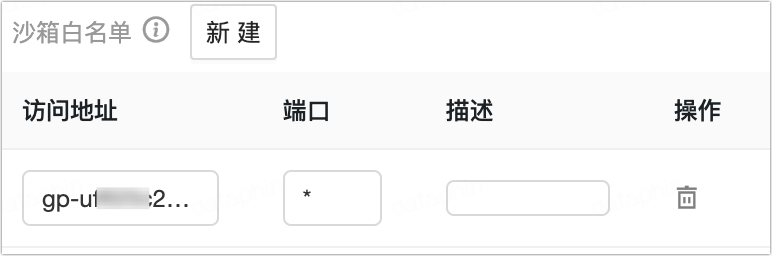
-
Access address: The addresses that tasks in the project need to access.
-
Port: The port for the access address. Wildcards (*) are supported.
-
Description: A brief description of the access address.
NoteFor an entry in the sandbox whitelist, you can click the
 icon in the Actions column to delete it. After deletion, data sources, Shell tasks, and Python tasks in the project will no longer be able to access the corresponding IP address or domain name.
Global security settings
Security settings allow you to implement fine-grained control over data security and access, and to configure the on/off state and authentication mode for Spark tasks to protect your data. For more information, see Security settings.
Data result download (Download approval)
Dataphin supports downloading business data. You can configure whether data at the project level can be downloaded. Once data is downloaded, it is no longer under system governance. You can set watermarks as a reminder to handle data securely and avoid unauthorized sharing. For more information, see Configure data download.
ImportantOnly users with non-visitor roles can download data results to their local machines.
Data permission approval
Data permission approval policies allow you to specify different approval rules for different data security levels. This helps approvers focus on highly sensitive data and can reduce the approval workload by exempting public data from the approval process. For more information, see Configure data permissions.
Asset security policy
After installation, you can use data security policies to protect sensitive data. You can modify these policies in the Governance > Data Security > Project security policies module. For more information, see Project security policies.
Commit settings
Code review
Disabled by default. If enabled, configure the Approval settings. Computing tasks in this project will require a code review upon submission.
-
Specify approver: By default, Project administrator is selected. You can also select multiple members as approvers by choosing Custom.
-
Specify approval template: Approvals follow the selected template. You can only select custom approval templates created for the Code review use case. If no suitable template is available, click + New Template to go to the Approval templates page and create one. For more information, see Create and manage approval templates.
Release settings
Release approval
If enabled, configure the Approval settings. Objects in this project will then require approval before being released.
-
Specify approver: The request is approved or rejected based on the first response from an approver. You can choose Project administrator or Custom. If you select Custom, you must also select one to ten Approvers.
-
Specify approval template: Approvals follow the selected template. If no suitable template is available, click + New Template to go to the Approval templates page and create one. For more information, see Create and manage approval templates.
Task parameter configuration
Default Flink task parameters
-
After enabling the real-time engine, you can enter Flink-related parameters in the text box. These parameters are automatically applied as defaults to new Flink tasks created in the project.
-
The parameter must be in the key-value pair format:
key:value. For example:taskmanager.numberOfTaskSlots:1.
More settings
Default function menu
After you select a data domain for the project, the system automatically selects the corresponding function menus based on your chosen workspace type. You can modify these selections as needed.
NoteThe default function menu is not supported when you select the Hologres compute engine.
Periodic scheduling for production environment
NoteFor Basic projects, this setting is named Periodic scheduling.
Enable, tasks are automatically scheduled: When enabled, new instances of periodic tasks in this project run according to the task's status. This does not affect historical instances.
Disable, task scheduling is suspended: When disabled, new instances of periodic tasks in this project are created in a suspended state. This does not affect historical instances. Disabling periodic scheduling can have serious consequences, so proceed with caution.
NoteIn the Dev environment, the instance status will change from Not Running to Suspended by default.
-
-
Click OK to create the project.
What to do next
After creating a project, you can begin development in the data development module. For more information, see Data development overview.