Create a Hologres compute source
Dataphin supports Hologres as an offline compute source. This topic describes how to create one.
Prerequisites
You must have Hologres activated. For more information, see Purchase a Hologres instance.
Procedure
In the top menu bar on the Dataphin home page, choose Planning > Compute Source.
On the Compute Source page, click + Add Compute Source and select Hologres Compute Source.
On the Create Hologres Compute Source page, configure the following parameters.
Basic compute resource information
Parameter
Description
Compute source type
Select Hologres.
Compute source name
The naming convention is as follows:
The name can contain only Chinese characters, digits, letters, underscores (_), and hyphens (-).
The name must be 64 characters or less in length.
Compute source description
A brief description of the compute source. The description can be up to 128 characters in length.
Configuration
Parameter
Description
JDBC URL
The connection address of the Hologres compute source. The format is
jdbc:postgresql://host:port/dbname.Schema
Enter the schema connection information for the compute engine database.
Username, Password
Enter the username and password to connect to the compute source.
If you use an Alibaba Cloud Resource Access Management (RAM) user, enter the AccessKey and AccessKey secret of the RAM user. If you use a self-managed database account, enter the ID and password of the account.
Access method
Select Public IP or VPC Network.
Public IP: If you use a self-managed database, enable public access and grant the required permissions.
VPC Network:
Region: The region where the database resides. Only databases in the same region as your Dataphin instance are supported. For example, if your Dataphin instance is in the China (Shanghai) region, you can select only the China (Shanghai) region.
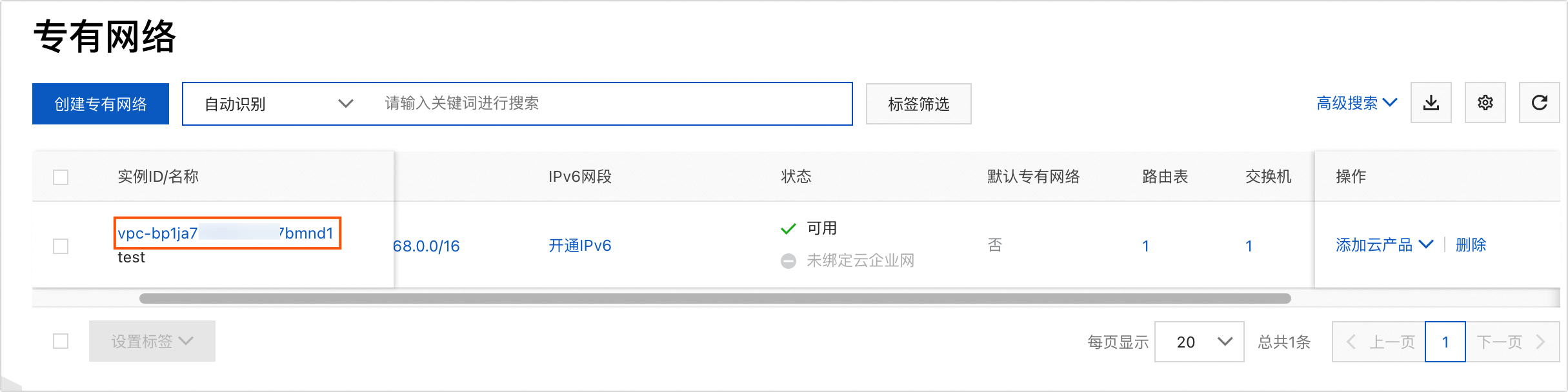
VPC ID: Enter the ID of the virtual private cloud (VPC) where the database resides. You can log on to the VPC console to view the ID. The following figure shows an example:
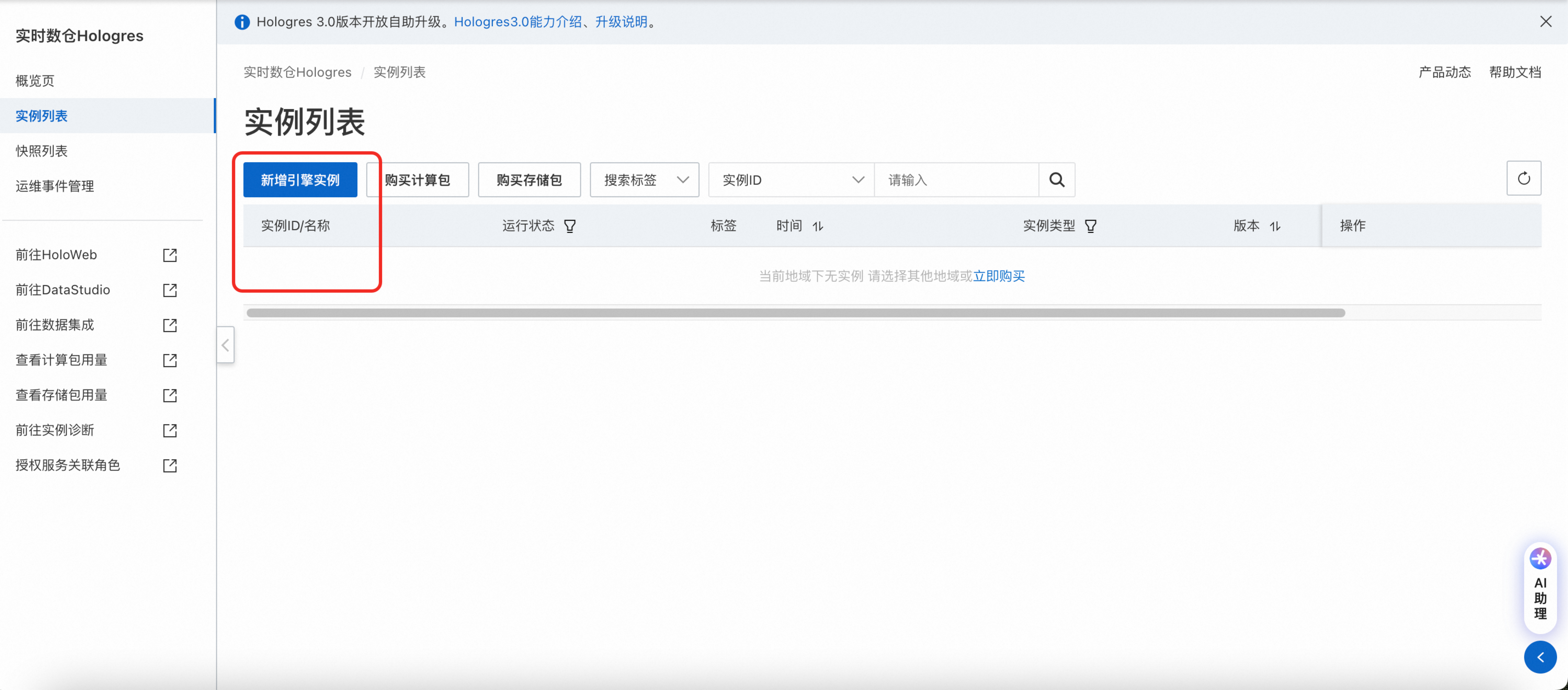
Instance ID: Enter the VPC-connected instance ID. You can obtain the Hologres instance ID from the instance list in the Hologres console. Then, call the GetInstance operation to obtain the
VpcInstanceId, which is the VPC-connected instance ID.The following figure shows how to obtain the Hologres instance ID:
Click Test Connection.
If the
VPC_GRANT_ACCESS_API_ERRORerror is reported during the connection test, see Solution to the VPC_GRANT_ACCESS_API_ERROR error to resolve the issue.After the connection test is successful, click Submit.