Create and manage application systems
Application systems can serve as data sources for metadata collection. This topic describes how to create and manage application systems.
Prerequisites
To use DataWorks application systems to collect metadata, you must purchase the Metadata Collection - Big Data Storage value-added service.
Only standalone deployments of Quick BI V5.5.1 or later are supported.
Limitations
You can create a maximum of 100 application systems.
If the system type is DataWorks and the collection source is MaxCompute, you can collect metadata only from the projects configured for that data source.
Permissions
Super administrators and system administrators can create and manage application systems.
Create an application system
In the top menu bar of the Dataphin homepage, choose Management Center > Data Source Management.
In the left-side navigation pane, choose Application System > Application System. On the Application System page, click Create Application System.
In the Create Application System dialog box, configure the parameters.
Quick BI
Parameter
Description
Basic information
System type
Select the Quick BI application system.
Deployment environment
Only standalone Quick BI deployments are supported.
System name
The system name defaults to the selected system type, but you can change it. The name can be up to 64 characters long and must be globally unique.
System contact
Enter the contact person for the application system. The value can contain up to 256 characters.
This information helps you contact the person for details such as the access address, endpoint, AccessKey ID, and AccessKey Secret.
System description
Enter a description for the application system, such as its use cases. The description can contain up to 1,024 characters.
Connection configuration
Access address
Enter the access address of the application system. The URL must start with
httporhttpsand can contain up to 512 characters.AccessKey ID/AccessKey Secret
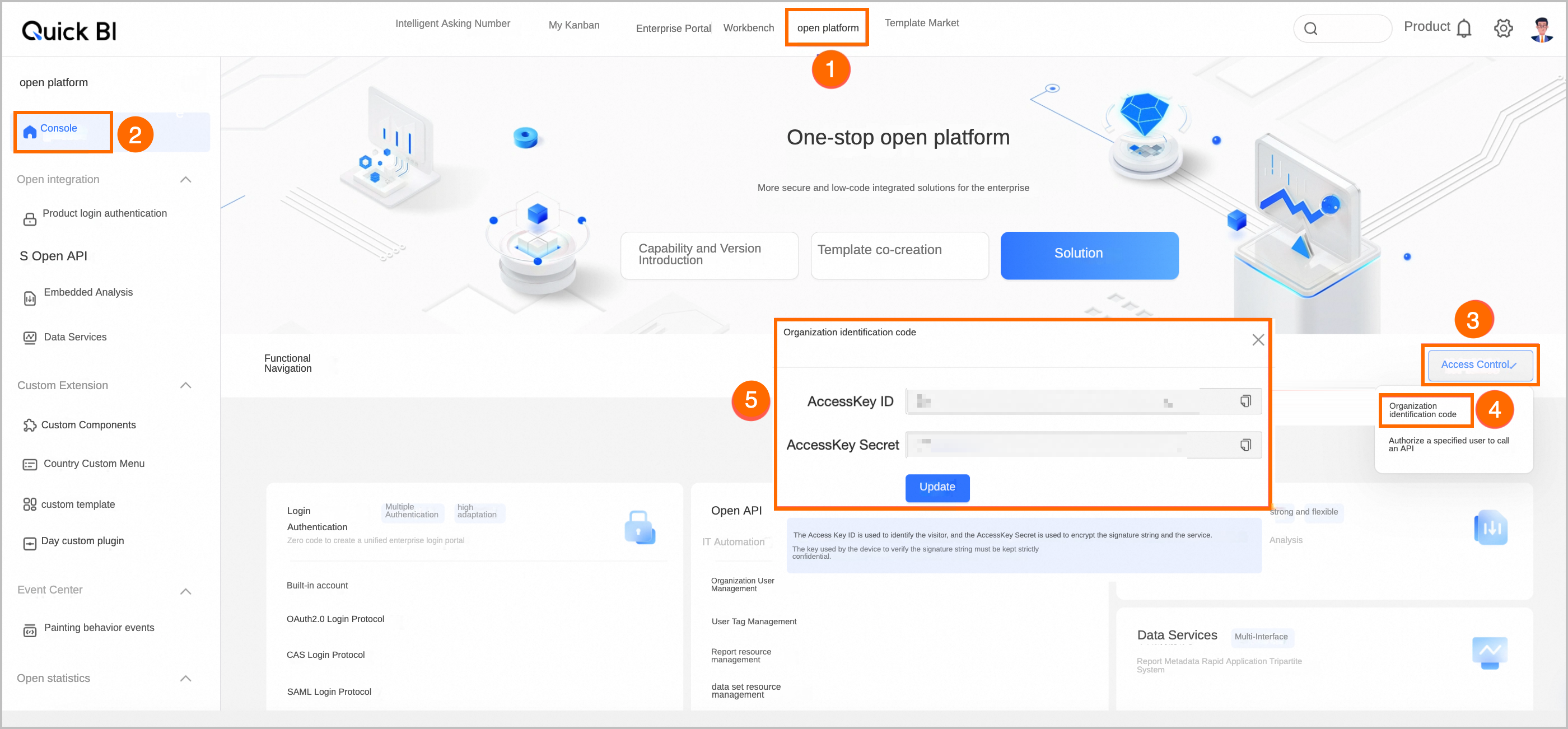
Enter the AccessKey ID and AccessKey Secret for the Organization Identifier. Each value can contain up to 128 characters. Asterisks (*) are not allowed in the secret.
You can obtain these credentials in Quick BI. Go to Open Platform > Console>Access Control>Organization Identifier, as shown in the following figure.
DataWorks
Parameter
Description
Basic information
System type
Select the DataWorks application system.
Deployment environment
Only the DataWorks public cloud environment is supported.
System name
The system name defaults to the selected system type, but you can change it. The name can be up to 64 characters long and must be globally unique.
System contact
Enter the contact person for the application system. The value can contain up to 256 characters.
This information helps you contact the person for details such as the access address, endpoint, AccessKey ID, and AccessKey Secret.
System description
Enter a description for the application system, such as its use cases. The description can contain up to 1,024 characters.
Connection configuration
Endpoint
Enter the endpoint for the application system in the format
[product_code].[region_id].aliyuncs.com. You can select an endpoint based on the region where your DataWorks instance is deployed. For more information, see Endpoint.Authentication method
You can access the target source by using a RAM role proxy or AccessKey authentication.
RAM role proxy: Dataphin uses the Security Token Service (STS) temporary credential mechanism to grant the service-linked role the required permissions to access the target source, which provides enhanced security.
service-linked role: The system provides the AliyunServiceRoleForDataphinOnCs service-linked role and grants it permissions for DataWorks metadata collection. This role is used only to collect metadata from the DataWorks instance, such as workspace lists, data source lists, table lists, and table details. For more information about the permissions, see Dataphin service-linked roles.
AccessKey authentication: Enter the AccessKey ID/AccessKey Secret that you obtained from the Alibaba Cloud console. These keys are used to call the OpenAPI required for DataWorks metadata collection. You can go to the DataWorks official website and click User Center > AccessKey in the upper-right corner to obtain the AccessKey ID/AccessKey Secret.
Click OK to create the application system.
Manage application systems
On the Application System page, the application systems you create are displayed as cards. You can view the name, description, type, contact, access address, and update time of an application system.
You can search for an application system by its name.
You can perform the following operations on an application system:
Edit: Modify the configured information. If you change the account integration method, you can view the analysis tasks that are associated with the new account system.
Delete: You cannot delete an application system if it has associated collection tasks. You must first delete these tasks before deleting the application system. If you recreate the system, its previous analysis tasks are restored.
Test: Click Test to verify that the domain name is accessible and the AccessKey ID/AccessKey Secret are valid.
Next steps
When you create a collection task, you can select an application system as the data source. For more information about the configuration, see Create and manage metadata collection tasks.