Data download configuration
Dataphin lets you download business data and configure download permissions at the project level. Because downloaded data is no longer managed by the system, you can add watermarks to Excel files to promote data security and prevent unauthorized sharing. This topic describes how to configure data download policies and Excel file watermarks.
Usage notes
When the compute engine is MaxCompute, you can download result data in MaxCompute Logview. To disable downloading, set
odps.forbid.fetch.result.by.bearertokentotruein the project settings of MaxCompute. For more information, see Project Operations.If a project has no data download and approval rules, data downloads are enabled by default and do not require approval.
To download sample data as Excel files and set watermark styles, activate the Intelligent R&D Edition or Basic R&D Edition.
Full data downloads are only available in CSV format and do not support watermarks.
Permissions
Security administrators can add, edit, and delete approval configurations for data downloads.
Security administrators can download sample data as Excel files and set watermark styles.
Add an approval configuration
In the top menu bar on the Dataphin home page, go to Management Center > Standard Settings.
In the left navigation pane, choose Data Access > Data Download.
On the Data Download page, click Add Approval Configuration.
In the Add Approval Configuration dialog box, set the parameters.
Parameter
Description
Object type
Select Project or Data source.
Object name
If you set Object type to Project, select one or more projects in the current tenant.
If you set Object type to Data source, select one or more data sources in the current tenant.
NoteYou can configure the data download scope for a project only once.
Copy query results
The default is Allow. If you select Forbid, you cannot copy query results from the selected project.
Data Type
You can select Limited Result Set or Full Result Set. For each type, you can enable or disable downloads, or require approval for downloads.
Is download supported?
This option is enabled by default. If enabled, data from the project can be downloaded. If disabled, data from the project cannot be downloaded.
Is Approval Required?
When Whether approval is required is enabled, you must select an approval template. You can use system templates or custom approval templates. For more information, see Create and manage approval templates.
If the object type is Project: The system templates include Project administrator approval, Module administrator approval, or Security administrator approval.
If the object type is Data source: The system templates include Data source owner approval or Security administrator approval.
If you disable this option, you cannot configure an approval template.
Click OK to add the approval configuration.
View download and approval configurations
After the download and approval configurations are complete, you can edit and delete them in the configuration list.
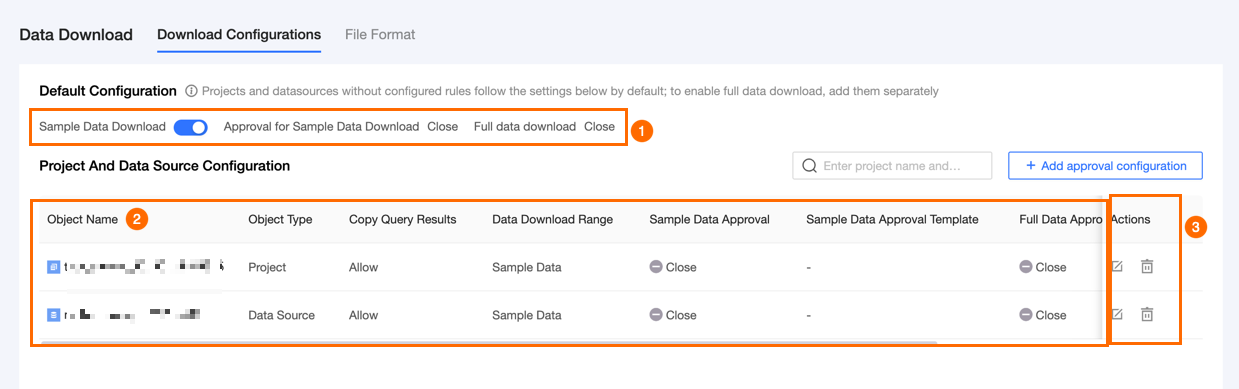
Block | Description |
① Default configurations | Projects and data sources without configured rules follow these default configurations. To enable full data downloads, you must add a separate configuration.
|
② List area | This area lists the Object name, Object type, Copy query results permission, Data download scope, Enable sample data approval, Sample data approval template, Enable full data approval, and Full data approval template. You can search by entering keywords from the project or data source name. |
③ Operations area | You can perform Edit and Delete operations on a project.
|
File format
On the Data Download page, click the File Format tab to configure the file format for full and sample data downloads and to set the number of rows for sample data.
Parameter
Description
Full download file format
Only the CSV download format is supported.
Sample download file format
You can use either CSV or Excel file formats. If you select Excel as the download format, you can also enable Watermarks for Excel files and configure the watermark style.
Watermark
If you set the sample download file format to Excel and enable watermarks, you can configure the following parameters.
Watermark content: Set the information displayed in the Excel file watermark. You can select Username or Custom.
Username: Uses the username and user account of the current tenant as the watermark.
Custom: A custom watermark content. It cannot exceed 100 characters and cannot be empty.
Watermark font: Set the font size of the watermark and choose whether to make it bold.
Font size: The default is 16 px. The range is 8 px to 80 px.
Bold: Click the Bold
 button to make the font bold.
Rotation angle: Set the rotation angle of the watermark font. The default angle is -45°. The range is -360° (counterclockwise) to 360° (clockwise).
Font color: The font color is black (#000000) and cannot be changed.
Transparency: Set the font transparency. The default is 94%. The range is 0% to 100%.
Watermark spacing: Set the horizontal and vertical spacing of the watermark. The default for both is 240 px. The range for both is 0 px to 500 px.
After you finish the configuration, you can see a real-time preview of the watermark in the Preview area.
Sample data
Configure the first n records to be returned by a download or query statement. This configuration affects the number of rows returned by ad hoc queries and downloads.
Project sample data: The default is 10,000 rows. The range is 1 to 10,000.
Data source sample data: The default is 1,000 rows. The range is 1 to 10,000.
NoteTo restore the default system configurations, click Restore default configurations in the upper-right corner of the preview area.
Click OK to save the file watermark format configuration.