Data source table
This topic describes how to view the details of a metadata asset.
Limitations
To view metadata asset details, you must enable the metadata collection and management feature.
To use the data preview feature for a data source table, you must first configure a data source code. For more information about how to configure a data source code, see Data Source Management.
For information about the operations supported by different data sources, such as data preview and viewing DDL statements, see Operations supported by different collection source types.
Access the data source table
In the top navigation bar of the Dataphin homepage, choose Govern > Asset List.
Select Other System Assets, and click the name of the target metadata asset or the
 icon in the Actions column to open the object details page.
Data source table details
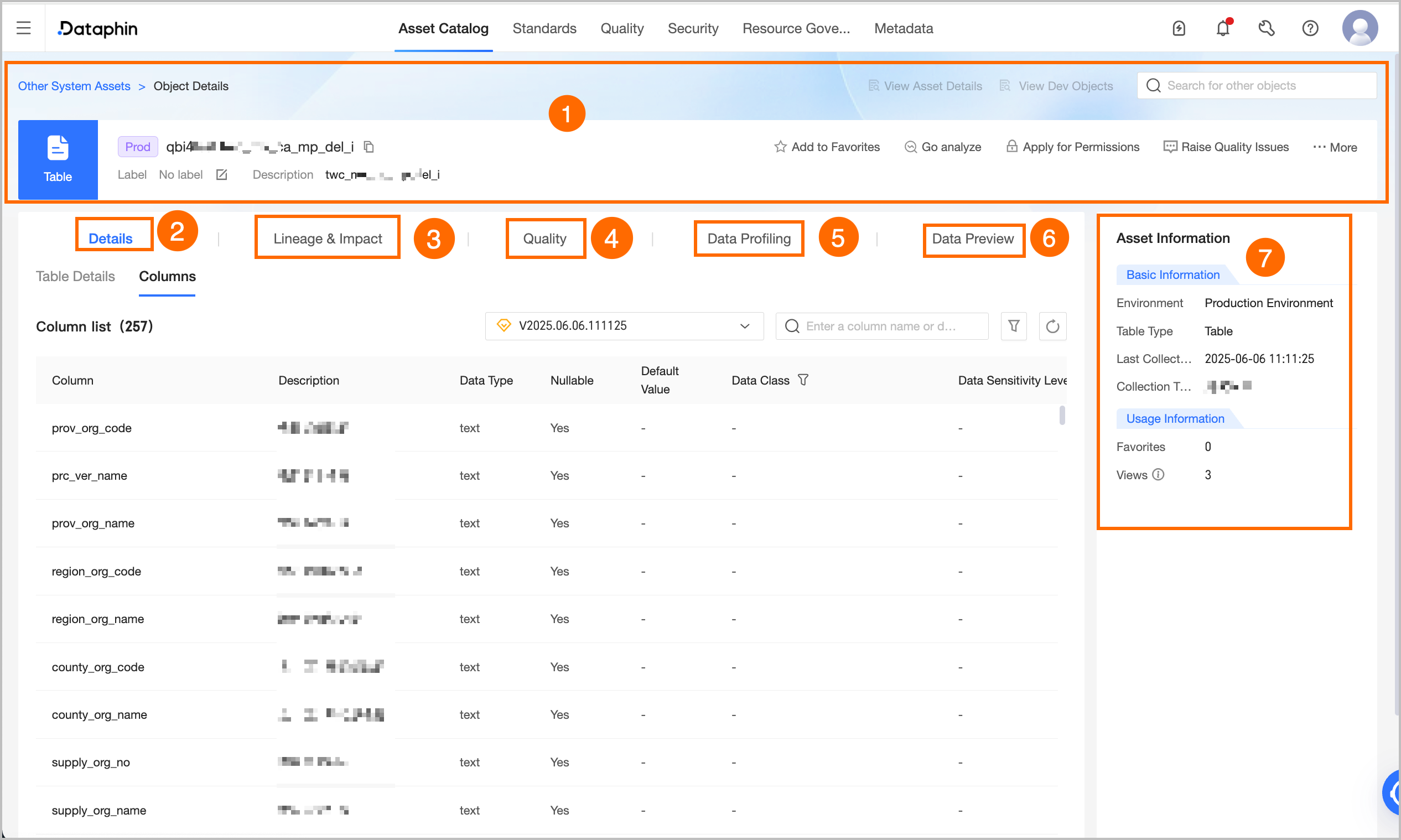
Section | Description |
① Basic Information | This section displays basic information about the metadata, such as its name, environment, tags, and description. You can also perform the following actions: For a data source table from Elasticsearch, you can search metadata, view asset details, view the production or development object, modify tags, add the asset to favorites, report a quality issue, apply for data source permissions, and export fields (table objects only).
|
② Details | This section displays the properties and field information for tables and views.
|
③ Lineage & Impact |
|
④ Quality Overview | You must enable the data quality feature to view the rule check overview and the quality monitoring rule list for the current data table. You can click View Report Details or View Rule Details to open the corresponding page in the data quality module for more details. The quality overview is available only for data tables that support data quality monitoring. For a list of supported data sources, see Data sources supported by Dataphin. You can create quality rules and view the quality overview only for data source tables in the production environment. |
⑤ Data profiling | If you have enabled the data quality feature, you can initiate and view data profiling reports for supported data source tables. This allows you to quickly understand the data's general characteristics and assess its usability and potential risks. To enable automatic data profiling, go to Govern > Metadata Center > Profiling and Analysis and configure the settings. For more information about how to configure data profiling tasks, see Create a data profiling task. For a list of data sources that support data profiling, see Data sources and compute engines supported for data profiling. |
⑥ Data preview | If you have permission to query the table, you can use the data preview feature. This preview shows the first 50 rows of data and includes only the fields for which you have SELECT permissions. For information about how to apply for query permissions, see Apply for, renew, and revoke table permissions. You can search or filter the data by field, view single-row details, auto-fit column widths, expand or collapse field display names, and switch between row and column views. You can also click the sort icon next to a field to sort the data in Ascending or Descending order, or select No Sorting. Double-click a field value to copy it. |
⑦ Asset information | This section displays basic and usage information for the data source table.
|
 icon next to the name to open the Metadata List page and delete the metadata asset.
Table-level lineage
The table-level lineage page displays a lineage graph that includes integration and synchronization tasks, computing tasks with custom lineage, and SQL-based computing and logical table tasks whose lineage can be automatically parsed by the system.
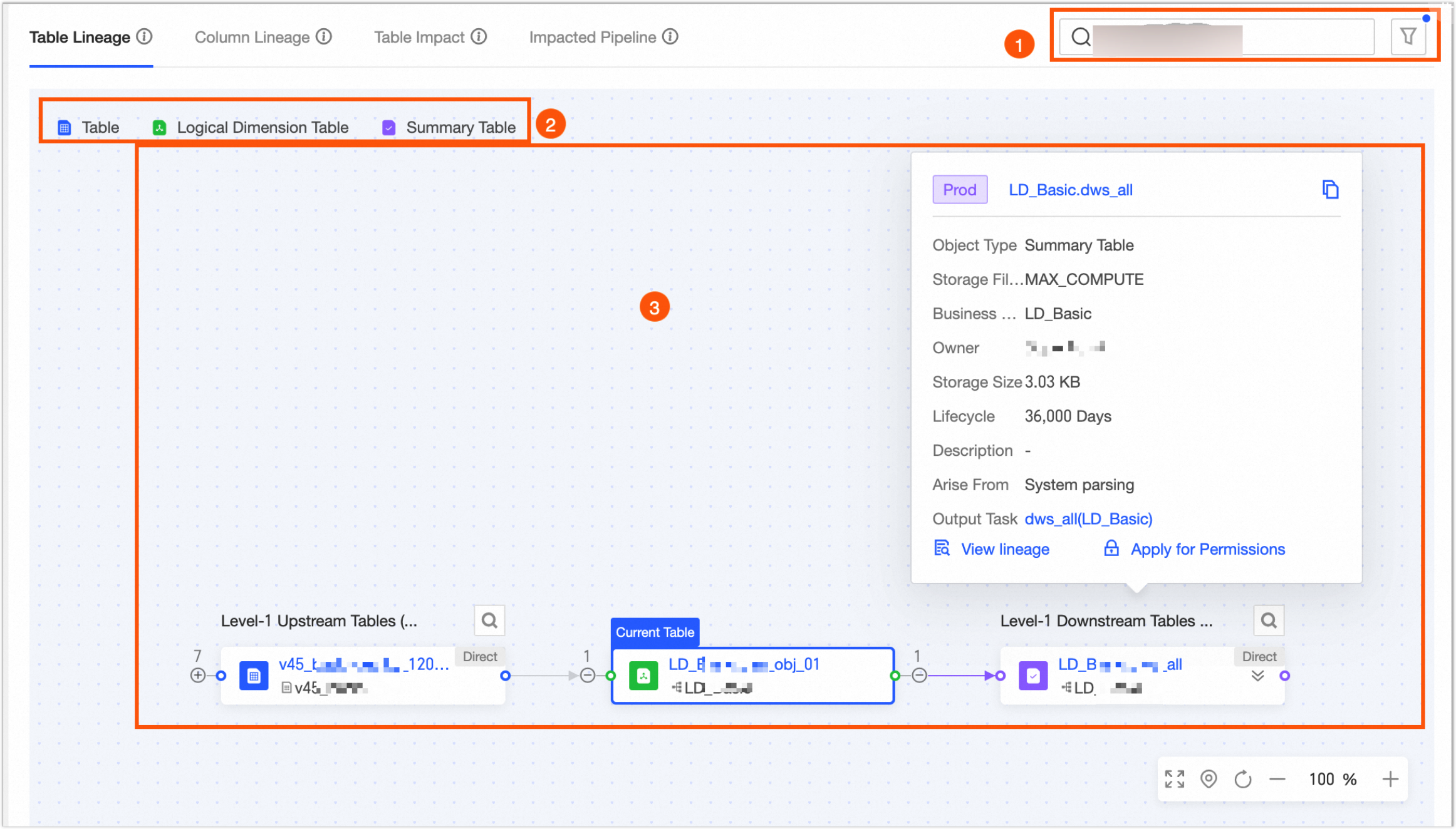
Number | Description |
① Quick actions |
|
② Legend | Table-level lineage supports various data tables, including physical tables, dimension logical tables, fact logical tables, aggregate logical tables, tag logical tables, physical views, materialized views, logical views, meta tables, mirrored tables, and data source tables. |
③ Lineage graph | This area displays the complete lineage path. You can manually expand multiple levels of upstream or downstream dependencies and perform a fuzzy search by data table name. If a circular dependency exists, you cannot expand the node further and must trace the downstream path from the starting node.
|
④ Object details | Hover over a table to view its details. For a data source table, the details include its Name, Object Type, Data Source Type, Data Source, and Lineage Source. You can also perform the following actions: View Lineage, View DDL statements, and Apply for Permissions.
|
Field-level lineage
The field-level lineage page displays a lineage graph for computing tasks with custom lineage, and for SQL-based computing and logical table tasks whose lineage can be automatically parsed by the system.
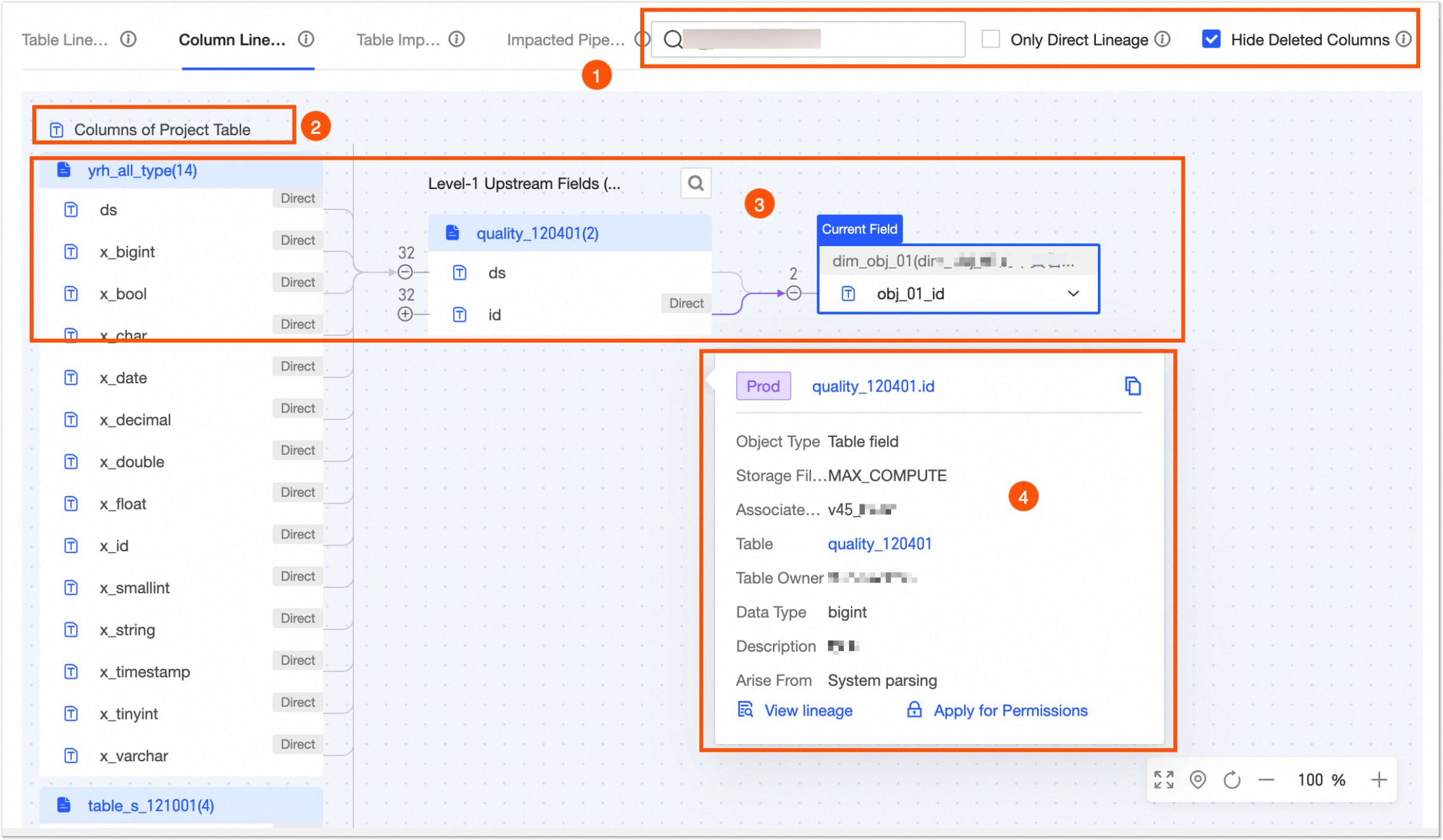
Number | Description |
① Quick actions |
|
② Legend | Field-level lineage supports fields from compute source tables and data source tables. |
③ Lineage graph | This area displays the complete lineage path. You can manually expand multiple levels of upstream or downstream dependencies and perform a fuzzy search by field name. If a circular dependency exists, you cannot expand the node further and must trace the downstream path from the starting node. Central node: Displays the name of the current field and its table, which is marked with a Current Field label in the upper-left corner. You can perform a fuzzy search by field keyword to switch to the lineage graph of a different field. |
④ Object details | Hover over a field to view its Name, Object Type, Data Source Type, Table, Table Owner, Data Type, Description, and Lineage Source. You can also perform the View Lineage action.
Note If a metadata collection task has not been configured for a data source table, you cannot click the table to view its asset details. You can view only basic information, including the field's name, object type, table, data source type, and lineage source. |