Create and manage datasets
Prerequisites
To use the dataset feature, your instance must have the unstructured data feature.
Limitations
Datasets can only be created in a Basic Project.
Permissions
In addition to project administrators and developers, project members with the Data Processing - Edit permission can create, edit, delete, and move datasets, acquire locks, and create dataset versions. Those with the Data Processing - Execute permission can submit datasets.
Create a dataset
In the top menu bar on the Dataphin homepage, choose R&D > Data Development.
On the Development page, choose Project from the top menu bar.
In the left-side navigation pane, choose Data Processing > Dataset. In the Dataset list, click the
 icon to open the Create Dataset tab. Configure the parameters for your use case.
Offline
Parameter
Description
Basic information
Name
Enter a name for the dataset. The name can contain any characters and be up to 256 characters long.
Use case
Select Offline.
Dataset type
Select File Dataset, Table Dataset, or Hybrid Dataset. The default is File Dataset.
Object storage type, metadata storage type
Object storage type: If you select File Dataset or Hybrid Dataset, you can use OSS or Amazon S3 data sources.
Metadata storage type: If you select Table Dataset or Hybrid Dataset, you must configure a metatable to describe the dataset. You can select a PostgreSQL, Milvus, or Lindorm (wide table) data source.
Content type
Select Text, Image, Audio, or Video.
Directory
Select the directory for the dataset.
If no directory exists, you can create a folder as follows:
Above the compute task list on the left side of the page, click the
 icon to open the New Folder dialog box.
In the New Folder dialog box, enter a Name for the folder and, if needed, select a directory for its location.
Click OK.
owner
Select an owner from the members of the current tenant. The default is the current user.
subject domain (Optional)
Select a subject domain from those within the current project's section.
Description (Optional)
Enter a description for the dataset. The description can be up to 2,000 characters long.
Version configuration
Version
The dataset version. Defaults to V1 for new datasets.
Description (Optional)
Enter a description for the dataset version. The description can be up to 2,000 characters long.
File storage
NoteYou can configure file storage for File Dataset and Hybrid Dataset types.
Data source
Select a data source that matches the object storage type. For example, if the object storage type is OSS or Amazon S3, the options include all data sources of the corresponding type under the current tenant (production data sources only).
Production path
The directory path of the production data source.
ImportantIf the data source is restricted to a specific directory within a bucket, you can only select subdirectories within that directory.
Mount path
Enter a mount path. The path can contain letters, digits, underscores (_), and hyphens (-). The path is prefixed with
/mnt/data/.Metadata storage
NoteYou can configure metadata storage for Table Dataset and Hybrid Dataset types.
Data source
Select a data source that matches the metadata storage type. For example, if the metadata storage type is PostgreSQL, Milvus, or Lindorm (wide table), the options include all data sources of these types under the current tenant (production data sources only).
Production database/schema
The options include the databases or schemas in the selected Production data source.
Store in
Select whether to store the metadata in a New Table or an Existing Table.
Table name
Store in a New Table: Enter a table name. The name can contain lowercase letters, digits, and underscores (_). It must start with a lowercase letter and be no more than 64 characters long.
Store in an Existing Table: Select a table from the chosen data source's database or schema. You can search by table name.
NoteAfter you select an existing table, the system automatically populates the table structure. You cannot modify fields, types, descriptions, or the primary key. You also cannot define the structure by importing, editing the DDL, or adding fields. Click Reload Table Structure to load the latest structure.
Table structure
You can define the table structure in one of three ways: Import from Table, Edit DDL, or Add Field.
Import from Table: Click Import from Table. In the Add Field from Table dialog box, select a Data Source, Schema, and Source Table. Then, select one or more fields from the list and click Add.
The data source can be any data source within the current tenant that matches the metadata storage type; it is not limited to the data source selected for this dataset. You can select a schema from the chosen data source. If you do not select a schema, the one configured in the data source is used by default.
Edit DDL: Click Edit DDL. The Edit DDL dialog box displays the DDL statement for the current fields, which you can then edit.
Add Field: Click Add Field to add a new, empty field row to the table structure, which you must configure yourself.
After adding fields using any method, you can configure the Field Name, Field Type, primary key setting, Is URL setting (only for Hybrid Datasets), and Field Description.
Field Name: Can contain only lowercase letters, digits, and underscores (_). Must start with a lowercase letter and be no more than 64 characters long.
Field Type: Supported field types vary depending on the metadata storage type.
PostgreSQL
Supported field types include text, numeric, datetime, boolean, json, vector, and other types.
If the field type is vector-vector, you can click Vector Configuration to configure the model and index for the field.
NoteThe vector-vector type requires the Vector extension to be installed on the metadata data source.
Embedding model and Output dimension: You can select a model from Intelligent Application Management > Model Configuration that is of the Vector type and is Enabled. The output dimension is selected from a drop-down list based on the chosen model.
Create index: Specifies whether to create an index. The default is Yes. If you select No, the following parameters are disabled.
Index type: You can select IVFFlat or HNSW. Different index types require different fields to be configured. For more information, see .
similarity metric: You can select COSINE, L2 (Euclidean distance), or IP (inner product).
Milvus
Supported field types include Numeric, Dense Vector, VARCHAR, JSON, ARRAY, Binary Vector, and Sparse Vector.
If you select VARCHAR as the field type, you must enter a maximum length, which can be an integer from 1 to 65,535.
If the field type is Dense Vector (non-INT8_VECTOR), you can click Vector Configuration to configure the model and index for the field.
Embedding model and Output dimension: You can select a model from Intelligent Application Management > Model Configuration that is of the Vector type and is Enabled. The output dimension is selected from a drop-down list based on the chosen model.
Create index: Specifies whether to create an index. The default is Yes. If you select No, the following parameters are disabled.
Index type: You can select AUTOINDEX, FLAT, IVF_FLAT, IVF_SQ8, IVF_PQ, IVF_RABITQ, HNSW, HNSW_SQ, HNSW_PQ, HNSW_PRQ, DISKANN, SCANN, or AISAQ. Different index types require different fields to be configured. For more information, see .
similarity metric: You can select COSINE, L2 (Euclidean distance), or IP (inner product).
Lindorm (wide table)
Supported field types include text, numeric, datetime, boolean, and binary types.
Primary key:
If the metadata storage type is PostgreSQL, only a single-field primary key is supported. The field must be of a numeric or text type.
If the metadata storage type is Milvus, only a single-field primary key is supported. The field must be of the INT64 or VARCHAR type.
If the metadata storage type is Lindorm (wide table), you can set multiple fields as the primary key (a composite primary key).
Is URL: This can only be configured for a Hybrid Dataset, and only fields of a text type can be set as URLs.
Field description (Optional): Enter a description for the field. The description can contain any characters and be up to 1,024 characters long.
Real-time
Parameter
Description
Basic information
Name
Enter a name for the dataset. The name can contain any characters and be up to 256 characters long.
Use case
Select Real-time.
Dataset type
Select Table Dataset or Hybrid Dataset. The default value is Table Dataset.
Object storage type, metadata storage type
Object storage type: If you select Hybrid Dataset, you can use OSS data sources.
Metadata storage type: If you select Table Dataset or Hybrid Dataset, you must configure a metatable to describe the dataset. Currently, only Real-time Metatable is supported.
Content type
Select Text, Image, Audio, or Video.
Directory
Select the directory where the dataset is stored.
If no directory exists, you can create a folder as follows:
Above the compute task list on the left side of the page, click the
icon to open the New Folder dialog box.In the New Folder dialog box, enter a Name for the folder and, if needed, select a directory for its location.
Click OK.
owner
Select an owner from the members of the current tenant. The default is the current user.
subject domain (Optional)
Select a subject domain from those within the current project's section.
Description (Optional)
Enter a description for the dataset. The description can be up to 2,000 characters long.
Version configuration
Version
The dataset version. Defaults to V1 for new datasets.
Description (Optional)
Enter a description for the dataset version. The description can be up to 2,000 characters long.
File storage
NoteYou can configure file storage only for a Hybrid Dataset.
Data source
Select a data source that matches the object storage type. For example, if the object storage type is OSS, the options include all OSS data sources under the current tenant (production data sources only).
Production path
The directory path of the production data source.
ImportantIf the data source is restricted to a specific directory within a bucket, you can only select subdirectories within that directory.
Mount path
Enter a mount path. The path can contain letters, digits, underscores (_), and hyphens (-). The path is prefixed with
/mnt/data/.Metadata storage
NoteYou can configure metadata storage for Table Dataset and Hybrid Dataset types.
Data source type
Select a data source that matches the metadata storage type. For example, if the metadata storage type is Kafka, the options include all Kafka data sources under the current tenant (production data sources only).
Metatable
You can select a submitted Flink real-time metatable from any project. The system verifies your read/write permissions. An error occurs if a workflow attempts to write to a read-only metatable.
Table structure
After you select a metatable, the table structure is synchronized from the real-time metatable. The fields are defined by the metatable and are view-only. You can click Reload Table Structure to get the latest field list.
Online
Parameter
Description
Basic information
Name
Enter a name for the dataset. The name can contain Chinese characters, letters, digits, and underscores (_). It must start with a letter or Chinese character and be 4 to 100 characters long.
Use case
Select Online. You can select this use case only after you initialize API Gateway. To initialize it, go to Data Service > Service Management > Network Configuration.
API ID
This ID is automatically generated upon submission and cannot be modified.
Data Service project
The Data Service project to which this API belongs. This determines which project handles invocation authentication, throttling, and metering. The default is the platform's built-in Unstructured Online Service Project. If you have not purchased the Data Service add-on for your instance, you cannot change this setting. After purchase, you can select other Data Service projects under the current tenant from the drop-down list.
API group
Select an API group in API Gateway. This determines the routing prefix and authentication policy.
Dataset type
Defaults to Dataset API and cannot be changed.
Content type
Select Text, Image, Audio, or Video.
Directory
Select the directory for the dataset.
If no directory exists, you can create a folder as follows:
Above the compute task list on the left side of the page, click the
icon to open the New Folder dialog box.In the New Folder dialog box, enter a Name for the folder and, if needed, select a directory for its location.
Click OK.
owner
Select an owner from the members of the current tenant. The default is the current user.
subject domain (Optional)
Select a subject domain from those within the current project's section.
Dataset description (Optional)
Enter a description for the dataset. The description can contain any characters and be up to 1,024 characters long.
API basic configuration
Version
The dataset version. Defaults to V1 for new datasets.
Version description (Optional)
Enter a description for the dataset version. The description can contain any characters and be up to 128 characters long.
Protocol
Currently, only the HTTP protocol is supported.
Operation type
Select Single Query (GET) or List Query (LIST). This setting determines if the API returns a single record or a list of records. This setting cannot be changed after creation.
invocation mode
Select synchronous or asynchronous. The default mode is asynchronous. A synchronous call returns results in real time. An asynchronous call returns a TaskId, requiring you to use a status query API to retrieve the results.
Execution timeout
The maximum run time for the backend workflow. This parameter is required only for asynchronous invocation. The default value is 60 seconds. You can enter any positive integer from 1 to 7,200 (2 hours).
timeout
The maximum duration allowed for an API call. For synchronous calls, the default value is 3 seconds, and you can enter any positive integer from 3 to 60. For asynchronous calls, the default value is 600 seconds, and you can enter any positive integer from 3 to 7,200 (2 hours).
File storage
NoteThis feature is disabled by default. If enabled, you can map URL fields in request and response parameters to file paths in object storage for direct read/write access by downstream operators. If this feature is disabled, the Is URL checkbox is unavailable.
Object storage type
Currently, you can use OSS or Amazon S3 data sources.
Data source
Select a data source that matches the object storage type. For example, if the object storage type is OSS or Amazon S3, the options include all data sources of the corresponding type under the current tenant (production data sources only).
Production path
The directory path of the production data source.
ImportantIf the data source is restricted to a specific directory within a bucket, you can only select subdirectories within that directory.
Mount path
Enter a mount path. The path can contain letters, digits, underscores (_), and hyphens (-). The path is prefixed with
/mnt/data/.Request parameters
Parameter name
Can contain only letters, digits, and underscores (_). The parameter name must be unique within the same API in the same project.
Parameter type
Select STRING, INT, LONG, DOUBLE, FLOAT, BOOLEAN, or DATE.
Default value (Optional)
The value used if the caller does not pass this parameter.
Example (Optional)
Enter an example value for the parameter. This is used for API documentation and call testing.
Description (Optional)
Enter a description for the parameter.
Required
If selected, this parameter is required for all API calls.
Is URL
Specifies whether the parameter's value is a file URL. This can be selected only after file storage is enabled.
Response parameters
Parameter name
The naming conventions are the same as for request parameters. If the invocation mode is asynchronous, the system automatically adds the
task_idandstatusparameters.Parameter type
The parameter types are the same as for request parameters.
Example (Optional)
Enter an example value for the parameter. This is used for API documentation.
Description (Optional)
Enter a description for the parameter.
Is URL
Specifies whether the parameter's value is a file URL. This can be selected only after file storage is enabled.
After you configure the parameters, click Submit.
When you submit the dataset, the system automatically performs object and permission checks. You can view the details in the Submission Details dialog box. For more information, see .
Appendix: Index type configurations
Vector configuration is supported when the metadata storage type is Milvus and the field type is Dense Vector (non-INT8_VECTOR).
Vector configuration is supported when the metadata storage type is PostgreSQL and the field type is vector.
In vector configuration, if Create Index is set to Yes, you must configure different fields based on the selected index type. Milvus supports all index types, while PostgreSQL supports only the IVF_FLAT and HNSW index types.
Index type | Related fields |
IVF_FLAT | nlist: The number of clusters to partition the dataset into. You can enter an integer from 1 to 65,536. The default value is 128. |
IVF_SQ8 | |
IVF_PQ |
|
IVF_RABITQ |
|
HNSW |
|
HNSW_SQ |
|
HNSW_PQ |
|
HNSW_PRQ | |
SCANN |
|
AISAQ |
|
AUTOINDEX FLAT DISKANN | - |
Manage datasets
From the top menu bar on the Dataphin homepage, choose Development > Data Development.
On the Development page, choose Project from the top menu bar.
In the left-side navigation pane, choose Data Processing > Dataset. In the Dataset list, click a dataset to view its details. If the dataset has multiple versions, you can click the tab for each version to view its information. The following table lists the supported operations.
Actions
Description
View dataset information
Offline and real-time datasets: You can view basic information, including dataset type, storage type (for file and hybrid datasets only), content type, owner, creation time, and description. On each version tab, you can view the file storage (for file and hybrid datasets only) and metadata storage (for table and hybrid datasets only).
API dataset: You can view basic information, including API ID, data service project, API group, dataset type, content type, owner, and creation time. On each version tab, you can also view the basic API configurations, file storage, request parameters, response parameters, and Referenced Workflow.
The Referenced Workflow section displays the online workflow bound to the current version. This includes the workflow name (click to go to the workflow canvas configuration page), status, binding status, owner, description, and most recent publish time. Each API dataset version binds to a single online workflow and displays a maximum of one record.
Edit basic dataset information
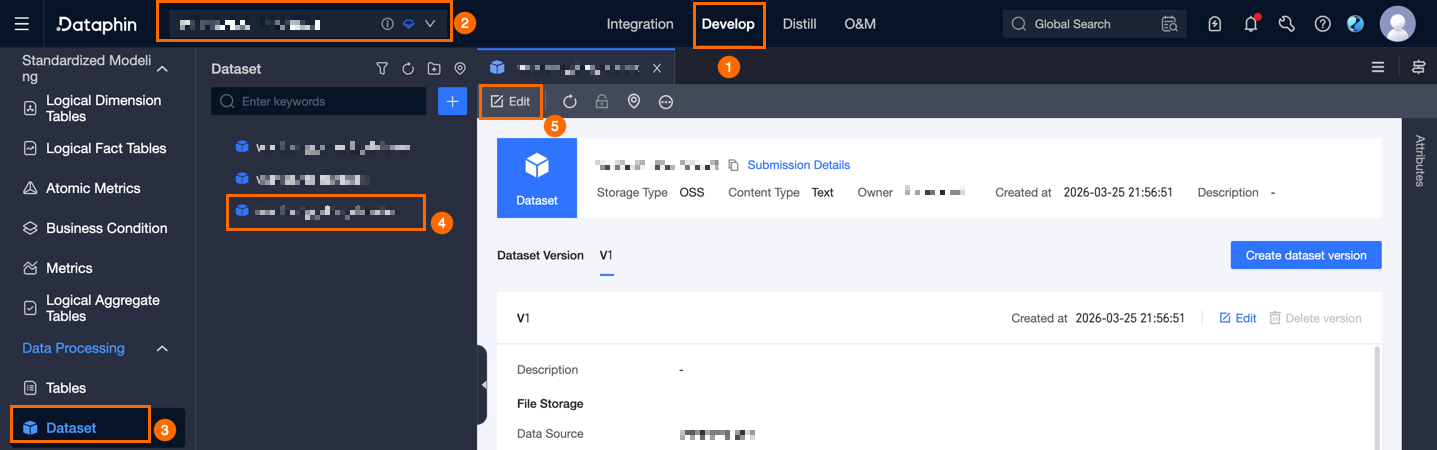
On the dataset tab, click Edit in the top menu bar to edit its basic information.
Offline and real-time datasets: You cannot modify the dataset type, object storage type, metadata storage type, content type, or owner. For other parameters, see the instructions for creating a dataset.
API dataset: You cannot modify the use case, API ID, dataset type, or data service project. For other parameters, see the instructions for creating a dataset.
Edit a dataset version
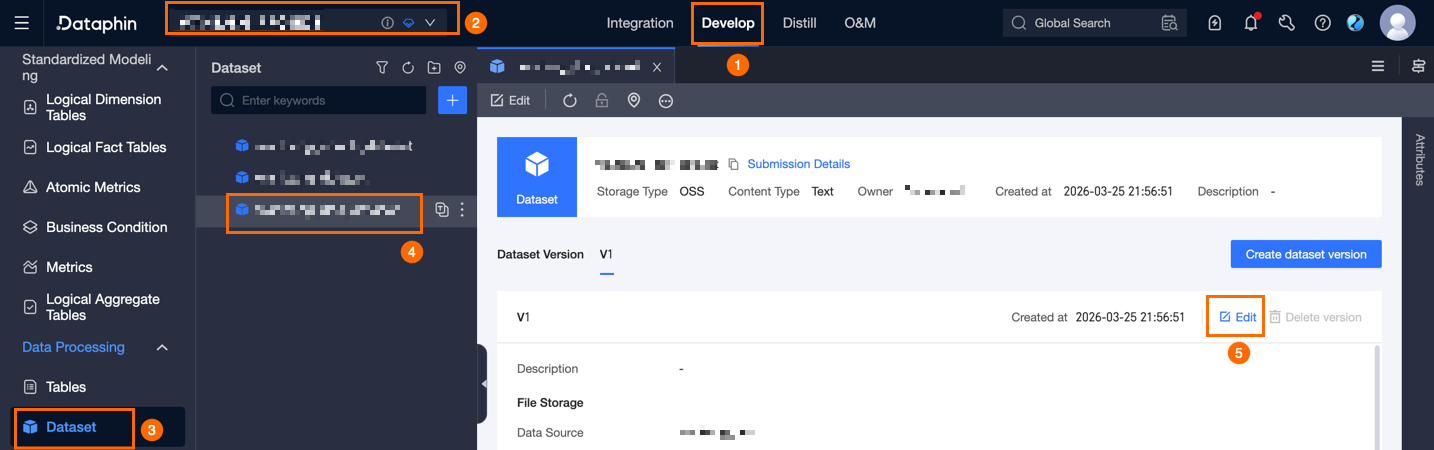
In the dataset version section on the dataset tab, click Edit to modify the version's description and mount path.
When editing an API dataset version, you can only modify the version description. To change other configurations, you must create a new dataset version.

Create a dataset version
On the dataset tab, click Create Dataset Version. Choose Create from latest version or Create blank version. For parameter descriptions, see the instructions for creating a new dataset.
Delete a version
You can delete a version, but the dataset must retain at least one version. If the version is referenced by other objects, you cannot delete it.
When you delete a version of an API dataset, if its binding status is BOUND, you must first take the bound online workflow offline and delete it. Deleting the version also removes its corresponding route from the gateway. This action does not affect other versions of the same dataset.
Delete a dataset
In the dataset directory in the left-side navigation pane, click the More icon next to the target dataset and select Delete. In the dialog box, enter a comment in the Remarks field, and then click OK and Submit.
NoteIf a dataset is referenced by other objects, you cannot delete it. You must remove the references first.
API datasets only support deletion; they cannot be taken offline. If an online workflow is in the BOUND state, you cannot delete the dataset. You must first take the referenced workflow offline and delete it.