Debug real-time tasks
In Dataphin, you can debug real-time tasks using data sampling, local debugging with manually uploaded data,.
Limitations
For Blink, local debugging is supported only for engine version 3.6.0 and later.
Debugging is not supported for DataStream tasks.
Start a debugging task
On the Dataphin homepage, click Data Development in the top menu bar.
As shown in the figure below, select the task you want to debug and open its Debug Task dialog box.

Currently, only one debugging mode can be used at a time. After you select a mode, data is sampled from the corresponding tables for debugging.
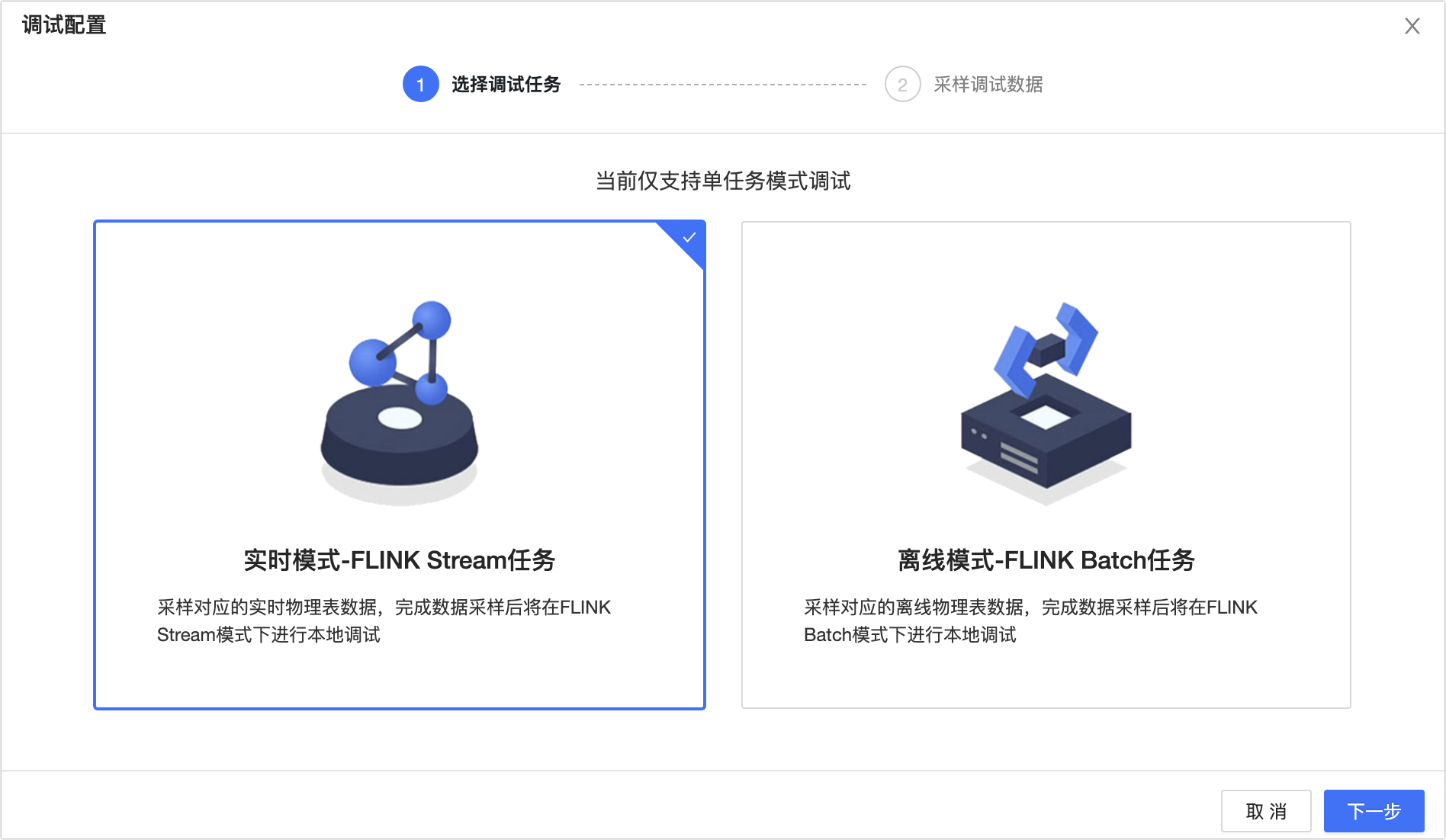
Real-time mode debugging: Samples data from the corresponding real-time physical tables. After data is sampled, you can debug the task in FLINK Stream mode with local debugging. For more information, see Debug in real-time mode.
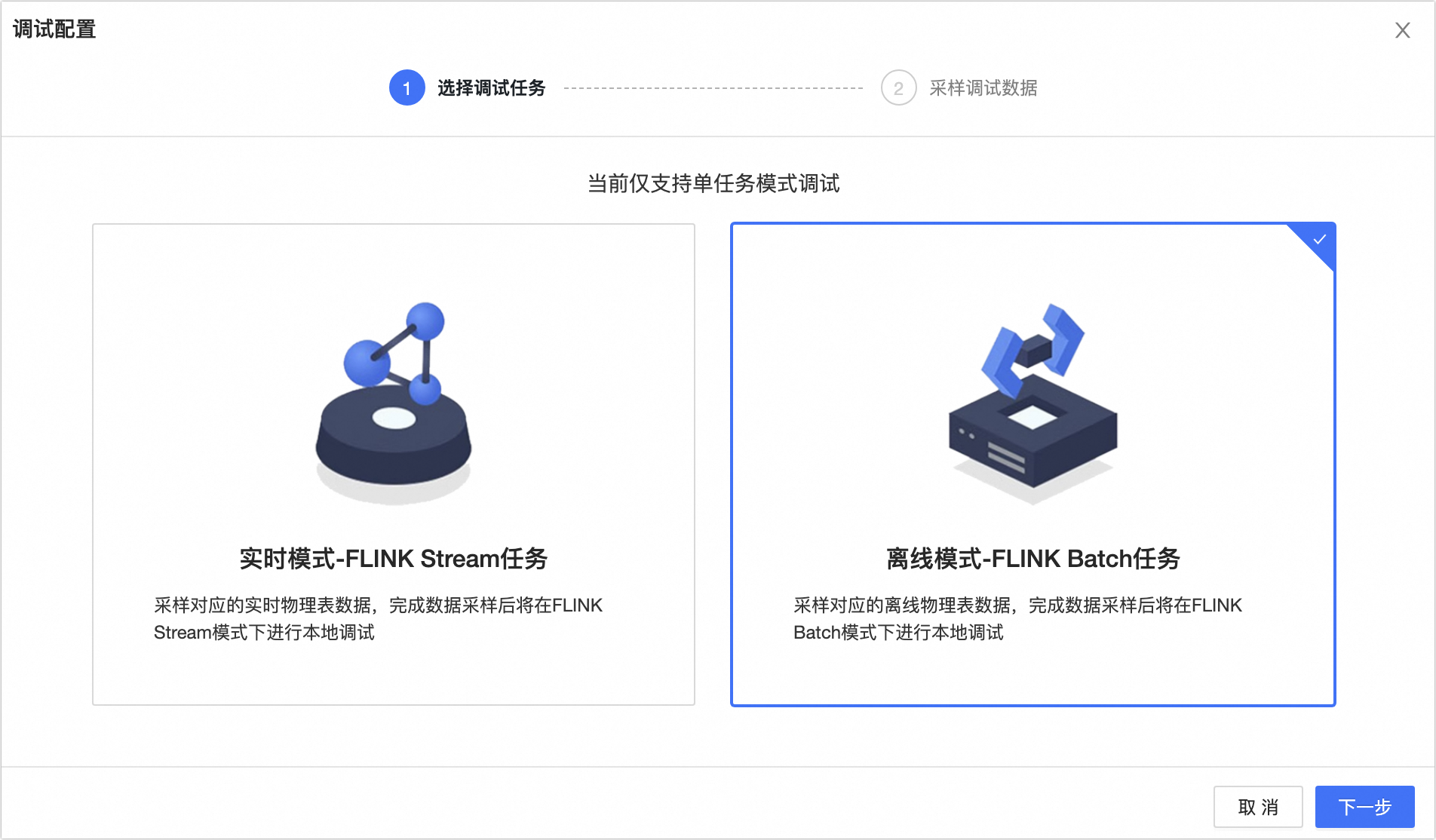
Offline mode debugging: Samples data from the corresponding offline physical tables. After data is sampled, you can debug the task in FLINK Batch mode with local debugging. For more information, see Debug in offline mode.
Debug in real-time mode
In the Debug Task dialog box, on the Select Sampling Mode tab, select Real-time mode - FLINK Stream Task.
Click Next.
In the Debug Task dialog box, select a Debug Data Source.
Upload data manually (local debugging)
Use local debugging with manually provided data. Upload methods include Upload sample data file, Enter data manually, and Sample data automatically.
Upload sample data file
You can upload local data for debugging. First, download the sample template. Dataphin automatically generates this CSV template based on the schema of the tables your task reads from and writes to. Edit the template with your data, and then click Upload. The data automatically appears in the Metadata Sampling area.
Enter data manually
Use this option for small amounts of data or to modify existing sampled data.
Sample data automatically
Use this option for random data sampling when you have no specific data requirements. You can click Auto Sample to automatically sample data from MaxCompute, DataHub, and Kafka data sources.
NoteFor Kafka, automatic sampling supports data in JSON, CSV, Canal-JSON, Maxwell-JSON, and Debezium-JSON formats.
For Kafka, automatic sampling is supported only for No Authentication and username and password authentication. SSL is not supported.
When you sample data from Kafka automatically, you can specify the data range to read. The maximum number of records that can be sampled is 100.
After data sampling is complete for all source tables, click OK.
On the Result page, you can view the debugging results.
Upload data manually (local debugging)

Debug in offline mode
In the Debug Task dialog box, on the Select Sampling Mode tab, select Offline mode - FLINK Batch Task.
Click Next.
In the Debug Task dialog box, select a Debug Data Source.
Upload data manually (local debugging)
Use local debugging with manually provided data. Upload methods include Upload sample data file, Enter data manually, and Sample data automatically.
Upload sample data file
You can upload local data for debugging. First, download the sample template. Dataphin automatically generates this CSV template based on the schema of the tables your task reads from and writes to. Edit the template with your data, and then click Upload. The data automatically appears in the Metadata Sampling area.
Enter data manually
Use this option for small amounts of data or to modify existing sampled data.
Sample data automatically
Use this option for random data sampling when you have no specific data requirements. You can click Auto Sample to automatically sample data from MaxCompute, DataHub, and Kafka data sources.
NoteFor Kafka, automatic sampling supports data in JSON, CSV, Canal-JSON, Maxwell-JSON, and Debezium-JSON formats.
For Kafka, automatic sampling is supported only for No Authentication and username and password authentication. SSL is not supported.
When you sample data from Kafka automatically, you can specify the data range to read. The maximum number of records that can be sampled is 100.
After data sampling is complete for all source tables, click OK at the bottom of the page.
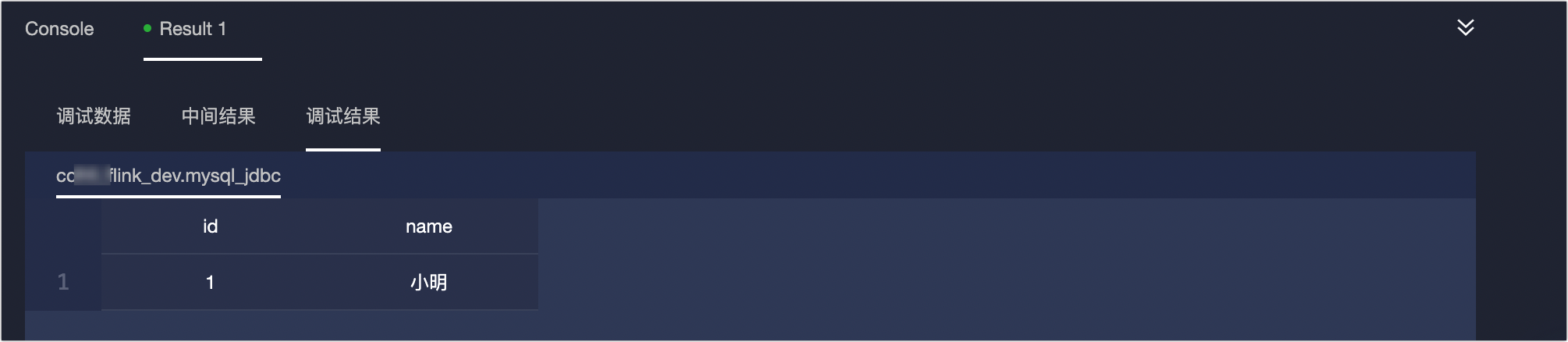
On the Result page, you can view the Debug data, Intermediate results, and Debugging results.
Appendix: Automatically sampled debug data
When using automatic sampling in local debugging, the metatable configuration determines the data source.
The Default read for task debugging parameter of the metatable is set to Development table.
If the task uses the syntax
Project_Name_dev.metatable_name, the system samples the development metatable. If no development metatable exists for the data source, automatic sampling is not supported.If the task uses the syntax
Project_Name.metatable_name, the system samples the production metatable. If you do not have permissions for the production metatable, an error occurs and you must apply for them first. For more information, see Apply for table permissions.If the task uses the syntax
${Project_Name}.metatable_nameormetatable_name, the system samples the development metatable. If no development metatable exists for the data source, automatic sampling is not supported.
The Default read for task debugging parameter of the metatable is set to Production table.
If the task uses the syntax
Project_Name_dev.metatable_name, the system samples the development metatable. If no development metatable exists for the data source, automatic sampling is not supported.If the task uses the syntax
Project_Name.metatable_name, the system samples the production metatable.If the task uses the syntax
${Project_Name}.metatable_nameormetatable_name, the system automatically replaces the${Project_Name}variable based on the parameter settings. It then uses your parameter settings to determine whether to use the production or development metatable. If${Project_Name}is not specified, the system samples the production metatable.