Knowledge management
You can create entities and relationships either manually or through AI-powered parsing. After creation, you can manage your knowledge in both the graph view and list view. This topic explains how to manage knowledge.
Permissions
Space administrators and modelers can add and delete knowledge.
Analysts can view the knowledge list and details.
Procedure
In the top navigation bar of the Dataphin homepage, choose Knowledge graph > Knowledge management.
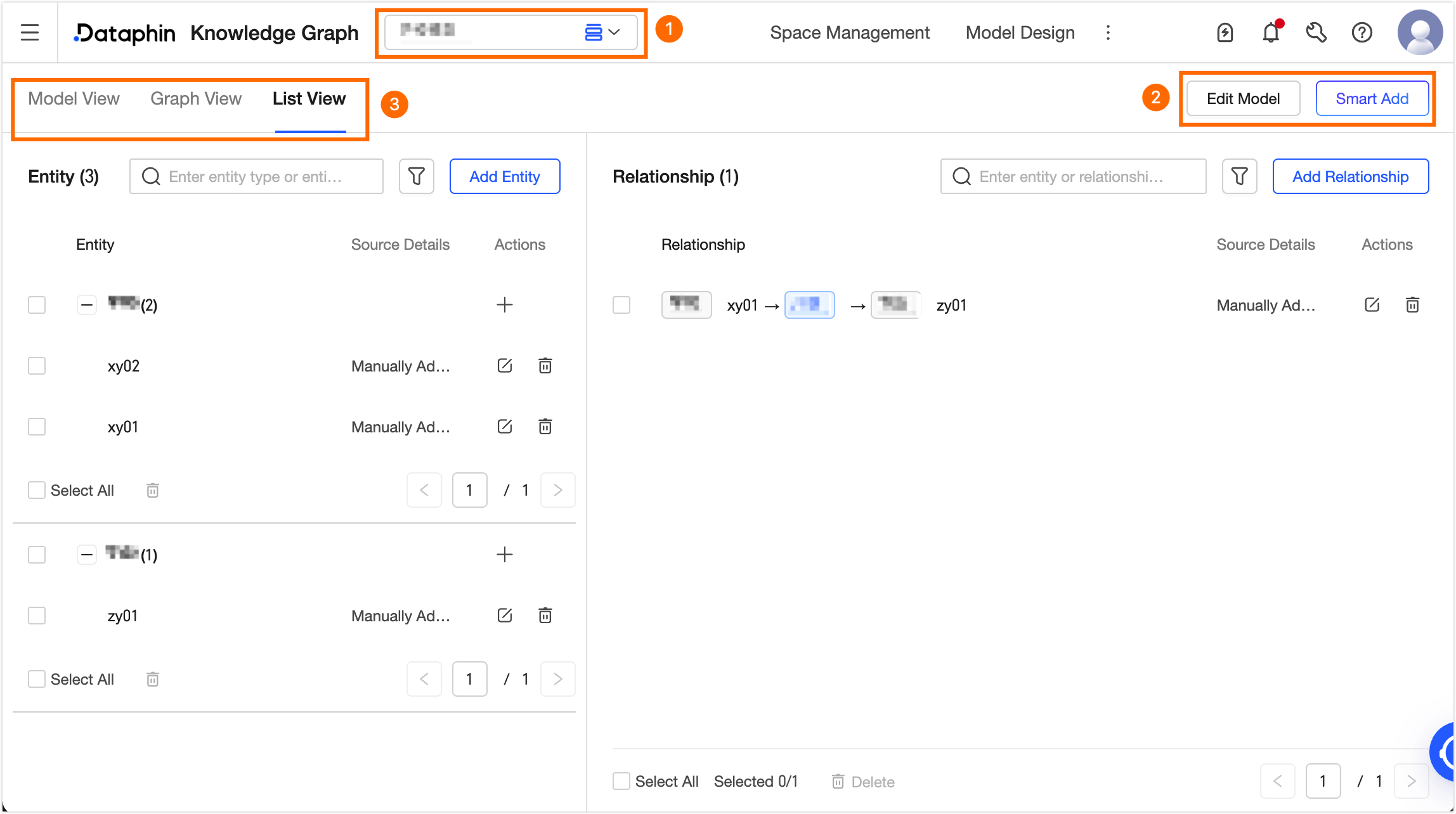
On the Knowledge graph page, you can add knowledge to the selected space and manage it from different views.
Area
Description
①Space switcher
Lets you switch between spaces for which you have view permissions.
②Add model
Edit model: Click Edit model to open the model design page, where you can create entities and relationships. For more information, see Entity types and relationship types.
Smart add: Click Smart add to open the Smart add page. On this page, a large model intelligently parses uploaded files, extracts knowledge, and generates candidates. You can then apply or discard these candidates based on your business needs. For more information, see Smart parsing model.
③View model
Displays published knowledge, which you can manage in the model view, graph view, and list view.
Model view: Organizes business rules from a high-level perspective to ensure a standardized and complete knowledge graph design. You can click Entity or Relationship to open the Entity/relationship list panel, where you can add or modify entities and relationships. For configuration details, see the List view section below.
Graph view/List view: Displays published knowledge. You can manage knowledge in two views: the graph view and the list view.
Graph view: This view uses a force-directed graph to visually represent the connections between specific entity instances, such as a person (John Doe), a company (Lingyang), or a product (Dataphin).
Clicking an entity opens the Edit entity panel, which contains the entity's Basic information, Relationships, and Node graph sections.
Basic information: Displays information related to the selected entity type. For more information, see the description of entities under the List view section.
Relationships: Shows the relationship network of the selected entity. You can click Add relationship to add a new relationship or click the Edit icon to modify an existing one. For more information, see the description of relationships under the List view section.
Node graph: Visualizes the relationships of the selected entity as a force-directed graph.
Click a relationship to open the Edit relationship panel, which displays information about the selected relationship type. For more information, see the description of relationships under the List view section.
List view: Presents detailed attribute information in a table, simplifying data verification and management. You can manually add and manage entities and relationships in this view.
In the entity list on the left, click Add entity or the New
 icon. In the Add entity panel, configure the parameters and click OK.
Entity type: Select an entity type that has been defined on the model design page.
Code: Displays the code of the selected entity type.
Entity type description: Displays the description of the selected entity type.
Entity type attributes: Displays the attributes of the selected entity type, including attribute name, data type, constraints, and attribute value.
Attribute value: When you create an entity, if an attribute is required or serves as a primary key, you must enter a value for it.
NoteAfter you click OK, the system compares the attribute values of the new entity with those of existing entities based on business identification rules. If similar or duplicate entities are found, the Entity disambiguation dialog box appears. You can then choose to Create as a new entity or Associate with the selected entity based on your business scenario.
Create as a new entity: Creates a new entity, separate from any existing similar entities.
Associate with the selected entity: Merges the new entity's information with an existing similar or duplicate entity. The system treats them as the same entity and updates the existing one.
In the relationship list on the right, click Add relationship. In the Add relationship panel, configure the parameters and click OK.
Relationship type: Select a relationship type that has been defined on the model design page.
Code: Displays the code of the selected relationship type.
Relationship type description: Displays the description of the selected relationship type.
Source entity: Select an existing entity as the starting point of the relationship.
Destination entity: Select an existing entity as the endpoint of the relationship.
Directed relationship: Indicates the direction of the relationship.
Relationship attributes: Displays the attributes of the selected relationship type, including attribute name, data type, constraints, and attribute value.
Attribute value: When you create a relationship, if an attribute is required or serves as a primary key, you must enter a value for it.
After configuring entities and relationships, you can view their names and source details in the respective lists. You can search by name or entity type, and filter by entity type, relationship type, or source. You can also perform the following actions on an entity or relationship:
Edit: Click the Edit icon for an entity or relationship to modify its attribute values. The entity type, relationship type, and primary key attribute values cannot be modified.
Delete: Click the Delete icon for an entity or relationship, or select one or more items in the list and click the Delete icon at the bottom. Deleting an entity also deletes all its associated relationships. This action cannot be undone, so proceed with caution.