Grant and Revoke Data Source Permissions
This topic outlines the procedures for batch granting and revoking permissions on data sources.
Prerequisites
Create a data source. For more information, see Data Source Management.
Grant Data Source Permissions
Navigate to the Dataphin home page and single click the Management Center in the top menu bar.
Use the instructions in the image to access the Data Source Authorization dialog box.
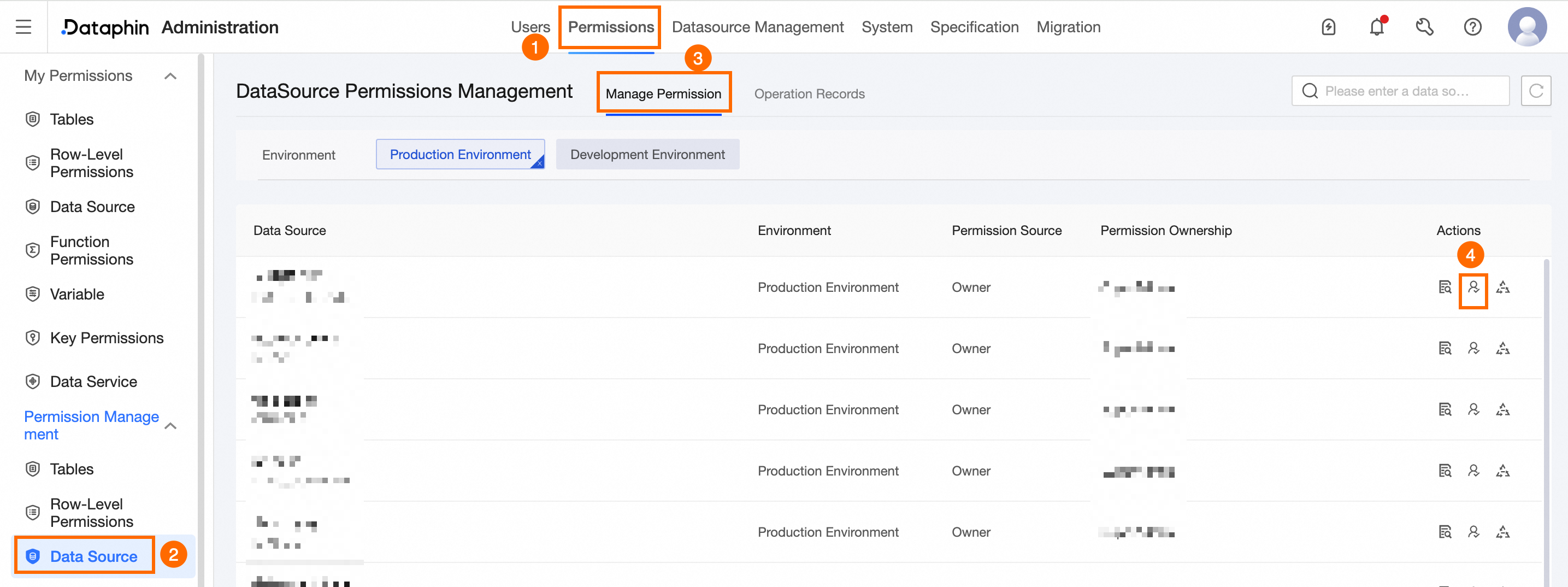
In the displayed dialog box, configure the parameters as needed.
Parameter
Description
Account Type
Depending on the business scenario, you can simultaneously grant table permissions to User Account, Project Account, and User Group, or do so individually.
Use a User Account for modeling and development in the production environment, and to publish developed data. If you choose User Account, you must select a Valid Until date.
A Project Account manages and executes tasks in the production environment. If you choose Project Account, you must select a Project.
A User Group manages permissions for its members. If you choose User Group, you must select a User Group and a Valid Until date. You can authorize up to 20 groups at once.
Permission Type
Choose the permission type to grant, with options including Read-through, Write-through, and Execute.
Read-through: Allows reading data from the source storage via the synchronization component.
Write-through: Enables writing to the target storage via the synchronization component.
Execute: Permits executing database SQL tasks. This permission does not supersede read-through or write-through permissions.
Authorization Reason
Provide a justification for granting permissions, limited to 128 characters.
Click OK to finalize the authorization process.
Revoke Data Source Permissions
On the Datasource Permission page, locate the row of the data source with permissions to revoke and click the Actions column
 icon.
icon.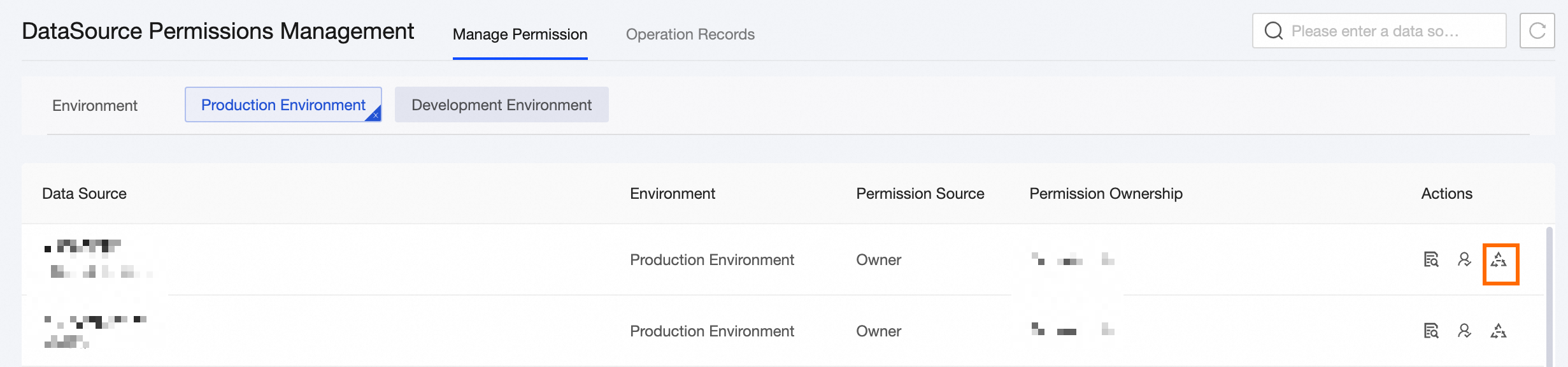
In the Data Source Permission Revoke dialog box, set the required parameters.
Parameter
Description
Revoke Account
Choose the account type to revoke, with options for User Account, Project Account, and User Group.
If User Account is selected, choose the user account to revoke.
If Project Account is selected, choose the tenant account to revoke.
If User Group is selected, choose the user group to revoke.
Permission Type
Choose the permission type to revoke, with options for Read-through, Write-through, and Execute.
Read-through: Allows reading data from the source storage via the synchronization component.
Write-through: Enables writing to the target storage via the synchronization component.
Execute: Permits executing database SQL tasks. This permission does not supersede read-through or write-through permissions.
Revoke Reason
Provide a justification for revoking permissions, limited to 128 characters.
Click OK to finalize the revocation process.
View Data Source Details
To view details of data source permissions, single click the data source name or the  icon in the Actions column.
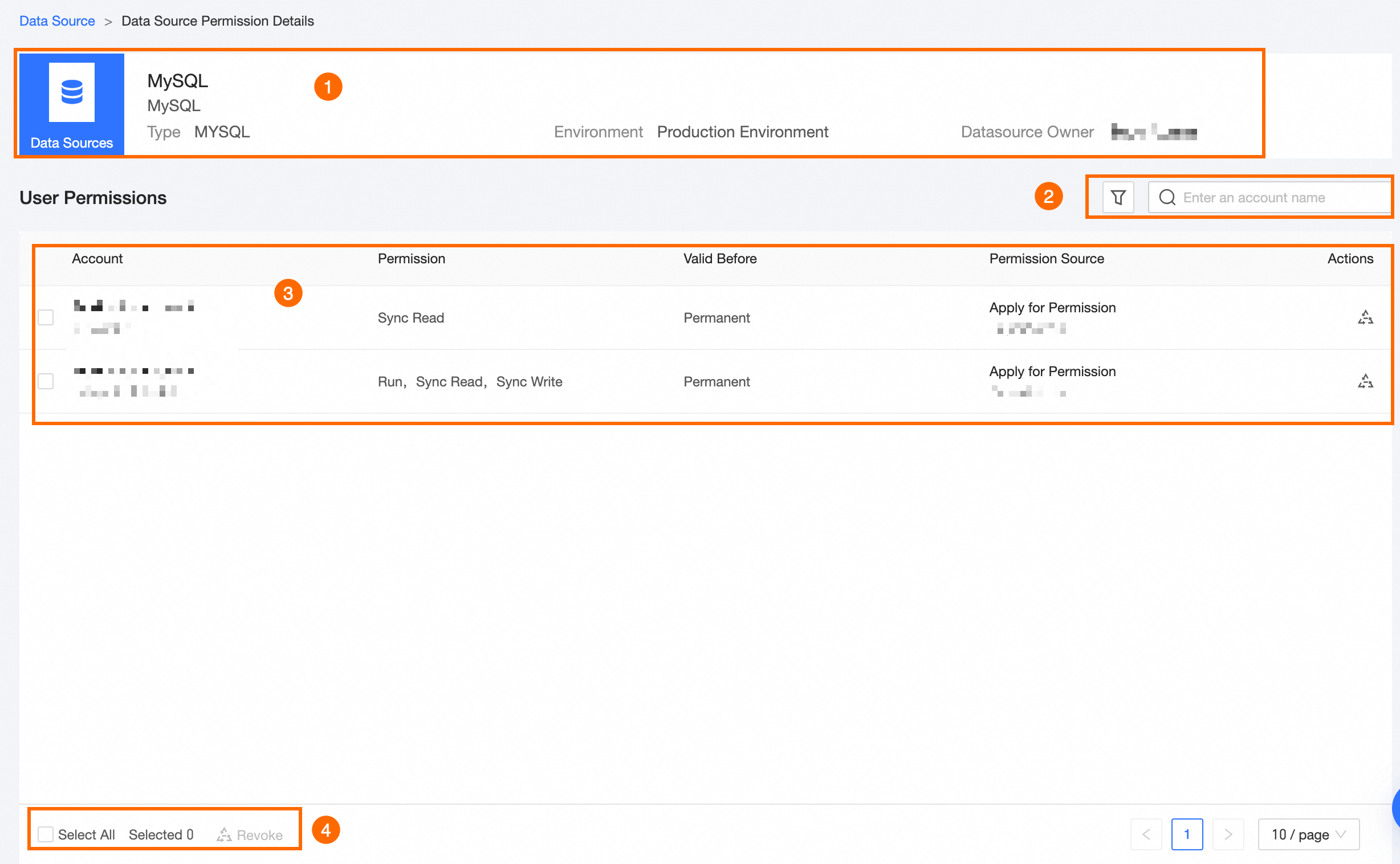
Area | Parameter |
①Basic Information Area | Shows the data source name, type, environment, and owner details. |
②Filter and Search Area | Enables searching by the data source account name keyword or filtering by account and permission types. |
③List Area | This interface shows the authorized data source accounts, types of permissions, validity periods, and sources of permissions. Additionally, you can execute Revoke operations within the Actions column. To revoke an account's overall data source permissions, click Revoke in the Data Source Revoke dialog box, enter the Revoke Reason, and then click OK. |
④Batch Operation Area | To batch revoke permissions, click Revoke in the Data Source Revoke dialog box, provide the Revoke Reason, and then click OK. |
Operation Log
The Operation Log tab provides a detailed record of data source authorization and revocation activities.
Click the  icon in the Actions column to view detailed operation logs.