Configure the API output component
The API output component writes data from external databases to an API or pushes data from storage systems on big data platforms to an API for consolidation and reprocessing. This topic describes how to configure the API output component.
Prerequisites
-
You have created an API data source. For more information, see Create an API data source.
-
The account used for configuration must have synchronous write permission for the data source. If you do not have this permission, you must apply for it. For more information, see Apply for data source permissions.
Procedure
-
In the top navigation bar of the Dataphin homepage, choose Develop > Data Integration.
-
In the top navigation bar of the integration page, select a project. If you are in Dev-Prod mode, you also need to select an environment.
-
In the left-side navigation pane, click batch integration. From the batch integration list, click the desired batch pipeline to open its configuration page.
-
In the upper-right corner of the page, click Component library to open the component library panel.
-
In the left-side navigation pane of the component library panel, select Output. Find the API component in the list of output components on the right, and drag it onto the canvas.
-
Drag the
 icon from the source component (input, transformation, or process) and connect it to the API output component.
 -
Click the
 icon on the API output component card to open the API output configuration dialog box.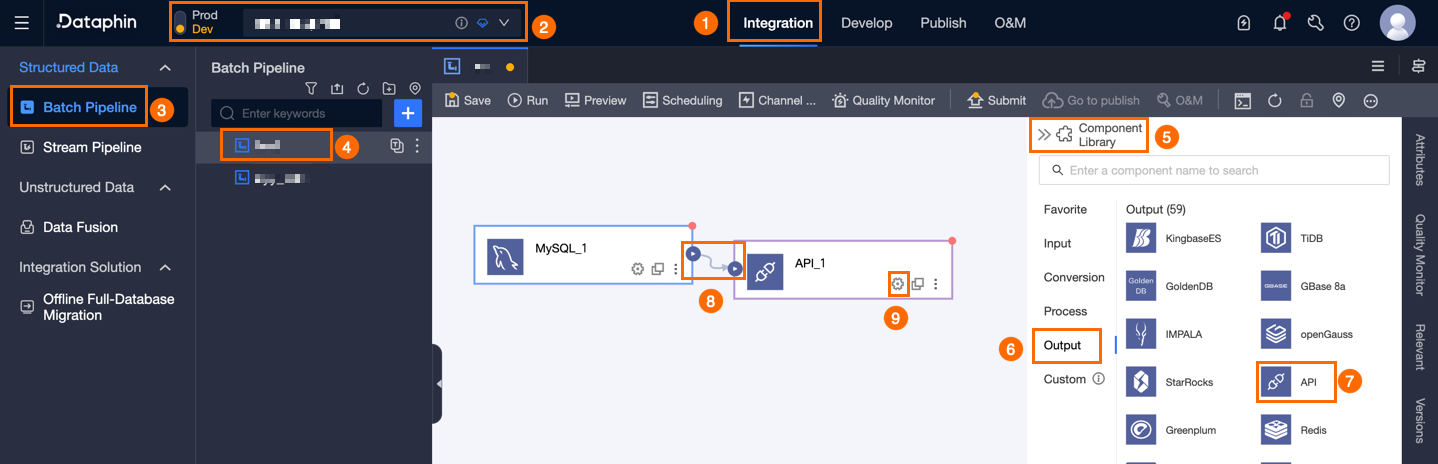
Parameter
Description
Step name
Specifies the name for the API output component. Dataphin generates a default name that you can customize based on your business needs. The name must meet the following requirements:
-
The name can contain only Chinese characters, letters, underscores (_), and digits.
-
Cannot exceed 64 characters in length.
Data source
The drop-down list displays all API data sources, including those for which you have or do not have synchronous write permission.
-
For a data source where you lack synchronous write permission, click Apply next to it to request permission. For more information, see Apply for data source permissions.
-
If you do not have an API data source, click the
 create icon to create one. For more information, see Create an API data source.
Request method
This setting depends on the request method configured in the API data source. The default method is POST.
-
POST: You can configure Params, Headers, and Body. All are optional.
-
PUT: You can configure Params and Headers. Both are optional.
Request data structure
The format of the JSON data in the request.
-
Single record: Sends one data record per request. The number of requests equals the number of records.
-
Array of records: Sends a batch of data records as an array in each request. If you select this option, you can configure the batch size.
-
Batch size: The number of data records to send in a single request.
-
URL path (optional)
This path is appended to the base URL from the data source configuration to form the final request URL. For example, if the data source URL is
https://www.aliyun.comand you enter/homeas the URL path, the final request URL ishttps://www.aliyun.com/home.Write JSON path (optional)
The path in the JSON object where data is written, such as
data.result. The system automatically prefixes the output field names with this path to create the full path for writing data.Request parameters
Request parameters include Params, Headers, Body (available only when the request method is POST), and Signature.
Params, headers, and body
-
Parameter name: Supports Chinese characters, letters, and special characters.
-
Parameter type: You can select Constant, timestamp, or random number.
-
Parameter value: If the parameter type is Constant, the value can contain Chinese characters, letters, and special characters. For the timestamp type, the value is automatically generated. If the type is random number, you can choose to generate a 16-bit, 32-bit, 64-bit, or 128-bit random number.
-
Data type: You can configure the data type only for parameters in the Body. Supported types are String, Long, JSON, Double, Boolean, and Date. The default is String.
-
Actions:
-
Create: Click + Create to add a new parameter row. You must click the
 icon to save the current parameter before you can add another one. Click the
  icon to cancel adding the parameter.
 -
Edit: In the Actions column for a configured parameter, click the
icon to edit its settings. -
Move: In the Actions column for a configured parameter, click the
icon to move it to a different list. For example, you can move a parameter from the Params list to the Header or Body list. You cannot move a parameter if one with the same name exists in the destination list, or if the destination is the Body and its input format is JSON. -
Delete: In the Actions column for a configured parameter, click the
icon to delete it. You cannot delete a parameter that is referenced in the signature configuration.
-
The Body input format can be JSON or Key-value.
-
JSON: Enter the JSON code in the code editor. Click the
icon to automatically format the code. -
Key-value: Click Create, enter the parameter name and value, and then select the parameter type and data type.
Signature
Signatures are disabled by default. If you enable signatures, you must configure the generation rules.
-
Signature name: The key for the signature parameter in the request.
-
Signature location: You can place the signature in Params, Header, or Body (available only when the request method is POST).
-
Signature algorithm: Select a signature algorithm. Options include MD5HEX, HMAC-MD5, SHA1HEX, HMAC-SHA256, HMAC-SHA1, SHA256, SHA256HEX, SHA512HEX, and HMAC_SHA512.
-
Secret key: You can select a secret key from Governance > Data Security > key management, or enter a secret key manually.
If your Dataphin instance does not have the Asset Security add-on module, you can only use Manual input. If your Dataphin instance has the Asset Security add-on, you can only select a secret key from Governance > Data Security > key management. If no keys are available in the drop-down list, click Go to register to navigate to the Governance > Data Security > key management page and register a new secret key.
NoteThis parameter is optional when the signature algorithm is MD5HEX, SHA1HEX, SHA256, SHA256HEX, or SHA512HEX.
-
Concatenated content: Specifies the content to include in the string to sign. The default is Parameter name + parameter value. You can also select Parameter value only.
Value-only or name-value
-
Referenced parameters: Select key-value parameters from the parameter lists.
-
Concatenation order: Select Alphabetical order or Selection order. The default is alphabetical order.
-
Separator (Optional): Configure a Parameter separator and a Key-value separator.
-
Parameter separator: A custom separator for parameters. The default is
&. -
Key-value separator: You can enter a custom key-value separator. The default value is
=. You cannot configure the key-value separator if the content to be concatenated consists only of the parameter value.
-
-
Concatenation example: Displays a preview of the string to sign based on your configuration. If your parameters include a timestamp or a random number, this preview shows temporarily generated values.
Custom
Signature string: Enter a custom signature string. You can type
@to trigger parameter suggestions and select a parameter. When the concatenation source is switched from 'Parameter values only' or 'Parameter name + parameter value' to 'Custom', if the content contains referenced parameters, the system automatically populates the signature string by concatenating the parameters in the specified order with the separator.The signature string can include the secret key, parameters from Params, Header, and Body, and constants. If you select secret key, the system inserts the
#{secret}placeholder. If you select All Params, All Headers, or All Body, the system inserts a list of all parameters inK:Vformat. For example, if a parameter is namedid, the system insertsid:#{id}. If the Body is in JSON mode, selecting it inserts the#{body_json}placeholder, which represents the entire JSON body. -
-
Case: Specifies how to format the final signature value. The default is Keep default format of the signature algorithm. You can also choose Convert signature value to uppercase or Convert signature value to lowercase. The system applies this case conversion after the signature is generated; the original content used for the calculation remains unchanged.
Input field
Displays the input fields based on the output of the upstream component.
Output field
Displays the output fields. You can configure output fields by using Batch add and Create output field.
-
Batch add: Click Batch add to add fields in bulk by using the JSON or TEXT format.
-
Example of batch adding in JSON format:
// Example: [{"name": "user_id","type": "String"}, {"name": "user_name","type": "String"}]Notenamespecifies the field name to import, andtypespecifies the data type. For example,"name":"user_id","type":"String"imports a field named user_id and sets its type to String. -
Example of batch adding in TEXT format:
// Example: user_id,String user_name,String-
The row separator divides individual field definitions. The default is a newline character (\n). You can also use a semicolon (;) or a period (.).
-
The column separator divides the field name and field type. The default is a comma (,).
-
-
-
Create output field
Click + Create output field and enter the No. and Field, and select a Type. Click the
icon to save the row, or click the icon to delete it. -
Copy upstream fields
Click Copy upstream fields to automatically generate output fields based on the upstream field names.
-
Manage output fields
You can also perform the following actions on existing fields:
-
Click the
icon in the Actions column to edit an existing field. -
Click the
icon in the Actions column to delete an existing field.
-
Field mapping
You can manually map fields from the upstream input to the target table. Field mapping provides two modes: Map by name and Map by position.
-
Map by name: Maps input and output fields that have the same name.
-
Map by position: Maps fields based on their position in the schema, regardless of their names. This is useful when field names do not match but their order is consistent.
-
-
Click Confirm to complete the configuration of the API output component.
 icon to cancel adding the parameter.
 icon to edit its settings.
 icon to move it to a different list. For example, you can move a parameter from the Params list to the Header or Body list. You cannot move a parameter if one with the same name exists in the destination list, or if the destination is the Body and its input format is JSON.
 icon to delete it. You cannot delete a parameter that is referenced in the signature configuration.
 icon to automatically format the code.
 icon to delete it.
 icon in the Actions column to edit an existing field.
 icon in the Actions column to delete an existing field.