Manage derived/extended/registered metrics
The metric list displays the collection of derived/extended/registered metrics created in Dataphin. It shows the basic information and management operations for these metrics, allowing you to view and manage the derived/extended/registered metrics you have created. This topic describes the management features supported by the derived/extended/registered metric list.
Manage derived/extended metrics
In the top navigation bar of the Dataphin homepage, choose Development > Data Development.
In the left-side navigation pane, choose Standardized Modeling > Metrics.
At the bottom of the metric list on the right, click Metric List. On the Derived/Extended/Registered Metric List page, perform the related management operations.
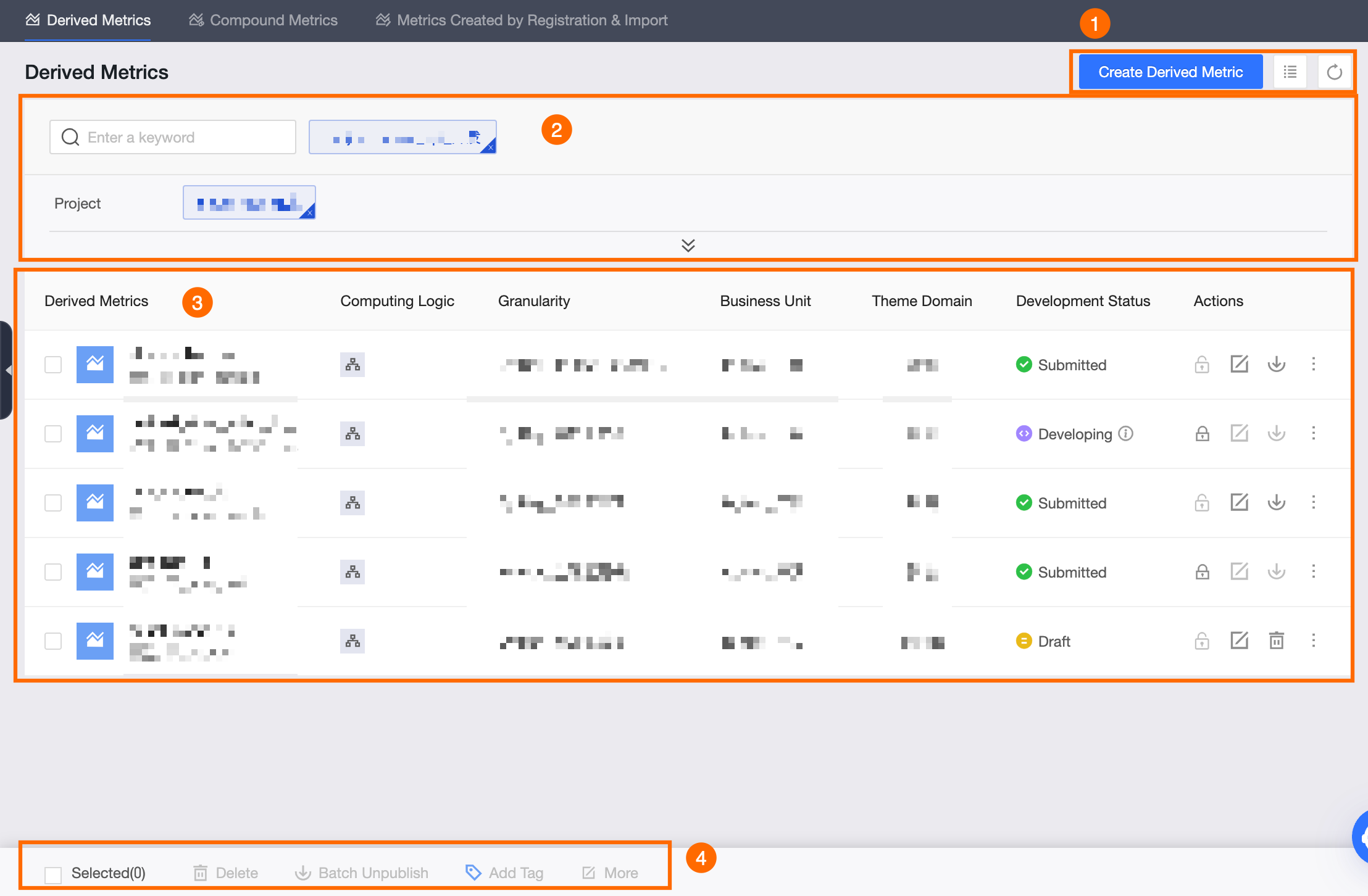
Derived metrics, extended metrics, and registered metrics support the same features. The following figure shows the derived metric as an example.
Section
Description
①Function area
Create Derived Metric: Click Create Derived Metric and complete the configuration on the Create Derived Metric page. For more information about the creation operation, see Create a derived metric.
NoteThe extended/registered metric list does not support creating extended/registered metrics. To create extended/registered metrics, you can go to the logical aggregate table. For more information about the creation operation, see Create an extended metric and Create a registered metric.
Select list display content: Click the
 icon to select the fields to be displayed in the list.
Refresh: Click the
 icon to refresh the list below based on the selected filter conditions.
②Search and filter area
You can enter keywords of the metric name to search. Click the
 icon to expand the filter area, which includes the following filter options.
Project: Filter by the project to which the metric belongs. The default is the current project. The options include all projects in the business unit to which the current project belongs.
Data Domain: Filter by the subject area to which the metric belongs. You can select one or more subject areas. The options include all subject areas in the business unit to which the current project belongs.
Status: Filter by the development status of the metric. You can select one or more statuses, including Draft, Submitting, Submitted, and Developing.
Statistical Granularity: Filter by the statistic granularity of the derived/extended/registered metrics. The options include all statistic granularities of the metrics in the derived/extended/registered metric list.
Atomic Metric: You can select one or more source atomic metrics. The options include all atomic metrics in the current project.
Business Condition: Filter by the business filter of the derived/extended/registered metrics. You can select one or more business filters. The options include all business filters in the current project.
Business Owner: Filter by the business owner of the derived/extended/registered metrics. You can select one or more users. The options include all business owners of the metrics in the derived/extended metric list.
Created By: Filter by the creator of the derived/extended/registered metrics. You can select one or more users. The options include all creators of the metrics in the derived/extended/registered metric list.
Statistical Period: Filter by the statistical period of the derived/extended/registered metrics. You can select multiple statistical periods, including Calendar Week, Calendar Month, Calendar Quarter, Calendar Year, Week To Date, Month To Date, Year To Date, History To Date, Last 7 Days, Last 1 Day, Last 30 Days, and Last 90 Days.
Data Timeliness: Filter by the data timeliness of the derived/extended/registered metrics. You can select multiple data timeliness options, including T+1, T+H, and T+M.
Metric Tag: Filter by the tags of the derived/extended/registered metrics. The options include all tags created for the derived/extended/registered metrics.
③Derived/Extended/Registered metric list
The derived/extended/registered metric list displays the metric name, calculation logic (not displayed for registered metrics), statistic granularity, business unit, subject area, development status, and measurement unit (displayed only for registered metrics). In the Actions column, you can perform management operations on the corresponding metrics. For more information, see Operations supported by the derived/extended/registered metric list.
④Batch operations
In the batch operation area, you can perform batch operations on multiple metrics. For more information, see Batch operations supported by the derived/extended/registered metric list.
Derived/registered indicator list supported operations
Operation | Description |
Get lock | Click the icon in the Actions Note
|
Edit |
|
Unpublish |
Note
|
Unpublish and delete | Unpublish and delete derived/extended metrics with development status of Developing and Submitted.
Note
|
Delete | Delete derived/extended metrics with development status of Draft. Click the Delete icon in the Actions column of the target derived/extended metric, select Delete, fill in the Remarks field in the dialog box, and then click OK And Submit. Note Registered metrics do not support this operation. |
Metric tagging | Click the |
View details | Click the icon in the Actions
The derived/extended/registered metric details panel supports different operations for metrics with different development statuses, including edit, unpublish, and unpublish and delete. For operation details, see the above content. |
Aggregate table | Click the icon in the Actions Note Only registered metrics support this operation. |
 column of the target derived/extended metric to obtain and lock the edit lock of the current derived/extended metric.
 column of the target derived/extended metric, and select Unpublish And Delete.
Batch operations supported by the derived/extended/registered metric list
Operation | Description |
Batch Delete | After selecting multiple derived/extended metrics with development status of Draft, click Batch Delete at the bottom of the list, fill in the Remarks field in the dialog box, and then click OK And Submit. Note
|
Batch Unpublish | After selecting multiple derived/extended metrics with development status of Developing or Submitted, click Batch Unpublish at the bottom of the list. The system will automatically check whether the selected metrics have dependent objects. If there are dependent objects, they cannot be unpublished. If there are no dependent objects, fill in the Remarks field in the dialog box, and then click OK And Submit. Note Registered metrics do not support this operation. |
Batch Tagging | After selecting multiple derived/extended/registered metrics, click Batch Tagging at the bottom of the list. In the Batch Tagging dialog box, select Tagging Mode and Tag, and then click OK after configuration.
|
Batch Unpublish And Delete | After selecting multiple derived/extended metrics with development status of Developing or Submitted, click More Operations at the bottom of the list, select Batch Unpublish And Delete, fill in the Remarks field in the dialog box, and then click OK And Submit. Note
|
Modify Business Owner | After selecting multiple derived/extended metrics, click More Operations at the bottom of the list, select Modify Business Owner, select the target user in the Batch Modify Business Owner dialog box, and then click Submit. Note
|