Manage manual tasks
A manual task is submitted to the Task O&M center with its scheduling type set to manual. These tasks do not run automatically and generate an instance only when manually triggered. This topic describes the O&M features for manual tasks.
Accessing the manual tasks page
-
In the top navigation bar of the Dataphin homepage, select Development > Task O&M.
-
In the left-side navigation pane, choose Task O&M > Manual Tasks to open the Manual Tasks page.
-
In the top navigation bar, select the production environment or development environment.
Manual tasks page overview
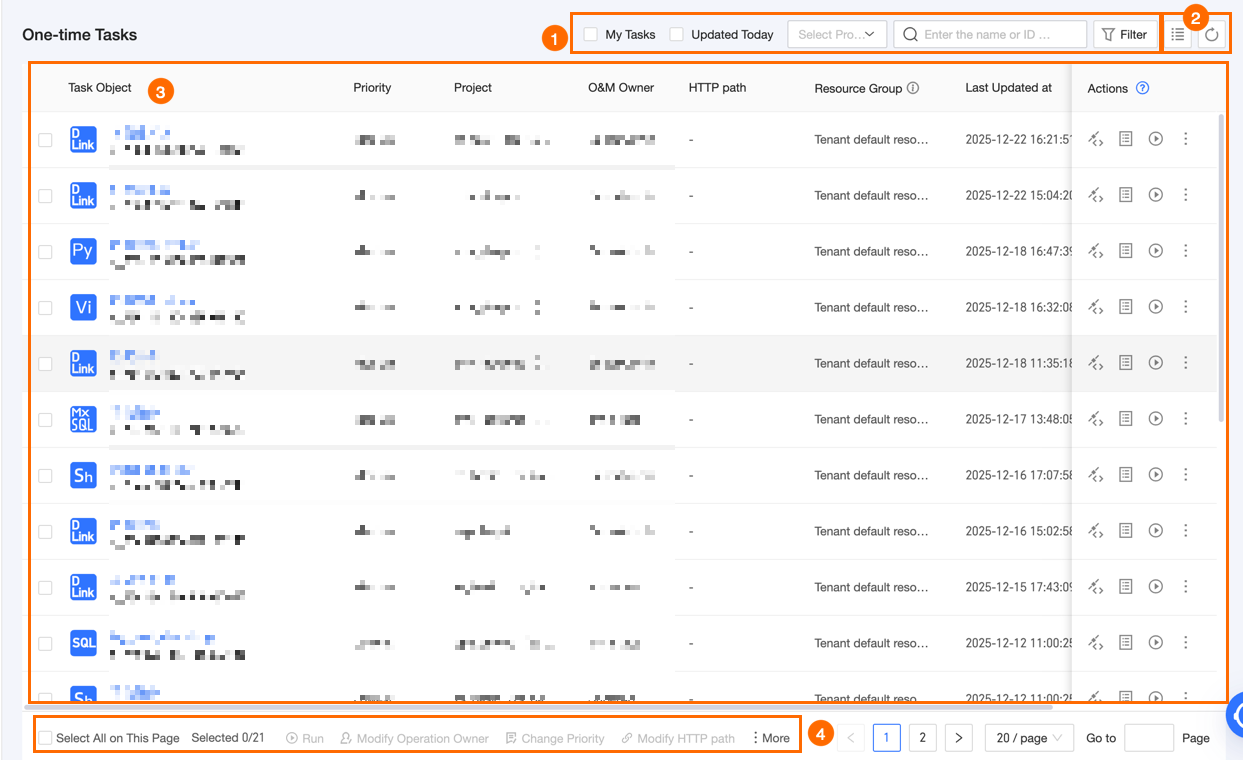
The Manual Tasks page consists of the Filter and Search Area, Filter Area, Manual Task List, and Batch Operations Area. On this page, you can manage submitted manual tasks.
|
Section |
Description |
|
① Filter and search area |
You can filter manual tasks by entering the task object name or ID. This helps you quickly find a specific manual task if you know its name or ID. You can also select My Tasks or Updated Today to filter tasks.
|
|
② List operations |
|
|
③ Manual task list |
This section lists the manual tasks that have been submitted to the Task O&M center. The list displays the Task Object, Priority, O&M engineer, Project, Scheduling Resource Group, Last Update Time, Tags, and available Actions. You can adjust the width of each column. Your settings are saved in your local browser and will be lost if you clear your browser's history and cookies.
|
|
④ Batch operations area |
This area provides functions to perform batch operations on manual tasks to improve efficiency. For details, see Batch operations. |
 icon to select which columns to display and reorder them.
 icon to refresh the current list.
Supported actions
|
Actions |
Description |
|
View node code |
Displays the node code for the manual task. |
|
View instances |
View manual instances generated by task runs. You can also manage these instances. |
|
Run |
Manually triggers a task run. For more information, see Run a manual task. |
|
Edit dev node |
Opens the task's editing page in the Dev project to edit the task. This action applies only to the Dev-Prod development mode. Note
After you edit the development node, you must submit or publish it to apply the changes to the production node. |
|
Edit node |
Opens the task's node editing page. This action applies only to Basic mode. Note
After you edit the node, you must submit or publish it to apply the changes to the production node. |
|
View node script |
Views the dependency graph for a pipeline task. Note
This action is available only for manual tasks from the data integration module. |
|
View production node |
Navigates to the Prod project to view the task's node data. |
|
Modify O&M engineer |
Modifies the O&M engineer for the task. Note
|
|
Configure monitoring and alerts |
Configures monitoring rules for task runs. If a monitoring rule is triggered during a run, the system sends you alert messages. This helps you promptly detect anomalies and ensure normal data output. For detailed instructions, see Overview of offline task monitoring. Note
Monitoring can only be configured for tasks in Prod and Basic projects (production environment tasks). |
|
Modify scheduling resource group |
Modifies the scheduling resource group used by instances generated from the task. Note
|
Node code details
Click the  icon in the Actions column or click a task object name. The details for that task are displayed on the right. You can click the
  icon to hide the manual task list and expand the details view.

|
Section |
Description |
|
① O&M management area |
Provides options for managing the manual task.
|
|
② Node information area |
Displays node and run information for the manual task. |
|
③ Task code area |
|

Run a manual task
-
Click Run to open the Run dialog box.
-
In the Run dialog box, configure the following parameters.
Parameter
Description
Business date
You can select by range, by period, or custom. The default option is by range, with a default value of
current business date to current business date.-
By Range: After you select this option, specify a time range. The time span cannot exceed one year. Use this option to run the task on consecutive business dates.
-
By period: If you select this option, you must also select a time range and specify the days of the week or month. The time range cannot exceed 1 year. The default time range is
Current business date to Current business date. This option is suitable for tasks that need to run on specific days of the week or month over a continuous range of business dates.-
Weekly: Runs on the selected days of the week, for example, every Monday and Tuesday.
-
Monthly: Runs on the selected dates of the month, for example, on the 1st, 5th, and 10th of each month.
NoteEnd of month refers to the last day of each month.
-
-
Custom: Enter multiple business dates in
YYYY-MM-DDformat. Press Enter to separate the dates. The valid date range is from1900-01-01to the present. Dates outside this range will not take effect.
Concurrent runs
Enter an integer from 1 to 12. The default is 1.
Run order
You can select Ascending by Business Date or Descending by Business Date. The default is Ascending by Business Date, which executes tasks sequentially in chronological order of their business dates.
Parameter configuration
If the current manual task contains variables (local or global variables, for example, variables referenced by using
${xx}in configurations such as the scan scope in a workflow), the system identifies and lists them for parameter configuration. After the parameters are configured, the manual task runs with the specified parameter values, and you can select Fill Empty Values. In addition, the parameter values will remain consistent across all instances generated by the current task. -
-
After you finish the configuration, click Submit.
Batch operations
|
Actions |
Description |
|
Run |
Select one or more tasks, and then click Run at the bottom of the list. Configure the business date, number of concurrent runs, and run order for the batch run. For parameter details, see Run a manual task. Note
|
|
Modify O&M engineer |
Select one or more tasks, and then click Modify O&M engineer at the bottom of the list to change their O&M engineer in bulk. Note
|
|
Modify priority |
Select one or more tasks and click Modify Priority at the bottom of the list to change their priority in bulk. When multiple tasks are ready to run simultaneously, those with higher priority execute first. After you change the priority, subsequent scheduling uses the latest priority. Changes to task priority take effect immediately. You do not need to submit or publish the task. Note
This action applies only to Prod and Basic projects (production environment tasks). |
|
Modify scheduling resource group |
Select one or more tasks, and then click Modify Scheduling Resource Group at the bottom of the list to change their scheduling resource group in bulk. Note
|