Real-time tasks are created in Dataphin and include Flink SQL tasks, Flink Template SQL tasks, and Flink DataStream computing tasks. The Real-time Tasks page displays basic information and operations and maintenance (O&M) options to help you view and manage your task instances. This topic describes the O&M features that are available for real-time tasks.
Access the real-time tasks page
On the Dataphin homepage, choose Develop > Task O&M from the top menu bar.
In the navigation pane on the left, choose Task O&M > Real-time Task to open the Real-time Task page.
From the top menu bar, select the production or development environment.
Overview of the real-time tasks page
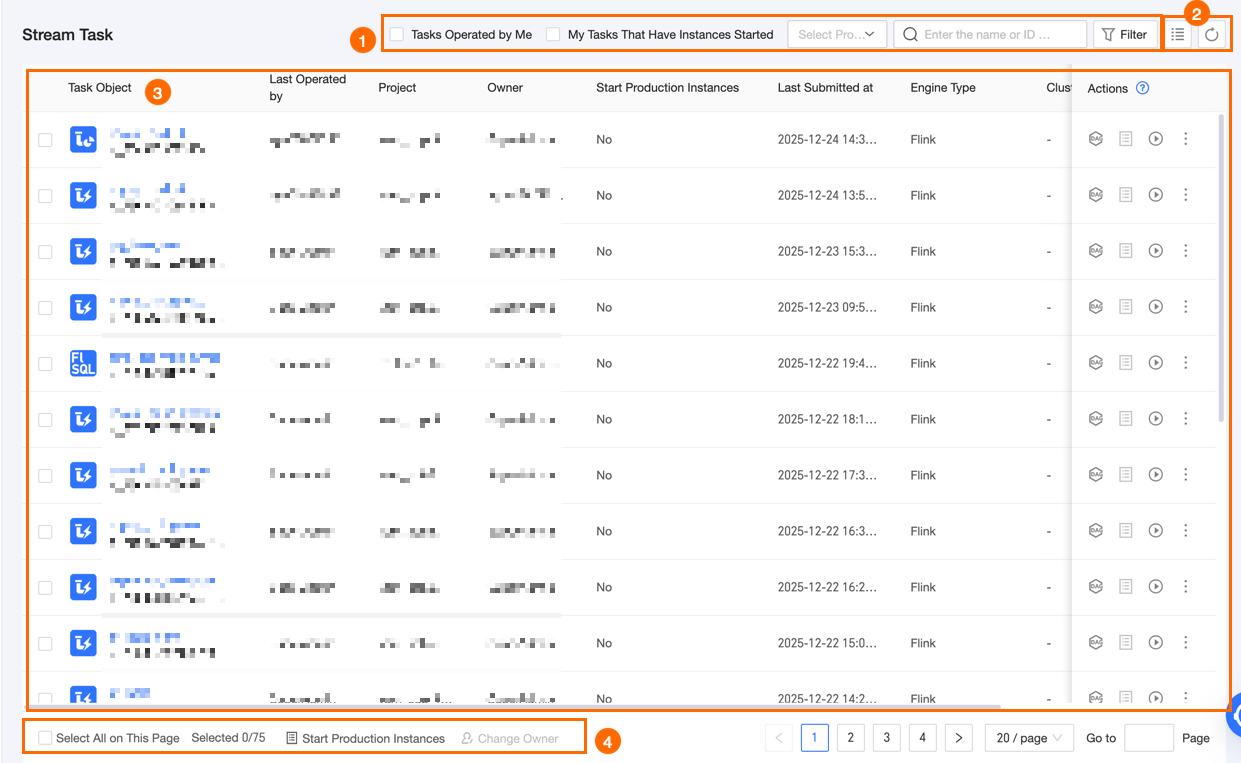
Block | Description |
①Search and filter | Enter a task object name or ID to search for a real-time task. This is useful for quick searches when you know the name or ID. My Tasks: Real-time tasks for which the current logon account is the owner. My Started Instances: Started real-time tasks for which the current logon account is the owner. Project: Filter tasks by the project they belong to. You can select multiple projects for which the current user has O&M - Access Folder permission. Filter: Click Filter to expand all filter options. The options include the following: Sub-type: Real-time development task type (The available types vary based on the real-time engine. The actual interface prevails), Real-time workflow. Last Operator: Filter tasks by the last person who operated on them. Owner: Filter tasks by their owner. If you select My Tasks, this filter defaults to the current logon account. Engine Type: Filter tasks by engine type. You can select Ververica Flink, Blink, or Built-in Engine. Resource Queue: Filter by the resource queue that the task runs on if the real-time engine is Alibaba Blink. Cluster: Filter by the cluster that the task runs on if the real-time engine is Ververica Flink. Engine Version: The engine version used by the task. Production Instance Started: Filter based on whether the production instance is running. This applies only to Prod and Basic projects. Test Instance Started: Filter based on whether the test instance is running. This applies only to Dev projects.
Reset: After expanding all filter options, click Reset to quickly clear all selected filter criteria. Refresh: Click the Refresh icon to refresh the current real-time task list.
|
②List operations | |
③Real-time task list | The real-time tasks page lists all generated real-time tasks. The list includes information such as the task object, last operator, owner, whether the production instance is started, last submission time, engine type, and engine version. You can adjust the width of each column. The settings are saved in your local browser and are lost if you clear your browser's history and cookies. Task Object: The real-time task submitted to the Operation Center, including the script name and script ID. Last Operator: The account name of the person who last operated on the task. Owner: The account name of the task owner. Production Instance Started: The startup status of the real-time task's production instance. Project: The project to which the task belongs, displayed in the format Project English Name (Project Chinese Name). Last Submission Time: The last time the real-time task was submitted to the Operation Center. Engine Type: The engine type used by the current real-time task. Cluster: This field shows the production environment cluster only when the real-time engine is Ververica Flink. For other engine types, this field is empty. Resource Queue: This field shows the resource queue used by the task at runtime only when the real-time engine is Alibaba Blink. For other engine types, this field is empty. Engine Version: The engine version used by the task.
The Actions column provides O&M operations for each real-time task. For more information about individual operations, see Individual operations. |
④Batch operations | Use the features in the batch operations area, such as changing the owner and starting production instances, to process real-time tasks in batches. This improves O&M efficiency. For more information about batch operations, see Batch operations. |
Manage real-time tasks
Individual operations
Actions | Description |
DAG | Click the  icon in the Actions column of the target real-time node to view its DAG graph. For more information, see Operations supported on the DAG graph of a real-time node. icon in the Actions column of the target real-time node to view its DAG graph. For more information, see Operations supported on the DAG graph of a real-time node. |
View Instance | Click the  icon in the Actions column of the target real-time task to view the instances generated by the task. icon in the Actions column of the target real-time task to view the instances generated by the task.
Note You can only view instances for real-time tasks that have been started and have generated instances. |
Start Instance | Click the  icon in the Actions column of the target real-time task to start the instance. For more information, see Start a real-time instance. icon in the Actions column of the target real-time task to start the instance. For more information, see Start a real-time instance.
Note You can only start instances that are not already running. |
View Task Code | Click the icon in the Actions column of the target real-time task, and select View Task Code. |
View Task Parameters | Click the icon in the Actions column of the target real-time task, and select View Task Parameters to view the parameters defined for the real-time task node.
Note You cannot view task parameters for real-time workflows. |
Change Owner | In the production environment, click the icon in the Actions column of the target real-time node and select Modify Owner. In the Modify Owner dialog box, select a new owner.
Note You can only select a member who is in the project and has O&M permissions. |
Modify Resource Configuration | Click the icon in the Actions column of the target real-time task and select Modify Resource Configuration to modify the task's resource parameters, such as Core and Memory. |
Batch operations
Operation | Description |
Start Production Instance | Start multiple real-time development instances, or real-time workflow instances at the same time.
Note This applies only to Prod and Basic projects, and all selected real-time tasks must not be running. Start Real-time Development Instance, Start Real-time Workflow Instance: Select multiple not running real-time development or real-time workflow tasks, or click Select All on This Page. Then, click Start Production Instance and select Start Real-time Development Instance or Start Real-time Workflow Instance. In the Batch Start Real-time Development Instance or Batch Start Real-time Workflow dialog box, configure the startup information. Start n instances: Shows the number of instances to start and their names, separated by commas (,). Start Mode: You can choose to start with no state or from a valid state. Data Read Start Time: Setting a specific start time causes all source tables that support startTime (Log Service, Kafka, MySQL, MongoDB, OceanBase) to start reading data from that time.
Note Code parameter settings in SQL jobs take precedence over this specified start time. Data Timestamp: You can assign values to time variables by configuring the data timestamp. Time-based variables are calculated based on the data timestamp, which defaults to the current day.
Note Code parameter settings in SQL jobs take precedence over this specified start time.
Click OK to start.
|
Change Owner | Change the owner of multiple real-time tasks at the same time. Select multiple real-time tasks, or click Select All on This Page, and then click Change Owner. In the Change Owner dialog box, select a new owner. Click OK.
|
Operations in the real-time task DAG
Hover over a node in the Directed Acyclic Graph (DAG) to view its name, type, scheduling cycle, owner, and description. The following O&M operations are also available:
Operation | Description |
Expand Parent Nodes | Expand the dependency nodes of different levels for the main node in the DAG. |
Expand Child Nodes |
Start Real-time Instance | You must manually start a real-time instance by clicking and configuring the startup information. For more information, see Start a real-time instance. |
View Real-time Instance | Go to the real-time instance page to view the instances generated by the current real-time task. |
View Node Code | View the code of the real-time task node. |
View Task Parameters | View the task parameters of the real-time task node.
Note You cannot view task parameters for real-time workflow tasks. |
View Operation Logs | View the operation logs of the real-time task node. |
Edit Development Node | Go to the editing page for the current task in the Dev project to edit the task. This applies only to the Dev-Prod development model. |
Edit Node | Go to the editing page for the current task to edit it. This applies only to the Basic model. |
View Production Node | View the configuration of the current task in the Prod project. |
View Topology | View the resource group nodes and component nodes of the real-time task. |
Modify Resource Configuration | Modify the resource parameters for the task, such as Core and Memory. |
 icon to select the columns to display and adjust their order.
 icon to refresh the current list.
 icon in the Actions column of the target real-time task to start the instance. For more information, see
  icon in the Actions column of the target real-time task, and select View Task Code.
 and configuring the startup information. For more information, see