View exception statistics
Exception statistics provide insights into abnormal tasks within the global or selected project scope, offering two key perspectives: running errors and prolonged execution times. These insights facilitate timely awareness of task operations, enabling informed decisions on budgeting, resource scaling, and specification upgrades. This topic outlines the exception statistics feature of the Operation Center.
Statistics explanation
The exception statistics feature aggregates data from production environment instances.
Exception statistics entry
On the Dataphin home page, single click the top menu bar's Development. By default, you will be directed to the data Development page.
To access the Exception Statistics page, follow these steps:
Single click Operation -> Exception statistics.

Exception statistics page introduction
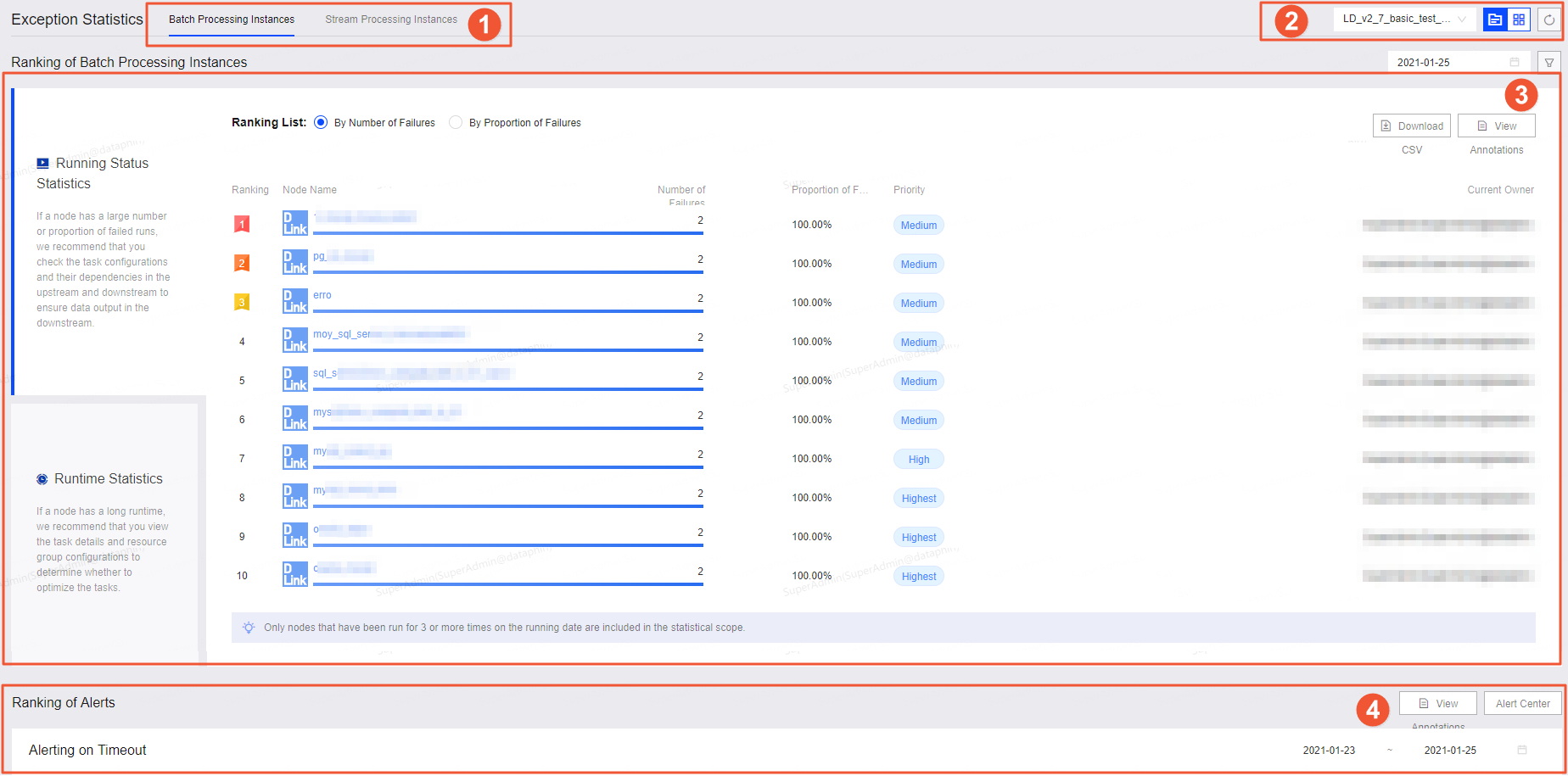
The exception statistics page presents abnormal data for both offline and real-time instances within the system.
Number | Description |
①Instance tabs | Toggle between Offline Instances and Real-time Instances tabs to view the rankings of abnormal operations for both types of instances. |
②Global perspective and project perspective | Access exception statistics from both global and project perspectives. The system defaults to the project perspective, displaying an overview of operations within a specific project. You can select different projects to view their statistics. To view a global overview of exception data at the tenant level, single click the
|
③Exception data ranking | View the rankings of abnormal data for both offline and real-time instances:
|
④Alert ranking | Examine the alert rankings for both offline and real-time instances:
|
 icon to switch perspectives.
 icon to filter instances by schedule or priority.
If you do not have permission to view global scope data, you need to request the corresponding feature permission. For more information, see configuration and change owner feature permissions.
Offline instance exception statistics
Offline instance exception statistics encompass operation status and runtime duration rankings, as well as operation timeout alerts.
Offline instance ranking
Number
Description
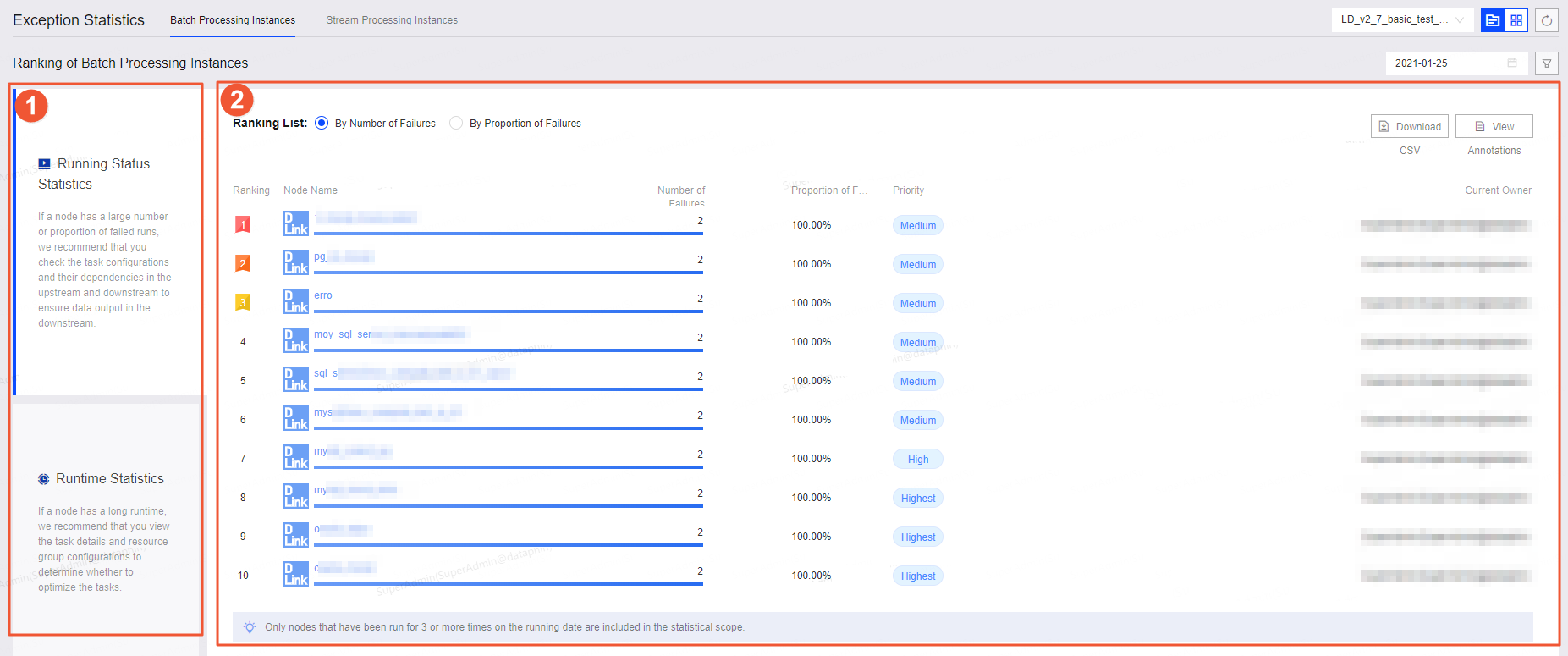
①Operation status and runtime duration statistics
Select operation status and runtime duration data for analysis:
Operation status statistics include failure counts and ratios, highlighting tasks with high failure rates for further investigation of their dependencies and impact on output data.
Operation status statistics encompass both the number of failures and the failure rate of task operations. It is advisable to examine tasks with high failure counts or rates, along with their upstream and downstream dependencies, to prevent impact on output data.
Runtime duration statistics reflect the average execution time of tasks, identifying those with extended runtimes for potential optimization of task details and resource group configurations.
Runtime duration statistics reflect the average duration of task operations. If a task node exhibits an unusually long runtime, reviewing the task details and associated resource group configuration can help determine if optimization is necessary.
②Offline instance exception ranking
Review rankings based on failure counts and ratios to address abnormal tasks promptly.
Click View Comments for metric explanations, such as failure counts and ratios.
Click Download CSV to obtain detailed statistics for in-depth analysis of exception causes.
Alert ranking
The Alert Ranking section displays operation timeout alerts. For tasks with frequent alerts, assess the appropriateness of monitoring configurations and consider task optimization. Additional actions include:
Click Alert Center for detailed alert information.
Click the Actions column's
 icon to access the task module and review production tasks.
Click the Actions column's
icon to view monitoring configurations.
 icon to access the task module and review production tasks.
 icon to view monitoring configurations.
Real-time instance exception statistics
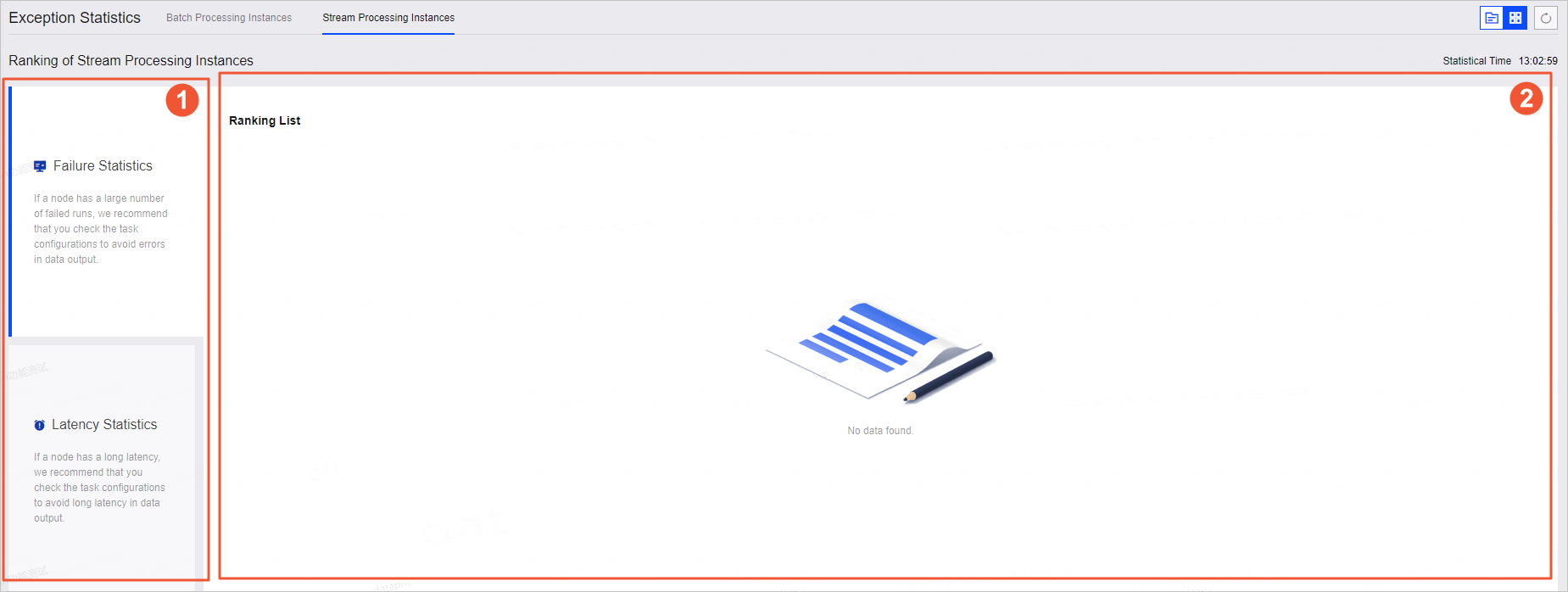
Real-time instance exception statistics cover failure count and delay duration rankings, along with alerts for high business delays and TPS anomalies.
Real-time instance ranking
Number
Description
①Status count and delay duration statistics
Select failure count and delay duration data for analysis:
Failure count statistics highlight tasks with high failure rates, prompting a review of task configurations to ensure normal data output.
It is advisable to review the task configuration for nodes with high failure rates to ensure the integrity of normal data output.
Delay duration statistics identify tasks with significant delays, prompting a review of task configurations to prevent delayed data output.
For task nodes experiencing significant delays, it is advisable to review the relevant task configurations to prevent delayed data output.
②Instance exception ranking
Review rankings based on failure counts, ratios, and average durations to address abnormal tasks promptly.
Click View Comments for explanations of metrics such as failure counts and delay durations.
Click Download CSV to download comprehensive statistics for a thorough analysis of data exception causes.
Alert ranking
In the Real-time Instance tab's Alert Ranking section, view rankings for high business delay, TPS deviations, excessive failure frequency, and data retention issues. For tasks frequently topping these rankings, evaluate the monitoring configurations for appropriateness and consider task configuration optimization. Further actions include:
Click Alert Center for detailed alert information.
Click the Actions column's
icon to navigate to the task module and inspect production tasks.Click the Actions column's
icon to access the monitoring alert module and review monitoring configurations.