Approval settings
Dataphin supports integration with internal enterprise approval flows, such as DingTalk OA. It provides unified IT governance and an enterprise-grade process system, providing an approval experience consistent with your existing systems. You can also create custom approval rules. For example, you can configure automatic approvals for permission requests on low-sensitivity assets, while requiring designated approvers for high-sensitivity assets. This topic describes how to integrate an external approval system.
Related documentation
When you select Third-party Approval for the Select Approval System option, you can use a third-party approval flow. For more information, see Integrate with a custom approval system.
Background information
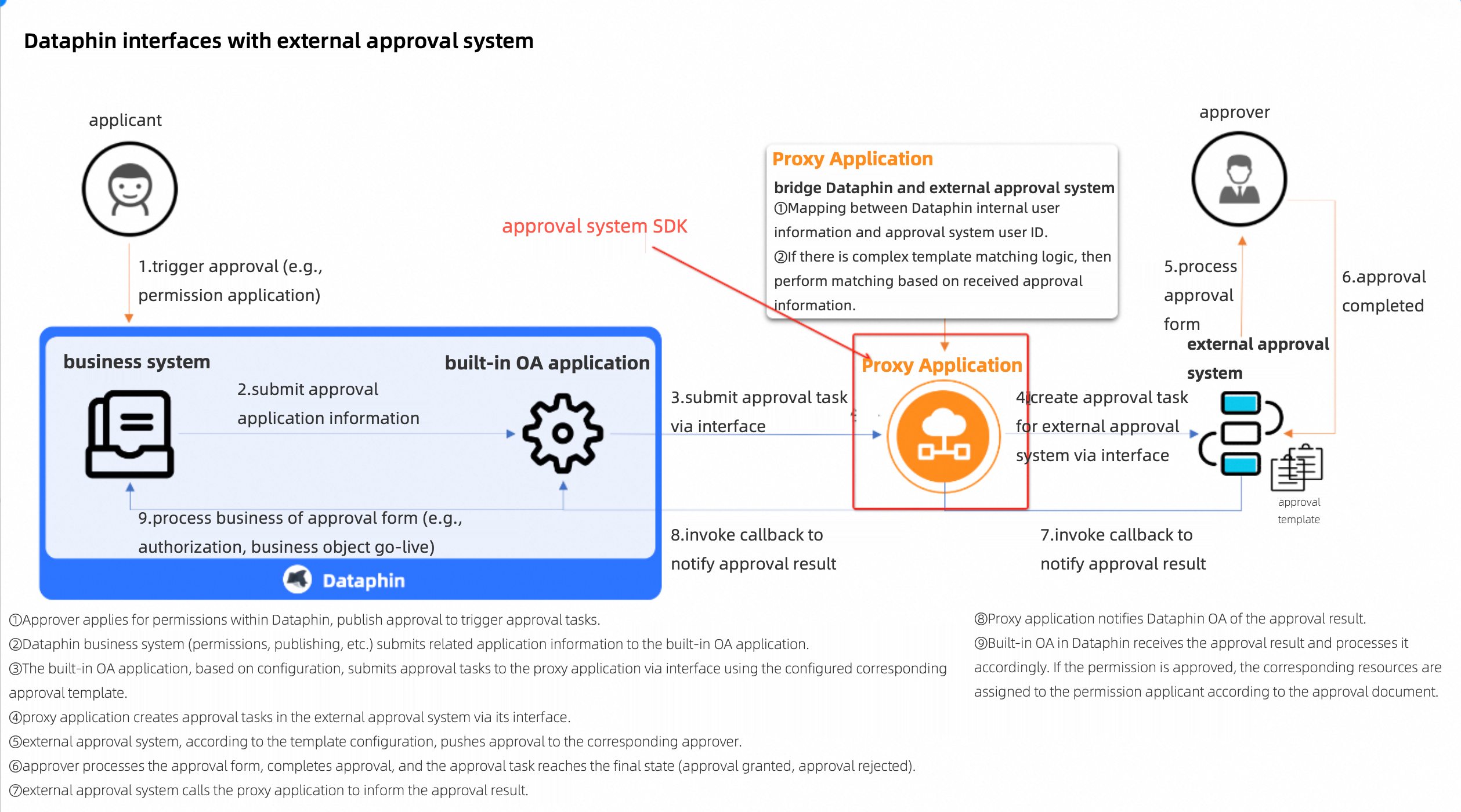
When you integrate Dataphin with an external approval system, you typically need to develop a proxy application. This application maps user accounts between Dataphin and the approval system and handles differences in their respective APIs and data formats. The provided approval system SDK helps you develop this proxy application and quickly establish the basic approval flow.
Limitations
Only users with the super administrator or system administrator role can configure approval settings.
Usage notes
When you change the approval flow settings, note the following effects on in-progress approval requests:
If you switch from the Dataphin built-in approval flow to an external one, in-progress approval requests (requests that have been submitted but not yet completed) are still processed within Dataphin.
If you switch from one external approval flow to another, or change the flow's configuration parameters, in-progress approval requests are processed according to the new flow. If you change the callback URL, including its authentication information, the callback might fail, which prevents the approval status from being synchronized to Dataphin. You must withdraw (or force-withdraw) the original approval request and submit a new one.
If you switch from an external approval flow back to the built-in one, the results of in-progress approvals from the external system cannot be synchronized to Dataphin. Withdraw (or force-withdraw) the original approval request to close it.
Configure approval settings
Log on to the metastore tenant as a super administrator or system administrator.
In the top navigation bar of the Dataphin homepage, choose Admin Center > System Settings.
In the left navigation bar, select System Settings > Approval Settings to open the Approval Settings page.
Configure the Default Approval System.
When External Approval System is disabled, the default is the Built-in Approval System. When External Approval System is enabled, you can set either the Built-in Approval System or a Third-party Approval System as the default. If you use an external approval system, you must also configure its system and service settings.
NoteThis selection sets the default Approval System for an approval template.
Configure External Approval System Configurations and Approval Service Configurations.
Approval System Name: Enter a custom name for the approval system. The name can be up to 128 characters long and can include any character type.
Select Approval System: You can select DingTalk OA or Other. The required service configurations vary depending on your selection.
DingTalk OA
Parameter
Description
API address
Enter the API address for DingTalk OA.
AppKey
Enter the AppKey for DingTalk OA.
AppSecret
Enter the AppSecret for DingTalk OA.
Click Test Connection to verify connectivity between Dataphin and the external approval system. If the test fails, troubleshoot the issue based on the error message that appears on the page.
DingTalk account mapping
For users without a configured DingTalk UID, the system automatically attempts to match their Source_UID from SSO. If the match fails, an error occurs. In addition to using the Batch Update feature, you can also manage DingTalk UIDs for individual members in Admin Center > Member Management.
Click Batch Update and follow the steps in the Batch Update dialog box to import the data.
Download Data: Exports the first 10,000 Dataphin users. The exported data includes username, Dataphin_UID, Source_UID, phone number, email address, and DingTalk UserID.
Upload Excel File: Supports only .xlsx files with no more than 10,000 rows.
Import Configurations: If a user in the uploaded file does not exist, the user is ignored. If a DingTalk UID is provided, it is updated. Email addresses and phone numbers are not updated.
Callback URL
The URL where Dataphin receives callback results from DingTalk OA. The system automatically generates this URL. You can customize it in the format:
https://{Dataphin-deployment-domain}/task/callback.Encoding AES key
The key used for encryption and decryption.
Click the
 icon to automatically generate an Encoding AES Key.
Token
The token used for authentication with the DingTalk OA client.
Click the
icon to automatically generate a token.AgentId
Enter the AgentId for DingTalk OA.
Other
For information about how Dataphin interprets different parameter values passed from an external approval system, see Parameter value mapping.
Parameter
Description
Integration mode
Select either Display only the final approval result or Display all nodes of the third-party approval. The default is to display only the final result.
Display only the final approval result: Only the final result from the approval system is returned. Dataphin displays only the start and end nodes.
Display all nodes of the third-party approval: The approval system must return details for each node. Dataphin synchronizes and displays all approval nodes.
Submit approval request URL
The URL of the external approval system. Dataphin sends user-submitted approval requests to this URL.
Access token
This token authenticates Dataphin to the external approval system and must be included in each approval request.
Click Test Connection to verify connectivity between Dataphin and the external approval system. If the test fails, troubleshoot the issue based on the error message that appears on the page.
Callback URL
The URL where Dataphin receives callback results from the external approval system. The system automatically generates this URL. You can customize it in the format:
https://<Dataphin-deployment-domain>/api/oa/bpms/integration/thirdparty/callback.Encoding AES key
The key used for encryption and decryption.
Click the
icon to automatically generate an Encoding AES Key.Parameter value mapping
Field name
Condition
Displayed value
Operation
No specific condition
The value of
node_name.Result
"node_status": "PENDING"
Pending Approval"node_status": "APPROVED"
Approved"node_status": "REJECTED"
Rejected"node_status": DELEGATED
Add Approver ${User Name}"node_status": TRANSFERRED
Transfer ${User Name}Operator
"node_status": PENDING
"approverRelation":or
All pending approvers. The value is taken from the
user_namein thepending_approversfield."node_status": PENDING
"approverRelation":and
Pending approval:
${Pending Approver 01}, ${Pending Approver 02}, ${Pending Approver 03}Already approved:
${Approver 01}, ${Approver 02}, ${Approver 03}All other cases
OperatorOperation description
"node_status": PENDING
"approverRelation":or
Approved if any one approver agrees.
"node_status": PENDING
"approverRelation":and
"operator" is empty
Approved only if all approvers agree.
"node_status": PENDING
"approverRelation":and
"operator" is not empty
Some approvers have approved: ${Approver Name}(${Reason for approval}), ${Approver Name}(${Reason for approval})...
Example: Some approvers have approved: John Doe (Agreed), Jane Smith (Request is reasonable, approved for go-live).
All other cases
The
reasonfrom the operator.
After you configure the parameters, click Save.
Appendix: Integrate with the new DingTalk OA
Only Dataphin instances with a public IP address can be configured for DingTalk OA approval.
Step 1: Create a DingTalk app
Log on to the DingTalk Open Platform as a user with developer permissions.
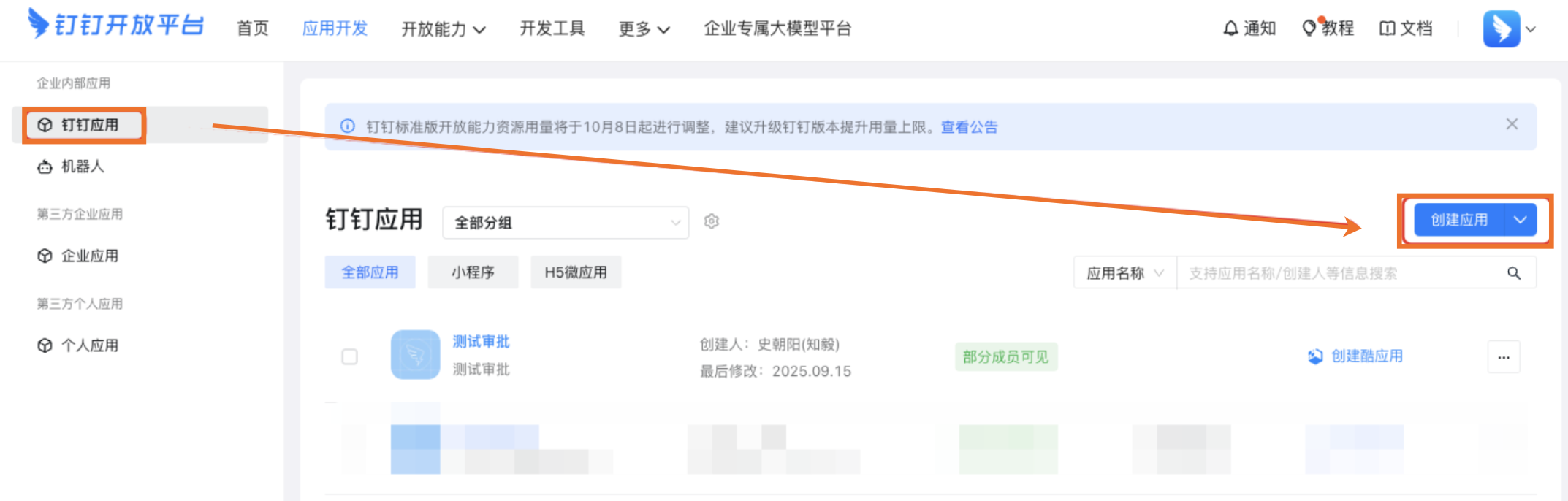
On the DingTalk App page, click Create App. In the Create App panel, enter an App Name and App Description, and upload an App Icon.
App Name: Enter a name between 2 and 20 characters. All characters are supported.
App Description: Enter a description between 4 and 200 characters to help users understand the app's purpose and features. All characters are supported.
App Icon: Upload a 240x240px or larger JPG or PNG icon without rounded corners. The file size must be less than 2 MB. You can click View Icon Specifications for more details.
Click Save.
Step 2: Enable OA approval permissions
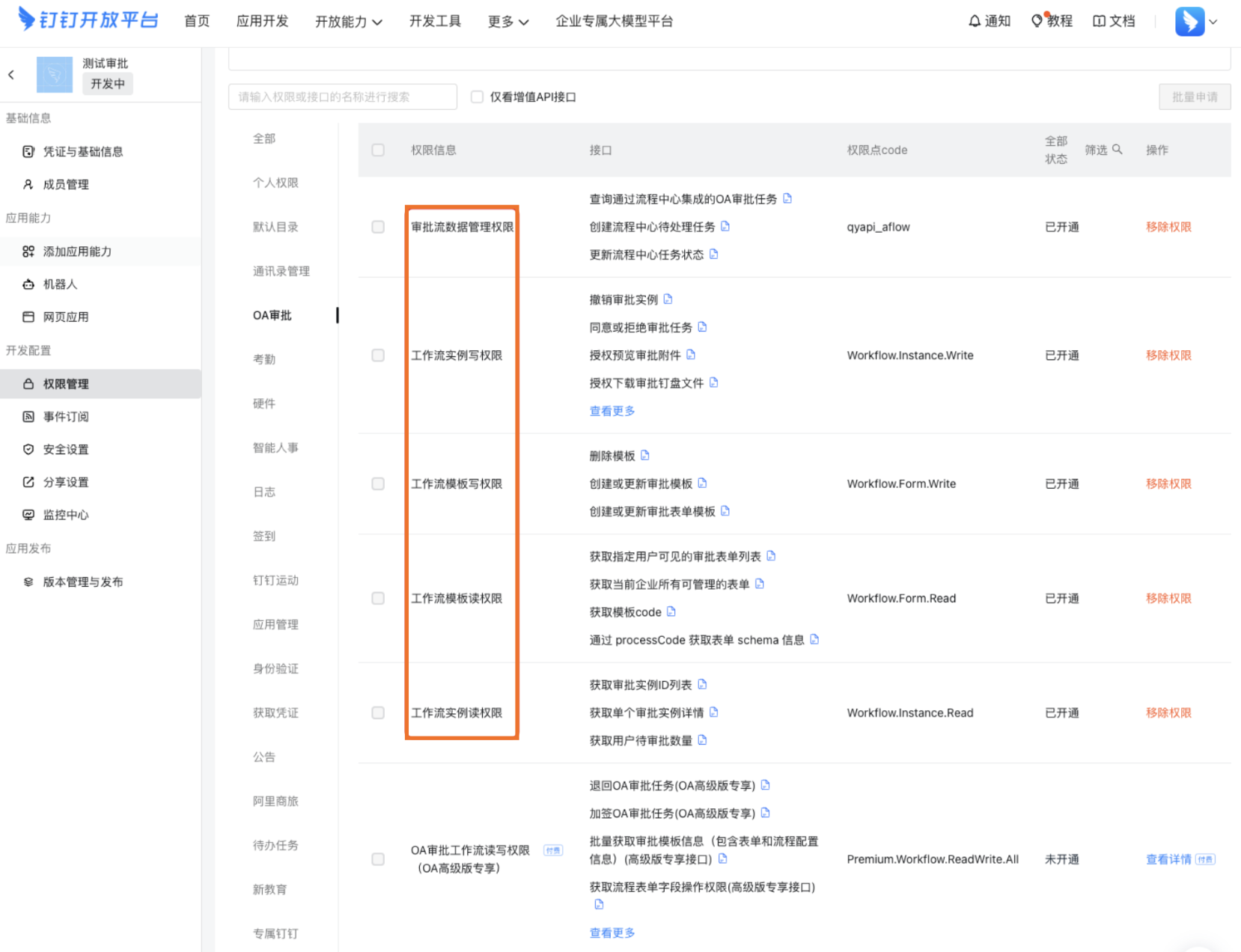
On the Permission Management page, select OA Approval from the left-side navigation pane.
In the permissions list, enable Approval Process Data Management, Workflow Instance Write, Workflow Template Write, Workflow Template Read, and Workflow Instance Read.

Step 3: Get app credentials
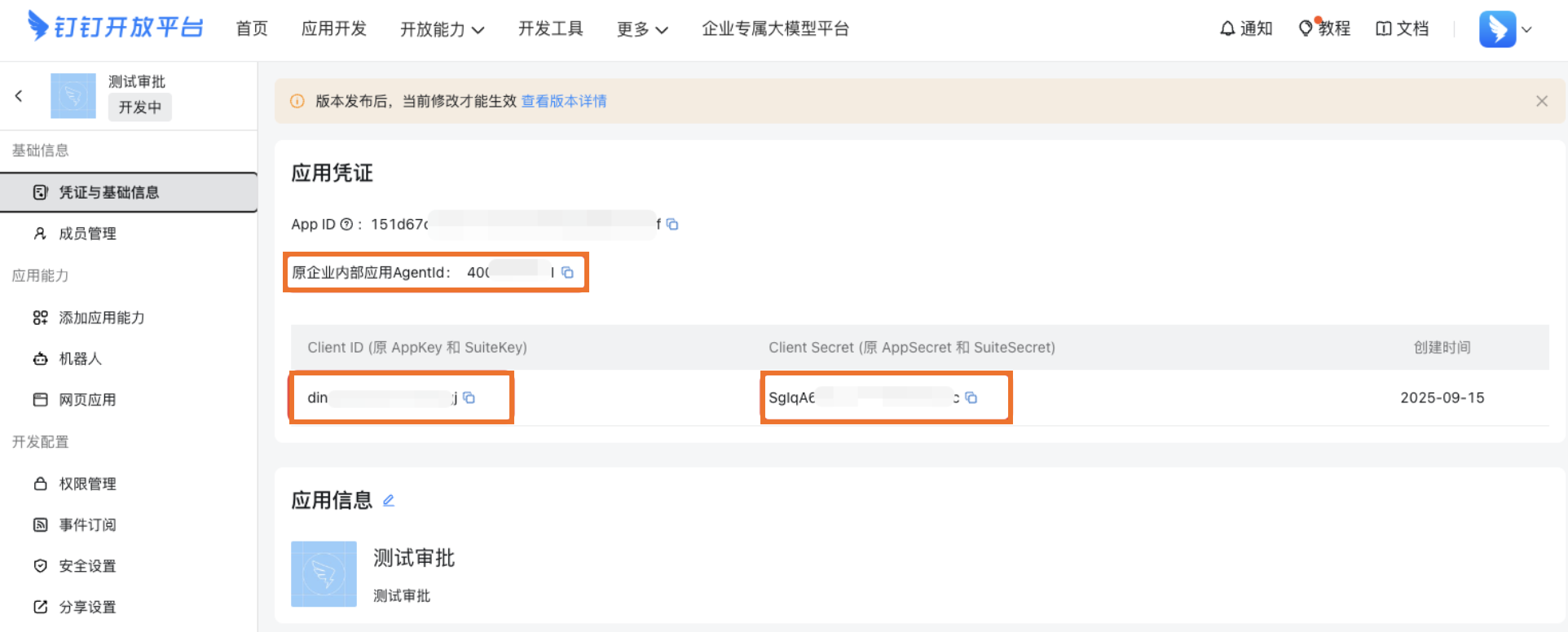
In the left-side navigation pane, choose Basic Information > Credentials and Basic Information.
On the page that appears, find the App Credentials section and copy the AgentId, Client ID (formerly AppKey and SuiteKey), and Client Secret (formerly AppSecret and SuiteSecret).
Step 4: Configure DingTalk OA in Dataphin
Navigate to the Dataphin metastore tenant > Admin Center > System Settings > Approval Settings.
Parameter
Description
Approval settings
Default approval system
Select Third-party Approval System. After you save the approval settings, the default approval system name matches the value of Approval System Name.
External approval system
Enable this option to configure the external approval system.
External approval system configurations
Approval system name
Enter a custom name for the approval system. The name cannot exceed 128 characters.
Select approval system
Select DingTalk OA.
Approval service configurations
API address
Enter the fixed address
https://oapi.dingtalk.com.AppKey
Enter the Client ID (formerly AppKey and SuiteKey) that you obtained in the previous step.
AppSecret
Enter the Client Secret (formerly AppSecret and SuiteSecret) that you obtained in the previous step.
Callback URL
Keep the default value. You can click the
icon to copy the address.Encoding AES key
Click the
icon to automatically generate the corresponding parameters.Token
AgentId
Enter the AgentId that you obtained in the previous step.
Click Save.
 icon to copy the address.
 icon to automatically generate the corresponding parameters.
Step 5: Configure event subscriptions in DingTalk
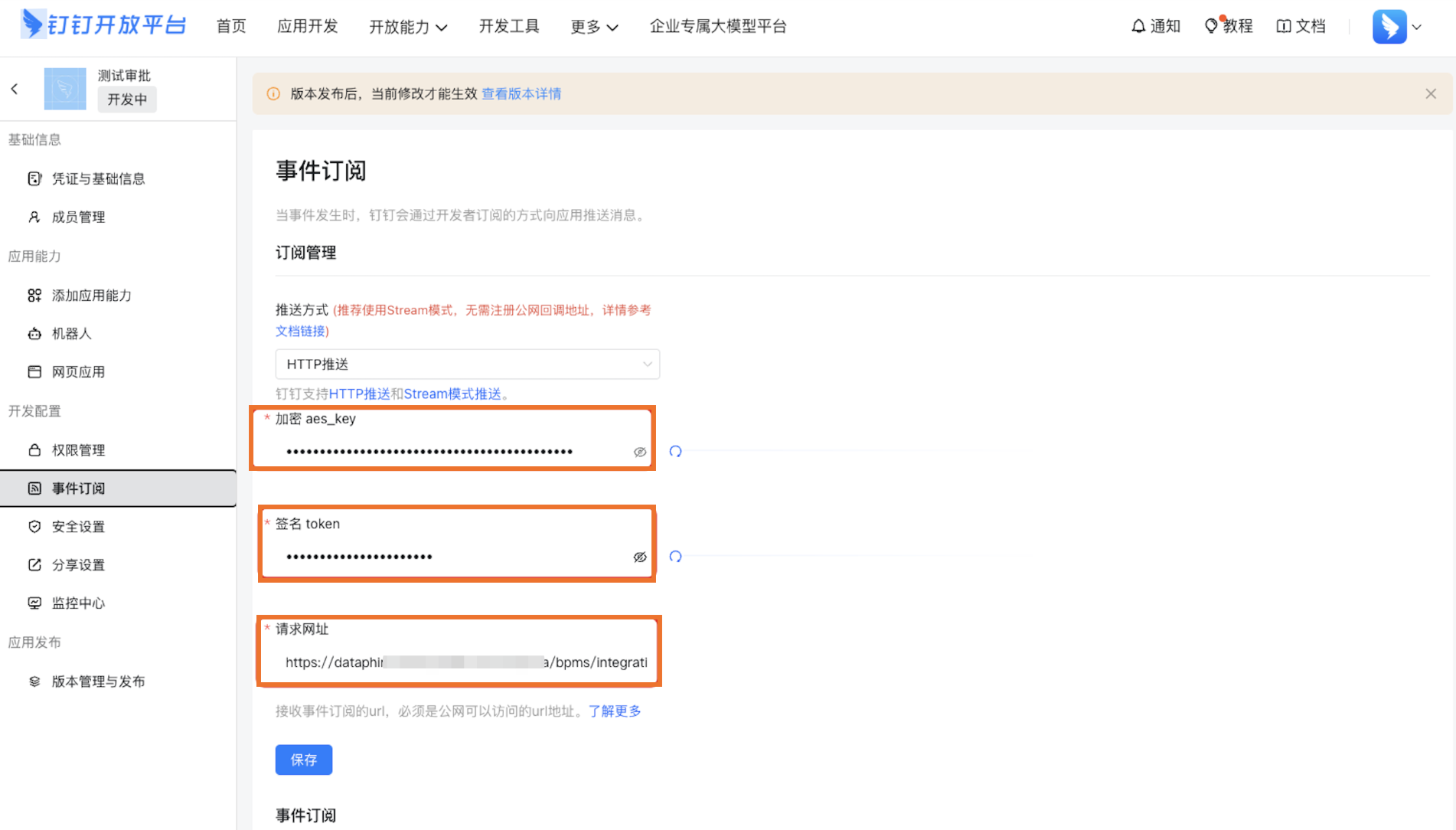
Navigate to DingTalk Open Platform > Development Configuration > Event Subscriptions.
Push Method: Select HTTP push.
Encryption AES Key, Signature Token, and Request URL: Enter the Encoding AES Key, Token, and Callback URL that you obtained from Dataphin in the previous step.
After you complete the configuration, click Save.
Step 6: Publish the app
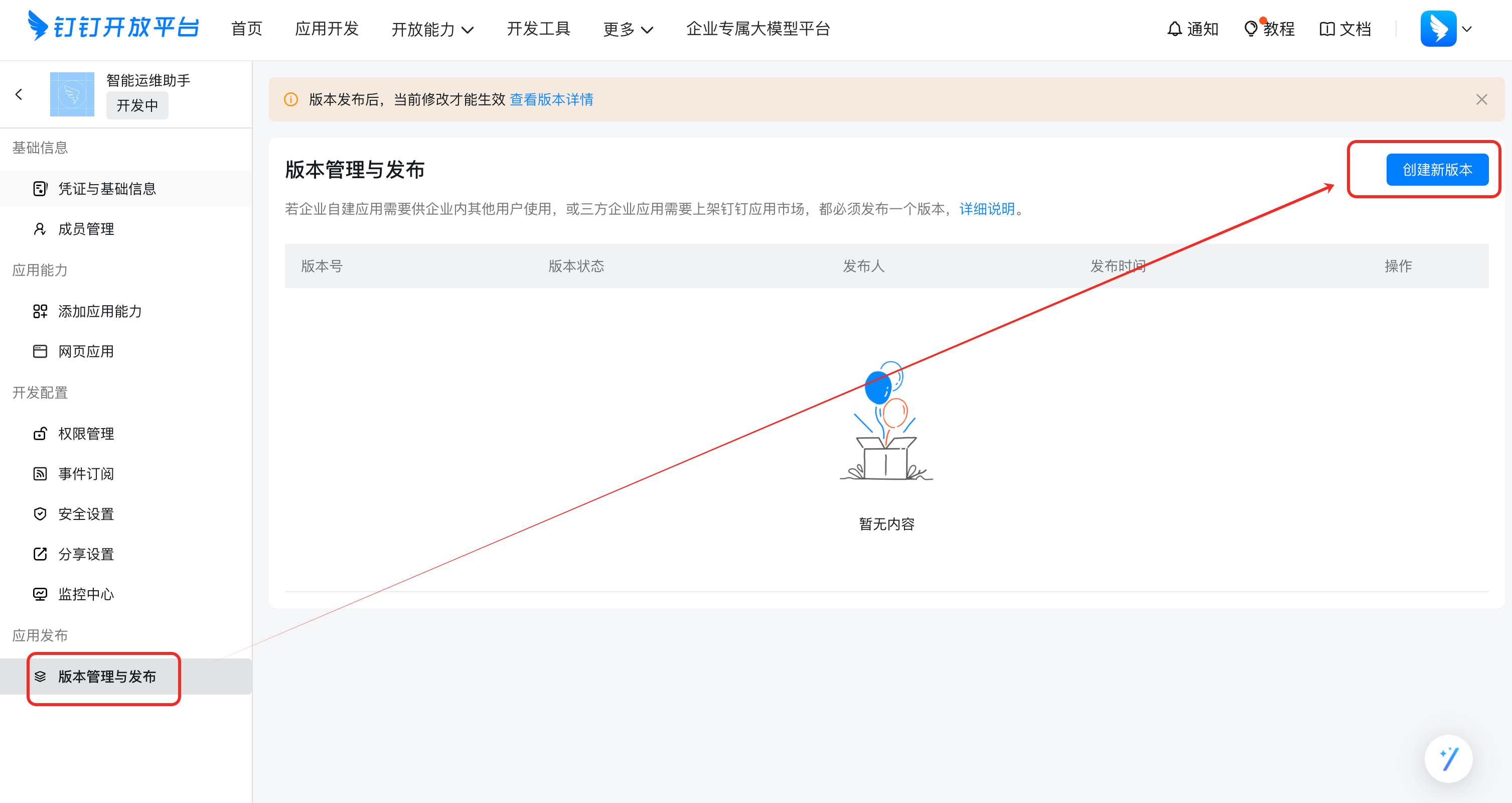
In the left-side navigation pane, choose App Release > Version Management and Release. On the Version Management and Release page, click Create New Version.
On the Version Details page, enter an App Version and a Version Description. Then, select the Availability Scope. The App Availability Scope defaults to All Employees. Click Save, and then click Publish Now in the dialog box that appears.
Step 7: Create and configure process forms
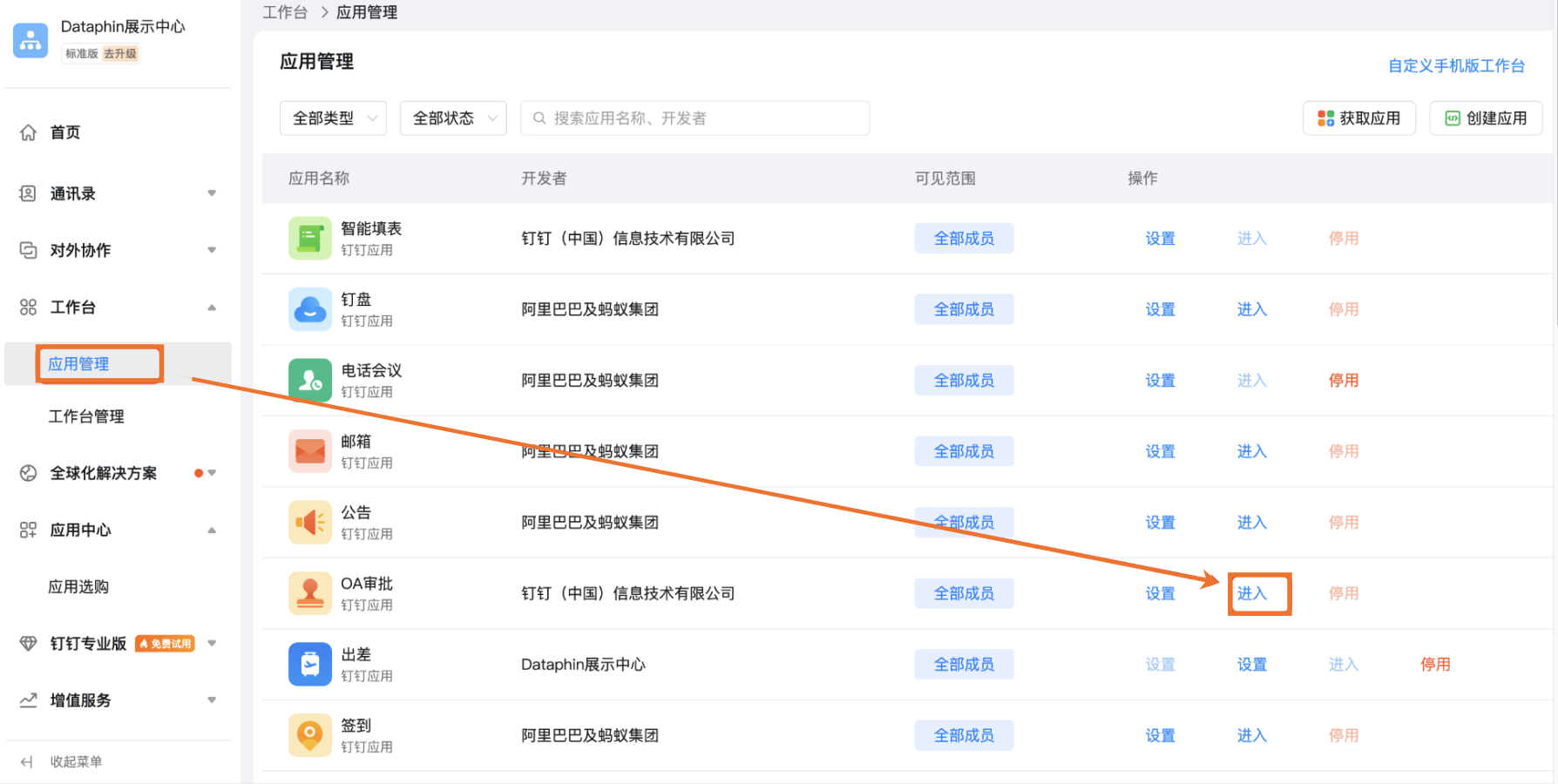
Go to the DingTalk Admin Console and navigate to OA Approval.
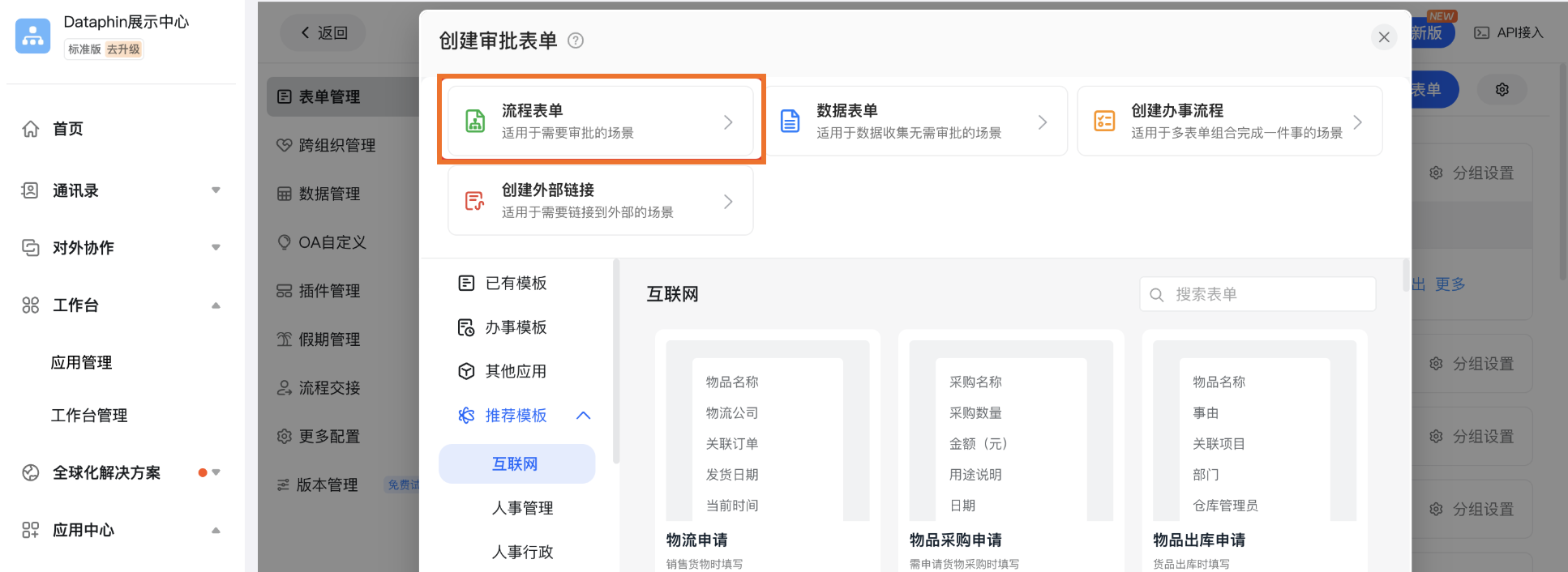
In the Create Approval Form dialog box, select Process Form.
Use multi-line input boxes to configure the display information for the form.
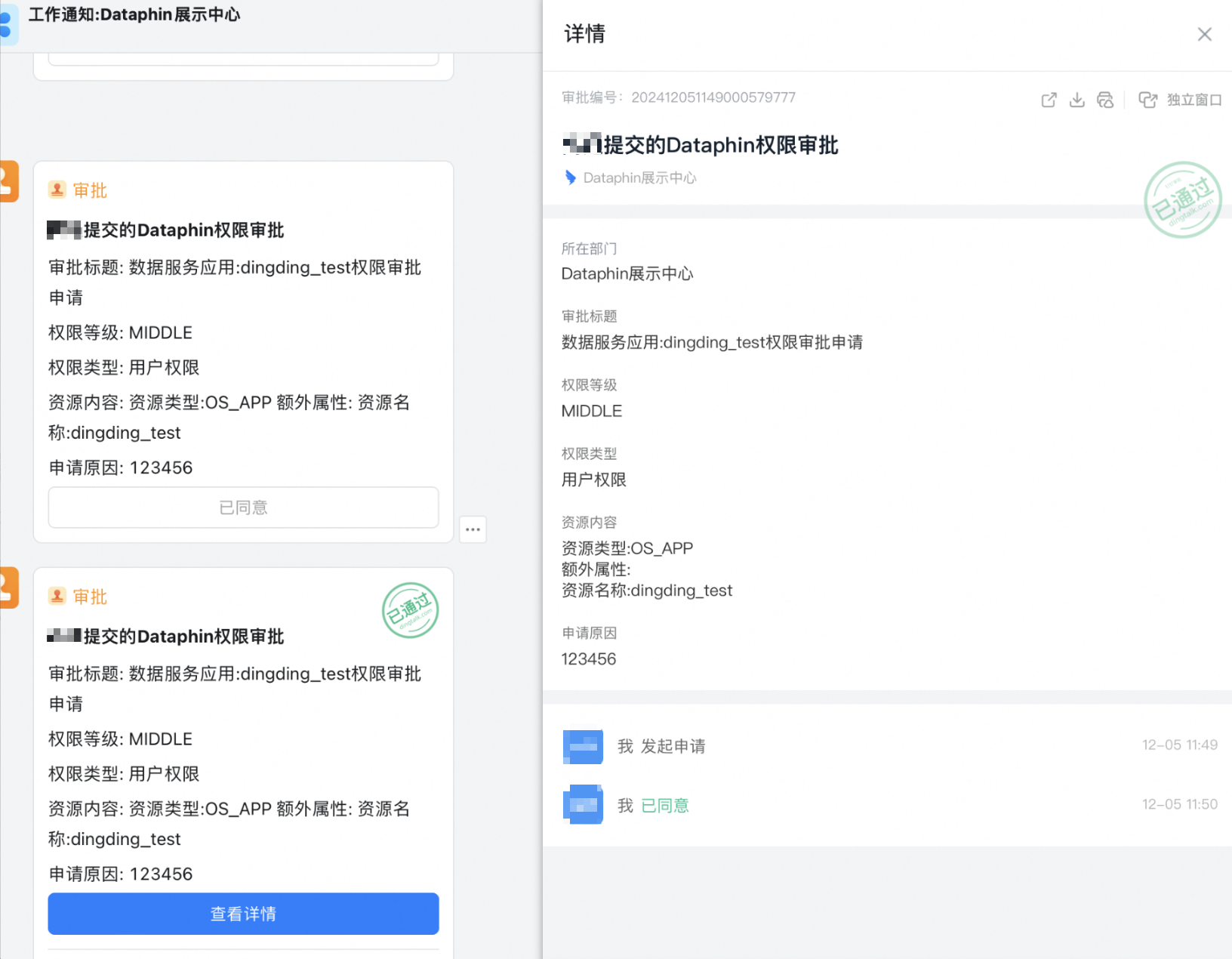
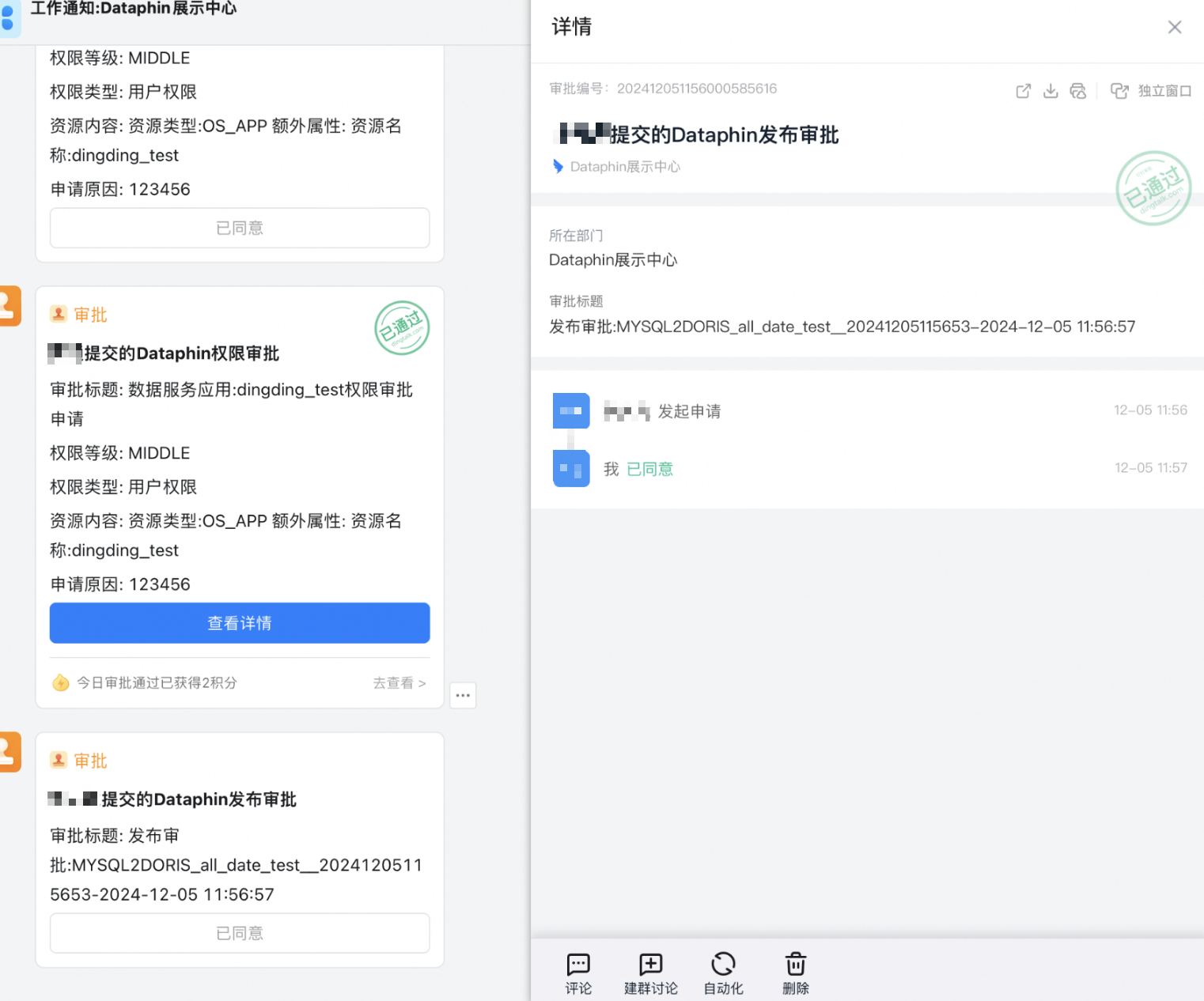
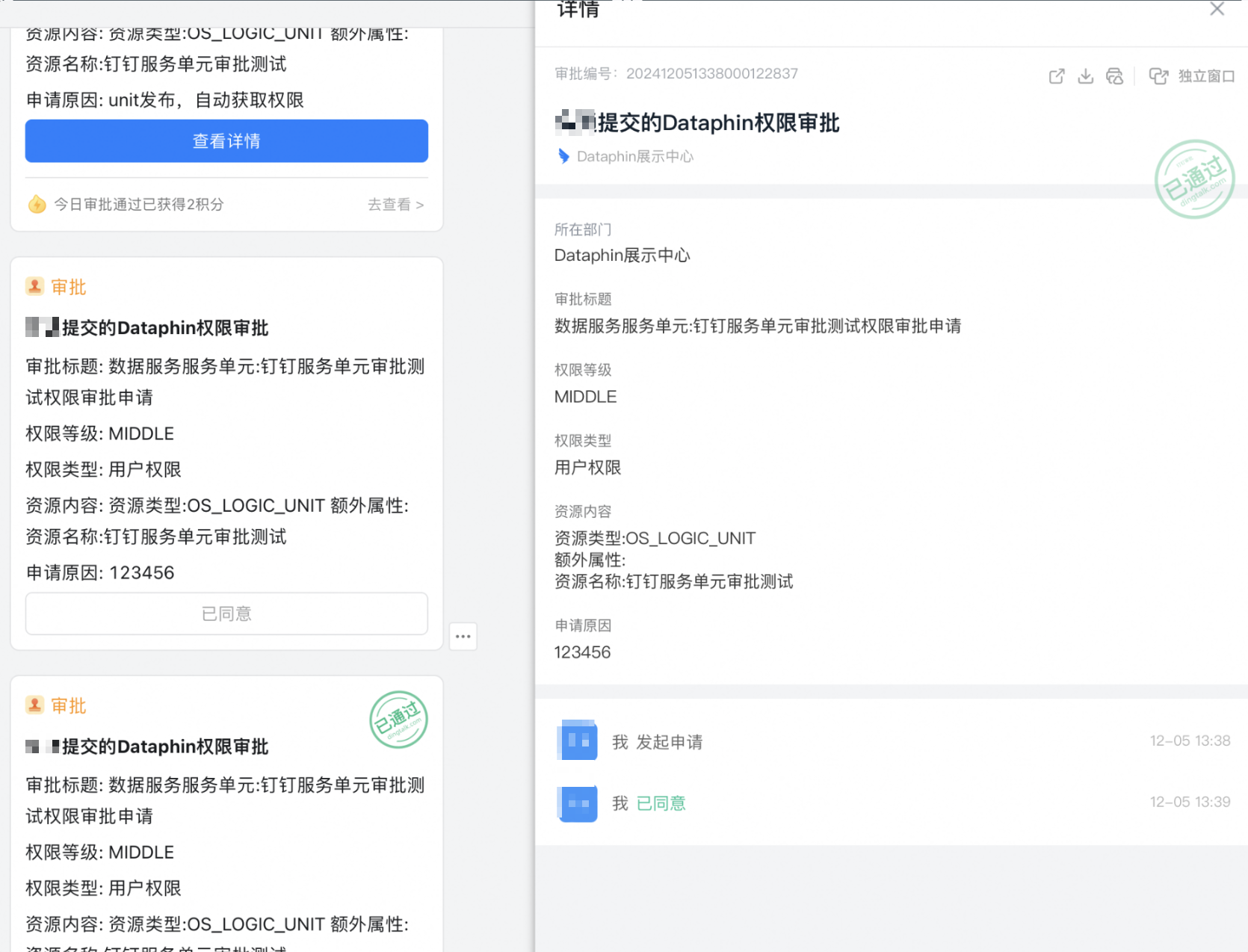
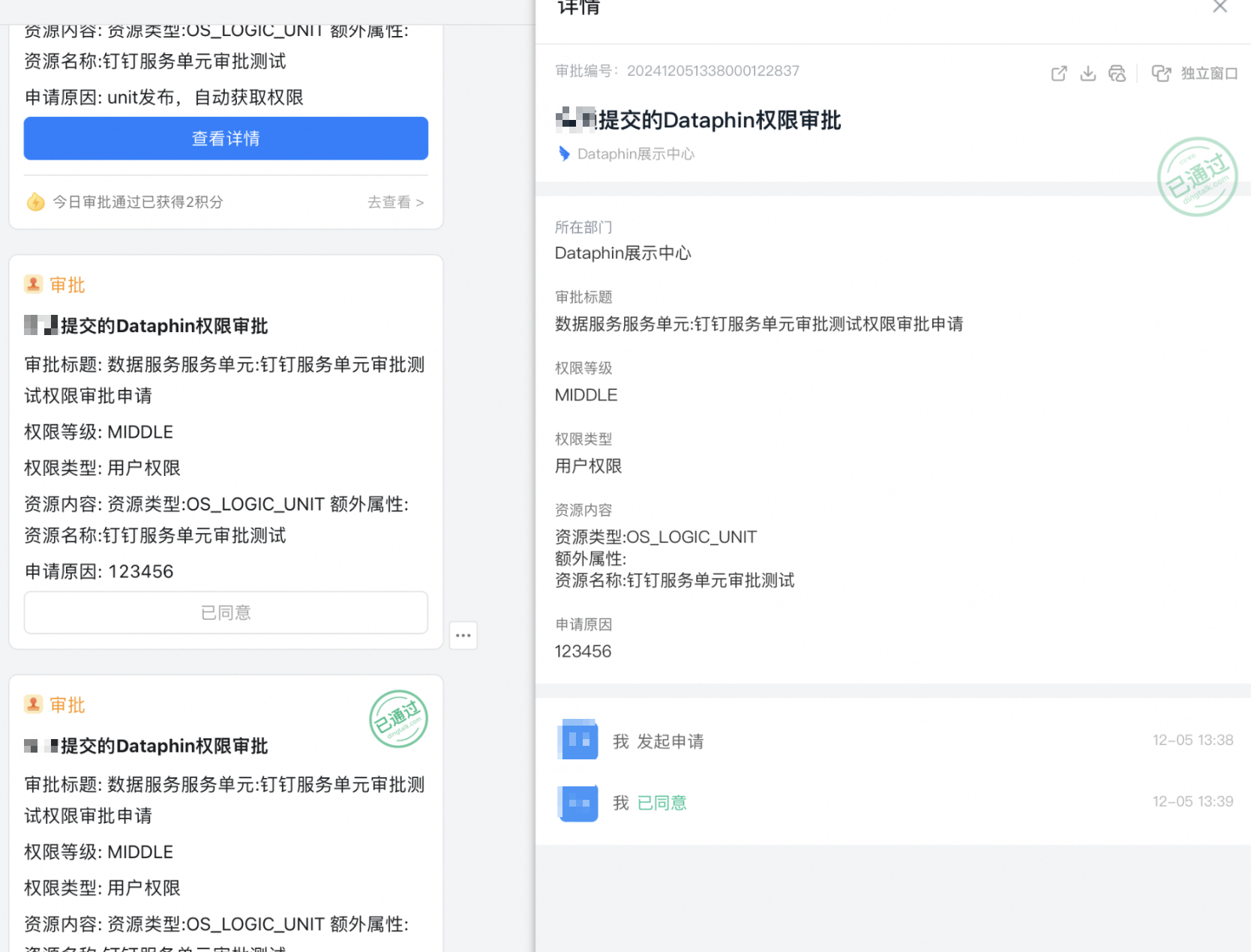
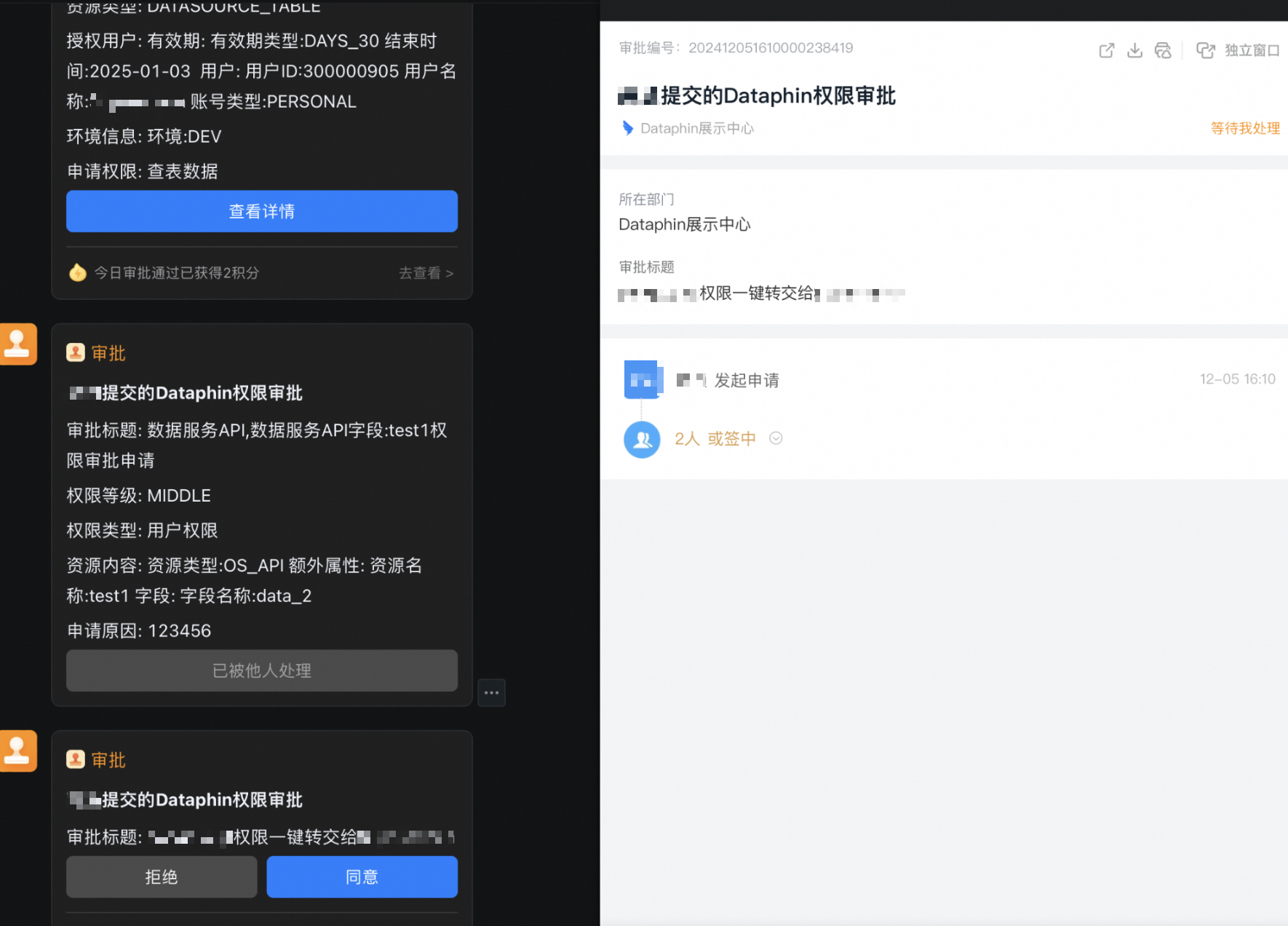
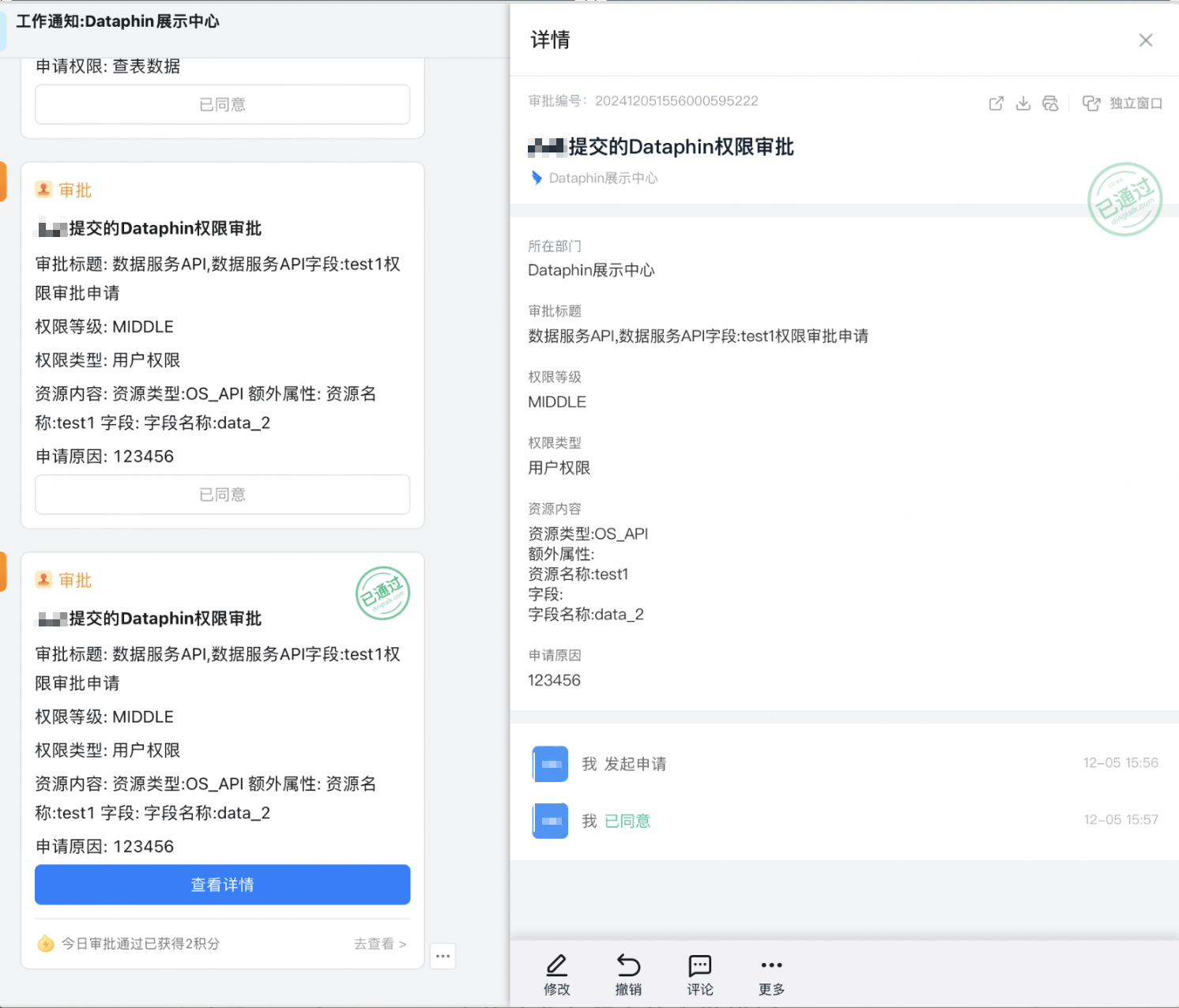
Dataphin has multiple approval scenarios. You must create a different approval form for each one.
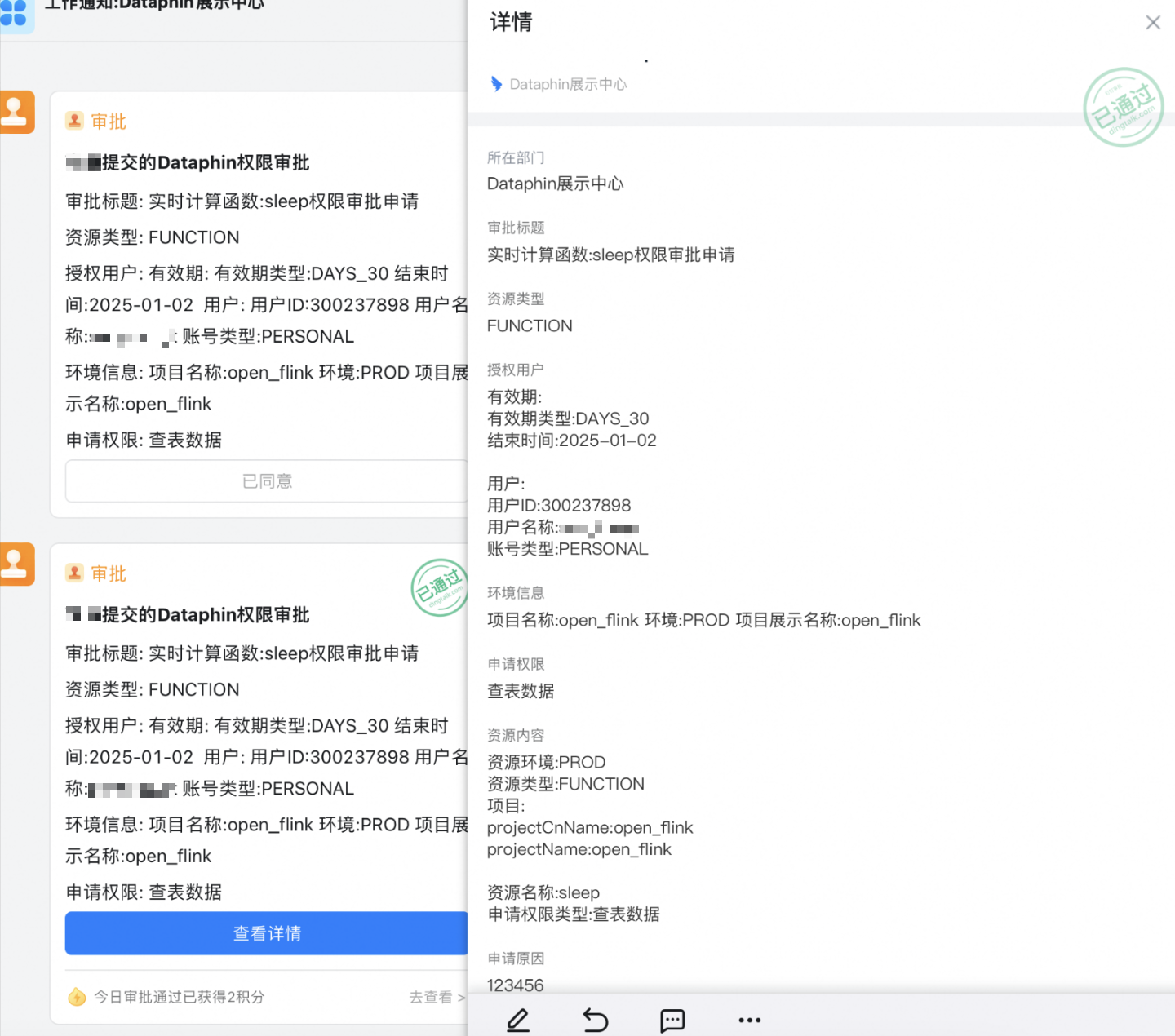
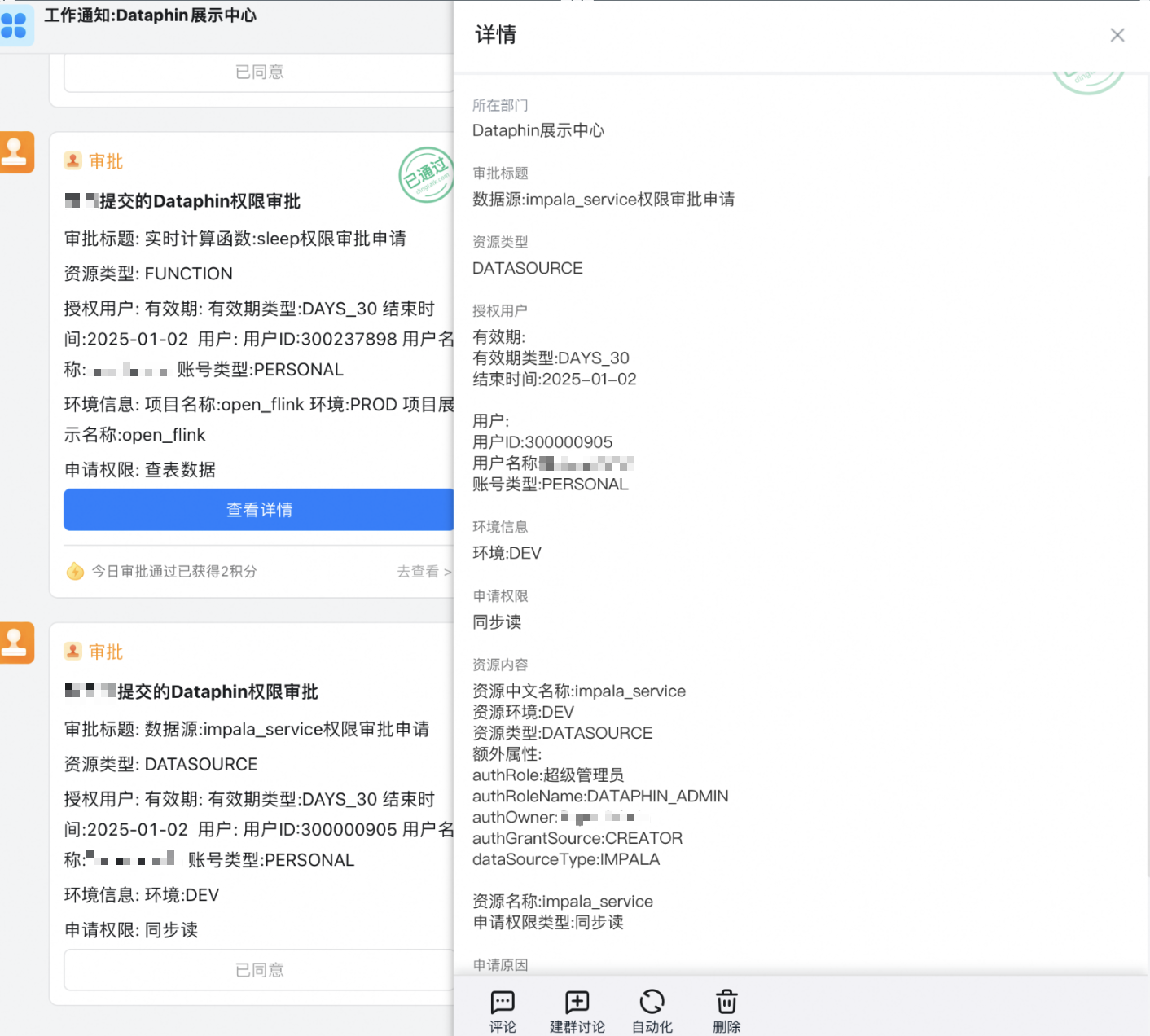
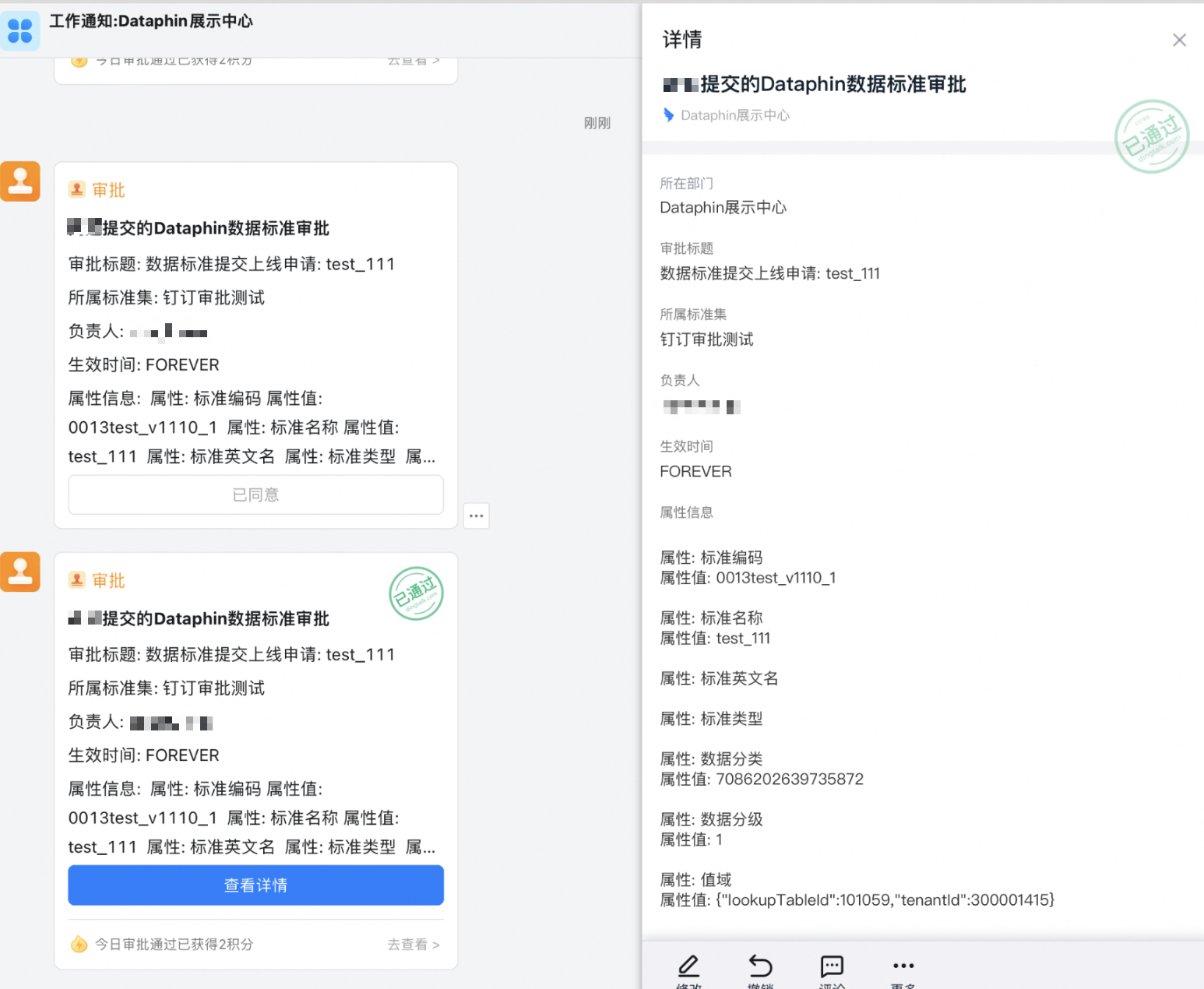
Dataphin matches metadata by an exact comparison of form field names. Therefore, ensure that the field names in your form precisely match those in Dataphin's metadata. The following table lists the required form configurations for each approval scenario.
Dataphin approval template
DingTalk form configuration
Approval example
Physical Table Permission Application
Logical Table Permission Application
Meta Table/Mirrored Table Permission Application
Function Permission Application
See the example image for required fields.
Data Source Permission Application
See the example image for required fields.
Standard Review
See the example image for required fields.
Data Service Application Permission Application
See the example image for required fields.
Publish Approval
See the example image for required fields.
Data Service Service Unit
See the example image for required fields.
Code Review
See the example image for required fields.
One-click Transfer
See the example image for required fields.
Publish Directory Topic Application
See the example image for required fields.
Data Service API Permission Application
See the example image for required fields.



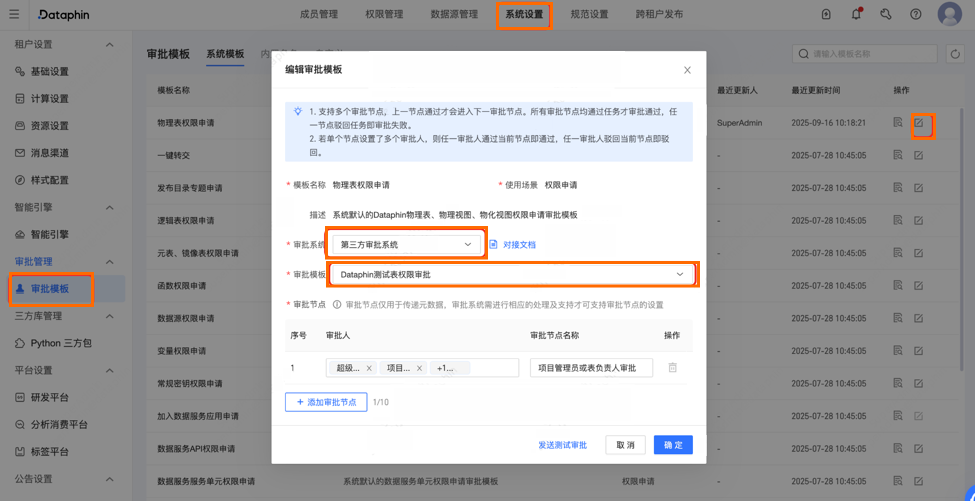
Step 8: Modify the business tenant approval template
Navigate to the corresponding Dataphin business tenant > Admin Center > System Settings > Approval Management > Approval Template. Update the relevant approval template to use the form that you created in DingTalk OA for table permission applications.