Configure the Amazon RDS for SQL Server output component
The Amazon RDS for SQL Server output component writes data to an Amazon RDS for SQL Server data source. Configure this component after the source component to define the target and field mappings.
Prerequisites
An Amazon RDS for SQL Server data source is created. For more information, see Create an Amazon RDS for SQL Server data source.
Your account must have write-through permission for the data source. Apply for, Renew, and Return Data Source Permissions.
Procedure
On the Dataphin homepage, click Develop > Data Integration in the top navigation bar.
In the top navigation bar of the Integration page, select a project. In Dev-Prod mode, also select an environment.
In the left navigation pane, click Batch Pipeline. In the Batch Pipeline list, click the target offline pipeline to open its configuration page.
In the upper-right corner, click Component Library to open the Component Library panel.
In the Component Library, select Outputs, find Amazon RDS for SQL Server, and drag it to the canvas.
Drag the
 icon from the upstream input, transform, or flow component to connect it to the Amazon RDS for SQL Server output component.
Click the
 icon on the component to open the Amazon RDS for SQL Server Output Configuration dialog box.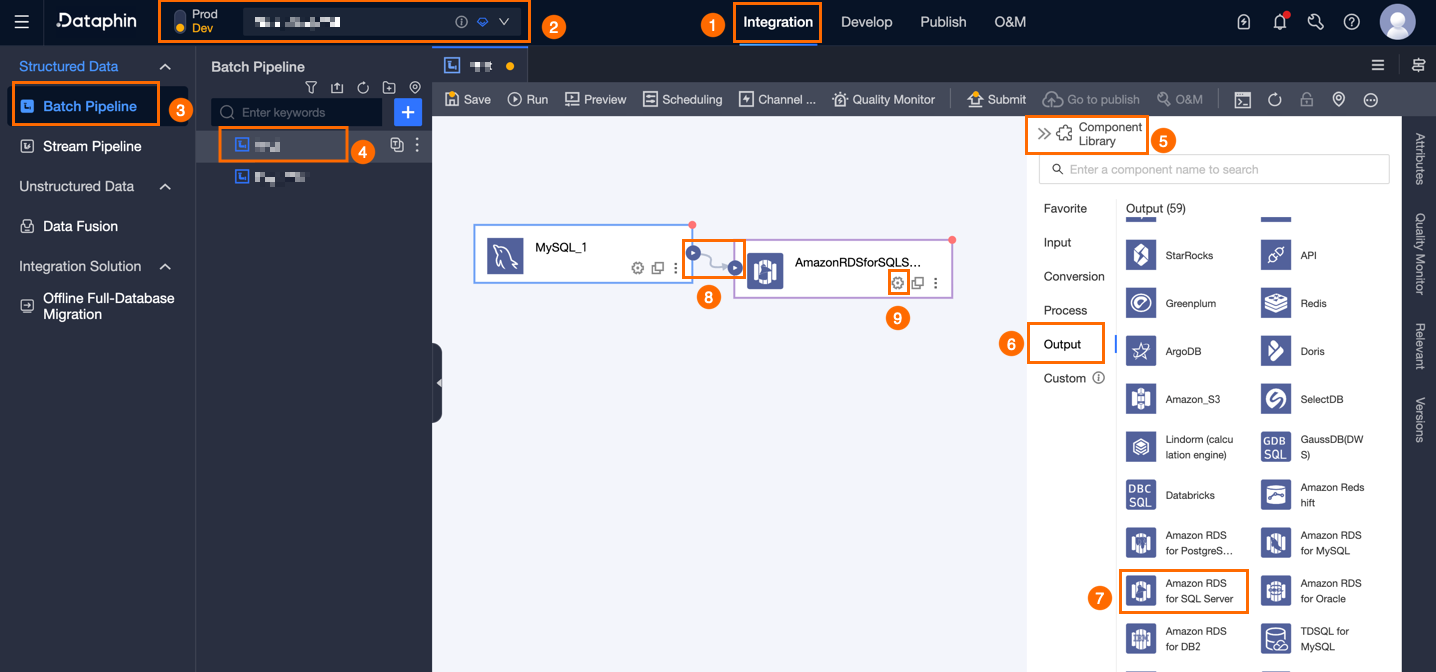
In the Amazon RDS For SQL Server Output Configuration dialog box, configure the parameters.
Parameter
Description
Basic Settings
Step Name
The name of this output step. Auto-generated; you can modify it. Requirements:
It can contain only Chinese characters, letters, underscores (_), and digits.
Maximum length: 64 characters.
Datasource
Select an Amazon RDS for SQL Server data source. All data sources are listed regardless of permissions. Click the
 icon to copy the name.
If you lack write-through permission, click Request next to the data source. Apply for, Renew, and Return Data Source Permissions.
To create a data source, click Create Data Source. For more information, see Create an Amazon RDS for SQL Server data source.
Schema (optional)
Select the schema of the target table. If unspecified, the data source default schema is used.
Table
Select the target table. Search by keyword or enter the exact name and click Exact Match. The system validates the selected table. Click the
 icon to copy the table name.
Loading Policy
Specify how to write data to the target table. Loading Policy options:
Append Data (insert Into): Reports a dirty data error on primary key or constraint conflicts.
Update On Primary Key Conflict (merge Into): Updates the mapped fields of the existing record on primary key or constraint conflicts.
Synchronous Write
The primary key update syntax is not atomic. If the data has duplicate primary keys, enable synchronous write. Otherwise, parallel write (faster) is used.
NoteAvailable only when loading policy is Update on primary key conflict.
Batch Write Size (optional)
Maximum data size per write batch. The system writes when either this limit or Batch Write Records is reached. Default: 32M.
Batch Write Records (optional)
Maximum number of records per write batch. Works with Batch Write Records and Batch Write Size — the system writes when either limit is reached. Default: 2048 records.
When accumulated data reaches either limit, the system writes the batch to the destination.
Recommended batch write size: 32 MB. Adjust batch write records based on single record size. Example: if each record is ~1 KB, set batch write size to 16 MB and batch write records above 16 MB / 1 KB = 16,384, such as 20000 records. This ensures the size limit triggers writes first.
Pre-statement (optional)
SQL script to run on the database before data import.
Example: to avoid downtime, create a staging table Target_A and write data to it. Then rename the live table Service_B to Temp_C, rename Target_A to Service_B, and drop Temp_C.
Post-statement (optional)
SQL script to run on the database after data import.
Field Mapping
Input Fields
Shows input fields from the upstream component.
Output Fields
Output fields for the target table. Operations:
Field management: Click Field Management to select output fields.

Click the
icon to move Selected Input Fields to Unselected Input Fields.Click the
icon to move Unselected Input Fields to Selected Input Fields.
Batch add: Click Batch Add to configure in JSON, TEXT, or DDL format.
Batch configuration in JSON format, for example:
// Example: [{"name":"id","type":"String"}, {"name":"aaasa","type":"String"}, {"name":"creator","type":"String"}, {"name":"modifier","type":"String"}, {"name":"creator_nickname","type":"String"}, {"name":"modifier_nickname","type":"String"}, {"name":"create_time","type":"Date"}, {"name":"modify_time","type":"Date"}, {"name":"qbi_system_upload_id","type":"Long"}]Notename is the field name; type is the field type. Example:
"name":"user_id","type":"String"imports user_id as String.Batch configuration in TEXT format, for example:
// Example:
id,String
aaasa,String
creator,String
modifier,String
creator_nickname,String
modifier_nickname,String
create_time,Date
modify_time,Date
qbi_system_upload_id,Long
Row delimiter between field entries. Default: line feed (\n). Also supports semicolon (;) or period (.).
Column delimiter between field name and type. Default: comma (,).
Batch configuration in DDL format, for example:
CREATE TABLE tablename (
    id INT PRIMARY KEY,
    name VARCHAR(50),
    age INT
);
Create a new output field: Click +Create Output Field, enter the Column name and select the Type, then click the
icon to save.
Quick Mapping
Map upstream input fields to target table fields. Quick Mapping options: Same Row Mapping and Same Name Mapping.
Same name mapping: Maps fields with the same name.
Same row mapping: Maps fields by row position when source and target field names differ.
Click OK to save the Amazon RDS for SQL Server output component configuration.
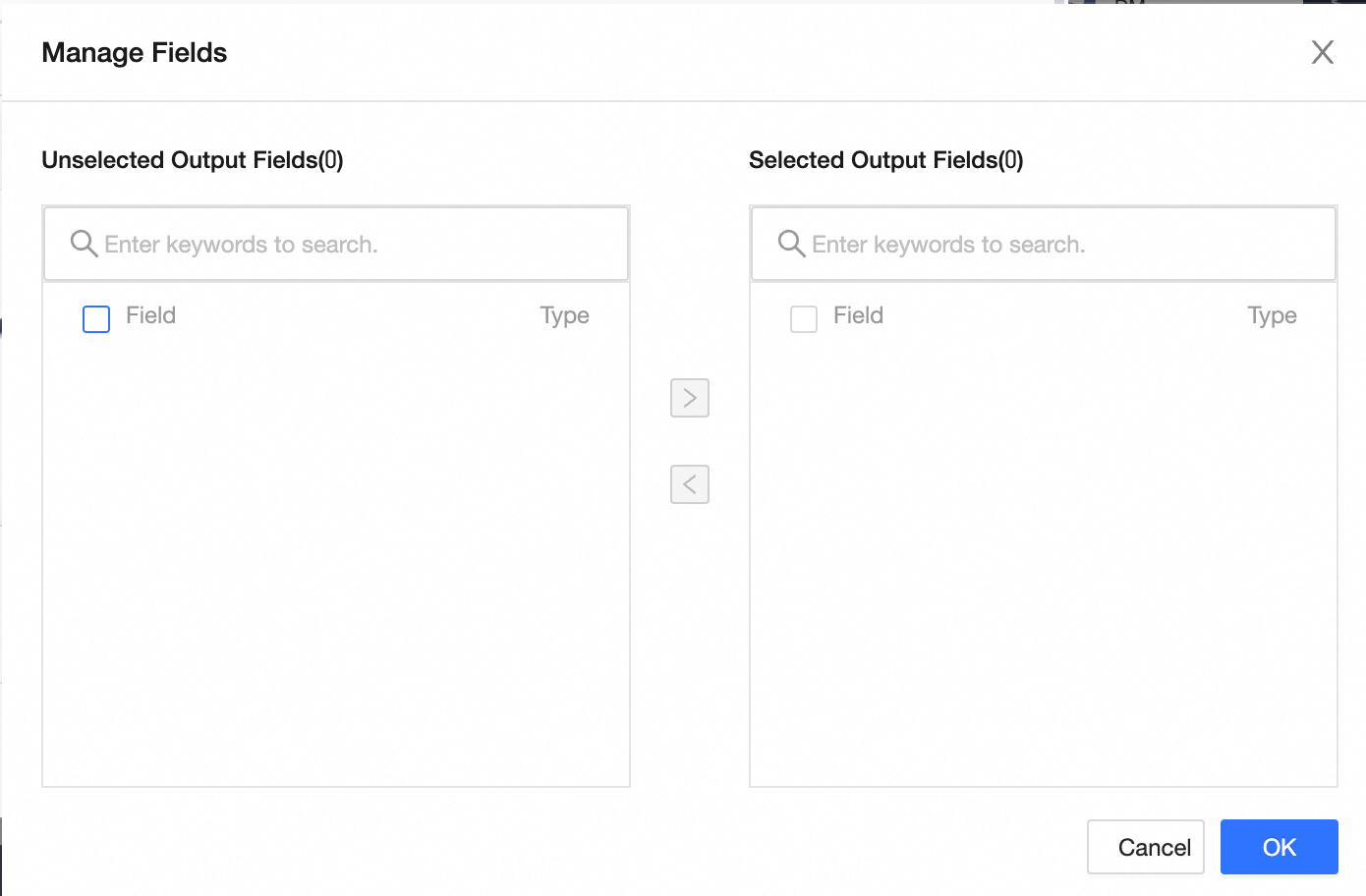
 icon to move Selected Input Fields to Unselected Input Fields.
 icon to move Unselected Input Fields to Selected Input Fields.
 icon to save.