Configure the decryption conversion component
If you know the encryption algorithm and key, use the decryption conversion component to decrypt upstream data into plaintext for further processing.
Prerequisites
An offline single pipeline is created. Configure an integration task through an offline single pipeline.Security algorithm examples
Procedure
-
On the Dataphin home page, choose Development > Data Integration.
-
In the top menu bar, select a Project. In Dev-Prod mode, also select an environment.
-
In the left navigation pane, click Batch Pipeline, then select the target offline pipeline from the Batch Pipeline list.
-
Click Component Library in the upper-right corner to open the Component Library panel.
-
In the Component Library panel, select Conversion, then drag the Decryption component onto the canvas.
-
Drag the
 icon to connect the input component to the decryption component.
 -
Click the
 icon on the decryption component card to open the Field Decryption Configuration dialog box.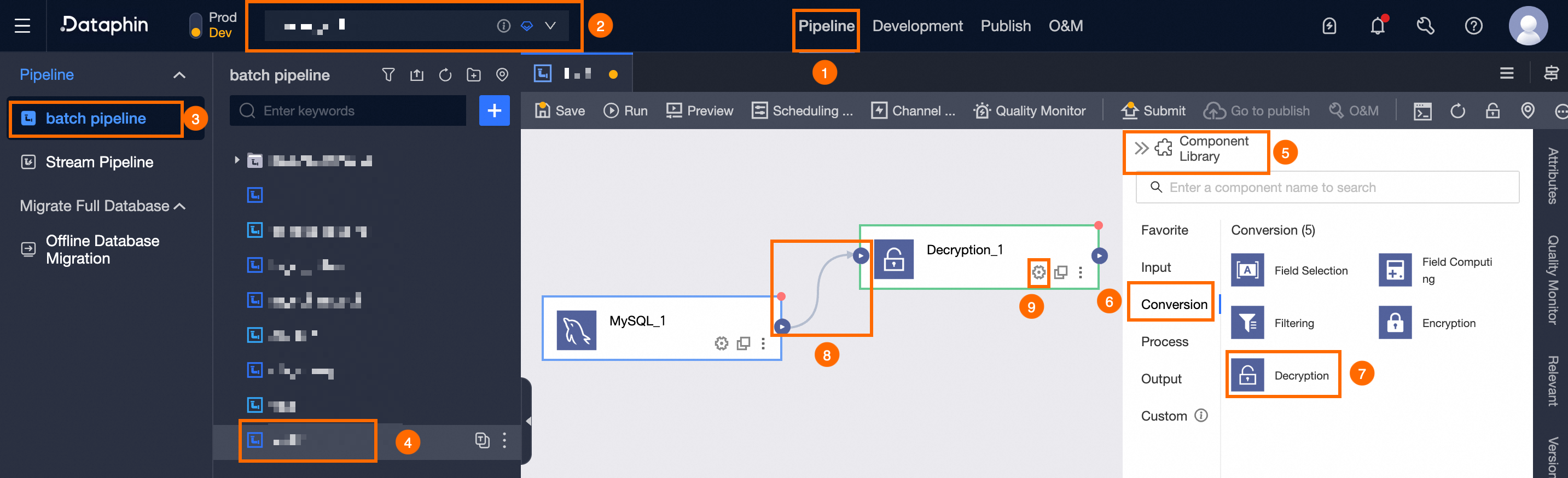
-
In the Field Decryption Configuration dialog box, select the field to decrypt from the Field List and specify the post-decryption data type. If the field name includes a table name, the table name is also displayed.
-
Click Next.
-
Configure the decryption parameters in the Decryption Configuration step.
Each algorithm has different settings. Select your algorithm and configure it. For algorithm details, see Security algorithm examples.
-
Available decryption algorithms include AES, DES, 3DES, SM4, SM2, and RSA.
Parameter
Description
Key
Select the decryption key that matches the upstream encryption method. Symmetric encryption uses the same key for both operations. Asymmetric encryption requires the private key. To register a key, see Register and manage keys.
Advanced Configuration
Advanced settings are available for AES, DES, 3DES, SM4, and RSA. These control data output encoding and other parameters. Default values work in most cases.
Available options vary by algorithm. Check the interface for specifics.
-
Decryption Mode: Select a mode matching the encryption mode. Each algorithm supports different modes. For details, see Security algorithm examples.
-
Padding: Supported methods: NoPadding, PKCS5Padding, and PKCS7Padding. The method must match between encryption and decryption. Available methods vary by algorithm.
-
Offset: Also known as IV (Initialization Vector). Must be a 16-digit number, identical for both encryption and decryption.
-
Encoding Format: Output encoding: Base64 or Hex.
For all advanced options, see Masking security algorithm examples.
When using SM4 with AnalyticDB PostgreSQL as the output target, select Output Target Is AnalyticDB PostgreSQL for compatibility with AnalyticDB for PostgreSQL.
-
-
The FPE Format-Preserving Encryption (FF1) algorithm is also supported.
Parameter
Description
Decryption Range
For the FPE Format-Preserving Encryption (FF1) algorithm, configure the Decryption Range: Specified Range or All.
-
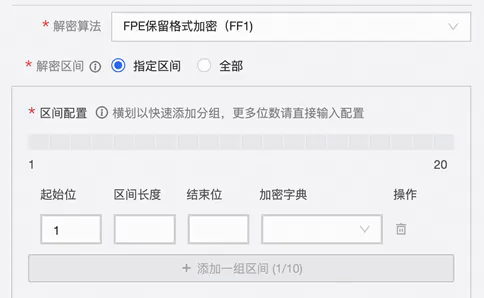
Specified Range: Defines the start and end positions for decryption. These must match the encryption configuration. Add up to 10 groups of ranges using the sliding or direct input method.
ImportantEach number, English letter, Chinese character, and symbol is considered 1 position. For instance, in "test ," the 4th position corresponds to the character (t).
-
Sliding Add: Slide the range slider to the desired length, then click OK. Use direct input if the range exceeds 24 characters.
-
Direct Input Method: Enter the Start Position, End Position, Range Length, and Encryption Dictionary. You can also view, edit, and delete encryption dictionaries for added ranges.
-
Start Position: The initial position of the decryption range.
-
Range Length: A positive integer (
>=1) or a hyphen (-), meaning from the start position to the end. -
End Position: A positive integer (
>=1) or the keyword End Position. -
Encryption Dictionary: The dictionary used for decryption. Options:
-
System Built-in: Comprises Numbers, Uppercase English Letters, Lowercase English Letters, combinations of Numbers + Uppercase English Letters, Numbers + Lowercase English Letters, Numbers + English Letters, and Special Symbols.
-
Custom: Enter individual characters in the custom encryption dictionary dialog box. Each entry must be a single character. Duplicates are auto-removed. Maximum: 10,000 characters. You can enable spaces, line feeds (\n), carriage returns (\r), or tab characters (\t). Without this selection,
\nis treated as two characters:\andn.
-
-
View Encryption Dictionary: Click
 to view System Built-in Encryption dictionary characters.
 -
Edit Custom Encryption Dictionary: Click
 to modify Custom Encryption dictionary characters.
 -
Delete: To remove a range, click
.
-
-
-
All: Decrypts all characters within the field.
Key
Select the decryption key that matches the upstream encryption method. Symmetric encryption uses the same key for both operations. Asymmetric encryption requires the private key. To register a key, see Register and manage keys.
Exception Compatibility
When decryption fails due to algorithm requirements, key mismatches, or encoding inconsistencies, the data is handled by the selected policy: Return Empty Value or Return Plaintext.
-
-
-
Click OK to save the decryption component configuration.
 to modify Custom Encryption dictionary characters.
 .
.