Configure the DolphinDB input component
The DolphinDB input component reads data from a DolphinDB data source. To synchronize data from DolphinDB to another data source, configure the DolphinDB input component first, and then configure the target data source.
Prerequisites
-
You have created a DolphinDB data source. For more information, see .
-
The account used to configure the DolphinDB input component must have read-through permission for the data source. If the account does not have the required permissions, request them. For more information, see Request data source permissions.
Procedure
-
In the top menu bar of the Dataphin home page, choose Develop > Data Integration.
-
In the top menu bar of the integration page, select a Project. In Dev-Prod mode, you must also select an environment.
-
In the navigation pane on the left, click Batch Pipeline. In the Batch Pipeline list, click the batch pipeline that you want to develop to open its configuration page.
-
In the upper-right corner of the page, click Component Library to open the Component Library panel.
-
In the navigation pane on the left of the Component Library panel, select Input. In the list of input components on the right, find the DolphinDB component and drag it to the canvas.
-
Click the
 icon on the DolphinDB input component card to open the DolphinDB Input Configuration dialog box.
 -
In the DolphinDB Input Configuration dialog box, configure the following parameters.
Parameter
Description
Step Name
The name of the DolphinDB input component. Dataphin automatically generates a step name, which you can change as needed. The naming conventions are as follows:
-
Can contain only letters, digits, and underscores (_).
-
The name can be up to 64 characters in length.
Datasource
Lists all DolphinDB data sources and their project levels in Dataphin, regardless of whether you have read-through permissions. Click the
 icon to copy the data source name.
For a data source for which you do not have read-through permissions, click Request next to it to request the permissions. For more information, see Request data source permissions.
If no DolphinDB data source exists, click New Data Source to create one. For more information, see .
Database
Select or enter the database where the table resides. If you leave this blank, the database specified during data source registration is used.
Table
Enter a keyword to search for the table, or enter the exact table name and click Exact Match. After you select a table, the system automatically checks its status. Click the
 icon to copy the name of the selected table.
Batch Read Size (Optional)
The number of records read per batch. Batch reading reduces interactions with the data source, improves I/O efficiency, and lowers network latency. Default value: 8192. Enter a positive integer that is 8192 or greater.
Input Filter (Optional)
Enter a conditional expression supported by DolphinDB as a filter condition.
Note-
Enter only the content that follows the `where` keyword. Do not include the `where` keyword itself.
-
You can use system global variables, such as the data timestamp `${bizdate}`.
Output Fields
Displays all fields from the selected table that match the filter condition. You can delete fields that do not need to be output to downstream components.
NoteData source tables do not support classification and categorization at this time.
-
To delete a single field: Click the
 icon in the Actions column to remove the unwanted fields.
 -
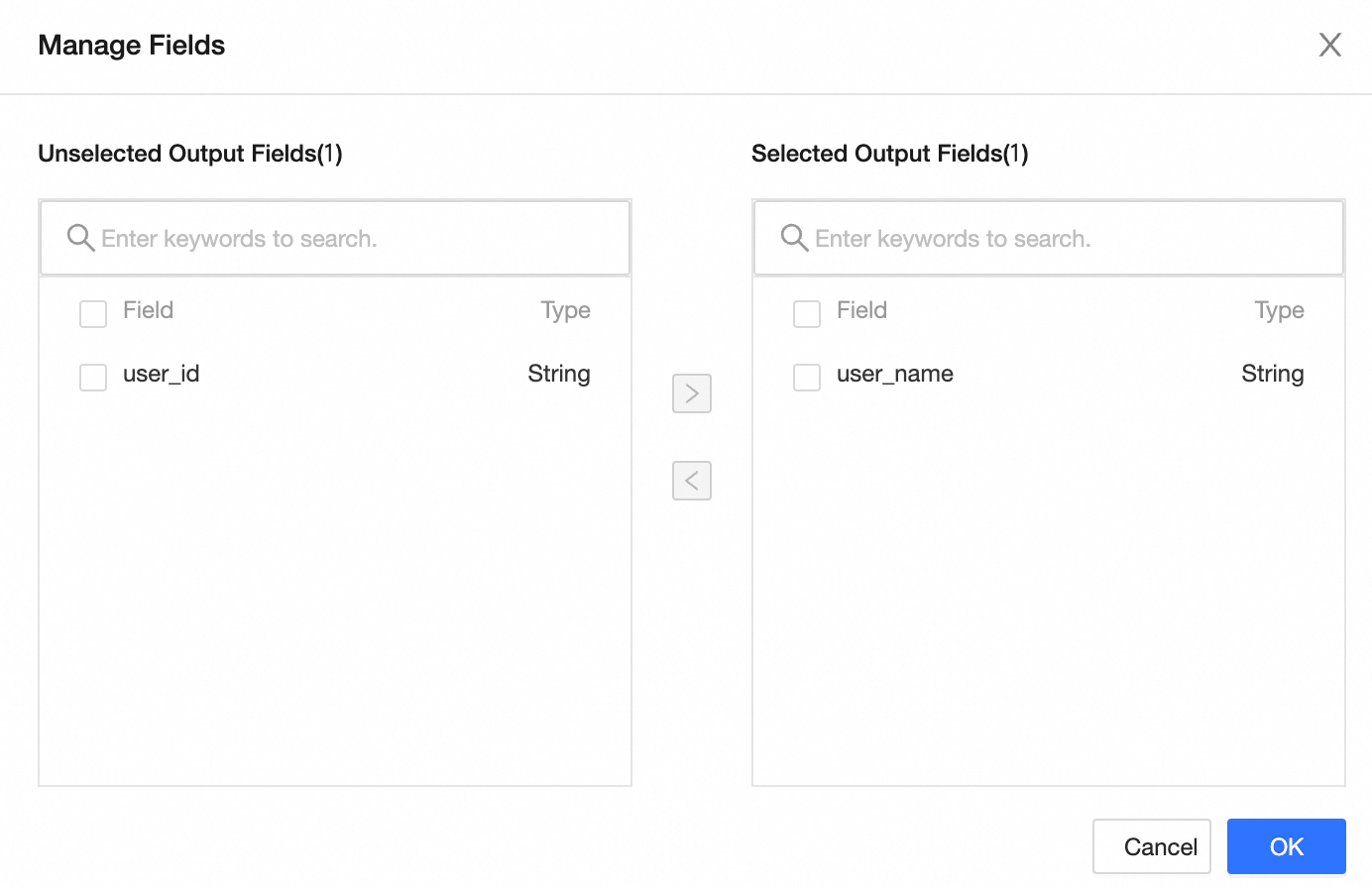
To delete fields in a batch: Click Field Management. In the Field Management dialog box, select multiple fields, click the
 left-shift icon to move them from the selected list to the available list, and then click OK.
-
-
Click OK to complete the configuration of the DolphinDB input component.