Create a fact logical table
A fact logical table groups multiple attributes from a business activity or process. It contains fields for a primary key, measures, and fact attributes. The primary key specifies how data is retrieved from the source table; measures are numeric fields that quantify size, quantity, or degree. This topic explains how to create and configure a fact logical table.
Usage limits
-
You must purchase the data standard module to set the data standard field on a table.
-
You must purchase the asset security module to set the data classification level or data classification fields on a table.
-
You must purchase the data quality module to enforce unique and not null constraints on a primary key field.
Prerequisites
You have created a business activity object. For more information, see Create and Manage Business Entities.
Procedure
Step 1: Create a logical fact table
-
On the Dataphin homepage, in the top menu bar, choose Dev > data development.
-
In the top menu bar, select a project. If you are in Dev-Prod mode, you also need to select an environment.
-
In the left navigation pane, choose standardized modeling > logical fact table.
-
In the logical fact table list on the right, click the
 New icon.
 -
On the Create logical fact table page, configure the parameters.
Parameter
Description
Business activity
Select the business activity for the logical fact table. Business activities are divided into three types: business event, business snapshot, and business process.
Table type
The business activity type determines the table type.
-
If Business activity is business event, the Table type is event logical fact table.
-
If Business activity is business snapshot, the Table type is snapshot logical fact table.
-
If Business activity is business process, the Table type is process logical fact table.
Data board
Defaults to the name of the business activity's data board. This parameter cannot be modified.
Subject domain
Defaults to the name of the business activity's subject domain. This parameter cannot be modified.
Compute engine
If your Dataphin instance is configured with a Hadoop compute engine, you can select a compute engine, including Hive, Impala, and Spark.
ImportantYou can select a compute engine only after you enable it. For more information, see Create a Hadoop compute source.
Compute engines have the following limitations:
-
Hive: Cannot read source tables stored in Kudu format.
-
Impala: Can read source tables stored in Kudu format, but does not support storing logical tables in Kudu format. Use Impala only if your source tables are in Kudu format.
-
Spark: Cannot read source tables stored in Kudu format.
Data timeliness
Sets the scheduling type for the logical fact table task in the production environment. Supported data timeliness options for a logical fact table include Offline T+1 (daily task), Offline T+h (hourly task), and Offline T+m (minute-level task).
Note-
The ArgoDB compute engine supports only Offline T+1 (daily task).
-
The Doris and SelectDB compute engines do not support T+m (minute-level task).
Logical table name
Enter a logical table name. The name can be up to 100 characters in length. After you select a business activity, the system automatically populates the logical table name based on the following format:
{data_board_name}.fct_{business_object_code}_{data_timeliness}.Important-
The name can contain only letters, digits, and underscores (_). It must start with a letter. The name is not case-sensitive, and any uppercase letters are automatically converted to lowercase.
-
label_is a system-reserved prefix. You cannot start names withlabel_. -
For AnalyticDB for PostgreSQL tables, the name can be up to 50 characters in length.
The format of the logical table name varies based on the data timeliness. The
{data_timeliness}placeholder is replaced as follows:-
di: T+1 timeliness, daily increment. Stores the incremental data for the current day.
-
hi: T+h timeliness, hourly increment. Stores the incremental data for the current hour.
-
thi: T+h timeliness, hourly increment. Each hour, stores the incremental data from 00:00 to the current hour.
-
mi: T+m timeliness, minute-level increment. Every 15 minutes, stores the incremental data of the last 15 minutes in a partition.
-
tmi: T+m timeliness, minute-level increment. Every 15 minutes, stores the incremental data from 00:00 to the current minute.
-
df/da: T+1 timeliness, daily full load. Each day, stores the full data up to that day.
-
hf: T+h timeliness, hourly full load. Each hour, stores the full data up to the current hour.
-
mf: T+m timeliness, minute-level full load. Every 15 minutes, stores the full data up to the most recent 15-minute interval.
Display name
The display name must follow these rules:
-
It can contain Chinese characters, letters, digits, underscores (_), or hyphens (-).
-
It cannot exceed 64 characters.
Description
Enter a brief description of the logical fact table. The maximum length is 1,000 characters.
-
-
Click OK.
Step 2: Configure the logical fact table
-
On the table structure page, configure the parameters.

Area
Description
①Field section navigation
Click to navigate to the basic configuration or asset governance settings.
①Search and filter area
You can search for fields by name.
Click the
 icon to filter fields by criteria such as data type, field category, With or Without Associated Dimension, associated dimension, field constraint, and data classification.
②List operations
-
Adjust field order: Before you adjust the field order, ensure that downstream applications that reference this logical table do not use
select *to query it. This prevents potential data errors. -
Import fields: Import new fields into the table. You can either import from DDL statement or Import from Table. For more information, see Import fields for a fact logical table.
-
Add field: Add a data field or a partition field. You can edit the field's name, description, data type, field category, associated dimension, field standard, field constraint, data category, data classification, and comment as needed.
NoteMaxCompute supports creating up to six levels of partition fields.
The ArgoDB, StarRocks, SelectDB, and Doris compute engines do not support adding partition fields.
③Field list
The field list displays detailed information for each field, including its #, field name, description, data type, field category, associated dimension, field standard, field constraint, data category, data classification, and comment.
-
#: This number increments by one for each new field.
-
Field name: The name of the field. You can enter a name or keywords, and the system automatically suggests matching standard field names.
-
Description: A description of the field, limited to 512 characters.
-
Data type: Supported data types include string, bigint, double, timestamp, decimal, Text, Numeric, Date/Time, and Other.
-
Field category: Set the field as a primary key, Partition, or Attribute.
Note-
Only one primary key field is allowed.
-
Only fields of the string, varchar, bigint, int, tinyint, and smallint types can be used as partition fields.
-
-
Associated dimension: For more information, see Add an associated dimension.
-
Field standard: Select a standard for the field. To create a new standard, see Create and manage data standards.
-
Field constraint: Select a constraint for the field. Supported constraints are unique and not null.
-
Data category: Select a category for the field's data. To create a new data category, see Create a new data category.
-
Data classification: After you select a data category, the system automatically sets the classification level.
-
Comment: Enter a comment for the field, up to 2,048 characters.
You can also delete a field in the Actions column.
NoteField deletion cannot be undone.
④Batch operations
You can select multiple fields to perform the following batch operations.
-
Delete: Click the
 icon to delete the selected data fields.
 -
Data type: Click the
 icon to modify the data type of the selected fields.
 -
Field category: Click the
 icon to modify the field category of the selected fields.
 -
Root word naming: Click the
icon. The system tokenizes the content in the field's description, matches it with created root words, and recommends a field name. In the Root word naming dialog box, you can replace the names of the selected fields with the modified values. The following figure shows an example.Note-
If none of the recommended names meet your needs, you can modify them in the Corrected field name input box.
-
Clicking reset reverts the Modified field name to the system's matched root words.
-
-
Field standard: Click the
icon. The system recommends a field standard based on the field name. In the Field standard dialog box, you can apply the recommended standard to the field. -
Field constraint: Click the
icon to set constraints for the selected fields.ImportantSetting field constraints is not supported for sub-dimension logical tables.
-
-
Click save and next.
 icon. The system tokenizes the content in the field's description, matches it with created root words, and recommends a field name. In the Root word naming dialog box, you can replace the names of the selected fields with the modified values. The following figure shows an example.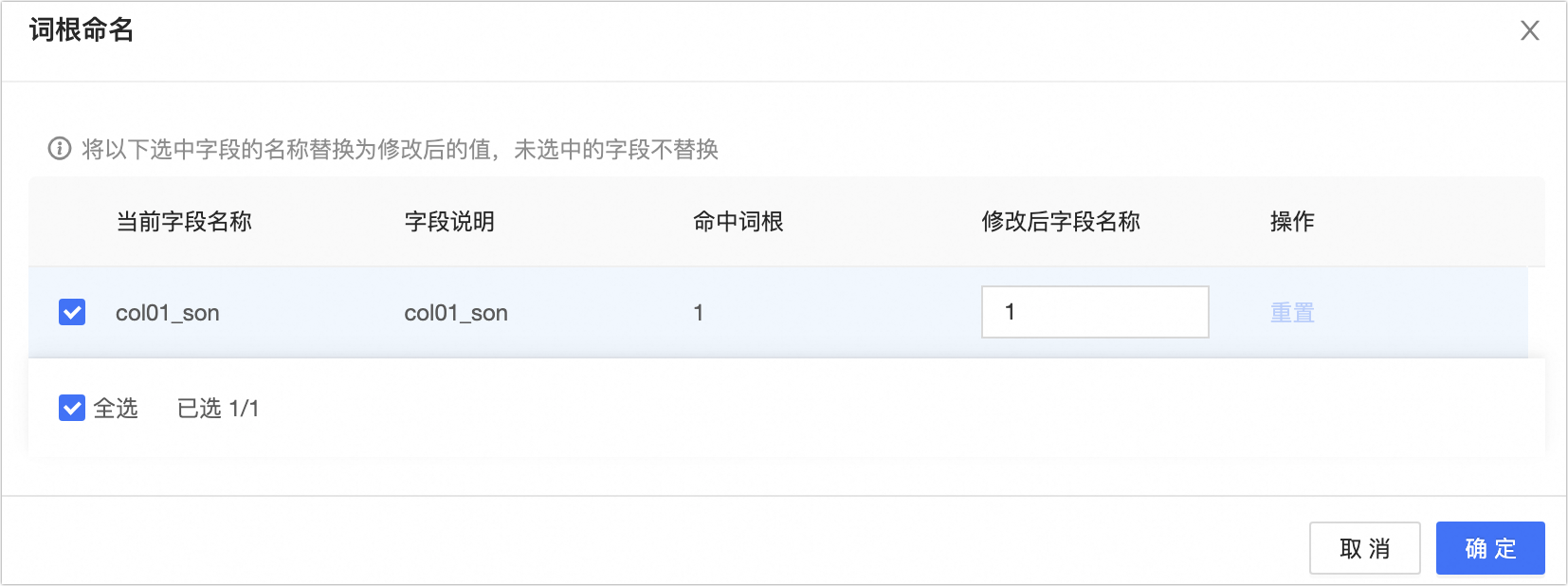
 icon. The system recommends a field standard based on the field name. In the Field standard dialog box, you can apply the recommended standard to the field.
 icon to set constraints for the selected fields.
Add fields to fact logical table
-
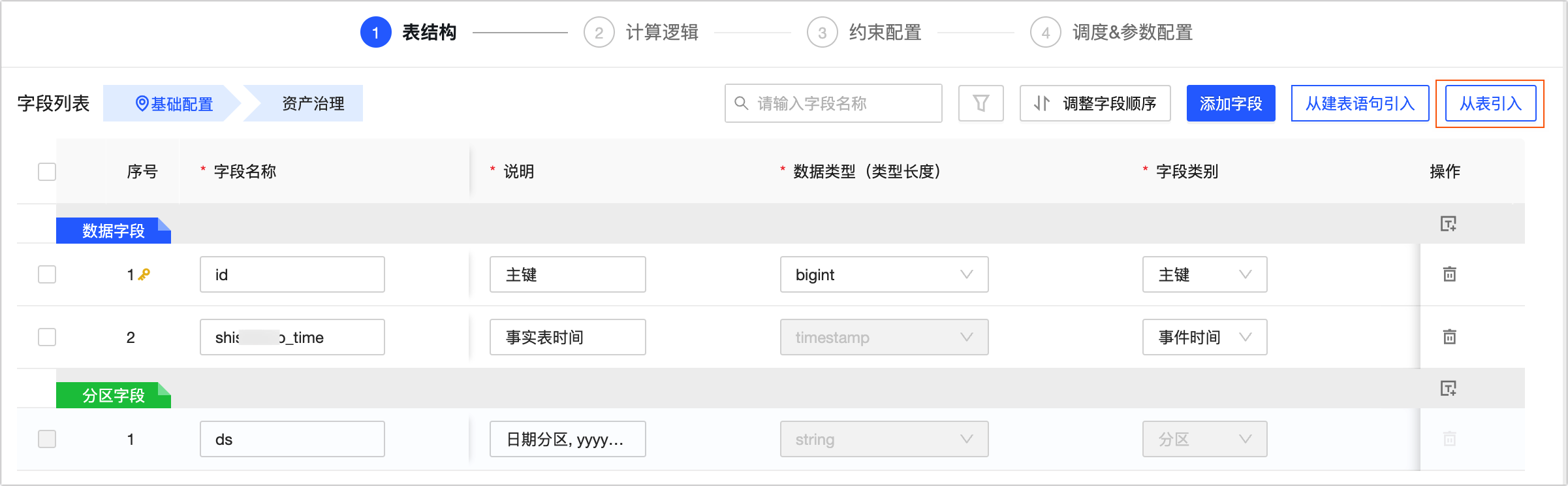
Import from Table
-
On the configuration page for the logical fact table, click Import from Table.
-
In the Import from Table dialog box, select a source table, and then select the fields to add.
Parameter
Description
Source table
You can select any physical table (excluding those that Dataphin automatically generates), logical table, or view (excluding parameterized views) within the current tenant for which you have read permissions.
To obtain read permissions for a physical table, see Apply for, renew, and return table permissions.
Field list
Select the fields to add.
NoteYou can switch between source tables to select fields from multiple tables.
Selected fields
The fields you add appear in the Selected fields section, where you can Delete them.
-
Click Add to import fields from the source table into the logical fact table.
After adding the fields to the New fields area, you can edit their name, data type, field type, and associated dimension.
-
-
Import from CREATE TABLE statement
The source table for measure fields depends on whether the logical fact table has a primary key. If a primary key is defined, you can only select measure fields from the main source table. Otherwise, you can also select them from other data tables.
-
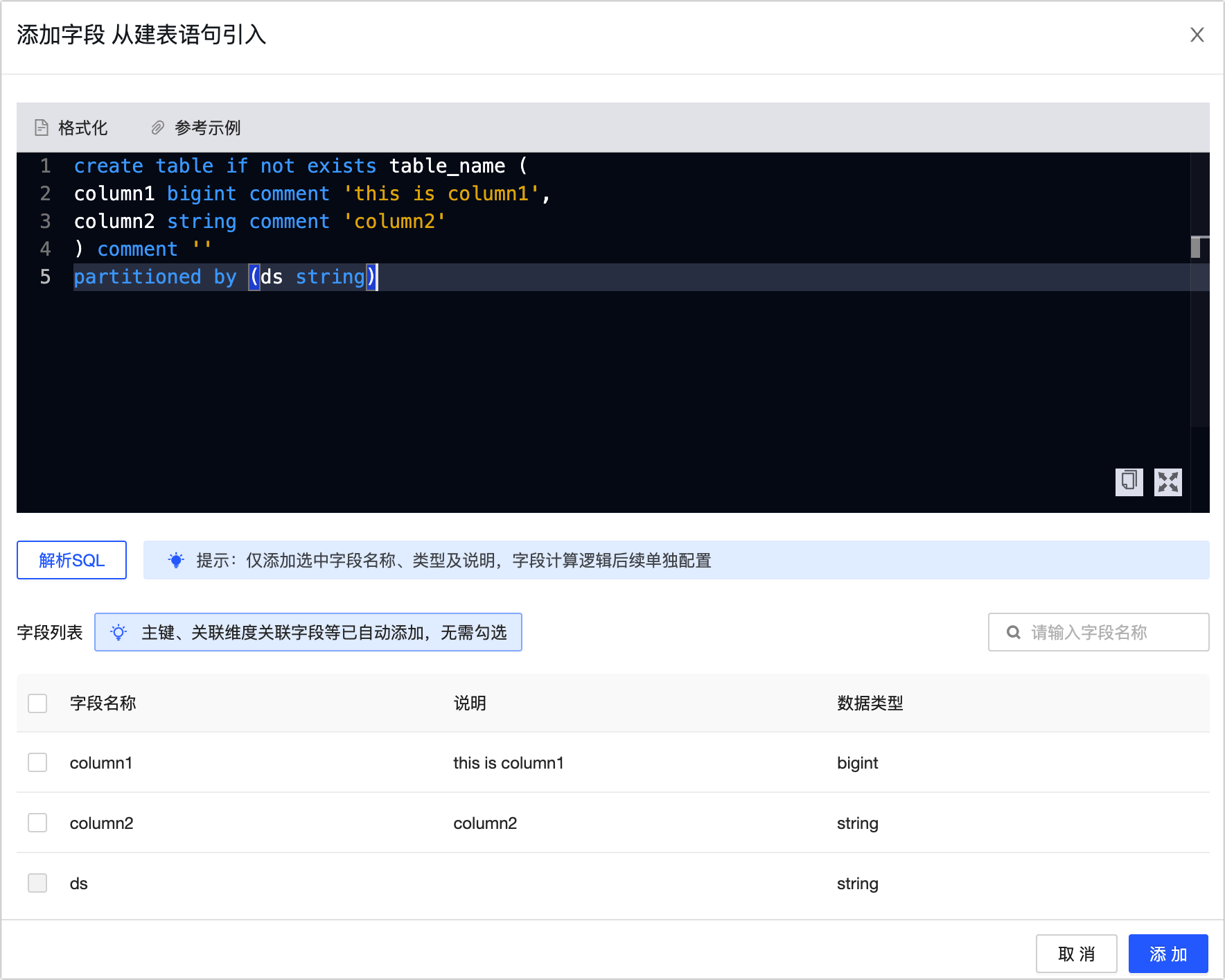
On the configuration page for the logical fact table, click Import from CREATE TABLE statement.
-
In the Import from CREATE TABLE statement dialog box, enter a CREATE TABLE statement and click Parse SQL.
-
In the field list, select the fields you need and click Add to add them to the logical fact table.
-
Add an associated dimension
A fact logical table links to a dimension through a foreign key column in its fact attributes.
-
On the configuration page for the fact logical table, click the
icon to open the Edit model relationship dialog box. -
In the Edit model relationship dialog box, configure the parameters.
Area
Parameter
Description
Replacement value for nulls
If a foreign key in the fact logical table does not have a match in the dimension logical table, the system uses a default value of -110.
Associated dimension
Associated entity, Dimension logical table
Select the associated entity and dimension logical table.
Edit association logic
Association logic
Select a field from the fact logical table and define its relationship with the primary key of the target dimension logical table.
Dimension table versioning policy
By default, the system uses the version with the same partition cycle as the fact logical table.
Missing link policy
The missing link policy defines how to handle records from the fact logical table (left table) that do not have a match in the dimension logical table (right table). You can choose Keep original missing data or Replace missing data with default value:
-
Keep original missing data: When you create a derived metric, the system keeps the original data from the fact logical table.
-
Replace missing data with default value: If a record in the fact logical table does not have a match in the dimension logical table, the system uses the default value of -110.
Edit dimension role
Role English name, Role name
A dimension role acts as an alias for a dimension. This is useful when you reference the same dimension multiple times in different contexts, as each reference must have a unique name. Define a Role English name and a Role name:
-
The role English name is prefixed with
dimby default. The custom part of the name must follow these rules:-
Can contain letters, digits, or underscores (_).
-
Cannot exceed 64 characters in length.
-
-
The role name must follow these rules:
-
Can contain Chinese characters, digits, letters, underscores (_), or hyphens (-).
-
Cannot exceed 64 characters in length.
-
-
-
Click OK.
 icon to open the Edit model relationship dialog box.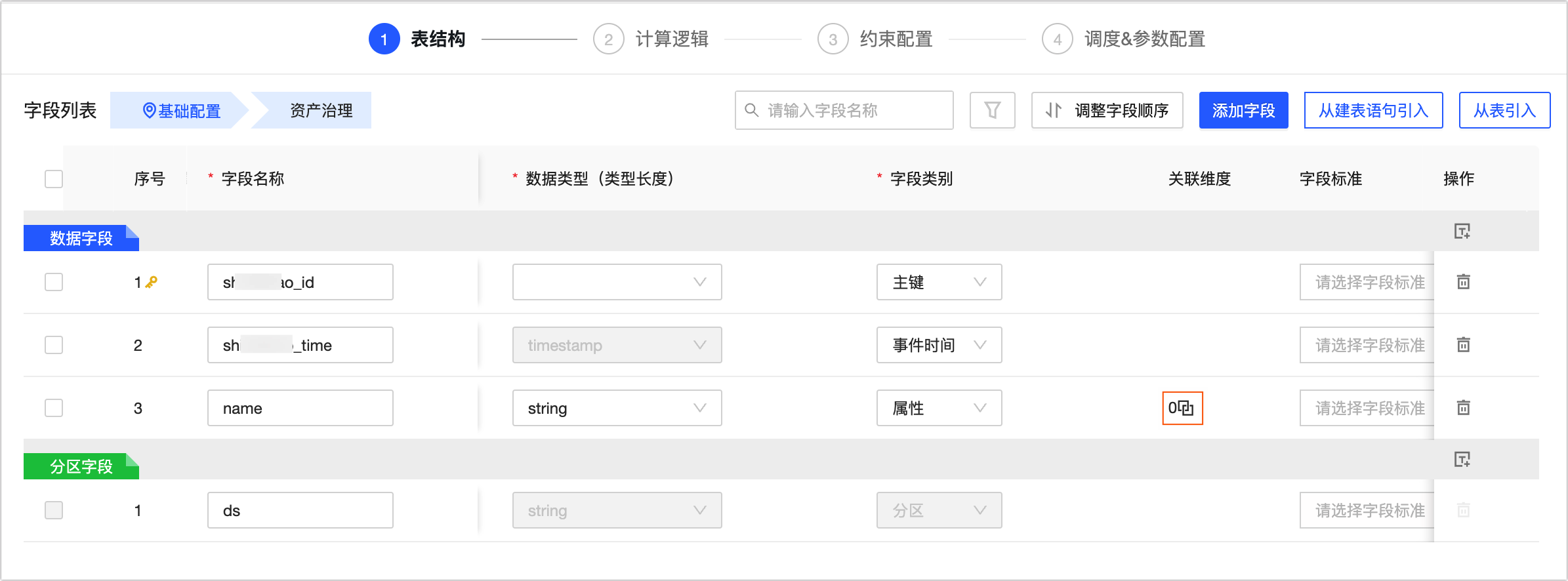
Step 3: Configure fact logical table calculation logic
-
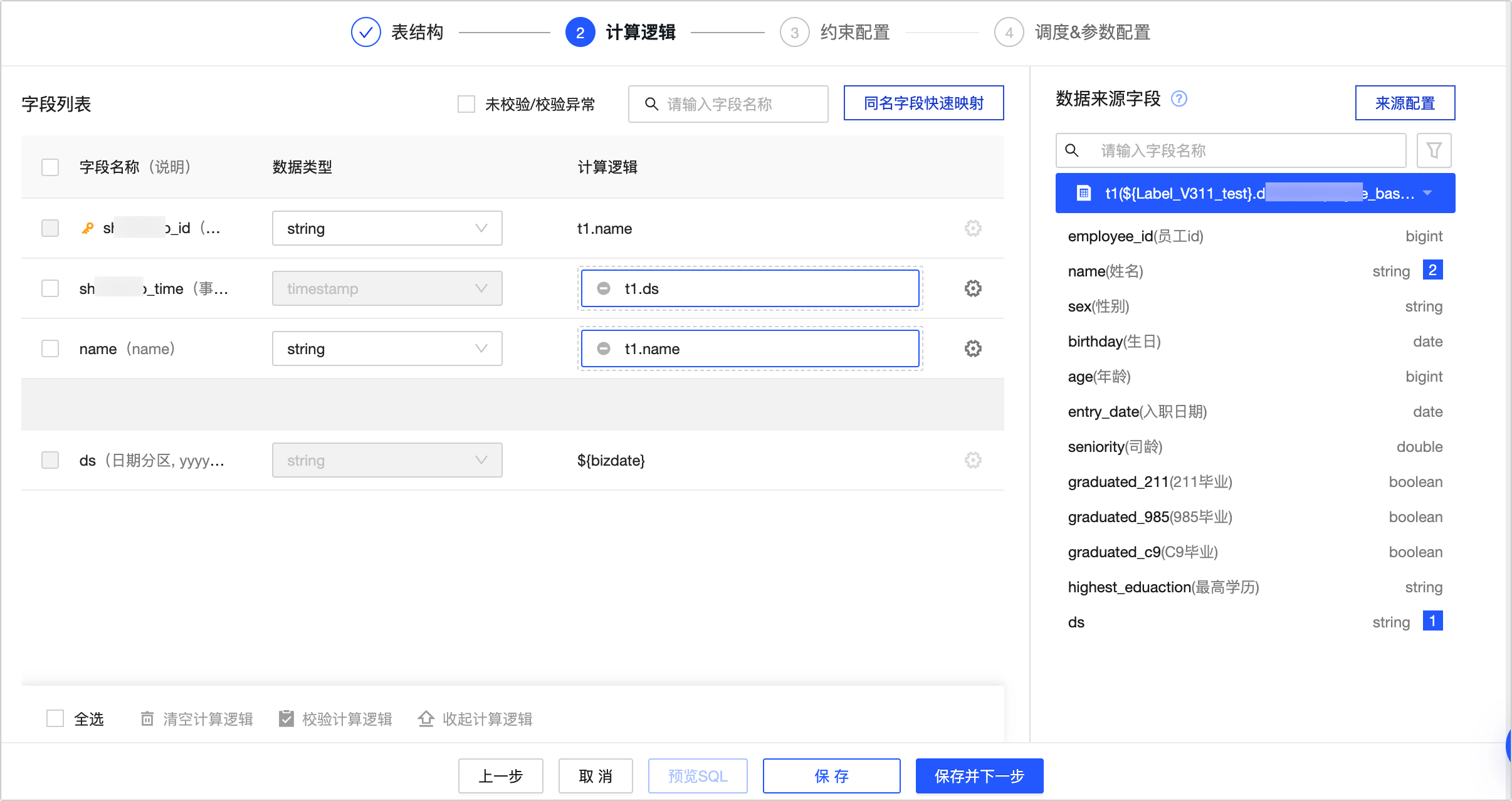
On the calculation logic page, map the source data to the primary key of the fact logical table.
-
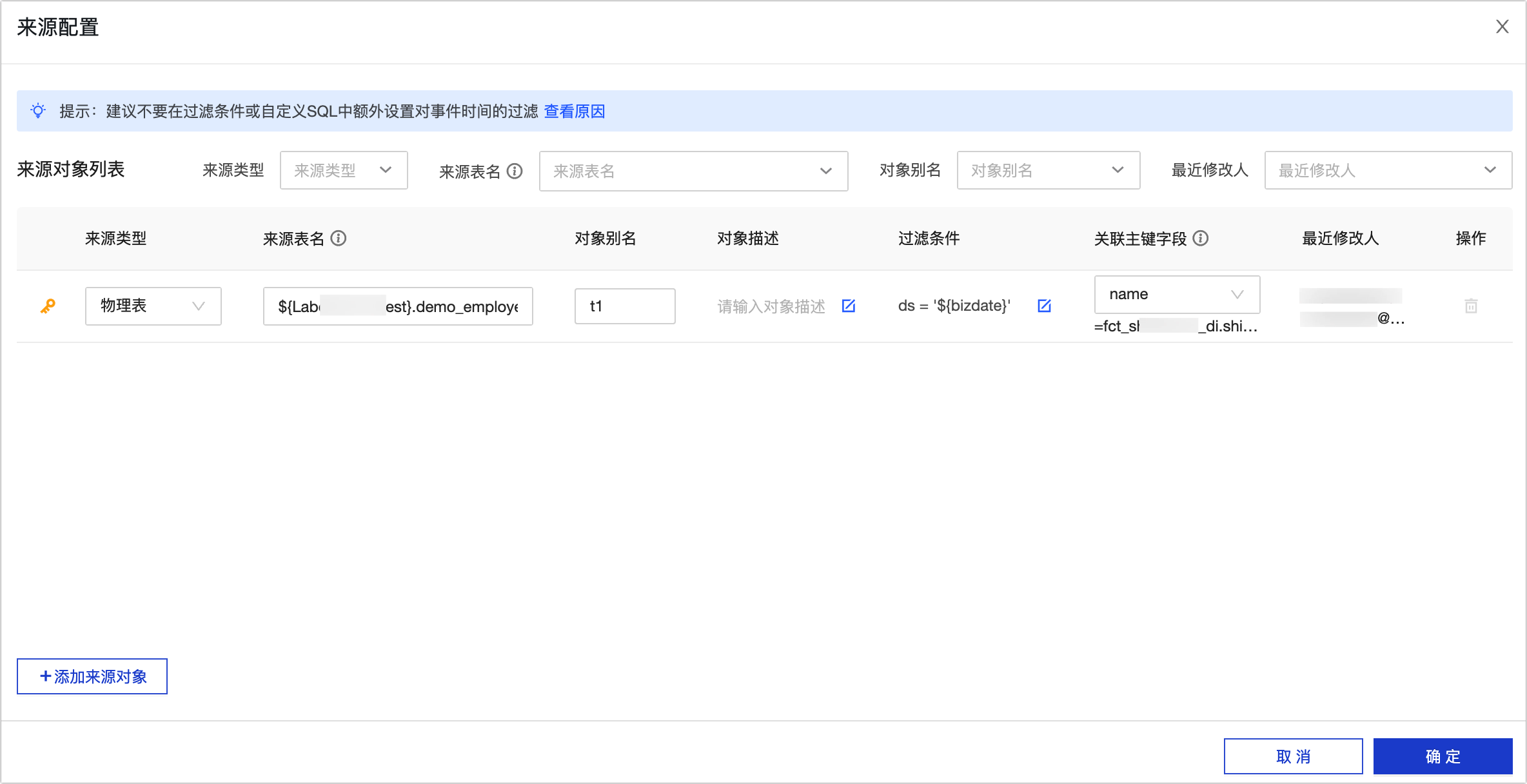
Click source configuration to open the source configuration dialog box. In the source configuration dialog box, configure the source parameters.
Note-
Do not add extra filters on event time in the filter condition or custom SQL.
-
If the current logical table does not have a primary key, you can configure only one source. If the source consists of multiple tables, use custom SQL to join them.
Parameter
Description
Source type
The supported source types are physical table, custom SQL, and logical table.
Notes on source tables:
-
Logical tables with a primary key: You can configure multiple sources for a logical table with a primary key. The first source is the primary source, which determines the total number of rows in the logical table.
-
Logical tables without a primary key: You can configure only one source for a logical table without a primary key. If the source consists of multiple tables, use custom SQL to join them.
NoteTo add more source objects, click Add Source Object.
Source object
-
If you select physical table, you can select any physical table (excluding those automatically generated by Dataphin) or physical view (excluding parameterized views) from the current tenant for which you have read permissions.
For more information about how to obtain read permissions for a physical table, see Apply for, Renew, and Revoke Table Permissions.
-
If you select custom SQL, click the
icon and enter a query in the editor. For example:select id, name from project_name_dev.table_name1 t1 join project_name2_dev.table_name2 t2 on t1.id = t2.id -
If you select logical table, you can select any logical table from the current tenant for which you have read permissions.
For more information about how to obtain read permissions for a logical table, see Apply for, Renew, and Revoke Table Permissions.
ImportantUsing a logical table as a data source for another logical table can increase calculation logic complexity and operational overhead. Use this option with caution.
Object alias
Specify an alias for the source object, such as t1 or t2.
Object description
Enter a description for the object. The description cannot exceed 1,000 characters.
Filter condition
Click the
icon and enter a condition in the editor. For example:ds=${bizdate} and condition1=value1.Custom SQL does not support filter conditions.
Join key
The field in the source object that corresponds to the logical table's primary key. This field is used for an equi-join with the primary key.
Actions
You cannot delete the primary source.
For a logical table without a primary key, deleting the source clears the calculation logic for all fields.
-
-
Click OK to complete the source configuration.
-
After you configure the source, drag the source fields to the calculation logic area.
You can also click Quick Map Fields with Same Name to automatically map source fields to logical table fields with the same name.
Click the
icon to edit the calculation logic expression in the editor. Aggregate functions such as sum, count, and min are not supported. For example:-
Example 1:
substr(t1.column2, 3, 10) -
Example 2:
case when t1.column2 != '1' then 'Y' else 'N' end -
Example 3:
t1.column2 + t2.column1
-
-
Click the
icon at the bottom to validate the expression.Click preview SQL to view the SQL for the calculation logic.
-
Click Save and Next.
 icon and enter a query in the editor. For example:
 icon to edit the calculation logic expression in the editor. Aggregate functions such as sum, count, and min are not supported. For example:
 icon at the bottom to validate the expression.
Step 4: Configuration constraints
-
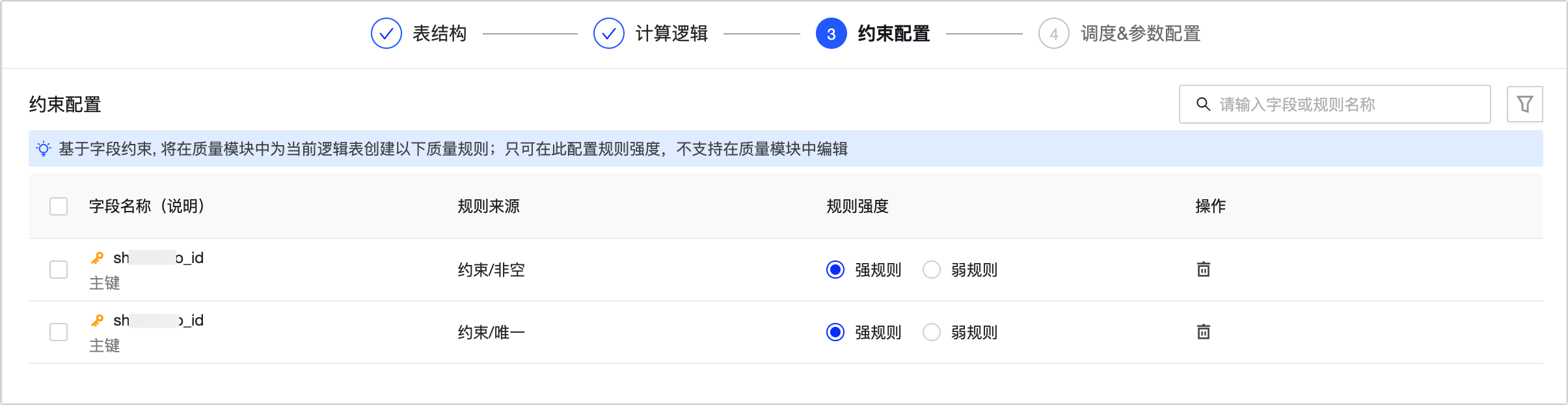
The system uses field constraints to create quality rules for the logical table in the quality module. You can then set the rule strength for each field as strong or weak. For more information, see Data Table Quality Rules.
-
Click Save and Next.
Step 5: Configure scheduling
-
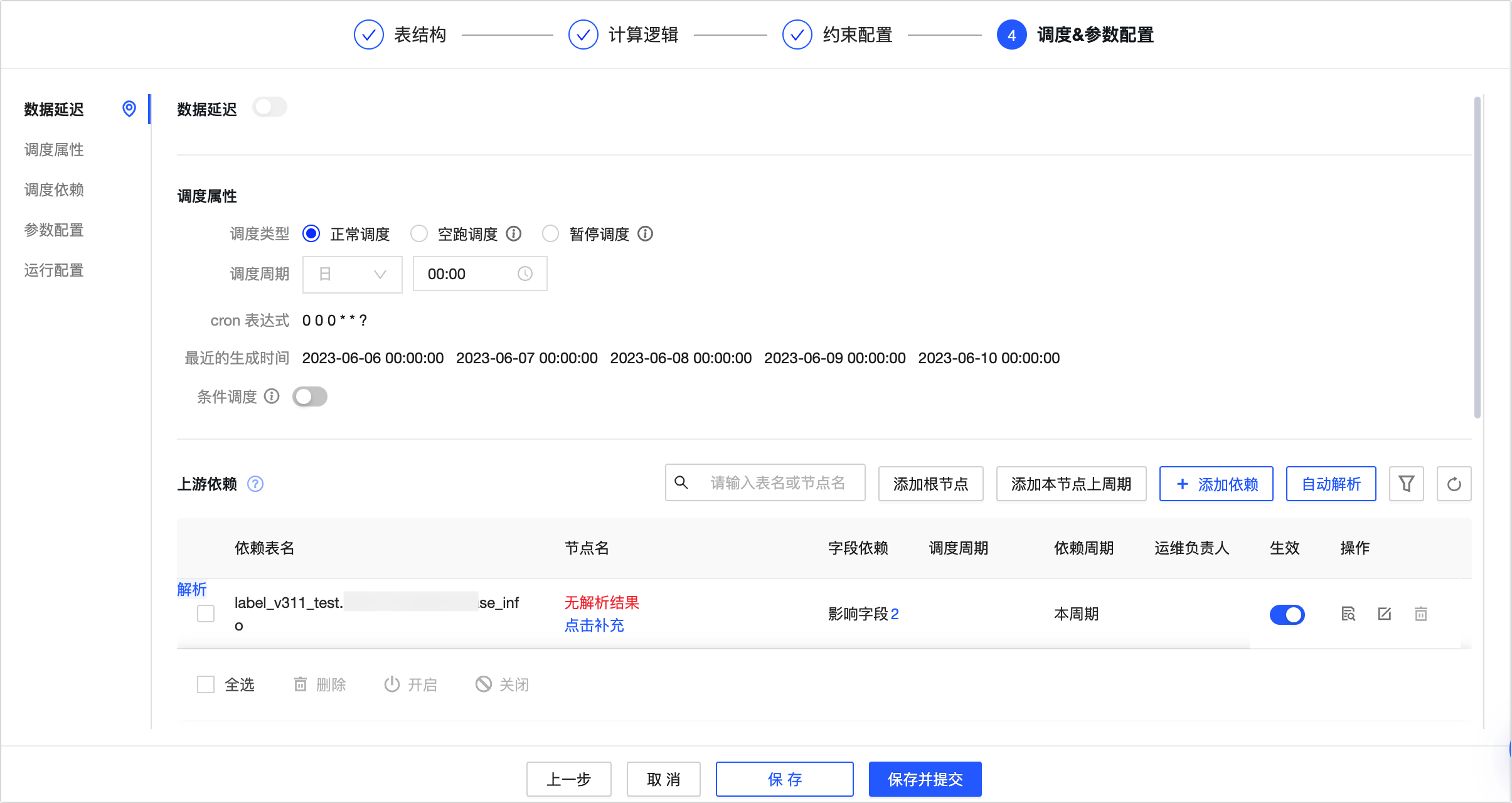
On the Scheduling & Parameter Settings page, configure the data latency, scheduling properties, upstream dependencies, and scheduling parameters and runtime configuration for the fact logic table.
Parameter
Description
Data latency
When enabled, the system automatically reruns all data for this logic table that falls within the period defined by maximum latency days. For more information, see Configure data latency for a logical table.
Scheduling properties
Use scheduling properties to define how Dataphin schedules the fact logic table in the production environment. You can configure its scheduling type, period, scheduling logic, and execution settings. For more information, see: Configure scheduling properties for a logical table.
Upstream dependencies
This setting defines the logical table as a node in a scheduled task. Dataphin runs the nodes in the business process according to the dependency configuration of each node. This ensures that business data is produced correctly and on time. For more information, see: Configure upstream dependencies for a logical table.
Parameter configuration
This setting assigns values to variables used in the code. When Dataphin schedules the node, it automatically replaces these variables with their assigned values. You can Ignore a parameter or select Convert to global variable. For more information, see: Logical table parameter configuration.
Runtime configuration
Based on your business scenario, you can configure a task-level runtime timeout and a retry policy for failed tasks. This helps prevent resource waste caused by long-running jobs and improves the reliability of task execution. For more information, see Logical table runtime configuration
Resource configuration
You can configure a scheduling resource group for the logical table task. When Dataphin schedules the task, it consumes the resource quota of this group. For configuration instructions, see Logical table resource configuration.
Step 6: Save and submit logical table
-
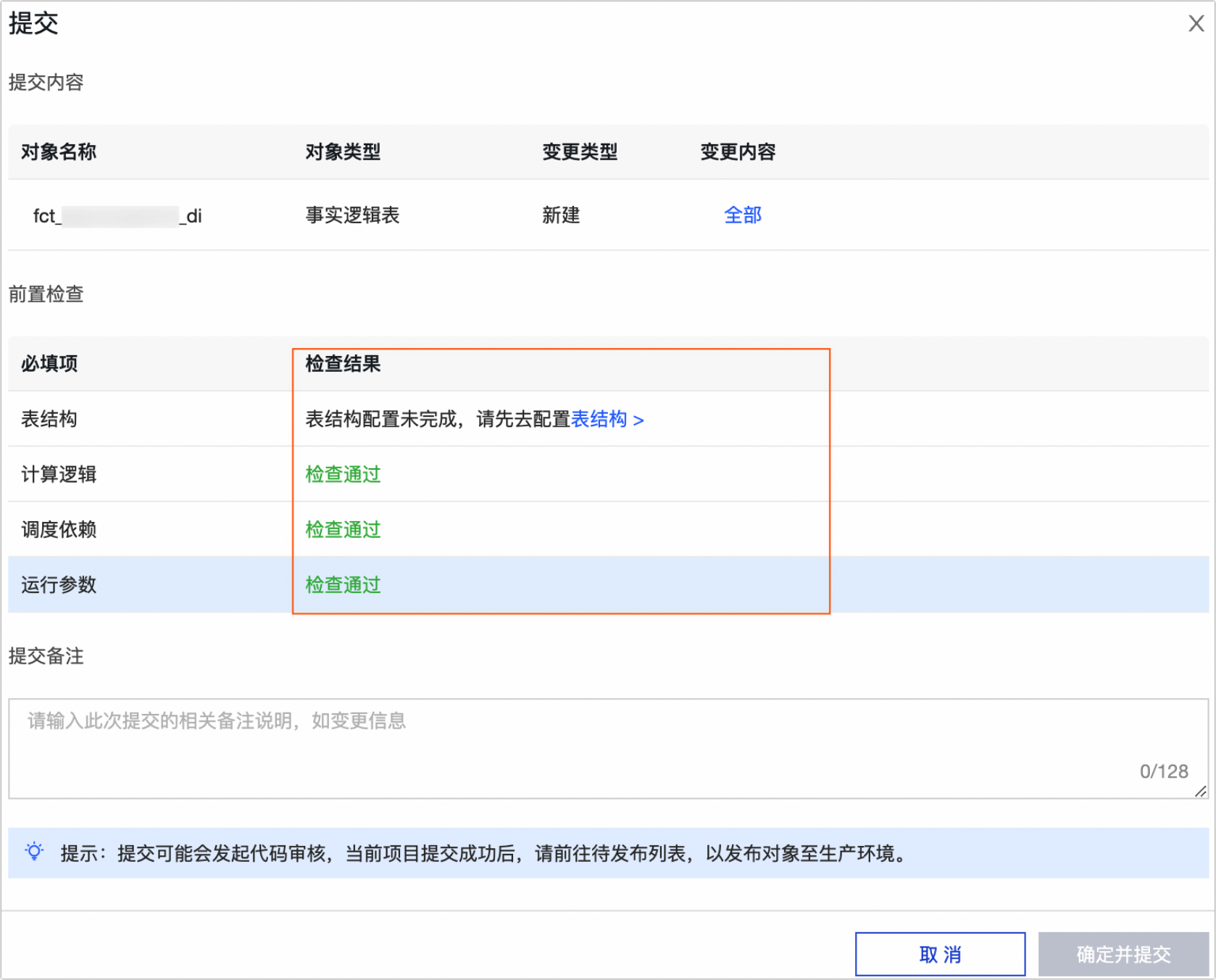
After configuring the fact logical table, click Save and Commit. The system then validates the table structure, computation logic, scheduling dependencies, and runtime parameters. If a check fails, you can modify the configuration according to the check result.
-
Once all checks pass, enter a commit message and click OK and Commit.
Upon submission, Dataphin performs data lineage analysis and submission checks. For more information, see Submitting standardized modeling tasks.
Single-tenant multi-engine
-
When you configure the field list using the import from table option, you can only import tables from projects that use the same engine type.
-
In the source table field, you can only select tables from projects within the same cluster as your current project.
Next steps
-
If your project is in Dev-Prod mode, publish the logical table to the production environment. For details, see Manage deployment tasks.
-
After publishing the logical table to the production environment, you can view and manage the logical table's task in the Operation Center. For details, see Operation Center.