Create a meta table with native DDL statements
Dataphin supports creating meta tables with native DDL statements in Flink SQL tasks to speed up development.
Background
A meta table is a cross-storage logical layer above native DDL. It centralizes input, output, and dimension table management, avoiding complex development paths, plaintext password storage, and security risks. For further details, see and Flink_SQL task development method.
Step 1: Create a new Flink SQL task
-
For more information, see Data development entry to open the Development page.
-
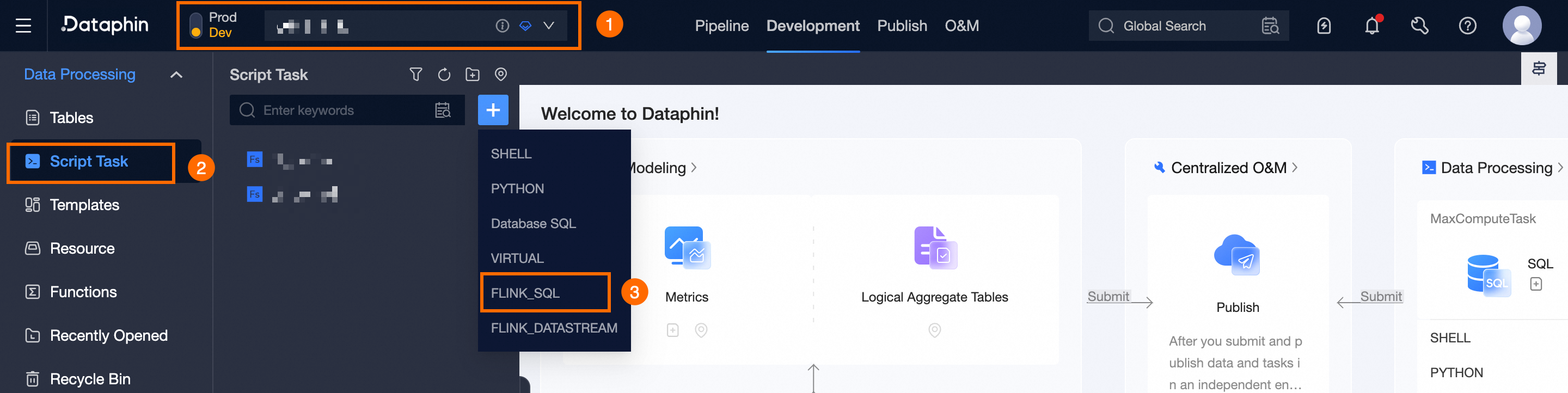
Follow the figure below to open the New Flink_sql Task dialog box.
-
In the New Flink_sql Task dialog box, configure the following parameters:
Parameter
Description
Task Name
Naming rules:
-
Lowercase letters, digits, and underscores (_) only.
-
3 to 62 characters.
-
Must be unique within the project.
-
Must start with a letter.
Production Environment Cluster
Select the cluster for the production environment.
Production Environment Engine Version
Select the engine version for the production environment.
NoteIn Basic mode, this parameter is named Engine Version.
Development Environment Cluster And Engine Version
Choose System Default Configuration to mirror the production environment, or Custom Configuration to specify a different cluster and engine version. Not required for Basic mode.
System Default Configuration: Uses the same cluster and engine version as the production environment.
Custom Configuration: Specify a different cluster and engine version.
NoteNot required for Basic mode projects.
Storage Directory
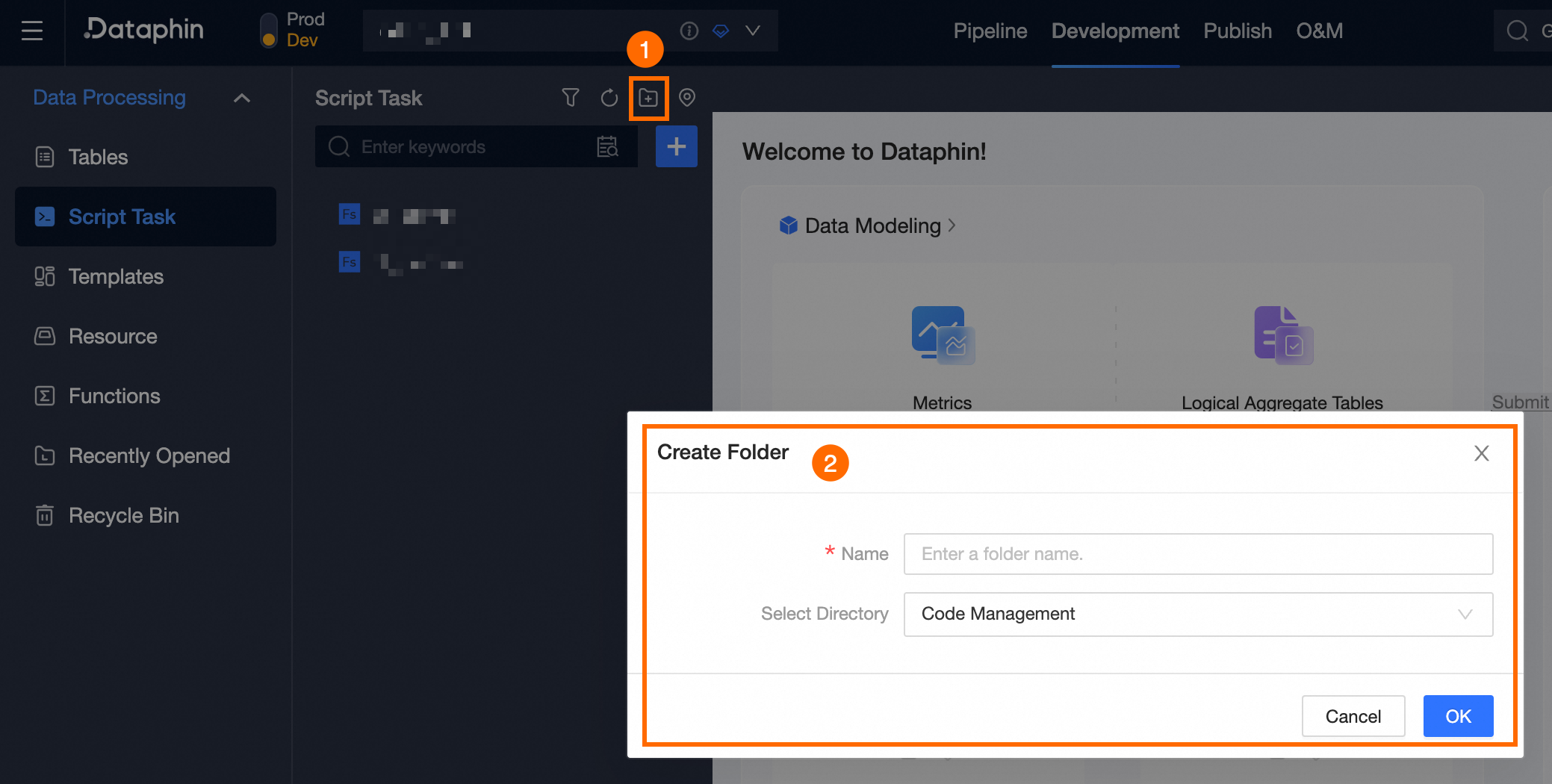
Defaults to code management. To use a different directory, create a folder on the Compute Task page.
Use Template
Turn on to use an existing real-time template.
Description
Enter a description of the Flink SQL task.
-
Step 2: Write native DDL statements
-
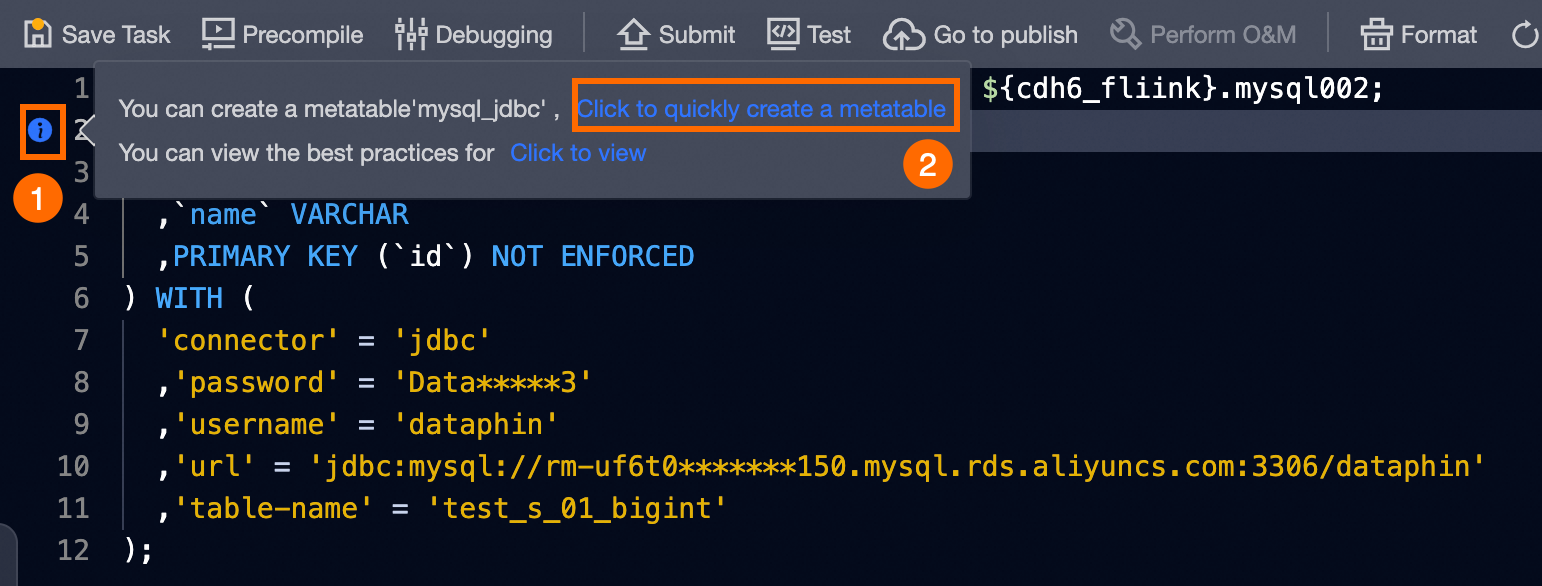
Write native DDL statements on the Flink SQL task code page. Example:
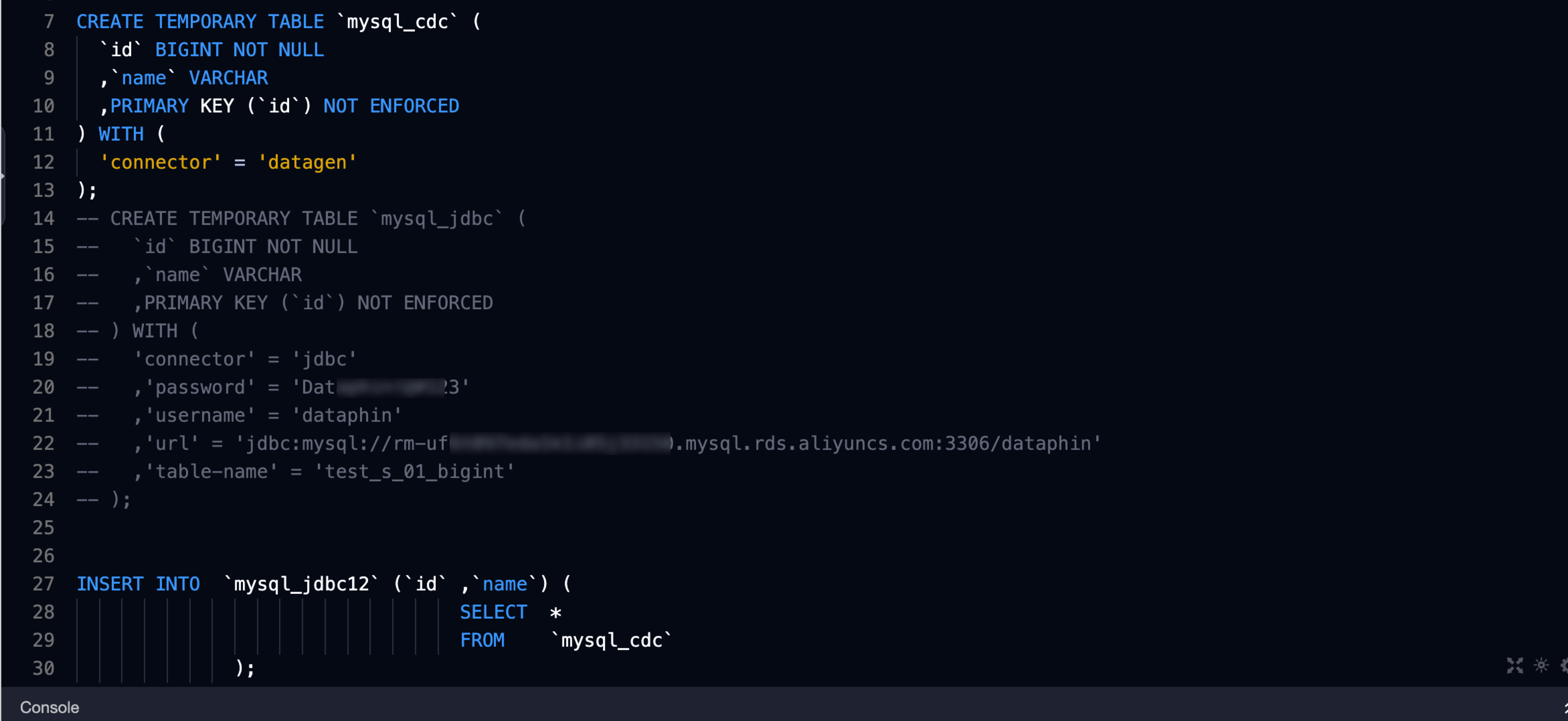
CREATE TEMPORARY TABLE `mysql_jdbc` ( `id` BIGINT NOT NULL ,`name` VARCHAR ,PRIMARY KEY (`id`) NOT ENFORCED ) WITH ( 'connector' = 'jdbc' ,'password' = 'Data*****3' ,'username' = 'dataphin' ,'url' = 'jdbc:mysql://rm-uf6t0*******150.mysql.rds.aliyuncs.com:3306/dataphin' ,'table-name' = 'test_s_01_bigint' ); -
Dataphin detects the DDL statement and opens the Create Meta Table dialog box:
Step 3: Create a meta table
-
In the Create Meta Table dialog box, fill in the parameters:
Example for a MySQL data source meta table:
Parameter
Description
Meta table name
Specify the meta table name. Use English letters, numbers, and underscores, starting with a letter.
Data source
Dataphin identifies the data source type from the DDL statement. Select the target data source from the dropdown list.
NoteThe data source type is auto-detected from the DDL statement.
Source table
Select the source table from the dropdown list.
Connector
Dataphin auto-detects the connector from the code. Configurations vary by data source type. Supported options are documented in and Create and manage meta tables.
Field information acquisition
Select As defined in DDL or As defined in the source table of the data source.
-
DDL Definition: Fields match the DDL definitions.
-
As defined in the source table of the data source: Fields match the source table schema.
Select directory
Defaults to table management. To use a different directory, create a folder on the Table Management page.
Description
Provide a description of the meta table.
-
-
Click Create to complete the Creation of the meta table.
To create and immediately submit the meta table to the publishing center, click Create And Publish.
What's next
-
After creation, the meta table appears in Dataphin:

-
Dataphin comments out the DDL statement and updates the DML table reference to the new meta table name.