Create a Feishu Bitable data source
Creating a Feishu Bitable data source allows you to use Dataphin to read business data from or write data to Feishu Bitable.
Prerequisites
You have created a custom enterprise application in Feishu and obtained the required authorization information. For more information, see Obtain application authorization information.
You have obtained the sharing link of the Feishu Bitable to connect to Dataphin. For more information, see Obtain a Bitable link.
Limitations
For field type mappings between Feishu Bitable and Dataphin, see Feishu Bitable parsing rules.
Due to Feishu's API rate limits, the Feishu Basic Free plan allows a maximum of 10,000 API calls per month, effective October 31, 2024. If this limit is insufficient for your needs, you can upgrade your Feishu plan to increase the call quota. For more information, see Feishu's Adjustments to API Call Limits for Custom Applications.
Permissions
Only super administrators, data source administrators, domain architects, project administrators, and custom global roles with the Create Data Source permission can create data sources.
Procedure
On the Dataphin homepage, in the top navigation bar, choose Admin Center > Data Source Management.
On the Data Sources page, click + New Data Source.
On the New Data Source page, select Feishu Bitable.
If you have used Feishu Bitable recently, you can also select it from the Recently Used section. Alternatively, you can find it by entering keywords in the search bar.
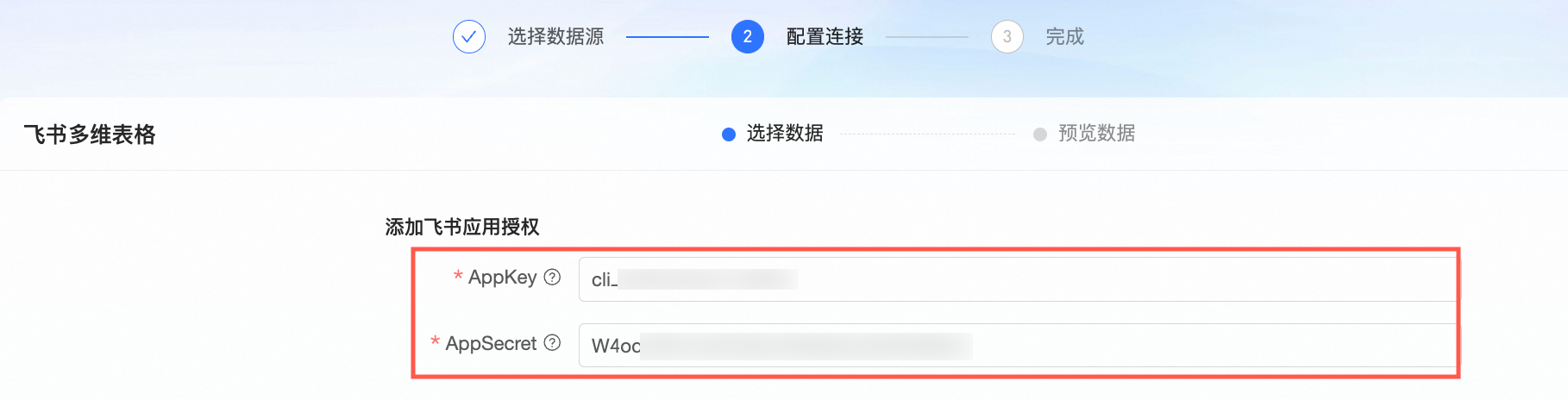
On the New Feishu Bitable Data Source page, configure the connection parameters.
Configure basic information for the data source.
Parameter
Description
Data Source Name
Enter a name for the data source. The name must meet the following requirements:
It can contain Chinese characters, uppercase and lowercase letters, digits, underscores (_), and hyphens (-).
The length cannot exceed 64 characters.
Data Source Code
After you configure a data source code, you can directly access Dataphin data source tables for quick consumption in Flink SQL tasks or from a Dataphin JDBC client by using the format
data_source_code.table_nameordata_source_code.schema.table_name. If you need to automatically switch data sources based on the task execution environment, use the variable format${data_source_code}.tableor${data_source_code}.schema.table. For more information, see Developing with Dataphin data source tables.Important-
The data source code cannot be modified after it is configured.
-
You can preview data on the object details page in the asset directory and asset checklist only after the data source code is configured.
-
In Flink SQL, only MySQL, Hologres, MaxCompute, Oracle, StarRocks, Hive, SelectDB, and GaussDB data warehouse service (DWS) data sources are currently supported.
Data Source Description
Enter a brief description for the Feishu Bitable data source. The description cannot exceed 128 characters.
Data Source Configuration
Select an option based on whether your business data source distinguishes between production and development environments:
If your business data source separates production and development environments, select Production + Dev Data Source.
If your business data source does not separate production and development environments, select Production Data Source.
Tags
You can add a tag to classify the data source. To learn how to create a tag, see Manage data source tags.
Configure the connection parameters between the data source and Dataphin.
If you selected Production + Dev Data Source, you need to configure connection information for both the production and development data sources. If you selected Production Data Source, you only need to configure the connection information for the production data source.
NoteTypically, you should configure the production and development data sources separately to isolate the environments and prevent development activities from impacting production. However, Dataphin also allows you to configure them as the same data source by using identical parameter values.
Parameter
Description
Feishu Bitable URL
The Feishu Bitable URL, such as
https://base.feishu.cn/base/appxxxx. For detailed steps, see Obtain the Bitable link.App ID and App Secret
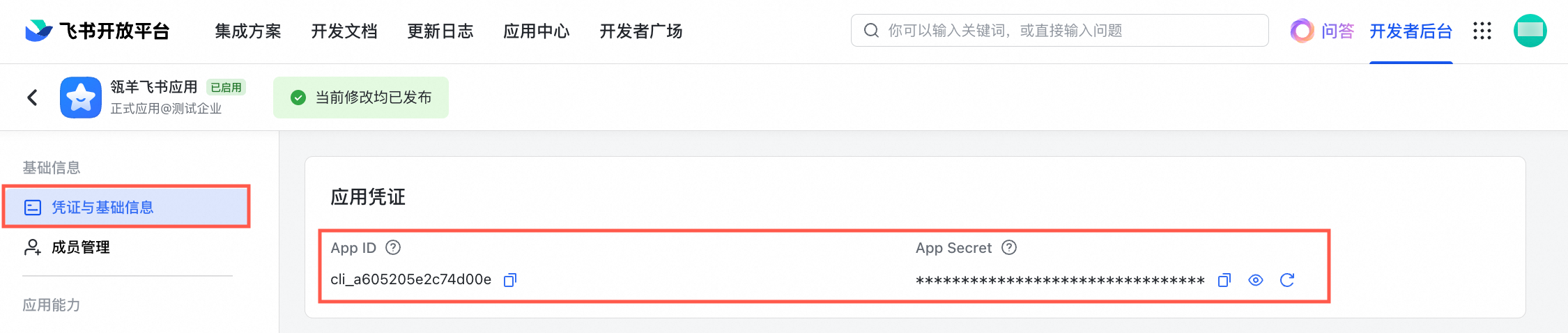
The unique key and secret for the custom enterprise application. For detailed steps on how to obtain these credentials, see Obtain application authorization information.
Select a Default Resource Group. This resource group is used to run tasks related to the data source, such as database SQL execution, offline full database migration, and data preview.
Click Test Connection or click OK to save the configuration and create the Feishu Bitable data source.
When you click Test Connection, the system checks whether the data source can connect to Dataphin. If you click OK directly, the system automatically tests the connection for all selected clusters. The system creates the data source even if all connection tests fail.
Test Connection tests the connection for the Default Cluster or Registered Scheduling Clusters that have been registered in Dataphin and are in normal use. The Default Cluster is selected by default and cannot be deselected. If there are no resource groups under a Registered Scheduling Cluster, connection testing is not supported. You need to create a resource group first before testing the connection.
-
The selected clusters are used only to test network connectivity and are not used for running tasks.
-
The test connection usually completes within 2 minutes. If it times out, click the
 icon to view the reason and retry.
 -
Regardless of the test result (Connection Failed, Connection Successful, or Succeeded With Warning), the system records the timestamp of the final result.
NoteOnly the test results for the Default Cluster include three connection statuses: Succeeded With Warning, Connection Successful, and Connection Failed. The test results for Registered Scheduling Clusters in Dataphin only include two connection statuses: Connection Successful and Connection Failed.
-
When the test result is Connection Failed, click the
icon to view the failure reason. -
When the test result is Succeeded With Warning, the application cluster connection succeeded but the scheduling cluster connection failed. The data source cannot be used for data development and integration. Click the
icon to view the log information.
-
Appendix
Obtain application authorization information
You need to create a custom enterprise application on the Feishu Open Platform to obtain its authorization credentials, which are required for authentication when you create the data source in Dataphin. Follow these steps:
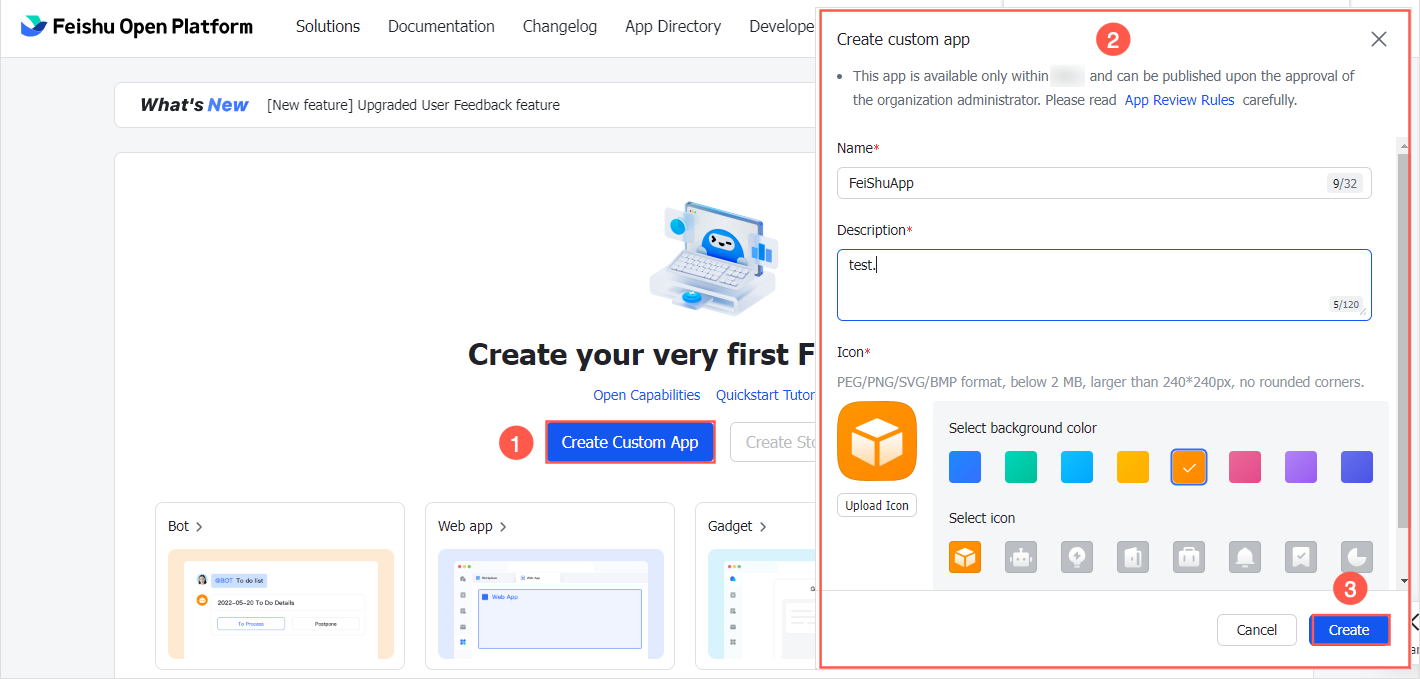
Log on to the Feishu Open Platform and click Create Custom App. In the Create Custom App dialog box, enter the application information and click Create.
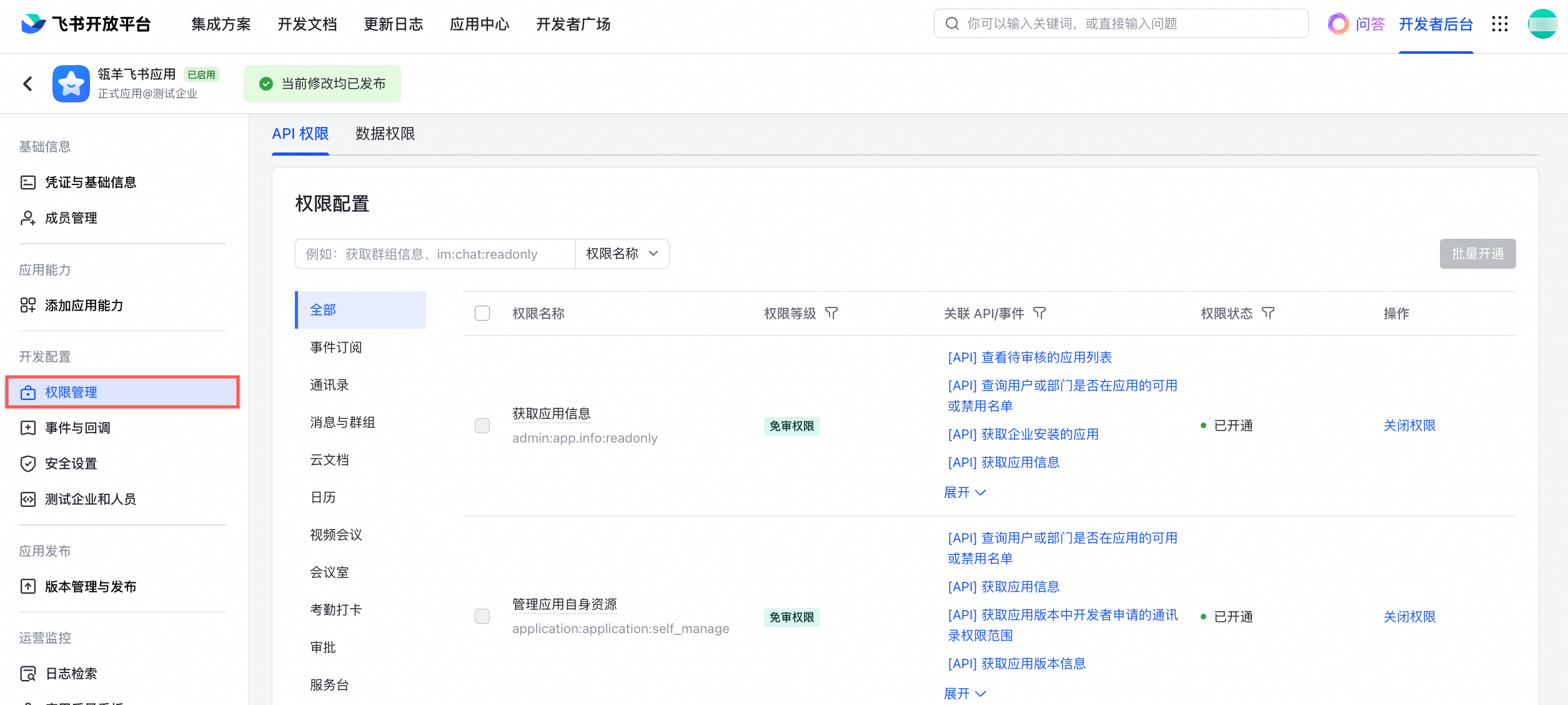
Dataphin uses APIs to read data from Feishu Bitable, so you must request API permissions for your application. In the developer console for your application, click Permissions in the left-side navigation pane. On the API Permissions tab, configure the required permissions.
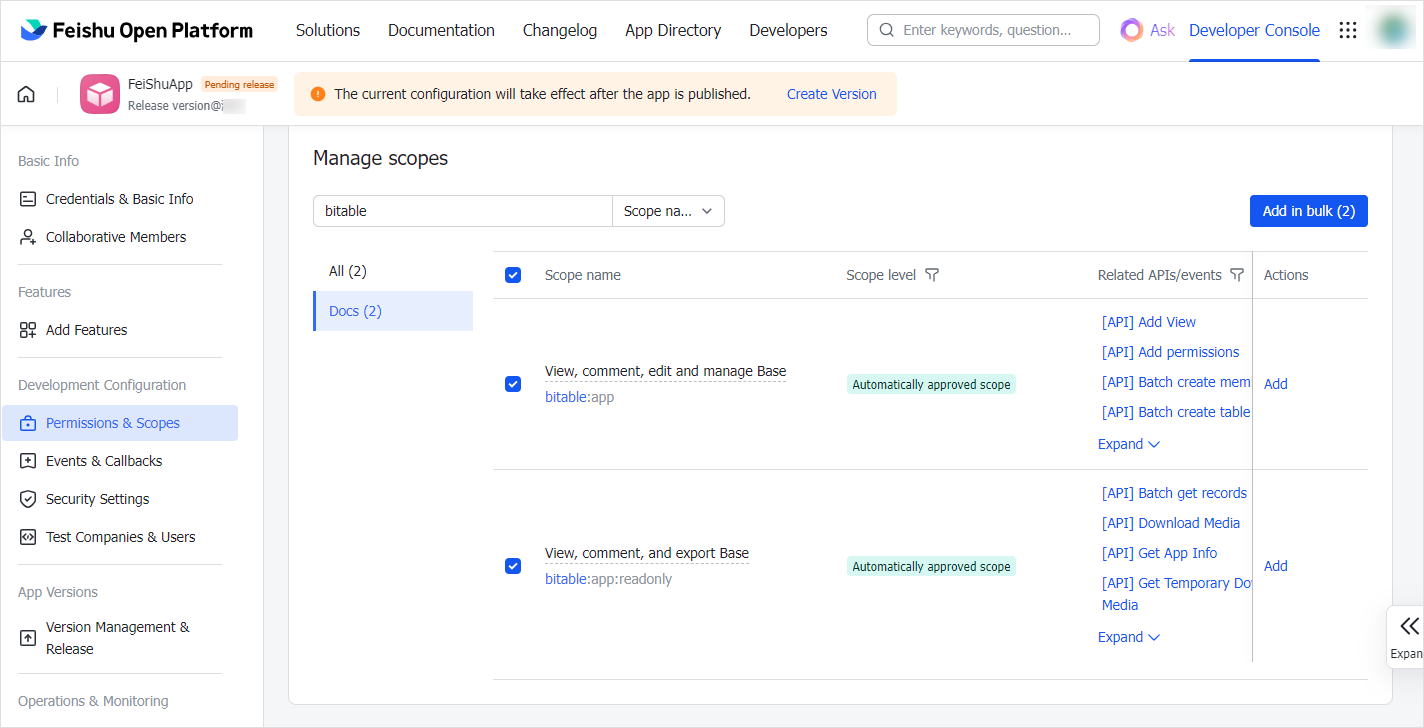
Select the following API permissions and click Batch Enable.
View, comment on, edit, and manage all files in Drive.
View, comment on, edit, and manage Bitable.
View, comment on, and export Bitable.
Get application information.
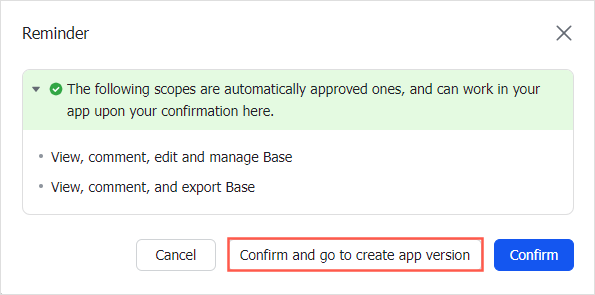
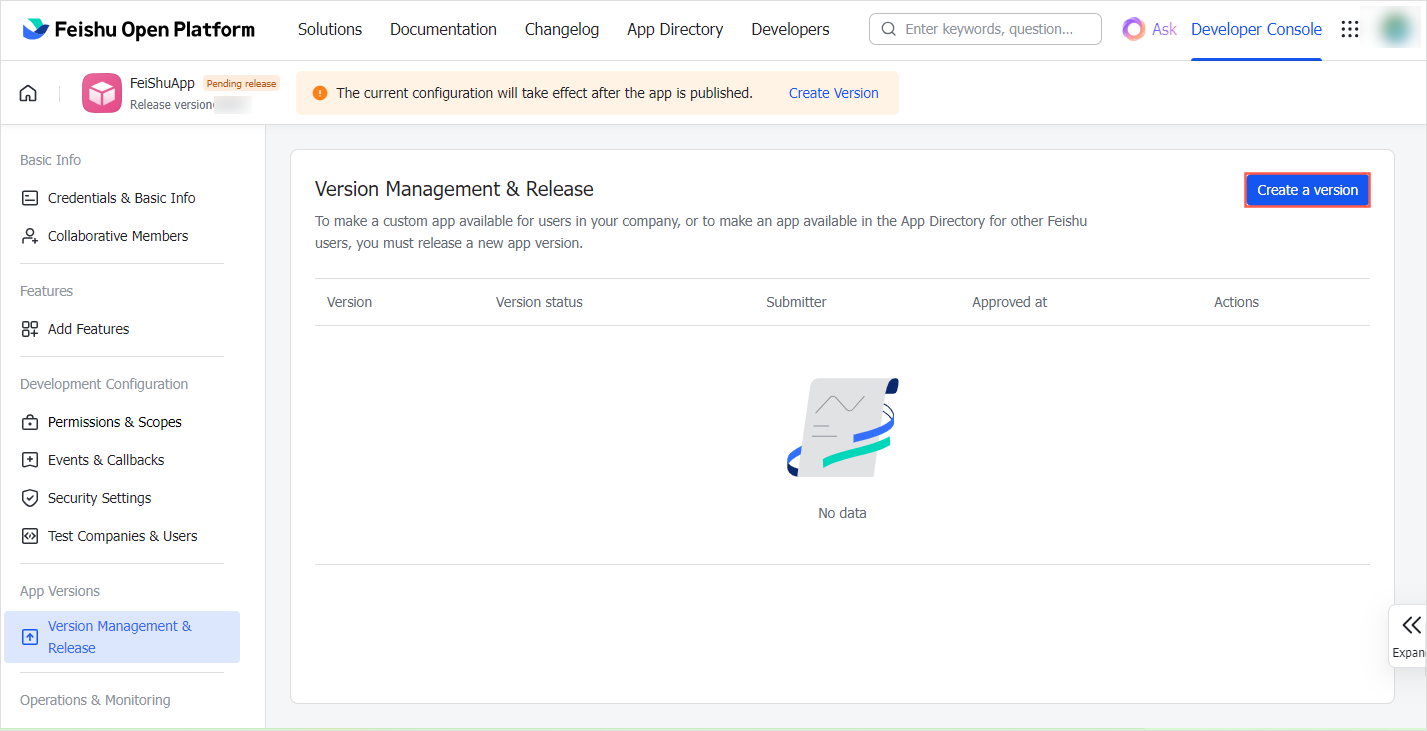
In the Prompt dialog box, click Confirm and Create App Version. You are redirected to the Version Management & Release page. Click Create a Version.

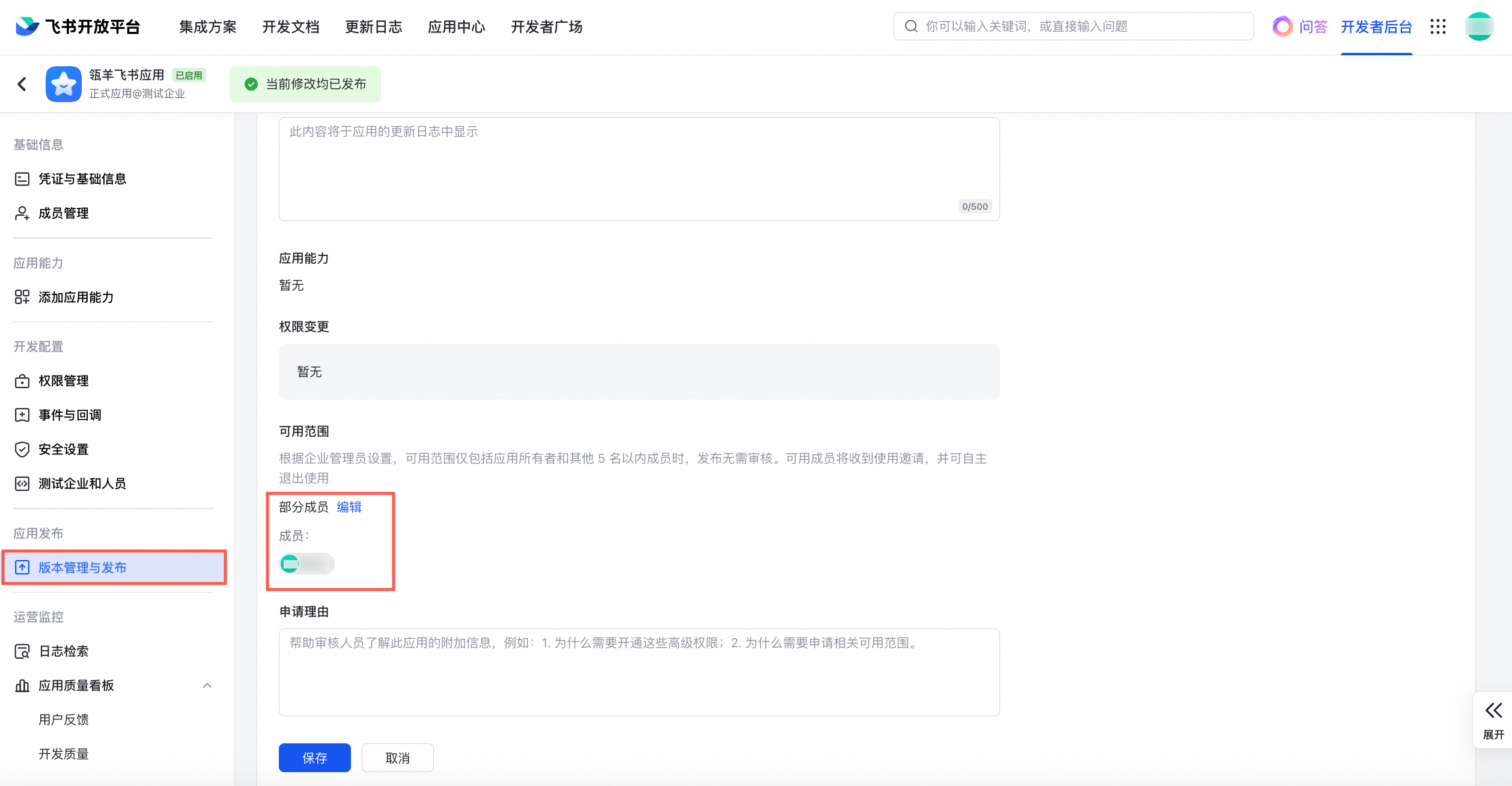
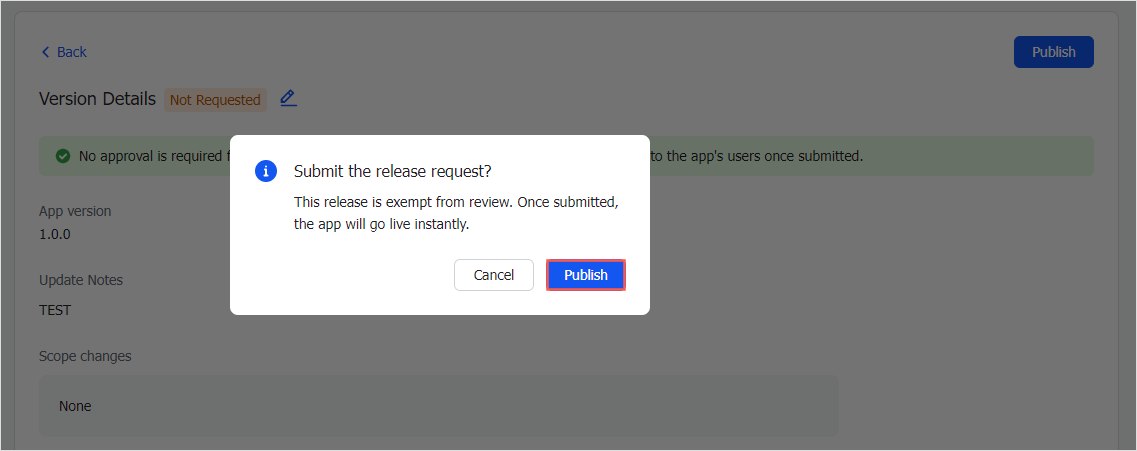
Enter the version details, and then click Save > Request Online Release to publish the application.
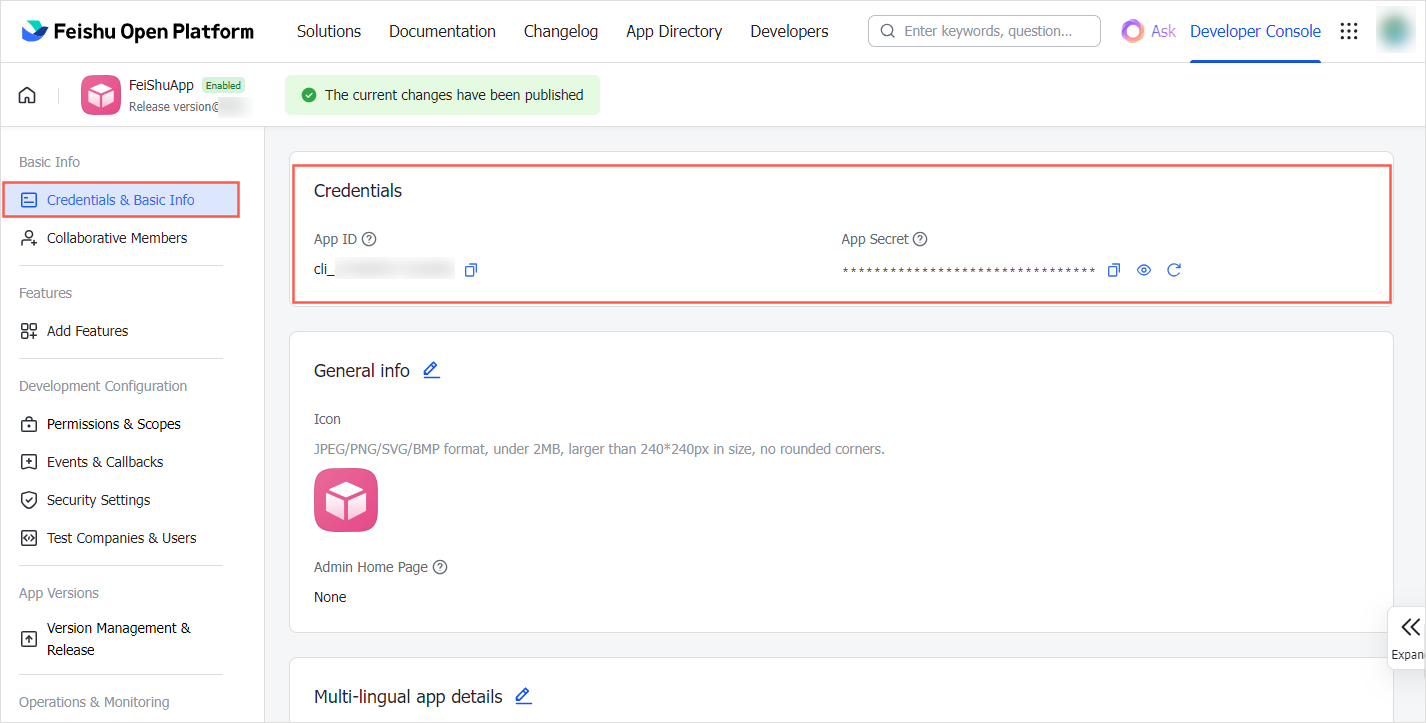
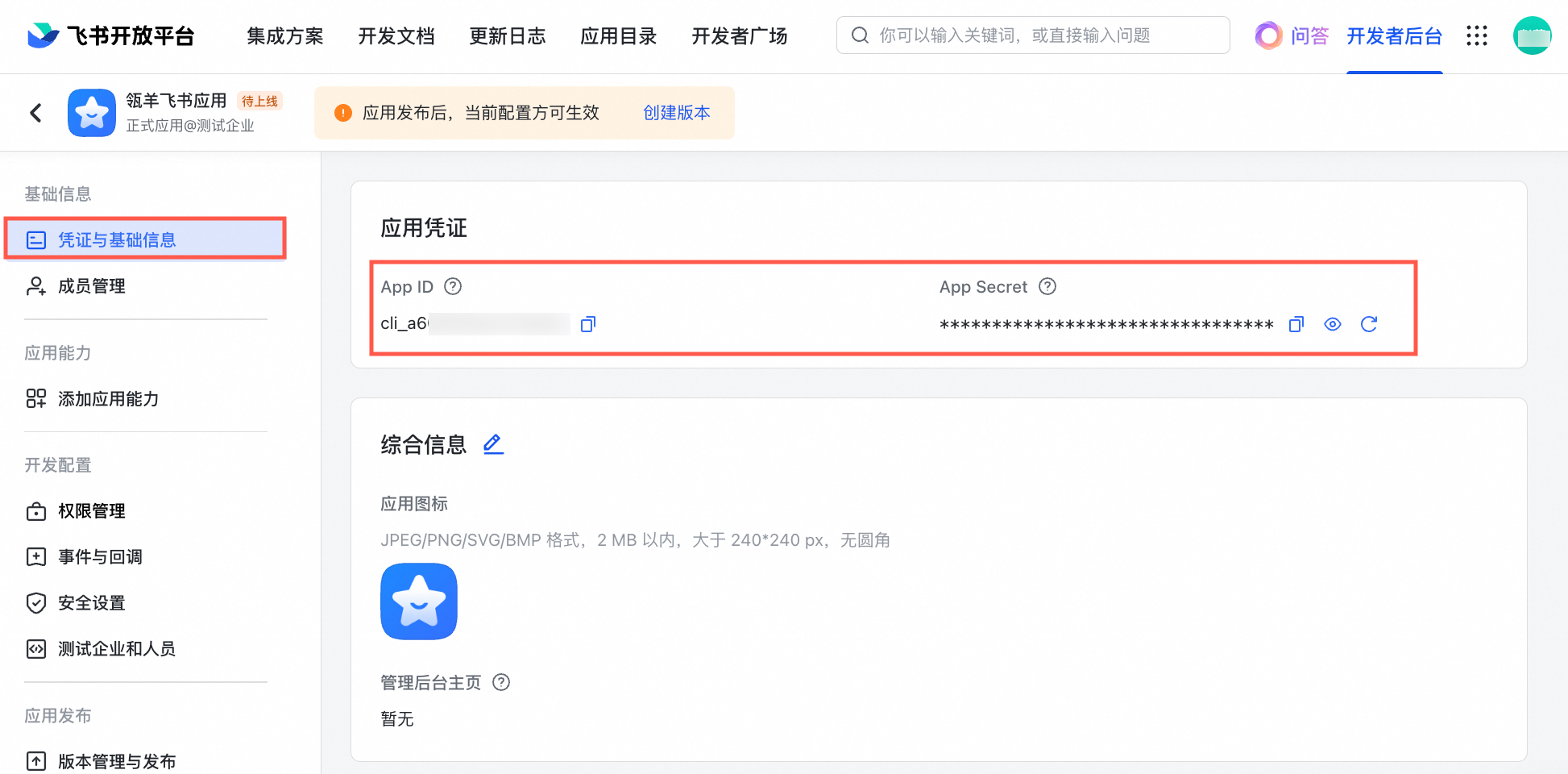
In the developer console for your application, click Credentials & Basic Info. On the App Credentials page, copy and save the App ID and App Secret for your application.
Obtain the Bitable link
Log on to Feishu Docs, find the target Bitable that you want to connect to Dataphin, and then copy its shareable link. Follow these steps:
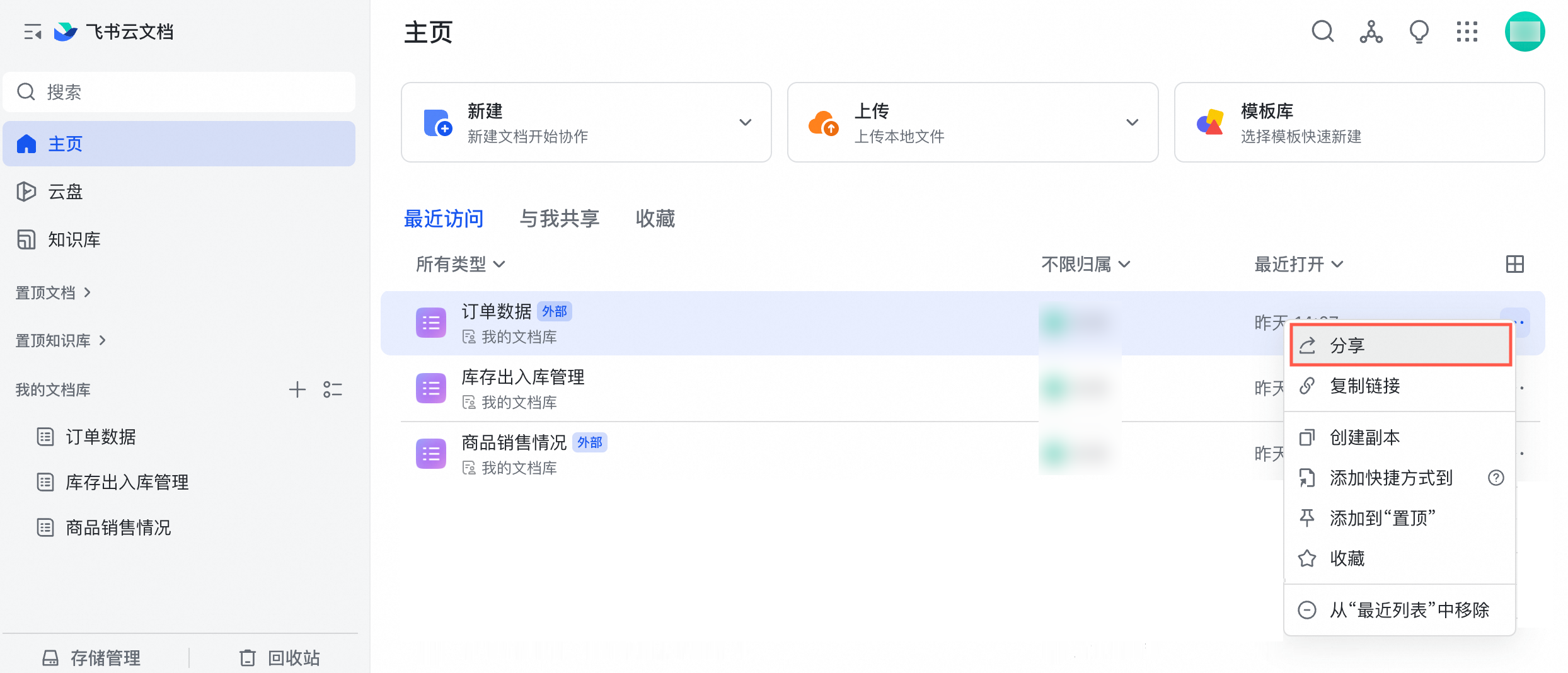
In your document list in Feishu Docs, find the target Bitable and click Share in the Actions column.
 Note
NoteThe following limitations apply when connecting Feishu Bitables to Dataphin. Ensure your Bitable meets these requirements before you proceed.
Dataphin cannot import tables with Attachment, Link, or Lookup field types. For a list of supported field types, see the mapping table in Feishu Bitable parsing rules.
Dataphin does not inherit formulas and imports only the calculated values.
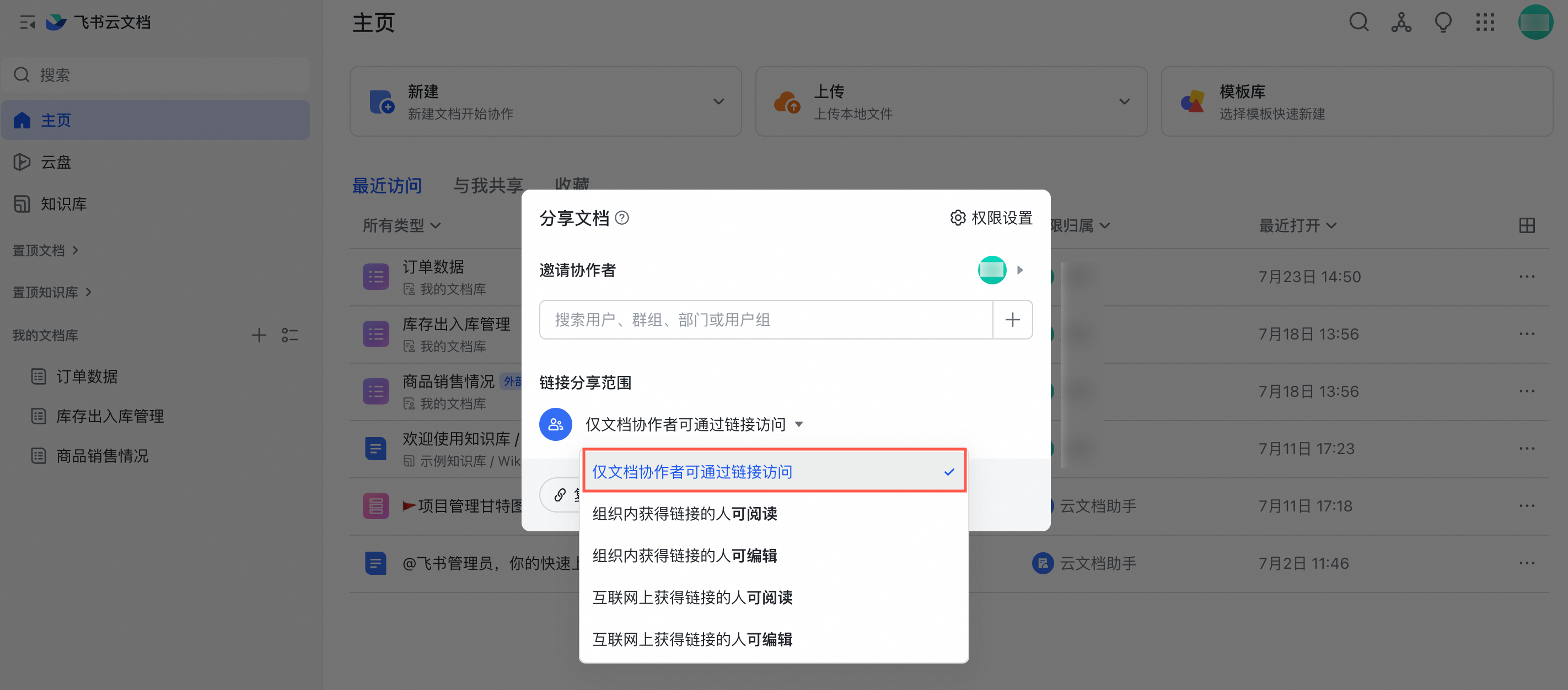
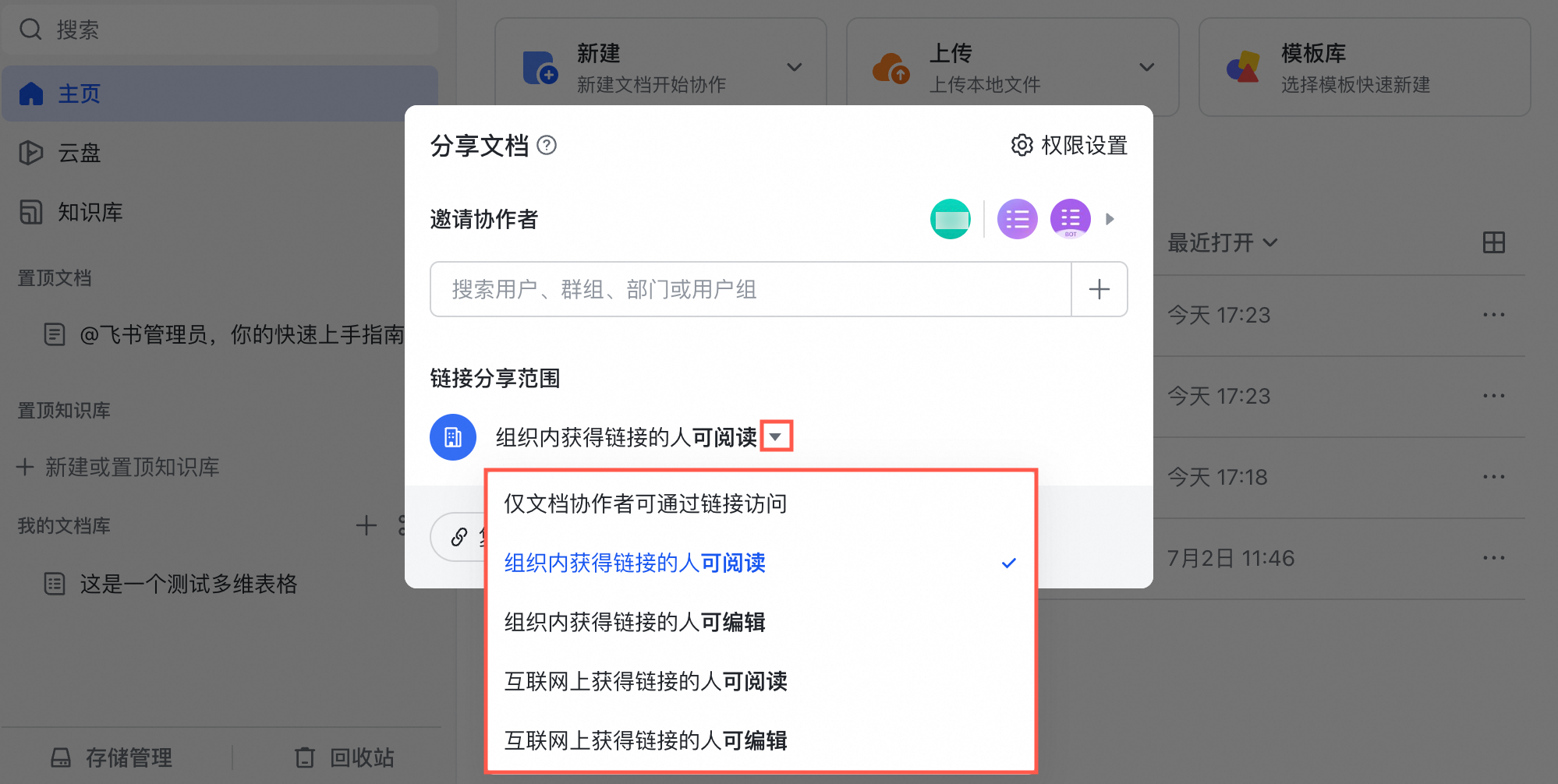
In the Share File dialog box, configure the Link Sharing settings.
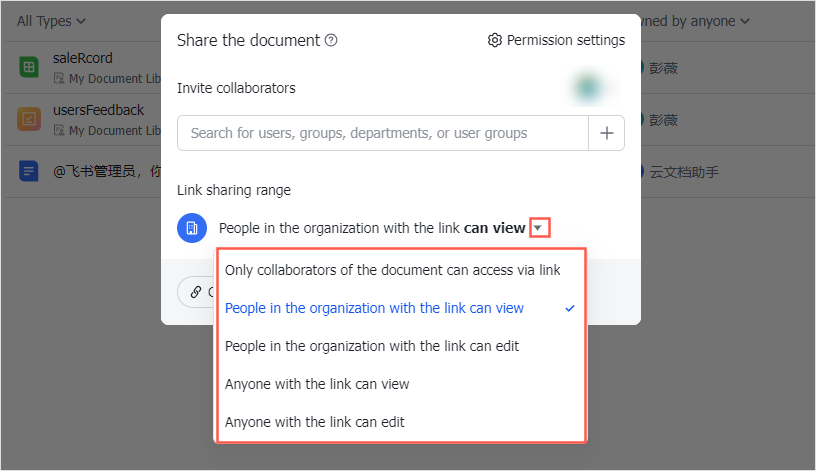
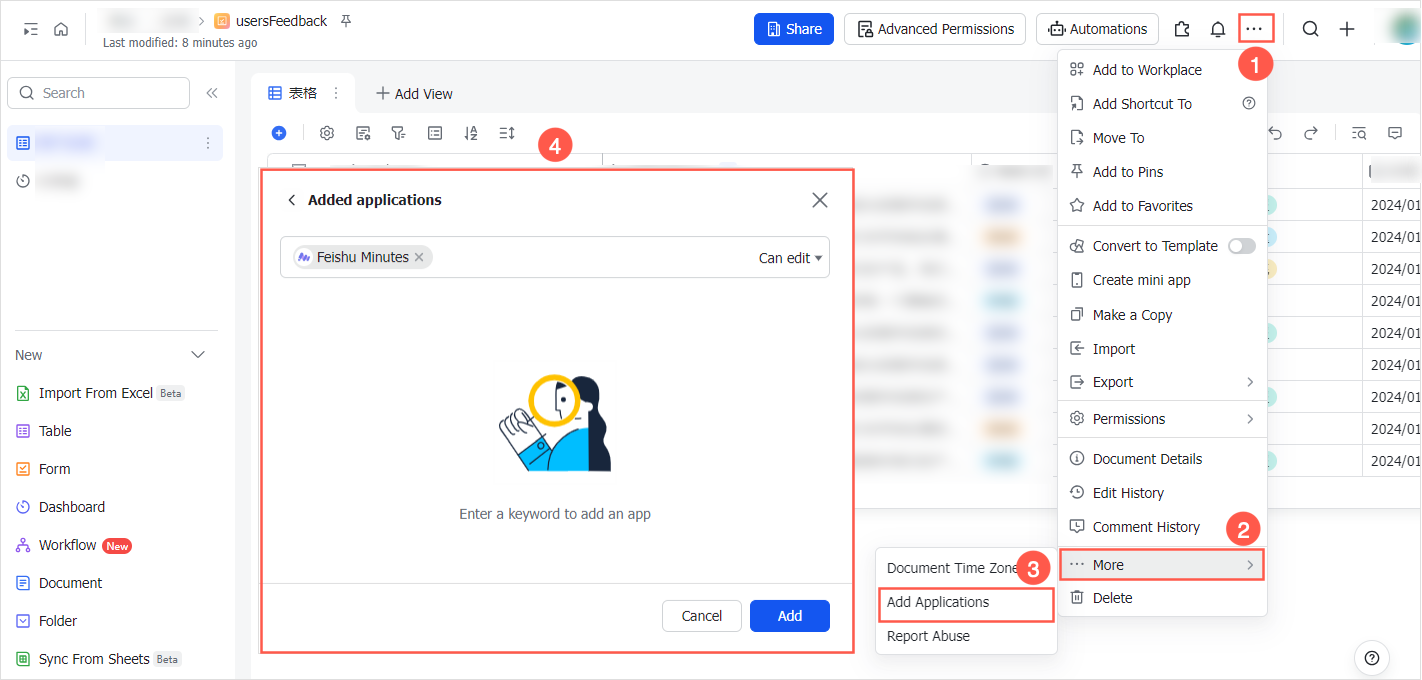
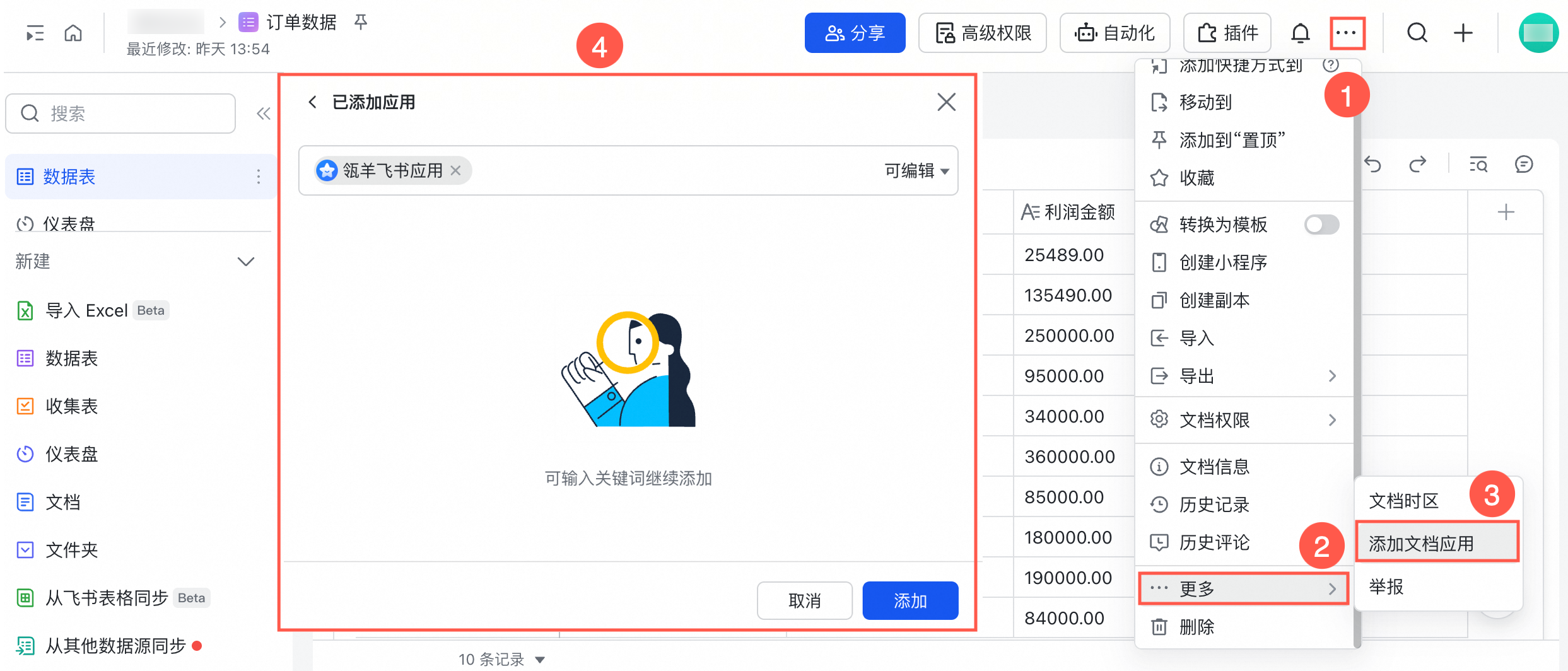
If you set Link Sharing to Only collaborators can access with the link, you must add your custom enterprise application as an app to the Bitable.
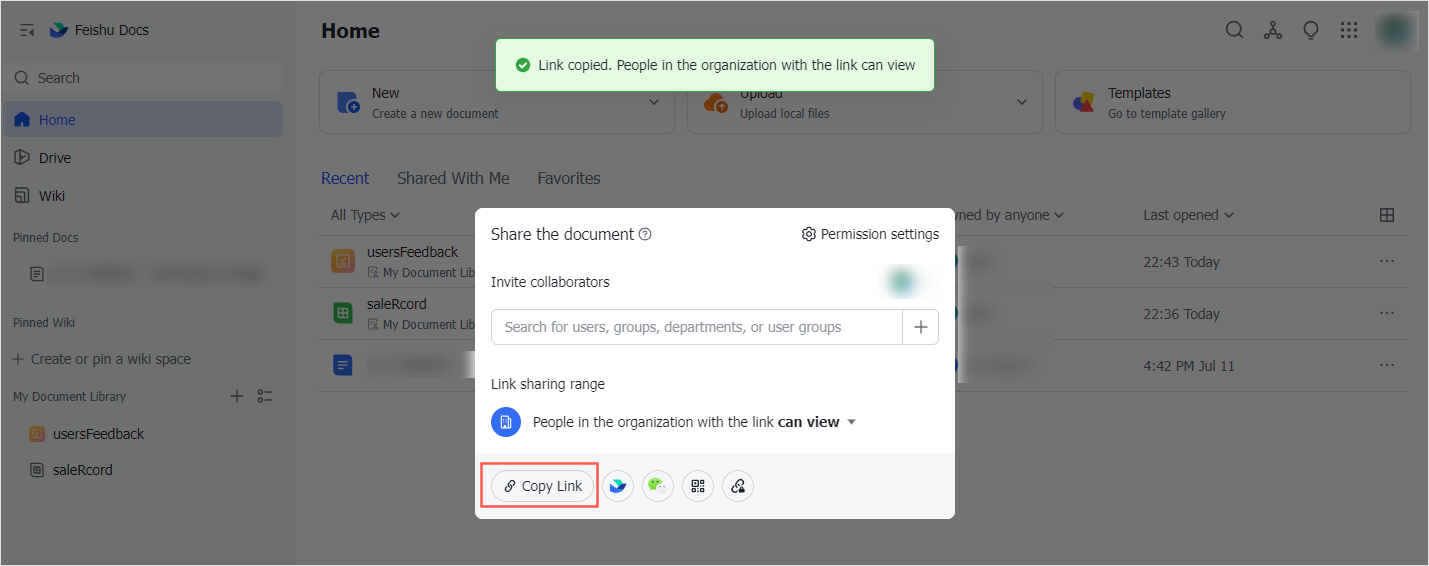
Click Copy Link to copy and save the shareable link for the Bitable.
Feishu Bitable parsing rules
Field category | Type | Mapped type |
Standard | Text | String |
Single-select | String | |
Multi-select | String | |
User | String | |
Group | Not supported | |
Date | Date | |
Attachment | Not supported | |
Number | Long | |
Checkbox | Boolean | |
URL | String | |
Formula | String | |
Lookup | Not supported | |
Business | Workflow | Not supported |
Button | Not supported | |
Auto-number | Long | |
Phone number | String | |
String | ||
Location | String | |
Barcode | String | |
Progress | Double | |
Currency | Double | |
Rating | Long | |
Advanced | Two-way association | Not supported |
One-way association | Not supported | |
Created by | String | |
Modified by | String | |
Created time | Date | |
Last modified time | Date | |
User Extended Fields | Department | String |
Manager | String | |
Employee ID | String | |
Job Title | String | |
User Type | String | |
Work Email | String |
FAQ
If you encounter a connection error when adding a Feishu Bitable data source, check for the following issues:
Cause | Solution |
You entered an incorrect App ID or App Secret when configuring the Feishu application credentials. | Log on to the Feishu developer console and obtain the correct App ID and App Secret for the application. |
You did not enable the required API permissions for the custom enterprise application on the Permissions page in the Feishu developer console. | You must enable the following API permissions:
|
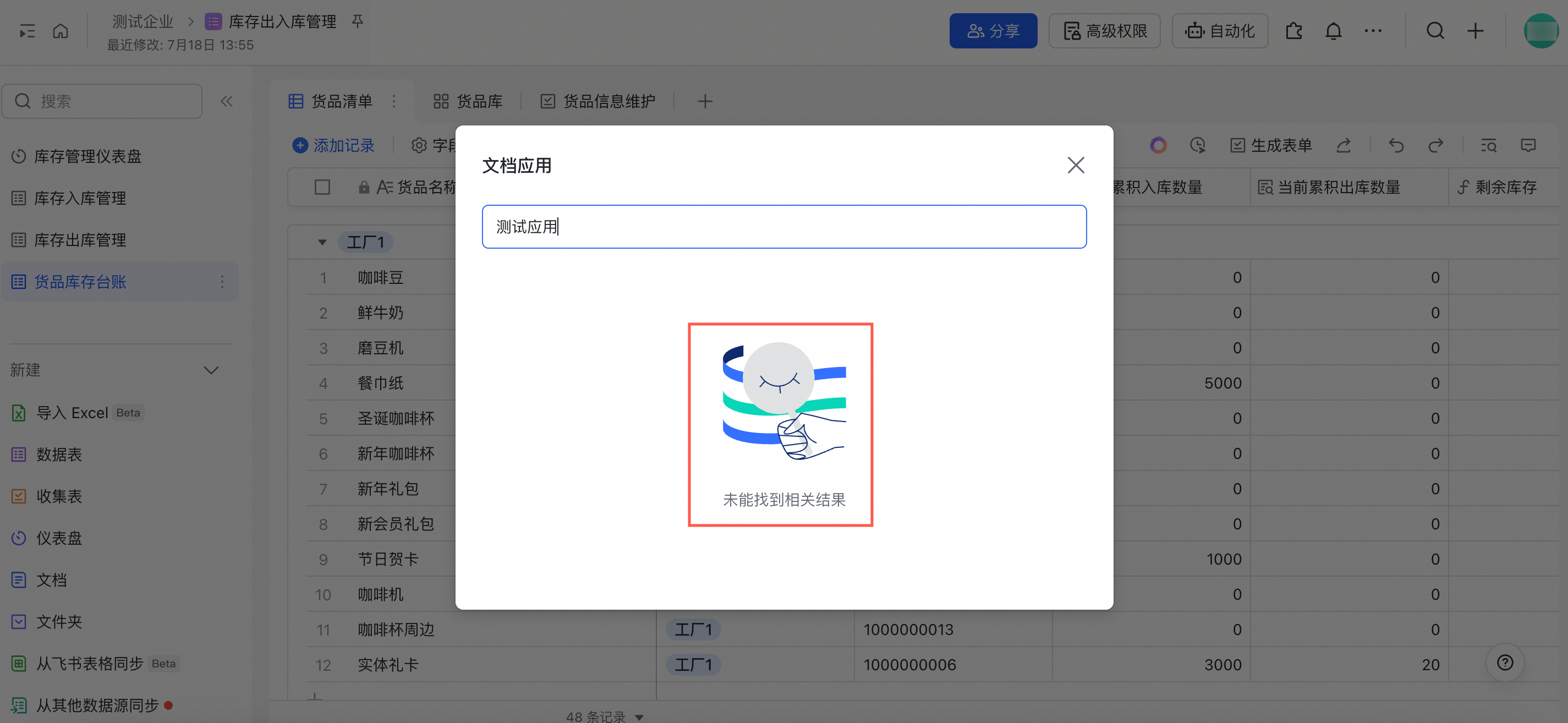
If the link sharing setting for the Feishu Bitable is Only collaborators can access with the link, the corresponding custom enterprise application was not added as a document app. | On the document editing page for the Feishu Bitable, add the corresponding custom enterprise application as a document app. The steps are shown in the following figure. |
If the link sharing setting is Only collaborators can access with the link, you cannot select the custom application as a document app on the document editing page, which causes the process to fail. | To add a custom enterprise application to a document, the current account must be included in the Availability scope in the version details when the application version was created. |
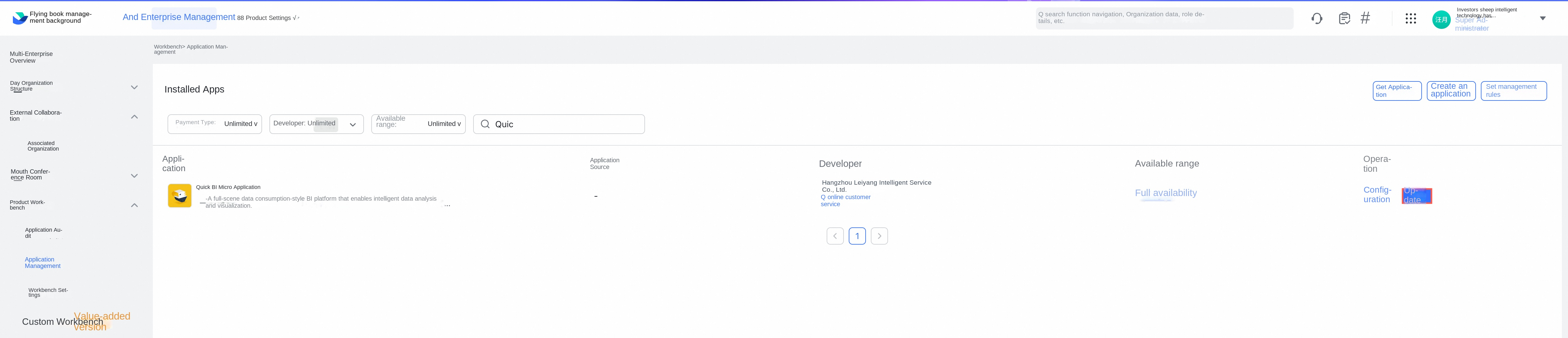
If you are using the default application credentials provided by the system, the third-party application may be outdated. | Update the application version in the Feishu admin console. |