Create a Real-Time Dataset Through HBase
Dataphin enables you to define dataset metrics by parsing fields from HBase data source tables using calculation scripts. Learn how to create and configure a real-time dataset from an HBase data source.
Prerequisites
-
A tag project for the dataset is created. For more information, see .
-
An HBase data source for the real-time dataset is created. For more information, see .
Procedure
-
Navigate to the Dataphin home page and click Tag -> Tag Workbench from the top menu bar.
-
Proceed as follows to access the Add Real-time Dataset dialog box:
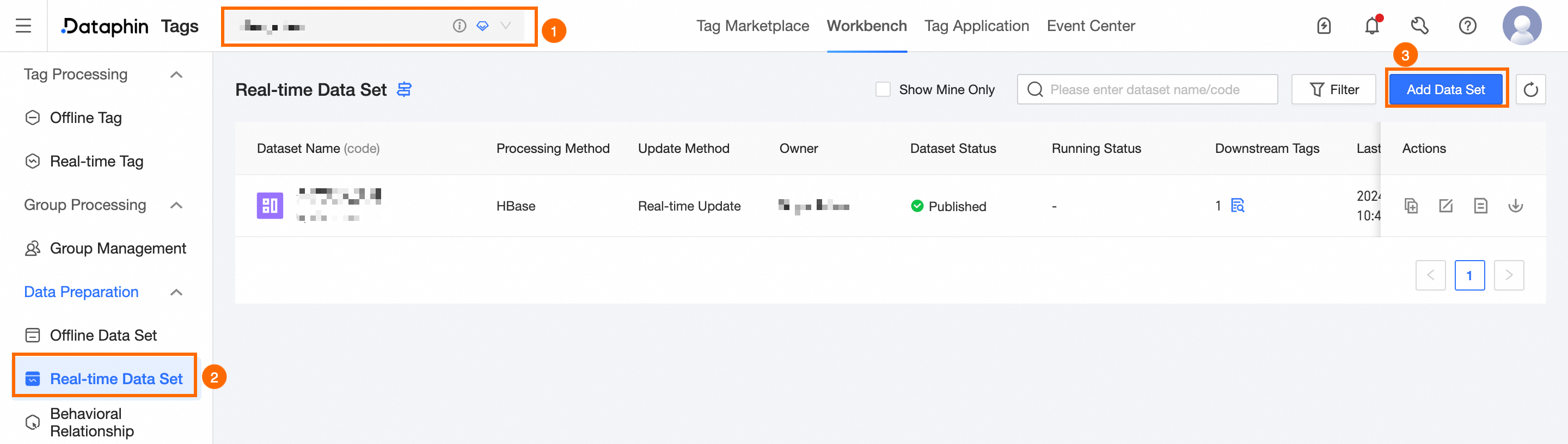
Select Tag Project -> click Real-time Dataset -> click Add Dataset.
-
In the Add Real-time Dataset dialog box, select Hbase Dataset.
-
On the Add Hbase configuration page, input the basic information and establish the processing logic for the dataset.
-
Basic Information
-
Processing Logic.
-
For Variable, use
${}to enclose it. For example,${variable}. -
For String Constant, use quotation marks
"". For example,"hello world". -
Function: The
md5()function takes a string as a parameter. For example,md5("hello word")ormd5({user_id}). -
For Expression, use the plus sign
+to concatenate strings. For instance,${user_id} + "hello world".
|
Parameter |
Description |
|
Dataset Name |
Enter the dataset name. The name can contain Chinese and English characters, numbers, and underscores (_), up to 64 characters. |
|
Dataset Code |
Enter a unique identifier for the dataset. The identifier must start with a letter and can contain lowercase letters, numbers, and underscores (_), up to 64 characters. |
|
Owner |
Select the owner of the real-time dataset. |
|
Description |
Provide a brief description of the real-time dataset, limited to 1000 characters. |
|
Parameter |
Description |
|
Data Source |
Select the HBase data source. If none is available, create one first. For more information, see . |
|
Source Table |
Select the source table from the HBase data source to process. |
|
RowKey Configuration Rule |
Set up the RowKey rule. RowKey expressions support functions and variables: |
|
Entity |
After setting the RowKey configuration rule, click Entity Parsing to parse the entity list. Specify the Primary Key Name and Value Type, which can be String or Long Integer. |
|
Metric Configuration |
Define the metric by specifying the column family name, field name, field type, metric display name, value type, and a brief description. Supported value types include String, Long Integer, Double Precision Floating-Point Number, Date, Boolean, Decimal. To configure additional metrics, click + Add. |
-
To finalize the creation of the real-time dataset, click Publish.
After saving, click Authenticate to test the processing logic with parameter values.
What to do next
After creating and publishing the real-time dataset, create the corresponding real-time tags. For more information, see .