Create an API (service unit) in SQL mode
SQL mode lets you create APIs based on service units by writing SQL statements.
Prerequisites
To generate an API based on a service unit, you must first create a service unit. For more information, see Create a service unit.
Limits
-
If the data source supports pagination and the API request method is List, you can use PageStart and PageSize to configure pagination regardless of whether pagination is enabled.
-
If a Limit statement is used in the SQL script, the PageStart and PageSize parameters become invalid. The results return only the number of records specified by the Limit statement.
-
If you create an API using basic SQL and use the LIMIT statement in the SQL script, pagination is not supported.
Permissions
Project administrators and developers can generate APIs for services.
Precautions
-
The request parameters and response parameters of an API must come from the same service unit (single or multiple physical table). Otherwise, the API cannot be called.
-
SQL statements written for service units support MySQL syntax only.
Step 1: Select a method to generate an API
-
In the top navigation bar of the Dataphin homepage, choose Service > API Development.
-
In the upper-left corner, select a project. In the navigation pane on the left, click API Service. On the API page, click +Create API.
-
In the Create API dialog box, select Service Unit API-SQL Mode.
Step 2: Configure API parameters
-
On the Create API page, configure the basic information and parameters of the API.
Basic API information configuration
Parameter
Description
API Name
Enter a name for the API. The name must meet the following requirements:
-
It can contain only Chinese characters, letters, digits, or underscores (_).
-
The name must be 4 to 100 characters in length.
-
The name starts with a letter.
-
This value must be globally unique.
Request Method
API request methods include GET and LIST:
-
GET: Requests the server to retrieve a specific resource.
-
LIST: Requests the server to retrieve a portion of resources.
Data Update Frequency
Specify how often the data returned by the API is updated. Supported frequencies include Daily, Hourly, Every Minute, and Custom. If you select Custom, you can enter up to 128 characters.
API Group
Select the group to which the API belongs. To create a group, see Create a service group.
Result Pagination
Available when the request method is List. After you enable this feature, you must specify sorting fields to ensure stable query results and avoid duplicate or missing records. If this feature is disabled, the API debugging or testing page does not display pagination parameters (PageStart and PageSize). You can deselect Hide Parameters to display pagination parameters.
Description
Enter a brief description of the API. It cannot exceed 128 characters.
Protocol
The API supports the HTTP and HTTPS protocols.
-
HTTP: The Hypertext Transfer Protocol (HTTP) is the most widely used network protocol.
-
HTTPS: If the gateway is an Alibaba Cloud API Gateway dedicated or shared instance, you can select the HTTPS protocol. To prevent call failures, make sure the SSL certificate for the independent domain is valid. To configure the SSL certificate, go to the Network Configuration page by choosing Platform Management > Network Configuration.
Timeout
The maximum wait time for an API call. The default value is 3 seconds. Valid values: integers from 3 to 60.
If a call exceeds the specified Timeout, an error is reported to help you detect and handle exceptions. For more information, see Manage service monitoring APIs.
Cache Settings
You can Enable or Disable this feature. If you enable it, configure Cache Timeout. The default value is 300 seconds. You can set a positive integer from 60 to 1,000,000 seconds (approximately 277.78 hours).
Version Number
Enter the version number. Each configuration has its own version number for comparison with previous versions. The version number must be unique for this API and meet the following requirements:
-
It can be up to 64 characters in length.
-
It can contain uppercase and lowercase letters, digits, underscores (_), periods (.), and hyphens (-).
Return Type
The default is JSON.
Return SQL
Controls whether the API response includes the actual SQL statement that is executed.
-
Select Yes (Enable): The API response returns the physical SQL statement that is executed in the database.
-
Select No (Disable): The API response displays the original SQL script.
API request parameters and response parameters configuration
To configure API Request Parameters and Response Parameters, first select the Service Unit that provides the input and output parameters, then write the API SQL and parse the Request Parameters and Response Parameters, and finally configure the details of the Request Parameters and Response Parameters.
-
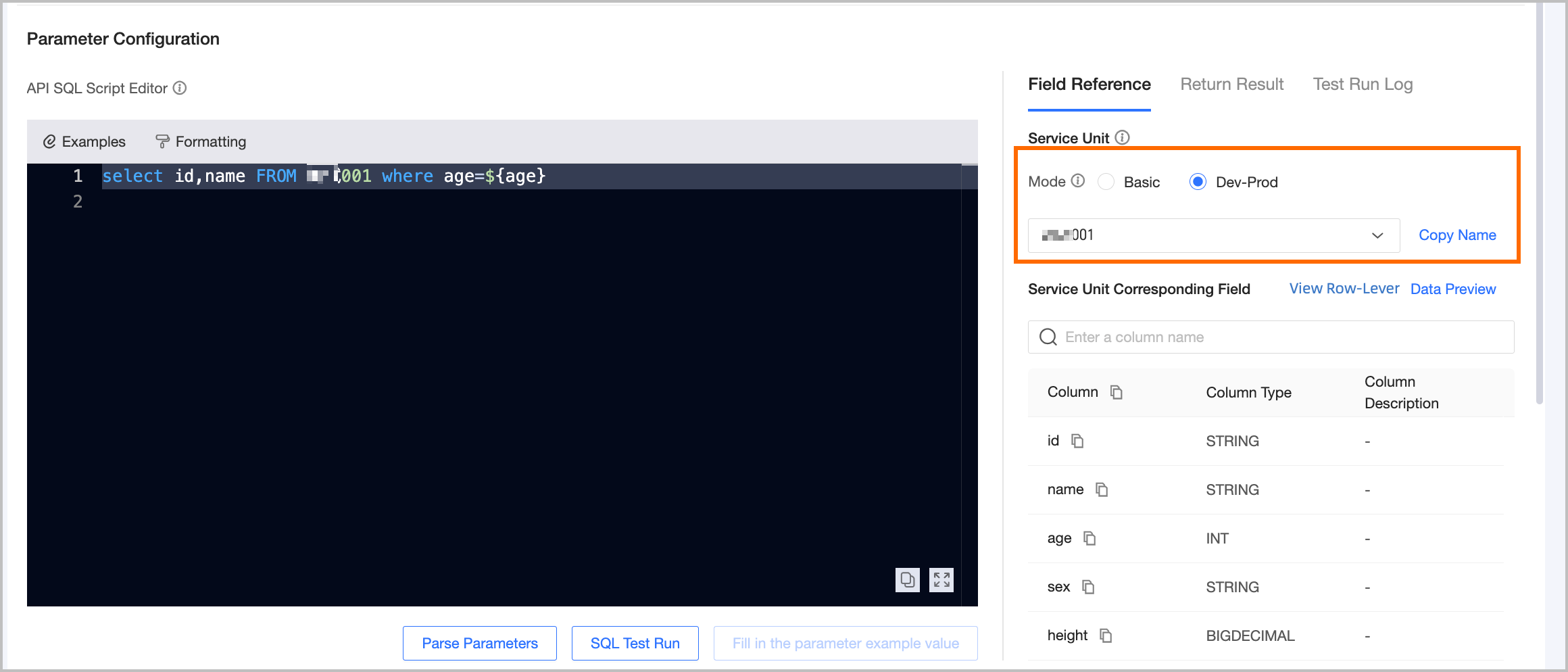
In the Parameter Checking section, select Mode and Service Unit. The system displays all fields in the selected service unit as a reference for writing API SQL.
Parameter
Description
Mode
The supported modes are Basic and Dev-Prod.
-
In Basic mode, the production database is read during development, submission, and publishing.
-
In Dev-Prod mode, the development database is read during development and submission, and the production database is read during publishing.
Service unit fields
You can copy all table fields or individual fields. Abnormal fields are marked with an alert
 icon. If a field is abnormal, verify that its service unit exists and has been published to production.
Operation
-
Data Preview: Click to open the Data Preview panel. By default, the panel displays the first 100 data records from the current service unit. You can select the number of records to return: 10, 50, 100, 500, or 1000.
-
View Row-Level Permissions: This operation is available when row-level permissions are enabled for the referenced service unit. Click to open the View Row-Level Permissions panel. The panel displays row-level permission information for the selected service unit, such as the permission name, description, control field, associated table, and foreign key field.
When the mode is Basic, the panel shows row-level permissions for the service unit in the production environment. When the mode is Dev-Prod, the panel shows row-level permissions for the service unit in both the development and production environments.
-
-
Write the API SQL script based on the examples and the following rules:
-
When creating an API based on a service unit, the SQL script must use MySQL syntax.
-
The following are not supported:
-
Multiple SQL statements are not supported.
-
Statements other than SELECT, such as INSERT, UPDATE, CREATE, or DELETE, are not supported.
-
Table joins and nested queries are not supported.
-
Aliases for tables are not supported.
-
-
If you use an aggregate function, such as MIN, MAX, SUM, or COUNT, you must specify an alias for the response parameter name. For example,
sum(num) as total_num.
-
-
Dataphin can parse SQL script templates for Response Parameters and Request Parameters as follows:
-
Template 1: Query and return fields from the service unit only.
-
Command format
select <response parameter> from <service unit name> where <request parameter>=${request parameter value} -
Example
--Query id_card and name from service unit A when c=id_card.
select id_card,name from service unit A where c=${id_card}
-
-
Template 2: Query and return fields contained in the service unit.
-
Command format
select <response parameter> from <service unit name> where <request parameter> in (${request parameter value}) -
Example
--Query id_card and name from service unit A when c %in% id_card.
select id_card,name from service unit A where c in (${id_card})
-
-
Template 3: Fields support aggregate functions such as max, sum, min, and count, and also support fuzzy matching using like.
-
Command format
select max(<response parameter1>) as <alias c>,sum(<response parameter1>) as <alias b> ,min(<response parameter1>) as <alias d>,count(*) as <alias e> from <service unit A> where <request parameter name1> like ${request parameter value1} -
Example
--Query the maximum value of field a as parameter name c, the minimum value of a as parameter name d, and the sum of a as parameter name b from service unit A when field c %like% id_card.
select max(a) as c,sum(a) as b ,min(a) as d,count(*) as e from service unit A where c like ${id_card}
-
-
Template 4: Field operations support + (addition), - (subtraction), * (multiplication), / (division), % (modulo), // (integer division), ** (power), along with logical operators and or.
-
Command format
select (<response parameter1>+<response parameter2>) as <alias>,(<response parameter2>+<response parameter3>) as <alias> from <service unit A> where <field c>=${request parameter name1} and <field b>>=${request parameter name2} or <field c><=${request parameter name3} -
Examples
--In service_unit_A, returns the values of a+b and b+c as acd and bcf respectively, where c=${id_card} or (b>=${num} and c<=${num1}).
select (a+b) as acd, (b+c) as bcf from service_unit_A where c=${id_card} or (b>=${num} and c<=${num1})
-
ImportantIn all four templates, the API request parameters and response parameters must come from the same service unit (single or multiple physical table). Otherwise, the API cannot be called.
-
-
After you click Parse Parameters, Dataphin parses the input and output parameters from the API SQL and populates the Request Parameters and Response Parameters sections. The following table describes the configuration for request and response parameters.
Parameter
Description
Parameter Name
The externally exposed parameter name.
Parameter Type
Select the parameter type that matches the bound field. Supported types include DOUBLE, FLOAT, STRING, DATE(yyyy-MM-dd HH:mm:ss), BOOLEAN, INT, LONG, SHORT, BYTE, BIGDECIMAL, and BINARY.
The field type of the service unit is consistent with the field type of the request parameter. You can select the corresponding field type.
Parameter Value Type
Select the type of parameter value, which can be single value or multiple values.
-
Single Value: The input parameter will be parsed as a single value, applicable operators are
=, like, >=, <=, >, <, !=, between. -
Multiple Values: The input parameter will be parsed as multiple values, separated by commas (,), applicable operator is
in.
Parameter Processing
Required when the operator is LIKE. If not selected, you must manually enter wildcards when inputting parameters. Options: Fuzzy Match (%keyword%), Right Match (%keyword), or Left Match (keyword%).
Example
Example values for request and response parameters. You can enter up to 1000 characters.
Description
A brief description of the request or response parameter. You can enter up to 1000 characters.
Required
Specifies whether this parameter is required when calling the API.
-
Select No: The SQL statement for calling the API can be executed without this parameter.
-
Select Yes: The SQL statement for calling the API cannot be executed without this parameter.
For example, if the request parameter is id, the request parameter is required, and the response parameter is name, executing the following statements will yield different results:
-
select name from tableA where id=5;: Returns the name field and data results. -
select name from tableA;: The SQL statement execution fails with an error.
Operation
The following operations are supported for request parameters and response parameters:
-
Request Parameters: Supports batch modification of parameter type, parameter value type, parameter processing (only supported when the operator is LIKE), and whether the parameter is required.
-
Response Parameters: Supports batch modification of parameter type.
-
-
Click SQL Test Run. In the Request Parameter Input dialog box, select Parameter Type, Parameter Value Type, Parameter Processing, and Test Run Input Value, and then click OK.
-
Run Log: Allows you to view the actual SQL statement executed during the SQL test run.
-
Test Run Input Value: You need to configure field values for bound fields. You can view the field values of bound fields in the Data Preview panel.
-
Batch Operations: Supports batch modification of parameter type, parameter value type, and parameter processing (only supported when the operator is LIKE) for request parameters.
-
-
Click Fill Parameter Example Values. The system fills example values from the most recent successful test run into the request and response parameters. Existing values are not overwritten. You can modify the values.
-
-
Click Submit. The system verifies whether the fields referenced by the API exist in their service units. After verification passes, the API is generated.
What to do next
-
After generating an API, test it and publish it to the DataService Studio marketplace for applications to call. For more information, see Test and publish an API.
-
To delete an API, manage versions, transfer ownership, or perform other operations, see Manage APIs.