Tutorial: Configure data quality rules
Data quality is essential for accurate business decisions, operational efficiency, and cost control. This tutorial walks you through creating data quality monitoring rules across progressively complex scenarios, helping you integrate quality assurance into your data pipelines.
Prerequisites
You have purchased the Data Quality feature.
Data preparation
-
Create a dataphin_v50_dev project for data validation and quality rule creation.
-
The user table (user), order table (order1), and order status table (order_status_history) are published.
-
Download the sample data. Use the local file input component and MaxCompute output component to synchronize the data to Dataphin.
Sample data: user_table.csv, order_table.csv, order_status_table.csv
Use the following statements to create tables in MaxCompute:
Order table
create table IF NOT EXISTS  `order1` (
        `customer_id` string comment 'User ID',
	`crt_ord_id` double comment 'order_id',
	`delivery_address_id` double comment 'Delivery address',
	`buyer_id` double comment 'Buyer ID',
	`gmt_create` string comment 'Creation time',
	`gmt_modified` string comment 'Modification time',
	`order_time` string comment 'Order time',
	`pay_time` string comment 'Payment time',
	`ship_time` string comment 'Shipping time',
	`end_time` string comment 'Transaction completion/cancellation time',
	`total_items_amount` double comment 'Total item amount (unit price × quantity)',
	`discount_amount` double comment 'Total discount amount, in cents',
	`delivery_amount` double comment 'Shipping fee, in cents',
	`total_amount` double comment 'Total amount paid, in cents',
	`status` double comment 'Status: -1 for canceled, 1 for new, 2 for paid, 3 for shipped, 4 for confirmed delivery'
)
comment 'order1'
lifecycle 3600
User table
create table IF NOT EXISTS `user` (
	`user_id` string comment 'User ID',
	`name` string comment 'Name',
	`gender` string comment 'Gender',
	`age` string comment 'Age',
	`phone_num` string comment 'Phone number'
)
comment 'user'
lifecycle 3600
Order status table
CREATE TABLE IF NOT EXISTS order_status_history (
	id Double NOT NULL COMMENT 'Auto-increment primary key',
	order_id STRING COMMENT 'Associated order ID (foreign key, references the primary order table)',
	`status` STRING COMMENT 'Order status (such as created, paid, shipped, or cancelled)',
	update_time STRING COMMENT 'Status change time (usually sorted by this field)',
	operator STRING COMMENT 'Operator (can be system-triggered, such as system, or a manual operation, such as user:1001)',
	remark STRING COMMENT 'Change remark (for example, cancellation reason: "Canceled by user")'
)
STORED AS ALIORC
TBLPROPERTIES (
	'columnar.nested.type' = 'true',
	'transactional' = 'true'
);
Rule strength
-
Strong rule: If a strong rule fails data validation, the system sends an alert and blocks downstream task nodes.
-
Soft rule: If a soft rule fails data validation, the system sends an alert but does not block downstream task nodes.
Quality rule configuration flow
Before you create quality rules, first set up a , an , and an . These are configured the same way as the empty value quality rule. For details, see .
Basic scenario configuration examples
Empty value validation
Scenario description: The phone number field in the user table is a key identifier for contacting users and must not be empty. Create an empty value validation quality rule to detect records with empty phone numbers and identify abnormal data.
Create a quality rule
-
On the Dataphin home page, choose Administration > Data Quality from the top menu bar.
-
In the navigation pane on the left, click Quality Rule. On the Dataphin Table tab, click the Add Monitored Object button to open the Add Monitored Object dialog box.
-
In the Add Monitored Object dialog box, configure the parameters and then click Configure Quality Rule.
Parameter
Description
Project
Select the dataphin_v50_dev project.
Data Table
Select user.
Quality Owner
Default: SuperAdmin.
Quality Score Weight
The default value is 1.
-
On the Quality Rule Details page, click the New Quality Rule button and select Custom Configuration. In the New Quality Rule dialog box, configure the quality rule.
Parameter
Description
Basic Information
Rule Name
Enter Non-empty phone number.
Rule Strength
Select Strong Rule.
Description
Enter a brief description of the quality rule. For example: The validation fails if an empty phone number is detected in the user table.
Configuration Method
Select Create from Template.
Rule Template
Select Completeness/Field Empty Value Check.
Rule Type
Automatically filled based on the rule template.
Template Configuration
Parameter Settings
Displayed based on the rule template. No entry is required.
Rule Configuration
Validation Field
Select phone_num.
Data Filtering
Enter
phone_num is null.Validation Configuration
Rule Validation
Select Abnormal Rate <= 0. The validation fails if even one abnormal record exists.
Archive Configuration
Archive Exceptions
Enable abnormal data archiving.
Archive Mode
Select Archive complete records.
Archive Location
Select Custom Archived Table for Abnormal Data (dataphin_v50_dev.user1_exception_data).
Scheduling Property Configuration
Scheduling Method
Select Timed Scheduling.
Quality Score Configuration
Scoring Method
Default: Quality Check Status.
Quality Score Weight
The default value is 1.
-
Click Confirm to create the empty value validation quality rule.
-
In the rule configuration list, select the phone_num object. In the Operation column, click More and select Trial Run. In the Trial Run dialog box, select Custom Validation Scope and click Confirm.
After the trial run, the validation fails because the user table contains records with empty phone numbers.

-
The abnormal data is recorded in the dataphin_v50_dev.user1_exception_data archived table. To view the abnormal data, go to Develop > Data Development > Script Task and create a MAX_COMPUTE_SQL task.
select dataphin_quality_rule_id,user_id,phone_num
from    dataphin_v50_dev.user1_exception_data
where   dataphin_quality_validate_date = '20251120';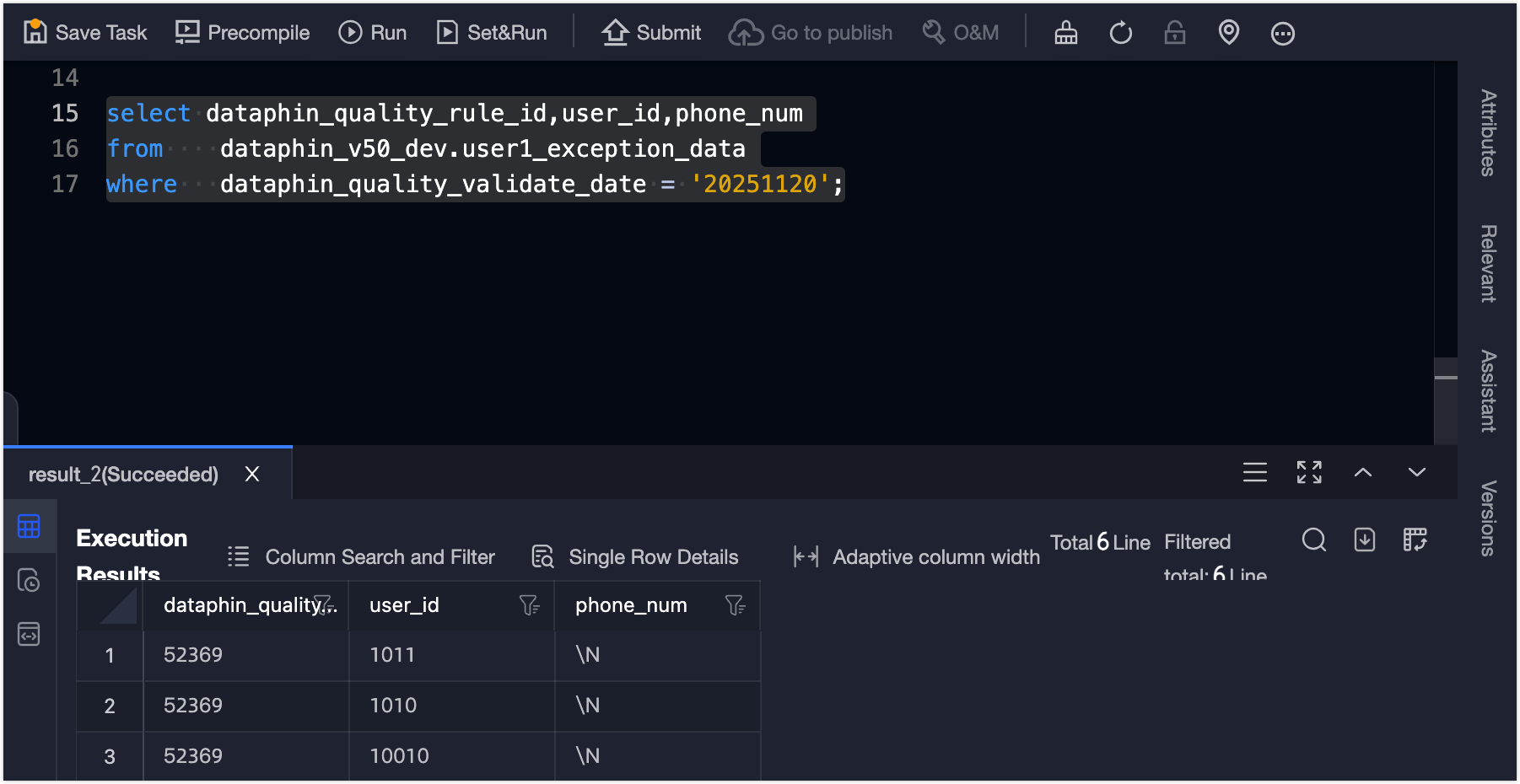
Schedule configuration
-
On the Scheduling Configuration tab, click Create Schedule. The Create Schedule dialog box opens.
-
In the Create Schedule dialog box, configure the parameters.
Parameter
Description
Schedule Configuration
Schedule Name
Enter Timed Scheduling.
Schedule Type
Select Timed Scheduling.
Schedule Date
Select Daily at 6:00.
Schedule Condition
Enable the schedule condition. Select the months from January to December in a standard calendar for the data timestamp. As shown in the figure:

Validation Scope
Validation Scope Expression
Select full table.
-
Click Confirm to create the schedule.
Alert configuration
-
On the Alert Configuration tab, click the New Alert Configuration button to open the New Alert Configuration dialog box.
-
In the New Alert Configuration dialog box, configure the parameters.
Parameter
Description
Coverage
Select All strong rules.
Alert Configuration Name
Enter Alert for all strong rules.
Alert Recipient
Select Quality Owner. Set the alert methods to Phone Call, Email, Text Message, DingTalk, Lark, and WeCom.
-
Click Confirm to create the alert configuration.
Archived table for abnormal data
-
On the Archived Table for Abnormal Data tab, click the Add Archived Table for Abnormal Data button to open the Add Archived Table for Abnormal Data dialog box.
-
In the Add Archived Table for Abnormal Data dialog box, select Create New Table and create the dataphin_v50_dev.user1_exception_data archived table.
-
Click Confirm to create the archived table for abnormal data.
Unique value validation
Scenario description: The order number is the unique identifier for the order table and must be globally unique. Create a unique value validation quality rule to detect duplicate order IDs and identify abnormal data.
Create a quality rule
-
On the Dataphin home page, choose Administration > Data Quality from the top menu bar.
-
In the navigation pane on the left, click Quality Rule. On the Dataphin Table tab, click the Add Monitored Object button to open the Add Monitored Object dialog box.
-
In the Add Monitored Object dialog box, configure the parameters and then click Configure Quality Rule.
Parameter
Description
Project
Select the dataphin_v50_dev project.
Data Table
Select order1.
Quality Owner
Default: SuperAdmin.
Quality Score Weight
The default value is 1.
-
On the Quality Rule Details page, click the New Quality Rule button and select Custom Configuration. In the New Quality Rule dialog box, configure the quality rule.
Parameter
Description
Basic Information
Rule Name
Enter Order number unique value validation.
Rule Strength
Select Strong Rule.
Description
Enter a brief description of the quality rule. For example: The validation fails if a non-unique order number is detected in the order1 table.
Configuration Method
Select Create from Template.
Rule Template
Select Uniqueness/Field Uniqueness Check.
Rule Type
Automatically filled based on the rule template.
Template Configuration
Parameter Settings
Displayed based on the rule template. No entry is required.
Rule Configuration
Validation Field
Select crt_ord_id.
Data Filtering
Disable data filtering.
Validation Configuration
Rule Validation
Select Abnormal Rate <= 0. The validation fails if even one abnormal record exists.
Archive Configuration
Archive Exceptions
Enable abnormal data archiving.
Archive Mode
Select Archive complete records.
Archive Location
Select Custom Archived Table for Abnormal Data (dataphin_v50_dev.order1_exception_data).
Scheduling Property Configuration
Scheduling Method
Select Timed Scheduling.
Quality Score Configuration
Scoring Method
Default: Quality Check Status.
Quality Score Weight
The default value is 1.
-
Click Confirm to create the unique value validation quality rule.
-
In the rule configuration list, select the crt_ord_id object. In the Operation column, click More and select Trial Run. In the Trial Run dialog box, select Custom Validation Scope and click Confirm.
The trial run failed because the order1 table contains data with empty mobile phone numbers.

-
The abnormal data is recorded in the dataphin_v50_dev.order1_exception_data archived table. To view the abnormal data, go to Develop > Data Development > Script Task and create a MAX_COMPUTE_SQL task.
select crt_ord_id, COUNT(1) as cnt
from   dataphin_v50_dev.order1_exception_data
where   dataphin_quality_validate_date = '20251120'
GROUP BY crt_ord_id
HAVING COUNT(1) > 1;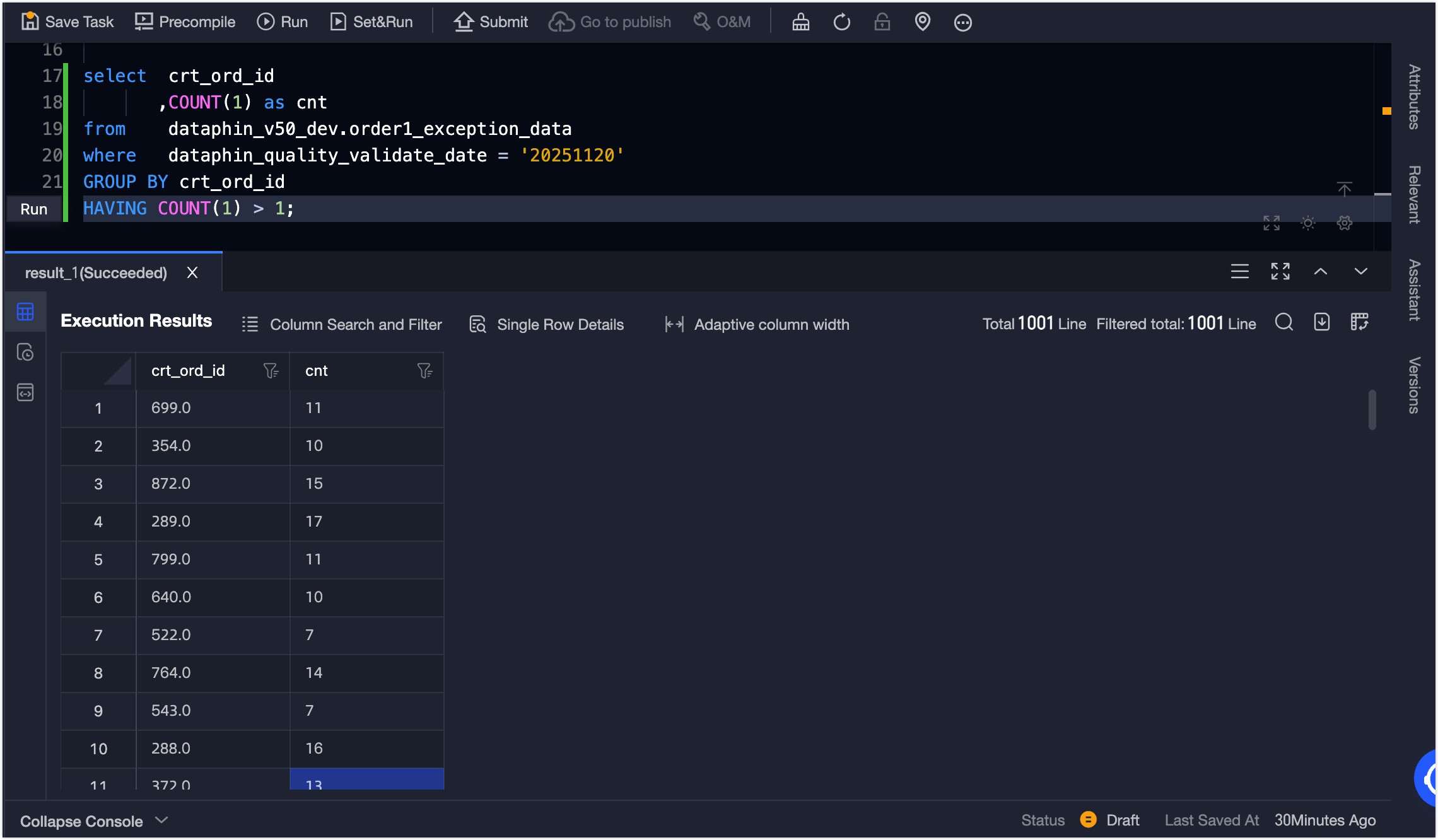
Moderately complex scenario configuration examples
Two-table field value consistency check
Scenario description: The user ID in the order table must reference a valid ID in the user table. An order record with a non-existent customer ID is considered dirty data. Create a two-table field value consistency rule to detect user IDs in the order table that do not exist in the user table and identify abnormal data.
Create a quality rule
-
On the Dataphin home page, choose Administration > Data Quality from the top menu bar.
-
In the navigation pane on the left, click Quality Rule. On the Dataphin Table tab, click the Add Monitored Object button to open the Add Monitored Object dialog box.
-
In the Add Monitored Object dialog box, configure the parameters and then click Configure Quality Rule.
Parameter
Description
Section or Project
Select the dataphin_v50_dev project.
Data Table
Select order1.
Quality Owner
Default: SuperAdmin.
Quality Score Weight
The default value is 1.
-
On the Quality Rule Details page, click the New Quality Rule button and select Custom Configuration. In the New Quality Rule dialog box, configure the quality rule.
Parameter
Description
Basic Information
Rule Name
Enter User ID consistency check.
Rule Strength
Select Strong Rule.
Description
Enter a brief description of the quality rule. For example: The validation fails if a user ID in the order1 table does not exist in the user table.
Configuration Method
Select Create from Template.
Rule Template
Select Consistency/Two-table Field Value Consistency Check.
Rule Type
Automatically filled based on the rule template.
Template Configuration
Parameter Settings
Displayed based on the rule template. No entry is required.
Rule Configuration
Validation Field
Select customer_id.
Select Comparison Table
Select the dataphin_v50_dev.user table and the user_id field.
Join Type
Select left join.
Associated Expression
Enter
T1.customer_id=T2.user_id.Data Filtering
Enter
T2.user_id is null.Validation Configuration
Rule Validation
Select Abnormal Rate <= 0. The validation fails if even one abnormal record exists.
Archive Configuration
Archive Exceptions
Enable abnormal data archiving.
Archive Mode
Select Archive complete records.
Archive Location
Select Custom Archived Table for Abnormal Data (dataphin_v50_dev.order2_exception_data).
Scheduling Property Configuration
Scheduling Method
Select Timed Scheduling.
Quality Score Configuration
Scoring Method
Default: Quality Check Status.
Quality Score Weight
The default value is 1.
-
Click Confirm to create the quality rule.
-
In the rule configuration list, select the customer_id object. In the Operation column, click More and select Trial Run. In the Trial Run dialog box, select Custom Validation Scope and click Confirm.
After the trial run, the validation fails because the order1 table contains user IDs that do not exist in the user table.

-
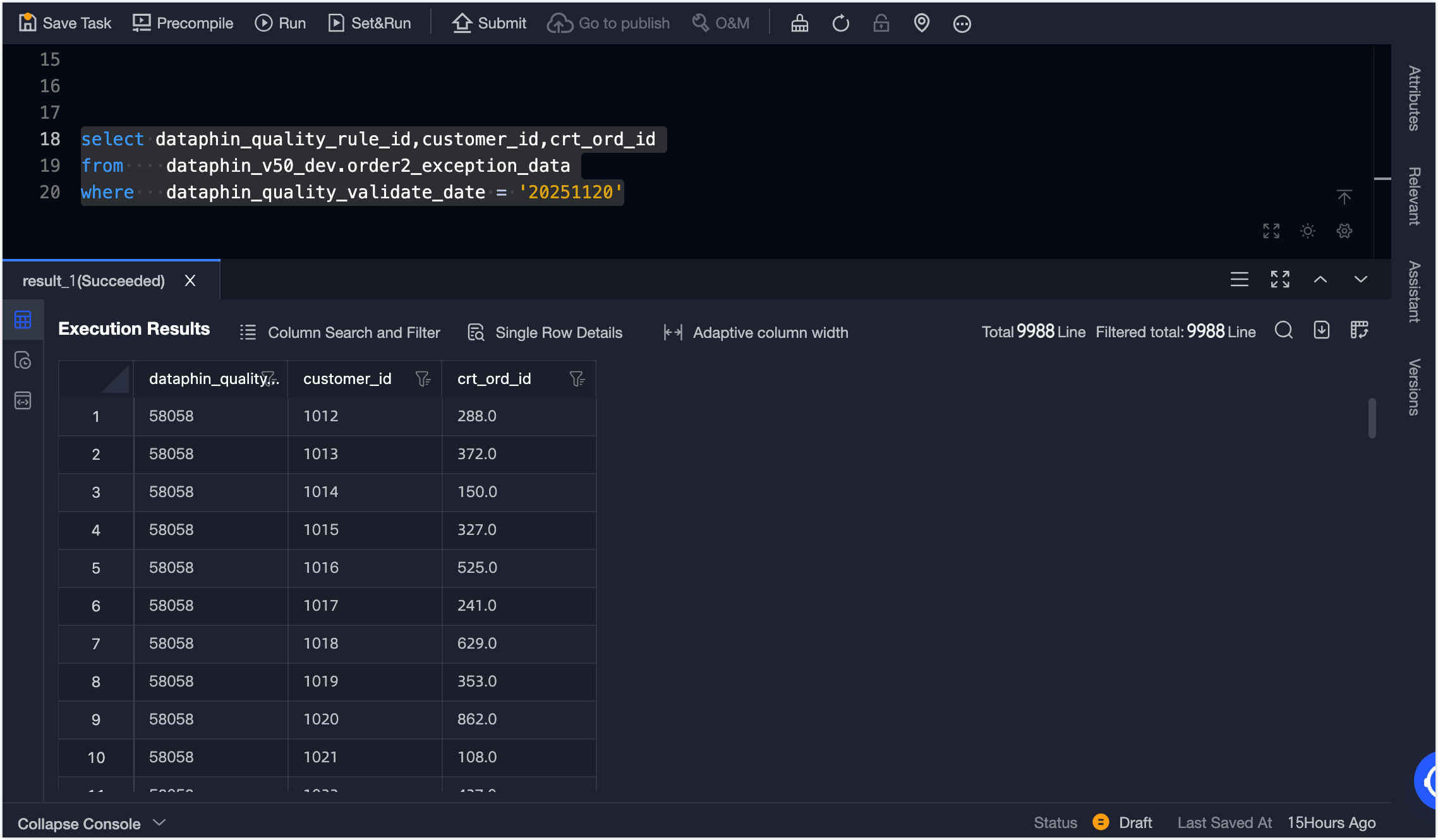
The abnormal data is recorded in the dataphin_v50_dev.order2_exception_data archived table. To view the abnormal data, go to Develop > Data Development > Script Task and create a MAX_COMPUTE_SQL task.
select dataphin_quality_rule_id,customer_id,crt_ord_id
from    dataphin_v50_dev.order2_exception_data
where   dataphin_quality_validate_date = '20251120'

Field value range check
Scenario description: The age field in the user table must fall within a reasonable range, such as 20 to 99. Values outside this range may be data entry errors or test data. Create a field value range check quality rule to detect records where the age is outside the 20–99 range and identify abnormal data.
Create a quality rule
-
On the Dataphin home page, choose Administration > Data Quality from the top menu bar.
-
In the navigation pane on the left, click Quality Rule. On the Dataphin Table tab, click the Add Monitored Object button to open the Add Monitored Object dialog box.
-
In the Add Monitored Object dialog box, configure the parameters and then click Configure Quality Rule.
Parameter
Description
Project
Select the dataphin_v50_dev project.
Data Table
Select user.
Quality Owner
Default: SuperAdmin.
Quality Score Weight
The default value is 1.
-
On the Quality Rule Details page, click the New Quality Rule button and select Custom Configuration. In the New Quality Rule dialog box, configure the quality rule.
Parameter
Description
Basic Information
Rule Name
Enter Age value range check.
Rule Strength
Select Strong Rule.
Description
Enter a brief description of the quality rule. For example: The validation fails if an age outside the 20-99 range is detected in the user table.
Configuration Method
Select Create from Template.
Rule Template
Select Validity/Field Value Range Check.
Rule Type
Automatically filled based on the rule template.
Template Configuration
Parameter Settings
Displayed based on the rule template. No entry is required.
Rule Configuration
Validation Field
Select age.
Range Type
Select Text.
Range
Select the interval >=20 and <=99.
Data Filtering
Disable data filtering.
Validation Configuration
Rule Validation
Select Abnormal Rate <= 0. The validation fails if even one abnormal record exists.
Archive Configuration
Archive Exceptions
Enable abnormal data archiving.
Archive Mode
Select Archive complete records.
Archive Location
Select Custom Archived Table for Abnormal Data (dataphin_v50_dev.user2_exception_data).
Scheduling Property Configuration
Scheduling Method
Select Timed Scheduling.
Quality Score Configuration
Scoring Method
Default: Quality Check Status.
Quality Score Weight
The default value is 1.
-
Click Confirm to create the quality rule.
-
In the rule configuration list, select the age object. In the Operation column, click More and select Trial Run. In the Trial Run dialog box, select Custom Validation Scope and click Confirm.
After the trial run, the validation fails because the user table contains records with ages outside the 20–99 range.
-
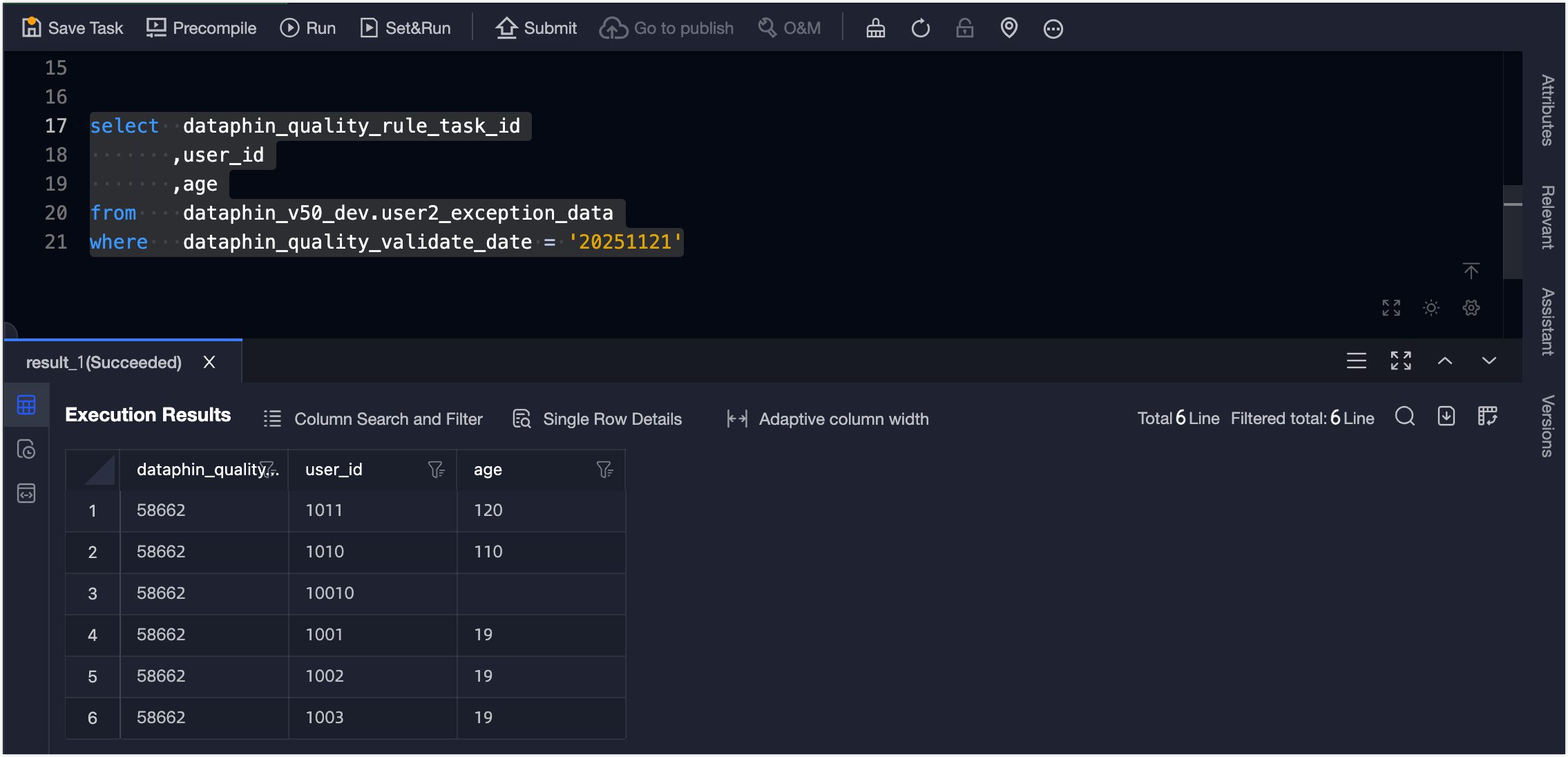
The abnormal data is recorded in the dataphin_v50_dev.user2_exception_data archived table. To view the abnormal data, go to Develop > Data Development > Script Task and create a MAX_COMPUTE_SQL task.
select  dataphin_quality_rule_task_id
       ,user_id
       ,age
from    dataphin_v50_dev.user2_exception_data
where   dataphin_quality_validate_date = '20251121'

Complex scenario configuration example
Scenario description: An order payment status transition in the shipping table is invalid, and quality validation fails, if any of the following conditions are met:
-
You cannot directly change the status of an order from Shipped to Canceled.
-
An order must be `paid` before its status can change to `shipped`.
-
A refunded order must have a prior payment record.
-
A delivered order must have a prior shipping record.
Create a quality rule
-
On the Dataphin home page, choose Administration > Data Quality from the top menu bar.
-
In the navigation pane on the left, click Quality Rule. On the Dataphin Table tab, click the Add Monitored Object button to open the Add Monitored Object dialog box.
-
In the Add Monitored Object dialog box, configure the parameters and then click Configure Quality Rule.
Parameter
Description
Project
Select the dataphin_v50_dev project.
Data Table
Select order_status_history.
Quality Owner
Default: SuperAdmin.
Quality Score Weight
The default value is 1.
-
On the Quality Rule Details page, click the New Quality Rule button and select Custom Configuration. In the New Quality Rule dialog box, configure the quality rule.
Parameter
Description
Basic Information
Rule Name
Enter E-commerce platform order payment status transition validity check.
Rule Strength
Select Strong Rule.
Description
Enter a brief description of the quality rule. For example:
-
An order status cannot change from `cancelled` to `shipped`.
-
An order must be `paid` before its status can change to `shipped`.
-
A refunded order must have a prior payment record.
-
A delivered order must have a prior shipping record.
Configuration Method
Select Create from Template.
Rule Template
Select Custom/Custom Data Detail Check.
Rule Type
Select Validity.
Template Configuration
Parameter Settings
Displayed based on the rule template. No entry is required.
Rule Configuration
Total Rows SQL
Enter the following SQL statement.
select count(*) from order_status_history;Abnormal Rows SQL/Abnormal Data SQL
Enter the SQL statements. For more information, see the SQL statements below the table.
Validation Configuration
Rule Validation
Select Abnormal Rate <= 0. The validation fails if even one abnormal record exists.
Archive Configuration
Archive Exceptions
Enable abnormal data archiving.
Archive Mode
Select Archive complete records.
Archive Location
Select Custom Archived Table for Abnormal Data (dataphin_v50_dev.order_status_history_exception_data).
Scheduling Property Configuration
Scheduling Method
Select Timed Scheduling.
Quality Score Configuration
Scoring Method
Default: Quality Check Status.
Quality Score Weight
The default value is 1.
Abnormal Rows SQL
SELECT
count(*)
FROM
(    SELECT
        id,
        order_id,
        status AS current_status,
        update_time AS current_update_time,
        operator AS current_operator,
        remark AS current_remark,
        -- Get the previous row's data
        LAG(id) OVER (PARTITION BY order_id ORDER BY cast(update_time as TIMESTAMP )) AS previous_id,
        LAG(status) OVER (PARTITION BY order_id ORDER BY cast(update_time as TIMESTAMP )) AS previous_status,
        LAG(update_time) OVER (PARTITION BY order_id ORDER BY cast(update_time as TIMESTAMP )) AS previous_update_time,
        LAG(operator) OVER (PARTITION BY order_id ORDER BY cast(update_time as TIMESTAMP )) AS previous_operator,
        LAG(remark) OVER (PARTITION BY order_id ORDER BY cast(update_time as TIMESTAMP )) AS previous_remark
    FROM order_status_history) temp_table
WHERE (previous_status = 'cancelled' AND current_status = 'shipped')
   OR (previous_status <> 'paid' AND current_status = 'shipped')
   OR (previous_status = 'refunded' AND current_status NOT IN ('created', 'cancelled'))
   OR (previous_status = 'delivered' AND current_status = 'shipped')
Abnormal Data SQL
SELECT previous_id as id, order_id, previous_status AS status, previous_update_time AS update_time, previous_operator AS operator, previous_remark AS remark FROM ( SELECT id, order_id, status AS current_status, update_time AS current_update_time, operator AS current_operator, remark AS current_remark, -- Get the previous row's data LAG(id) OVER (PARTITION BY order_id ORDER BY cast(update_time as TIMESTAMP )) AS previous_id, LAG(status) OVER (PARTITION BY order_id ORDER BY cast(update_time as TIMESTAMP )) AS previous_status, LAG(update_time) OVER (PARTITION BY order_id ORDER BY cast(update_time as TIMESTAMP )) AS previous_update_time, LAG(operator) OVER (PARTITION BY order_id ORDER BY cast(update_time as TIMESTAMP )) AS previous_operator, LAG(remark) OVER (PARTITION BY order_id ORDER BY cast(update_time as TIMESTAMP )) AS previous_remark FROM order_status_history) temp_table WHERE (previous_status = 'cancelled' AND current_status = 'shipped') OR (previous_status <> 'paid' AND current_status = 'shipped') OR (previous_status = 'refunded' AND current_status NOT IN ('created', 'cancelled')) OR (previous_status = 'delivered' AND current_status = 'shipped') UNION ALL SELECT id AS id, order_id, current_status AS status, current_update_time AS update_time, current_operator AS operator, current_remark AS remark FROM ( SELECT id, order_id, status AS current_status, update_time AS current_update_time, operator AS current_operator, remark AS current_remark, -- Get the previous row's data LAG(id) OVER (PARTITION BY order_id ORDER BY cast(update_time as TIMESTAMP )) AS previous_id, LAG(status) OVER (PARTITION BY order_id ORDER BY cast(update_time as TIMESTAMP )) AS previous_status, LAG(update_time) OVER (PARTITION BY order_id ORDER BY cast(update_time as TIMESTAMP )) AS previous_update_time, LAG(operator) OVER (PARTITION BY order_id ORDER BY cast(update_time as TIMESTAMP )) AS previous_operator, LAG(remark) OVER (PARTITION BY order_id ORDER BY cast(update_time as TIMESTAMP )) AS previous_remark FROM order_status_history) temp_table WHERE (previous_status = 'cancelled' AND current_status = 'shipped') OR (previous_status <> 'paid' AND current_status = 'shipped') OR (previous_status = 'refunded' AND current_status NOT IN ('created', 'cancelled')) OR (previous_status = 'delivered' AND current_status = 'shipped') ORDER BY order_id, update_time; -
-
Click Confirm to create the quality rule.
-
In the rule configuration list, select the dataphin_v50_dev.order_status_history object. In the Operation column, click More and select Trial Run. In the Trial Run dialog box, select Custom Validation Scope and click Confirm.
After the trial run, the validation fails because abnormal order status transitions were detected in the shipping table.
-
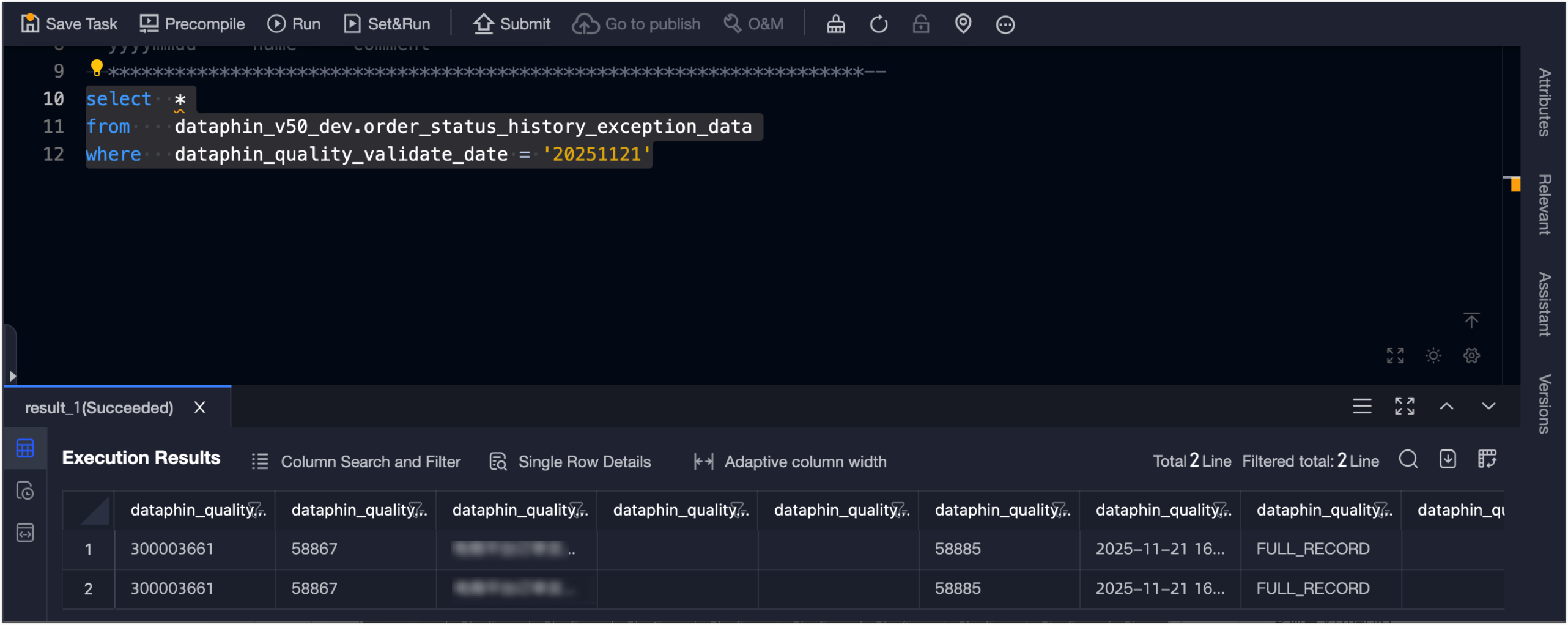
The abnormal data is recorded in the dataphin_v50_dev.order_status_history_exception_data archived table. To view the abnormal data, go to Develop > Data Development > Script Task and create a MAX_COMPUTE_SQL task.
select  *
from    dataphin_v50_dev.order_status_history_exception_data
where   dataphin_quality_validate_date = '20251121'