Configure Elasticsearch Output Component
Configure the Elasticsearch output component to write synchronized data to an Elasticsearch index.
Prerequisites
An Elasticsearch data source is created. For more information, see Create an Elasticsearch Data Source.
The account used to configure the Elasticsearch output component must have write-through permissions for the data source. If you lack these permissions, request data source access. For more information, see Apply for, Renew, and Return Data Source Permissions.
Procedure
In the top menu bar of the Dataphin home page, select Development > Data Integration.
In the top menu bar of the integration page, select Project (Dev-Prod mode requires selecting an environment).
In the navigation pane on the left, click Batch Pipeline. In the Batch Pipeline list, click the offline pipeline that needs to be developed to open its configuration page.
Click Component Library in the upper right corner of the page to open the Component Library panel.
In the navigation pane on the left of the Component Library panel, select Output, find the Elasticsearch component in the input component list on the right, and drag it to the canvas.
Click and drag the
 icon of the target input component to connect it to the current Elasticsearch output component.
Click the
 icon in the Elasticsearch output component card to open the Elasticsearch Output Configuration dialog box.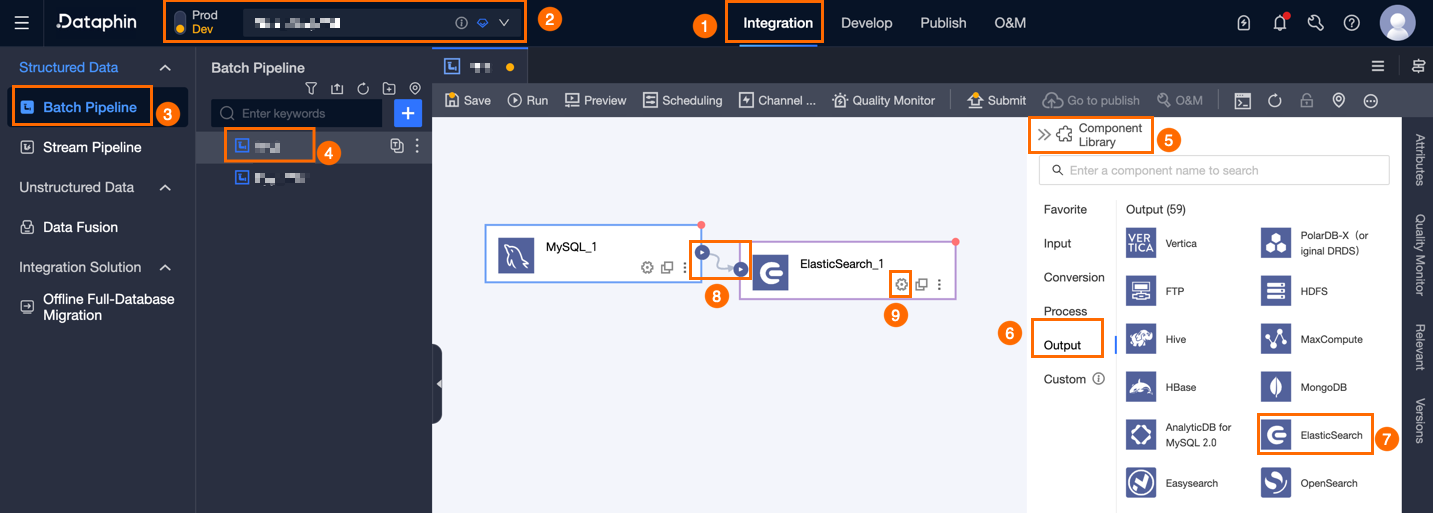
In the Elasticsearch Output Configuration dialog box, configure parameters.
Parameter
Description
Step Name
The name of the Elasticsearch output component. Dataphin generates a default name that you can modify. The naming rules are:
Contains only Chinese characters, uppercase and lowercase English letters, underscores (_), and numbers.
Does not exceed 64 characters in length.
Datasource
The drop-down list shows all Elasticsearch-type data sources, regardless of whether you have write-through permission.
If you lack write-through permission for a data source, click Request next to it to apply. For more information, see Apply for, Renew, and Return Data Source Permissions.
If you do not have an Elasticsearch-type data source, click Create to create a data source. For more information, see Create an Elasticsearch Data Source.
Query Type
Select the target index document by Index or Alias. Each query type requires different configuration.
ImportantIf you select Index alias, you can only write to an alias that points to a single index or an alias for which
is_write_indexis set. Otherwise, the write operation fails.Index.
Index document: The name of the
indexin Elasticsearch.Index Document Type: The type name of the index in Elasticsearch.
NoteIndex Document and Index Document Type are required for Elasticsearch 6.x and 7.x versions, but not required for Elasticsearch 8.x version.
Alias.
Index alias: The
Aliasof theindexin Elasticsearch.Index Document Type: The type name of the index in Elasticsearch.
Field Separator
Optional. Specify the separator between fields. If left empty, a comma (,) is used by default.
Loading Policy
Specify how data is written to the target table. Loading Policy options:
Overwrite Data: Replaces existing data in the target table with data from the source table.
Append Data: Adds data to the target table without modifying existing data.
NoteWhen Query Type is set to Alias, Loading Policy can only be set to Append Data.
Input Fields
Displays input fields based on the upstream output.
Output Fields
Displays output fields.
Get Field Information.
When Query Type is set to Index, you can click Get Field Information to obtain the field information of the selected Index.
Batch Add Fields.
Click Batch Add.
Configure in JSON format in batches. The example is as follows:
[{"name":"col_integer","type":"integer"}, {"name":"col_long","type":"long"}, {"name":"col_double","type":"double"}]Notename specifies the name of the imported field, and type specifies the type of the imported field. For example,
"name":"user_id","type":"String"imports the field named user_id and sets the field type to String.Configure in TEXT format in batches. The example is as follows:
col_long,long
col_double,double
The row delimiter is used to separate each field's information. The default is a line feed (\n), and it supports line feed (\n), semicolon (;), and period (.).
The column delimiter is used to separate the field name and field type. The default is a comma (,).
Click Confirm.
Create Output Field.
Click Create Output Field, then specify the Column and Type.
Copy Upstream Fields.
Reference upstream input fields as output fields.
Manage Output Fields.
You can perform the following operations on the added fields:
Click the drag Column next to the
 shift icon to change the position of the field.
Click the Operation column's
 edit icon to edit the existing fields.
Click the Operation column's
 delete icon to remove the existing field.
Mapping
Maps input fields from the source table to output fields in the target table for data synchronization. Two mapping modes are available:
Same-name Mapping: Maps fields with the same field name.
Same-row Mapping: Maps fields by row position when source and target field names differ.
Index Schema
NoteConfigure this parameter only when Query Type is set to Index and Loading Policy is set to Overwrite Data.
Specify the index schema source:
Reuse Online: Reuse the existing Elasticsearch index schema each time the index is rebuilt.
System Default: Automatically generate the index schema based on the output fields configured in the Elasticsearch output component each time the index is rebuilt.
Click Confirm to complete the property configuration of the Elasticsearch output component.
 delete icon to remove the existing field.