Configure a script mode output component
Script mode output components let you configure items that system widgets do not support, to accommodate specific business scenarios.
Procedure
-
On the Dataphin home page, navigate to the top menu bar and select Development > Data Integration.
-
Select Project on the top menu bar of the integration page. For Dev-Prod mode, select Environment.
-
In the navigation pane on the left, click Batch Pipeline. Then, in the Batch Pipeline list, click the Offline Pipeline you want to develop to access its configuration page.
-
Click Component Library in the upper right corner of the page to open the Component Library panel.
-
In the Component Library panel's left-side navigation pane, select Outputs. Then, in the output widget list on the right, locate the Script Mode widget and drag it onto the canvas.
-
Click and drag the
 icon of the desired input, transform, or flow widget to connect it to the script mode output widget.
 -
Click the
 icon on the script mode output component card to open the Script Mode Output Configuration dialog box.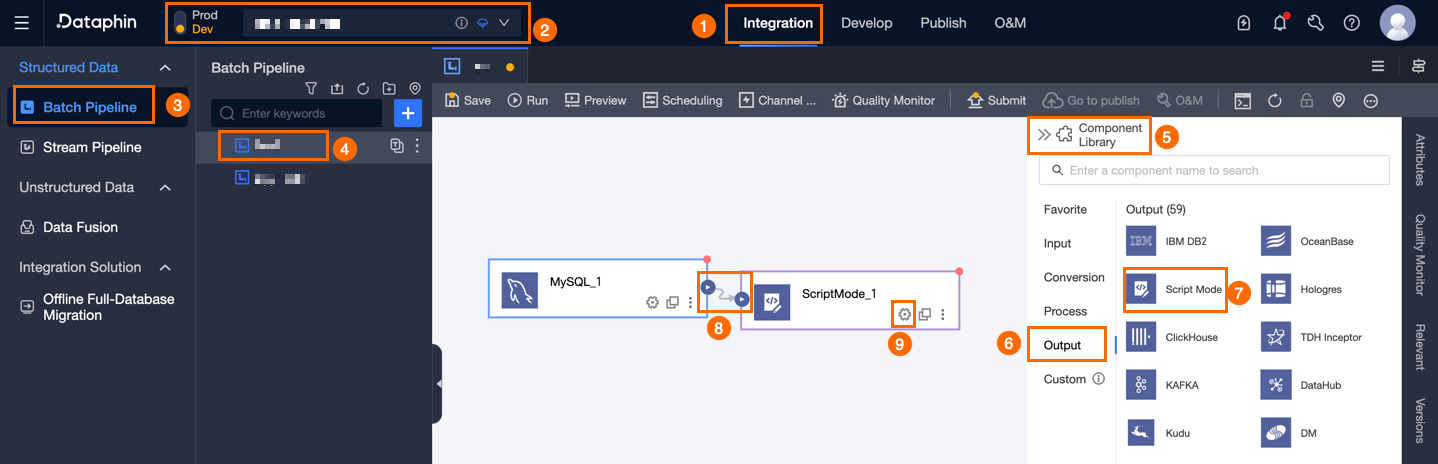
-
In the Script Mode Output Configuration dialog box, set the parameters.
Parameter
Description
Step Name
The name of the script mode output widget. Dataphin automatically generates a step name, which you can modify as needed. The naming convention is as follows:
-
Can only contain Chinese characters, letters, underscores (_), and numbers.
-
Cannot exceed 64 characters.
Data Source Type
Select the data source type.
Datasource
Select the file encoding method. The system supports UTF-8 and GBK methods.
Configuration File
Click the
 icon to expand the editing area and view or write the configuration file in full screen.
Edit the script:
-
Click Generate Sync Configuration File. The Configuration File area on the right side of the page displays the output widget template.
-
In the Configuration File area, write the configuration file code. An example is as follows.
{
    "table": "tableName",
    "columnMapping": [
        {
            "sourceColName": "",
            "dstColName": ""
        }
    ],
    "parameter": {

    }
}
Where:
-
table: The input table of the output widget. Use tables as the key for multiple input tables, or table for a single input table. If the widget does not involve a table, this parameter is not available.
-
columnMapping: Defines the mapping between input and output fields. Field order does not matter.
-
parameter: Widget-specific parameters. See the documentation of the corresponding widget for details.
-
-
-
Click Confirm to finalize the property settings for the Script Mode Output Widget.