Menu settings
Dataphin lets you create and reorder custom menus to suit your needs. This topic describes how to configure menus in Dataphin.
Permissions
-
Super administrators, system administrators, and users with a custom global role that includes the System Settings - Manage Style Configuration permission can configure custom menus.
-
Super administrators, system administrators, and users with a custom global role that includes the System Settings - View permission can view custom menus.
Menu hierarchy
Dataphin menus are organized into a three-level hierarchy: menu group > first-level menu > second-level menu. A menu group can contain multiple first-level menus, and a first-level menu can contain multiple second-level menus.
For example, Data Development & Construction is a menu group, R&D is a first-level menu, and Data Integration and Data Development are second-level menus.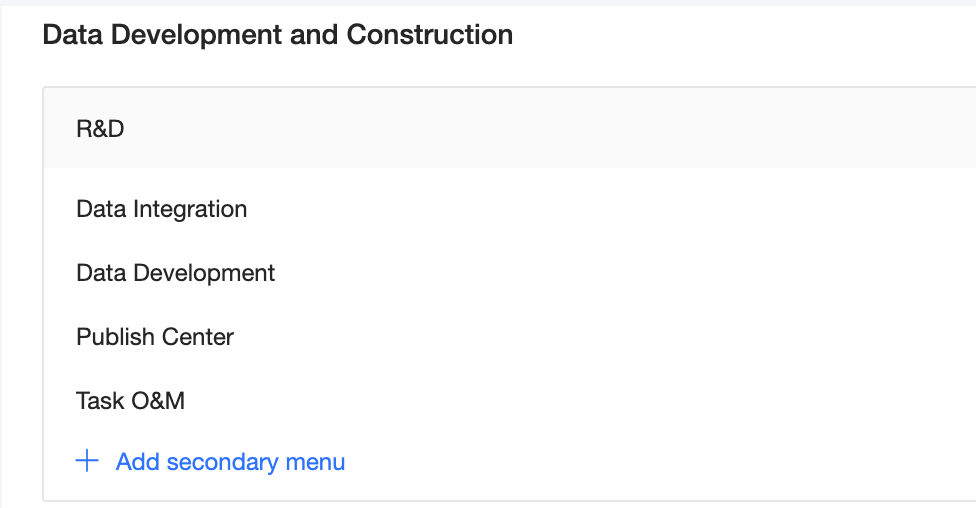
Default menu order
-
Intelligent Workbench
-
Super X: X-ETL, X-Analysis, X-Standard, X-Security, Agents Management, Enterprise Knowledge Base.
-
-
Data Development & Construction
-
R&D: Data Integration, Data Development, Task Publish, Task O&M.
-
Tags: Asset Marketplace, Tag Workbench, Tag Application, Event Center.
-
-
Asset Governance
-
Governance: Asset List, Data Standard, Data Quality, Data Security, Resource Governance, Metadata.
-
Assets: Intelligent Assistant D, Asset Overview, Asset Catalog, Standard Catalog, Asset Consumption, Catalog Management, Smart Q&A.
-
-
Analytics and Applications
-
Data Analysis: SQL Query, Notebook, Manual Table.
-
Services: API Marketplace, Application Management, Application O&M, API Call, API Development, API O&M, Service Management.
-
-
More
-
Planning: Data Arch, Tag Arch, Public Definitions, Attribute Management, Project Management, Cluster Management, Compute Source, Acceleration Source.
-
Administration: Users & Roles, Permission, Data Source Management, System Settings, Specification, Migration.
-
Mine: My Account, My Data Center, Alert Center, Message Center, Task Center.
-
Create a menu group
-
In the top navigation bar of the Dataphin homepage, choose Administration > System Settings.
-
In the left-side navigation pane, choose Tenant Settings > Style Configuration.
-
On the Style Configuration page, click the Menu Settings tab.
-
On the Menu Settings page, click the
 icon in the Menu Group list to open the Create Menu Group dialog box.
 -
In the Create Menu Group dialog box, configure the following parameters.
Parameter
Description
Menu group name
Enter a name for the menu group. The name can be up to 128 characters long.
Menu group name - English (Optional)
Enter the English name for the menu group. The name can be up to 128 characters long.
When the Dataphin environment language is switched to English, the menu group name uses the English name configured here. If this field is empty, the menu group name configured above is displayed without translation.
Menu group name - Traditional Chinese (Optional)
Enter the Traditional Chinese name for the menu group. The name can be up to 128 characters long.
When the Dataphin environment language is switched to Traditional Chinese, the menu group name will use the Traditional Chinese name configured here. If this field is left empty, the menu group name configured above is displayed without being translated.
Menu group icon
Upload an icon for the menu group. The image must be in PNG or JPG format and be no larger than 100 KB.
-
After you configure the parameters, click OK.
-
(Optional) At the bottom of the page, click Preview to open the Preview Global Navigation dialog box and review the menu configuration. If the configuration is correct, click OK to save the changes.
Create a first-level or second-level menu
-
In the top navigation bar of the Dataphin homepage, choose Administration > System Settings.
-
In the left-side navigation pane, choose Tenant Settings > Style Configuration.
-
On the Style Configuration page, click the Menu Settings tab.
-
On the Menu Settings page, click + Add First-level Menu or + Add Second-level Menu in the target area.
For example, to add a first-level menu to the Data Development & Construction menu group, click + Add First-level Menu in that area. To add a second-level menu to the R&D first-level menu, click + Add Second-level Menu in that area.
NoteYou cannot add second-level menus under the Data Analysis and Planning first-level menus.
-
In the Create First-level Menu or Create Second-level Menu dialog box, configure the following parameters.
Parameter
Description
First-level/Second-level menu name
Enter a name for the menu. The name can be up to 128 characters long.
First-level/Second-level menu name - English (Optional)
Enter the English name for the menu. The name can be up to 128 characters long.
This name appears when you switch the language in Dataphin to English. If you leave this field empty, Dataphin uses the name from the previous field directly.
First-level/Second-level menu name - Traditional Chinese (Optional)
Enter the Traditional Chinese name for the menu. The name can be up to 128 characters long.
This name appears when you switch the language in Dataphin to Traditional Chinese. If you leave this field empty, Dataphin uses the name from the previous field directly.
Menu link URL
Enter the URL for the menu link. The URL must start with
https://orhttp://and can be up to 10,000 characters long.Open method
Select where the link opens: Current Page or New Tab. The default is Current Page.
Show top navigation bar (Optional)
If you enable this option, the system navigation bar appears at the top of the embedded page for this menu. This option is disabled by default.
-
After you configure the parameters, click OK.
-
(Optional) At the bottom of the page, click Preview to open the Preview Global Navigation dialog box and review the menu configuration. If the configuration is correct, click OK to save the changes.
Manage menus
System menus cannot be edited, deleted, or reordered.
|
Actions |
Description |
|
Edit a custom menu |
You can edit custom menu groups, first-level menus, and second-level menus. To edit an item, click the |
|
Delete a custom menu |
You can delete custom menu groups, first-level menus, and second-level menus. To delete an item, click the Important
Deleting a menu group also deletes all of its first-level and second-level menus. Deleting a first-level menu also deletes its second-level menus. |
|
Reorder custom menus |
|
|
Restore default settings |
Click Restore Default Settings on the Menu Settings page to restore the original system menus. This action deletes all custom menus and menu groups and restores the default menu order. For details on the default order, see Default menu order. |
 icon next to it. For parameter details, see
  icon next to it and then click OK in the confirmation dialog box.
 icon of a custom menu group to move it to a new position in the list. This moves the entire group, including all its submenus.
Single-tenant multi-engine
In multi-engine mode, the menu settings for a tenant show only the menus for features selected during tenant creation, plus any custom menus.