View and manage my assets
The My Assets list provides a quick overview of assets you own and lets you change asset owners, request permissions, and subscribe to changes in associated data standards.
Permissions
-
Super administrators can change the owner of all table types. Current table owners can only change the owner of tables they own.
-
Project administrators can change the owner of real-time metatables, image tables, physical tables, and physical views within their projects.
-
Domain architects can change the owner of logical tables and logical views within their designated domains.
-
If a logical aggregate table does not have an owner, super administrators and domain administrators can assign one.
Introduction to entry points
You can access the Personal Data Center in the following ways.
Method 1
On the asset checklist page, click the Personal Data Center button in the upper-right corner.

Method 2
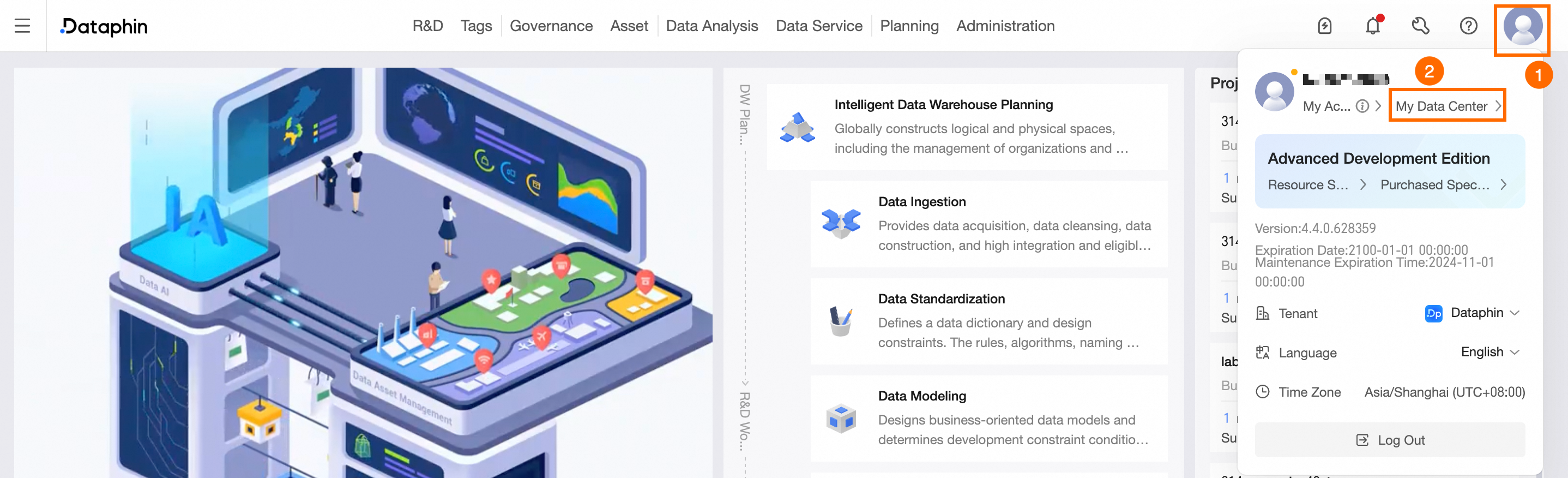
Click your profile picture in the upper-right corner to open the User Center, and then click Personal Data Center.
Click Top-right Profile Picture > Personal Data Center.
View my assigned lists
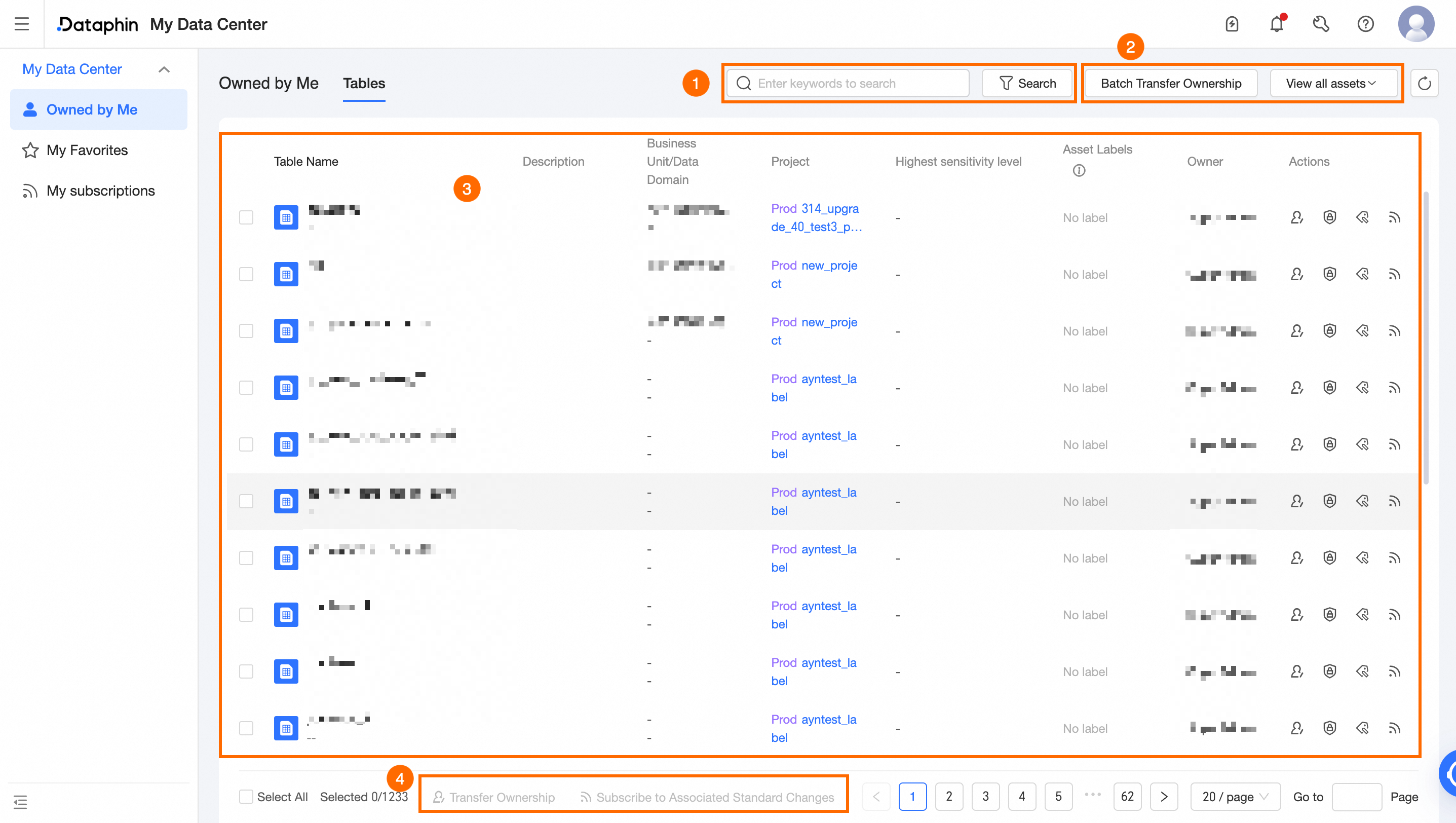
The My Assets list displays all asset objects you own, with options for batch operations such as changing owners, requesting permissions, and subscribing to changes in associated data standards.
|
Area |
Description |
|
① Filter and search area |
Perform a fuzzy search by data table name or description. You can also filter results by project, asset tag, environment, table type, or storage format. |
|
② Function area |
|
|
③ Asset list area |
The list displays the filtered results. It includes details such as the data table name, description, data domain/subject area, project, highest security level (requires the data security module), asset tags, and owner. In the Actions column, you can Change Owner, Request Permission, Modify Asset Tag, and Subscribe To Associated Standard Changes for a data table.
|
|
④ Batch operation area |
Batch change data table owners and subscribe to changes in associated data standards. |