Access the real-time tasks page
In the top navigation bar of the Dataphin homepage, select Development > O&M.
In the left-side navigation pane, choose O&M > Real-time Tasks to open the Real-time Tasks page.
In the top navigation bar, select the production or development environment.
Real-time tasks page overview
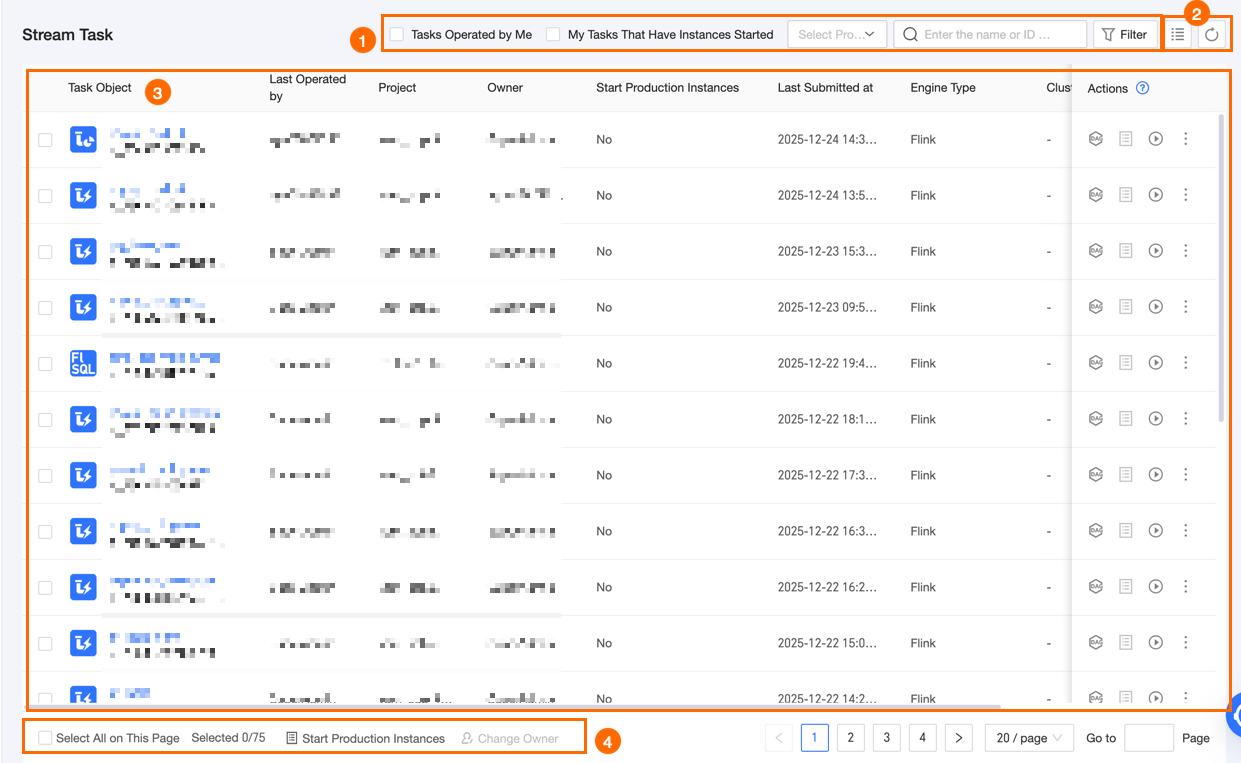
Area | Description |
① Search and filter | You can search for a real-time task by its name or ID. Tasks I operated: Shows real-time tasks where the current user is the owner. My started task instances: Shows started real-time tasks where the current user is the owner. Project: Filters tasks by the project they belong to. You can select multiple projects for which you have the O&M - Access Directory permission. Filter: Click Filter to expand all filter options, which include: Subtype: The available real-time development task types vary by real-time engine. The options displayed on the page may include real-time development task types, real-time integration, and real-time workflow. Last operator: Filters tasks by their last operator. Owner: Filters tasks by their owner. If you select **Tasks I operated**, this filter defaults to the current user. Engine type: Filters tasks by engine type. Options include Ververica Flink, Alibaba Blink, open source Flink, and FusionInsight Flink, and Built-in Engine. Resource queue: Filters tasks by the resource queue they run on. This option is available when the engine type is Alibaba Blink or open source Flink. Cluster: Filters tasks by the cluster they run on. This option is available when the engine type is Ververica Flink. Engine version: The version of the engine used by the task. Production instance started: Filters tasks based on whether their production instance is running. This applies only to Prod and Basic projects. Test instance started: Filters tasks based on whether their test instance is running. This applies only to Dev projects.
Reset: After expanding the filter options, click Reset to clear all selected filter criteria. Refresh: Click the Refresh icon to refresh the current list of real-time tasks.
|
② List operations | |
③ Real-time task list | The **Real-time Tasks** page lists all real-time tasks generated in the system. The list displays information such as the task object, last operator, owner, production instance status, last commit time, engine type, and engine version. You can resize each column. The configured column widths are saved in your browser. These settings are cleared if you clear your browser's history and cookies. Task object: The real-time task submitted to the O&M center, including its script name and ID. Last operator: The account name of the user who last operated on the task. Owner: The account name of the task owner. Production instance started: The running status of the task's production instance. Project: The project the task belongs to, displayed in the format ProjectEnglishName (ProjectDisplayName). Last commit time: The last time the real-time task was submitted to the O&M center. Engine type: The engine type used by the real-time task. Cluster: The production environment cluster for the task. This is displayed only when the real-time engine is Ververica Flink. This field is empty for other engine types. Resource queue: The resource queue used by the task at runtime. This is displayed only when the real-time engine is Alibaba Blink or open source Flink. This field is empty for other engine types. Engine version: The engine version used by the task.
The Actions column shows the available management operations for each real-time task. For details about individual operations, see Individual operations. |
④ Batch operations | Use the batch operations area to change owners or start production instances in bulk. For details about supported batch operations, see Batch operations. |
Manage real-time tasks
Individual operations
Action | Description |
DAG | Click the  icon in the Actions column of a task to view its DAG. For more information, see Operations in the DAG view. icon in the Actions column of a task to view its DAG. For more information, see Operations in the DAG view. |
View instances | Click the  icon in the Actions column of a task to view the instances generated by its runs. icon in the Actions column of a task to view the instances generated by its runs.
Note This action is available only if the task has already run and produced an instance. |
Start instance | Click the  icon in the Actions column of a task to start an instance. For details, see Start a real-time instance. icon in the Actions column of a task to start an instance. For details, see Start a real-time instance.
Note You can only start an instance that is not running. |
View task code | Click the icon in the Actions column of a task and select View Task Code to see the task's code. |
View task parameters | Click the icon in the Actions column of a task and select View Task Parameters to view the parameters defined for the task node.
Note You cannot view task parameters for real-time workflows. |
Change owner | In the production environment, click the icon in the Actions column of a task and select Change Owner. In the Change Owner dialog box, select a new owner.
Note You can only select project members who have O&M permissions. |
Modify resource configuration | Click the icon in the Actions column of a task and select Modify Resource Configuration to change the resource configuration for the real-time task, such as Core and Memory.
Note You can modify the resource configuration only for tasks in Prod and Basic projects. Modifying the resource configuration is not supported for the Fusioninsight Flink engine. Modifying the resource configuration is not supported for real-time workflows.
|
Batch operations
Action | Description |
Start production instance | You can start multiple real-time integration instances, real-time development instances, or real-time workflows at the same time.
Note This action applies only to Prod and Basic projects, and all selected real-time tasks must be not running. Start real-time integration instance: Select one or more real-time integration tasks that are not running, or click **Select All on This Page**. Then, click Start Production Instance and select Start Real-time Integration Instance. In the Batch Start Real-time Integration Instances dialog box, configure the startup information. Start n instance(s): Shows the number and names of the instances to be started. Instance names are separated by commas (,). Start scope: Select Incremental + Full (available only for real-time integration tasks that support both full and incremental synchronization) or Incremental Only. Full synchronization: This section is available only if you select Incremental + Full for the **Start scope**. Rerun method: Choose Initialize or Resume. Initialize: Starts temporary tasks for full synchronization of all synchronization objects. After all temporary tasks are complete, the real-time incremental synchronization task starts. Resume: Starts temporary tasks for full synchronization of all objects that have not completed synchronization (excluding those that are completed, stopped, or ignored). After all temporary tasks are complete, the real-time incremental synchronization task starts.
Memory (Optional): The maximum memory cannot exceed 8,192 MB (8 GB). Decimals and negative numbers are not supported. Throttling (Optional): Limits the data transfer rate. Decimals and negative numbers are not supported. The default value is 10 M/s. If left empty, the rate is unlimited. Concurrency (Optional): Sets the desired maximum concurrency for the full synchronization task. Decimals and negative numbers are not supported. The default value is 10. If left empty, the concurrency is set to 3.
Note The scheduling resource group, memory, throttling, and concurrency can be configured only in the production environment. Incremental synchronization: This section is available only if you select Incremental Only for the **Start scope**. Start method: Only stateless startup is supported. This method starts the task without any initial state. Read start time: Sets a specific start time for all source tables that support the startTime parameter (such as Log Service, Kafka, MySQL, MongoDB, and OceanBase).
Note Parameter configurations within the SQL code take precedence over this specified start time.
Click OK to start.
Start real-time development instance or start real-time workflow instance: Select one or more not running real-time development/real-time workflow tasks, or click Select All on This Page. Then, click Start Production Instance and select Start Real-time Development Instance/Start Real-time Workflow Instance. In the Batch Start Real-time Development Instances/Batch Start Real-time Workflow dialog box, configure the startup information. Start n instance(s): Shows the number and names of the instances to be started. Instance names are separated by commas (,). Start method: You can choose between a stateless startup and restoring from a valid state. Read start time: Sets a specific start time for all source tables that support the startTime parameter (such as Log Service, Kafka, MySQL, MongoDB, and OceanBase) to begin reading data.
Note Parameter configurations within the SQL job take precedence over this specified start time. Business date: You can assign values to time variables by configuring the business date. Time-based variables are calculated based on the business date, which defaults to the current day.
Note Parameter configurations within the SQL job take precedence over the configured business date.
Click OK to start.
|
Change owner | You can change the owner for multiple real-time tasks at the same time. Select one or more real-time tasks, or click Select All on This Page, and then click Change Owner. In the Change Owner dialog box, select a new owner. Click OK.
|
Operations in the DAG view
Hover over a node in the DAG to view details such as its name, type, owner, and description. The DAG view also supports the following operations:
Action | Description |
Expand parent nodes | Expands different levels of dependent nodes for the main node in the DAG. |
Expand child nodes |
Start real-time instance | You must manually start a real-time instance by clicking the icon and configuring the startup information. For details, see Start a real-time instance. |
View real-time instances | Navigates to the real-time instance page to view the instances generated by the current real-time task. |
View node code | View the code of the real-time task node. |
View task parameters | View the task parameters of the real-time task node.
Note This action is not supported for real-time workflow tasks. |
View operation logs | View the operation logs for the real-time task node. |
Edit development node | Opens the task's editing page in the Dev project. This action is available only in the Dev-Prod development model. |
Edit node | Opens the editing page for the current task. This action is available only in the Basic model. |
View production node | View the configuration of the current task in the Prod project. |
View topology | View the resource group nodes and component nodes of the real-time task. |
Modify resource configuration | Modify the resource configuration for the task run, such as Core and Memory.
Important You can modify the resource configuration only for tasks in Prod and Basic projects. This action is not supported for the Fusioninsight Flink engine. This action is not supported for real-time workflow tasks.
|
 icon to select the columns to display and adjust their order.
 icon to refresh the current list.
 icon in the Actions column of a task to start an instance. For details, see
  icon in the Actions column of a task and select View Task Code to see the task's code.
 icon and configuring the startup information. For details, see