View and manage execution records
Execution records save your data query history for the last 15 days for various object types, including ad-hoc queries, workflow runs, compute tasks, logical data table previews, smoke tests for derived metrics, and OpenAPI calls.
View execution records
In the top navigation bar of the Dataphin homepage, choose Develop > Data Development.
On the Develop page, select a project from the top navigation bar. In Dev-Prod mode, you must also select an environment.
In the left-side navigation pane, click Execution Records. In the Execution Records list, select a record from a specific date.
On the execution record page, you can view the execution log, execution result, and basic details. The basic details include: Object name, Object type, Code type, Duration, Start time, Executor, and Related table. You can also View Code, Stop, Delete, and Download Result.
View Code: View the code script for the task.
NoteThe View Code action is not available for workflow tasks.
Stop: Super administrators, system administrators, project administrators, and the task's executor can stop a task or object.
Delete: You cannot delete the record of a running task. This action cannot be undone.
Download Result: You can download the results of successful runs. Both full data download and sample data download are supported.
Full data download: A full data download is always in CSV format. This process may take a long time. You can monitor the download progress in the Message Center or in the execution record.
ImportantResult downloads, including full data download and sample data download, are not supported for workflow tasks.
For database SQL ad-hoc queries, only sample data download is supported. Full data download is not available.
A full data download creates a temporary table based on the query statement. For SPARK_SQL ad-hoc queries on a Hadoop compute engine, the temporary table uses the default storage format specified in Management Center > System Settings > Development Platform > Table Management Settings.
For example, if the default storage format is set to hudi, the statement
using hudiis added when creating the temporary table. If the setting is Engine Default, then no specific storage format is used.
Sample data download: The data download approval settings determine the format and data availability for a sample data download. For more information, see Configure data downloads.
NoteIf download approval is enabled, you must submit a data download request to download the data. Once approved, you can track the approval task and download the data from the current execution result page or from the execution record. For more information, see Configure data download approvals.
If the data download watermarking feature is enabled, the system automatically adds a watermark to the downloaded Excel file. Data download files are retained for 30 days. For example, if a query was run on April 12, 2023, and the download was requested on April 13, 2023, the file expires on May 12, 2023. For more information, see Configure data download approvals.
Manage the execution record list
In the left-side navigation pane, click Execution Records. At the bottom of the Execution Records panel, click Execution Record List to open the Execution record list page.
On the Execution record list page, you can view all execution records and perform actions such as searching, viewing code, viewing logs, stopping tasks, and deleting records.
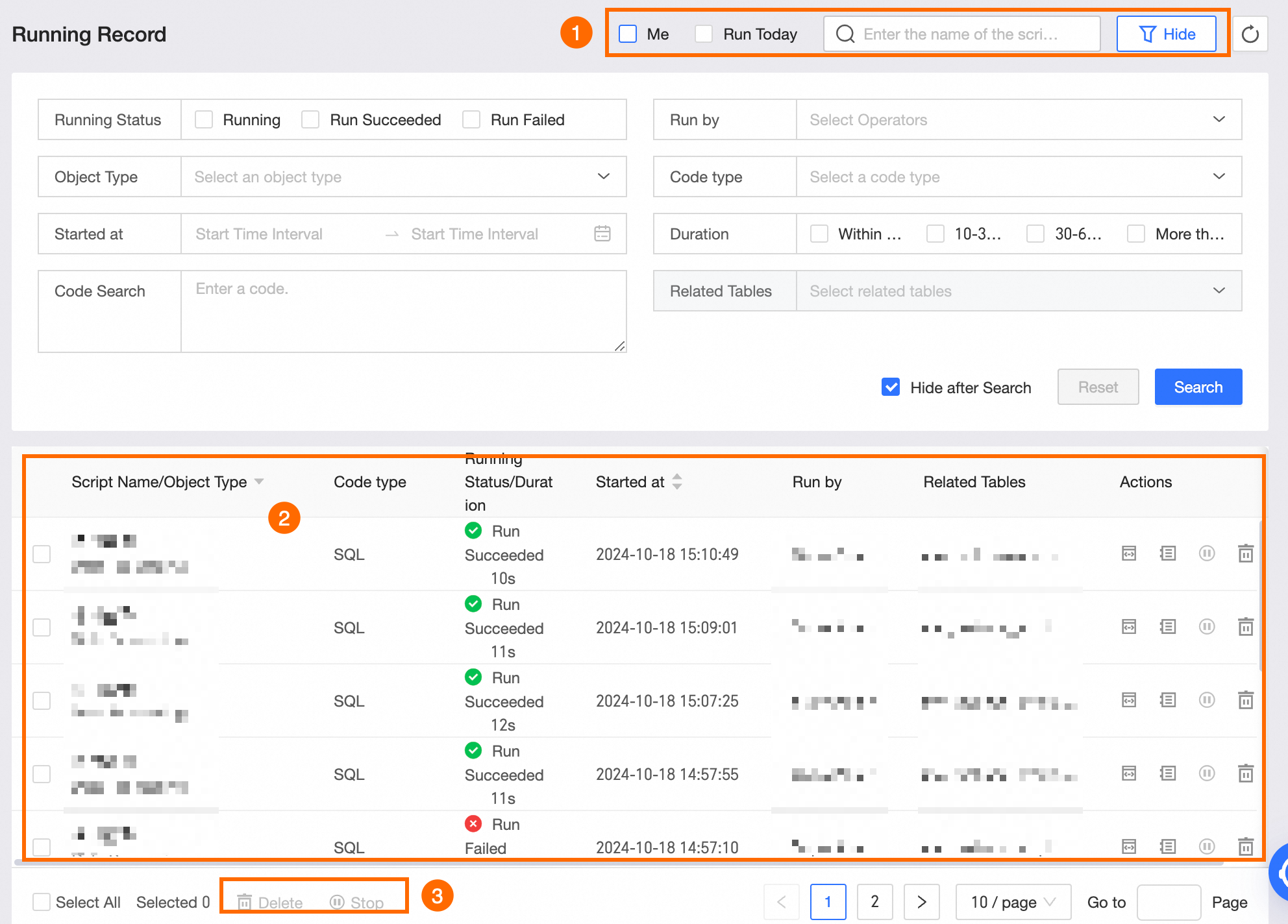
Number
Description
① Search and filter
Use quick filters like Run by me and Run today to filter the list. You can also click the
 filter icon for an advanced search with criteria such as Execution status, Executor, Object type, Code type, Start time, Duration, Code search, Related table (for SQL code type), and Related dataset (for workflow code type). You can also search by script name keywords.
② Execution record list
This list displays columns such as Script name/Object type, Code type, Execution status/Duration, Start time, Executor, and Related table. For each record, you can View Code, View Log, Stop, and Delete.
View Code: View the code script for the task.
View Log: Click View Log to view the execution log and execution result pages.
Stop: Super administrators, system administrators, project administrators, and the task's executor can stop a task or object.
Delete: You cannot delete the record of a running task. This action cannot be undone.
NoteThe View Code and View Log actions are not available for workflow tasks.
③ Batch operations
You can perform batch operations, such as Delete and Stop, on selected records.