The asset marketplace displays tags and audience groups listed in your account, including total asset counts, new listings, popularity rankings, categories, and tag details.
Tag asset marketplace page
-
On the Dataphin home page, select Tag > Asset Marketplace from the top menu bar.
-
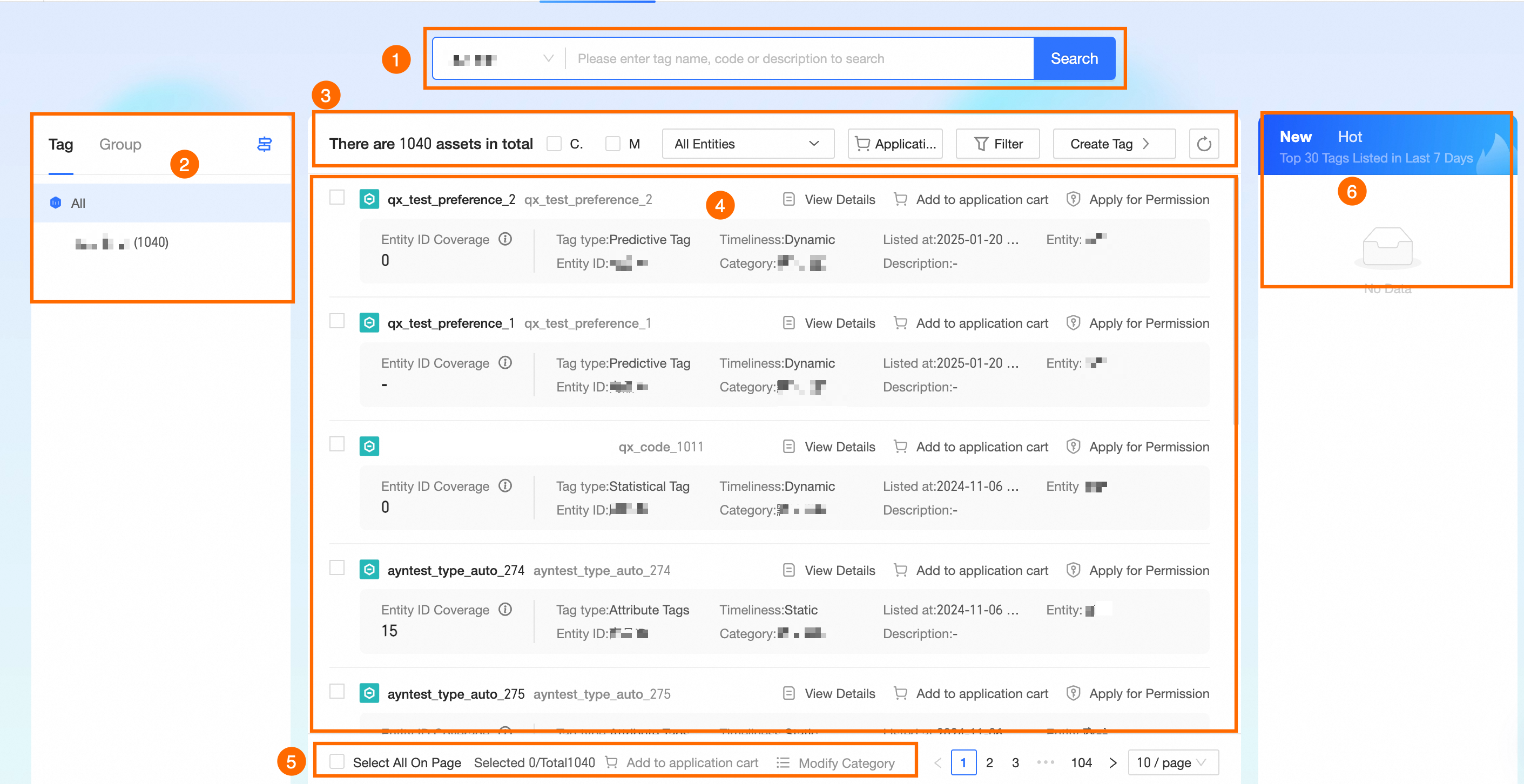
The tag asset marketplace page opens by default. Each section is described below.
Section
Description
①Marketplace switch and search area
Switch between marketplaces and search for assets by tag name, code value, or description. Each marketplace has its own tags and categories.
②Tag category
Click Tag or Group to filter by category. Click All to view all tags in the current marketplace that meet the filtering criteria.
③Asset filtering and function area
-
Asset filtering: Shows the total asset count and filters the asset list by Current Level Tag, Only Mine, and Entity.
For fine-grained filtering, click
 to filter by Tag type, Timeliness, Project, Owner, and Online service status. To create a tag, click Go To Create A New Tag.
 -
Application Cart: Select tags in the asset list and click Add To Application Cart to add them to the Application Cart. The cart button shows the number of added tags. Click Application Cart to apply for permissions.
④Tag asset list
Lists marketplace assets. You can view Asset details, add items to the application cart, and apply for permissions.
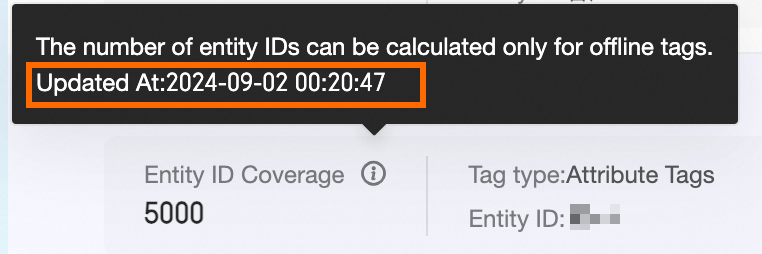
Entity ID Coverage: The total number of non-null tag values. Only offline tags support entity ID coverage. If the tag does not enable Value display, entity ID coverage cannot be calculated. Defaults to the last day's updated data (most recent data timestamp or last timeliness).
Hover over the
 icon to view the last statistical update time of entity ID coverage.
  Note
NoteIf there is no output time for entity ID coverage, it defaults to empty.
⑤Batch operations
-
Add To Application Cart: Select multiple tag assets and click Add To Application Cart to add them in bulk.
-
Modify Category: Select multiple tag assets or select all on the page, then click Modify Category. In the Modify Category dialog box, select the target category and click OK.
Note-
When modifying categories, only categories in the current marketplace can be selected. Cross-marketplace requires re-listing.
-
Only super administrators, system administrators, and administrators of the current marketplace have permission to modify categories.
-
⑥Tag rankings
New listing ranking: Tags published in the last 30 days.
Hot usage ranking: Ranks tags by popularity based on online invocation times in the last 7 days plus offline invocations.
Click a tag name to view its details on the tag product page.
-
Tag product page
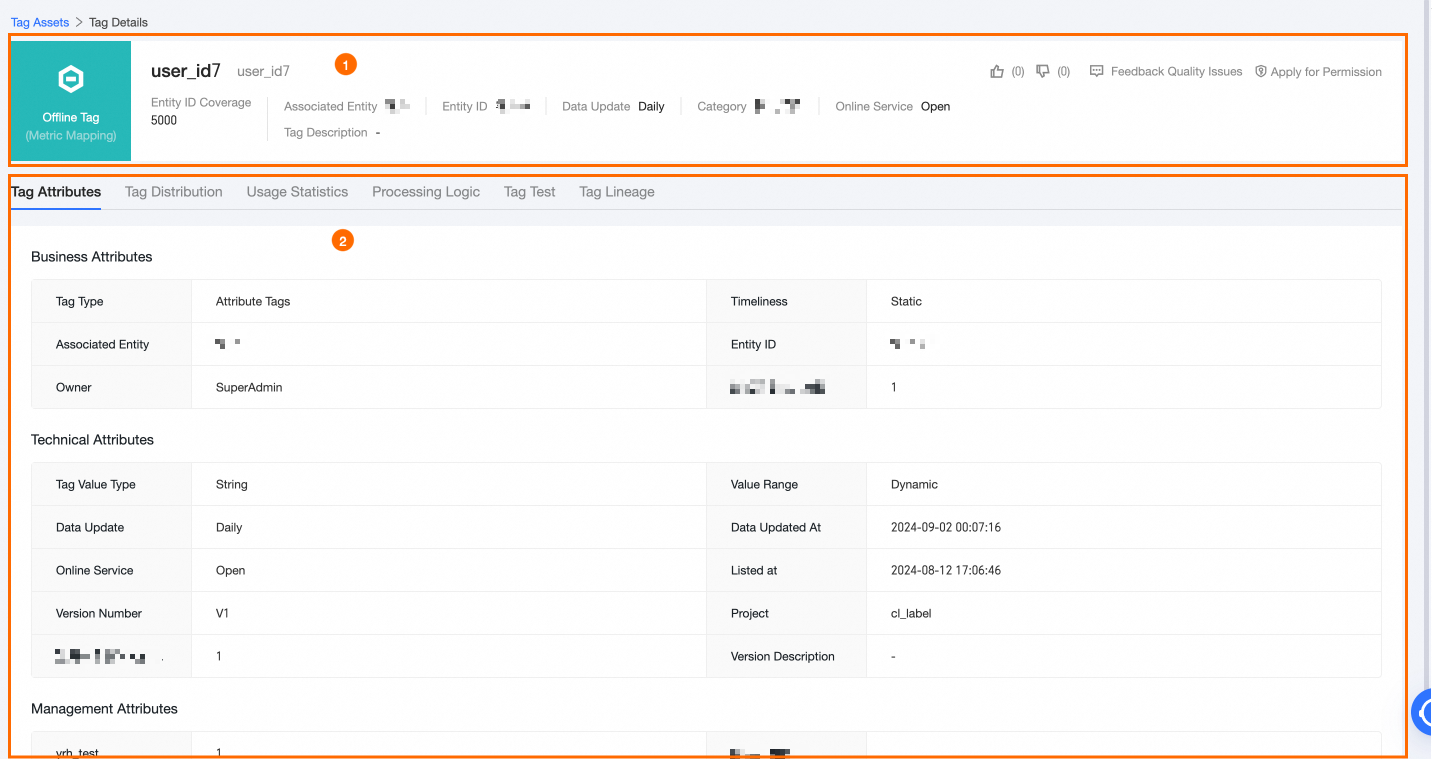
The tag product page has two areas: ① basic information and ② specific details.
-
Tag Basic Information Area: Displays tag details (Tag Type, Name, Tag Code, Entity ID Coverage, Associated Entity, Entity ID, Data Update, Category, Online Service, and Tag Description) and supports these operations:
-
Feedback Quality Issues: Report quality issues (such as unstable output or inaccurate content) to the quality owner for correction. Configure this in Add and manage the checklist.
Requires the Data Quality module. Track feedback processing and outcomes in the quality module's checklist.
-
Apply for Permissions: Click Apply For Permissions to request access to the current tag for Application or Project use.
-
Like/Dislike: Click
 or to like or dislike a tag. Dataphin tallies Like/Dislike numbers in real-time to help assess tag quality.
-
-
Specific Details Area: View additional tag information or run tests. Includes Tag Properties, Tag Distribution, Usage Statistics, Processing Logic, Tag Testing, and Tag Lineage.
-
Tag Properties: Business and technical properties, plus associated lookup table details (if applicable).
-
Tag Distribution: Includes Tag Statistics and Tag Historical Details.
-
Tag Statistics: View Statistics Information and Data Update Time for the tag, displayed as a bar or column chart.
Note-
For numeric tags with no lookup table and more than 10 values, statistics are shown as a histogram.
-
Real-time tags do not support viewing tag statistics.
-
-
Tag Historical Details: Shows the distribution of tag values across different data timestamps.
-
-
Usage Statistics: Shows tag usage over time: invocation status, subscription status, and top 10 invoking applications.
-
Invocation Status: Shows the number of overlapping applications, total invocations, and references.
-
Number of Overlapping Applications: The count of applications that appear in both online and offline invocations.
-
Total Invocation Applications: The unique count of applications that have invoked the tag online or offline within a specified time frame.
-
Online Invocation Applications: The count of applications that queried the tag in real-time during the specified period, excluding any tag testing invocations from the tag marketplace.
-
Offline Invocation Applications: The unique count of applications that have used the tag's offline services within a specified time frame.
-
Cumulative Invocation Times: The total number of online and offline invocations within the specified time range.
-
Online Invocation Times: The count of real-time queries of the tag by applications, including profile queries.
-
Offline Invocation Times: The number of successful offline service invocations within the specified time range.
-
Reference Times: How often the tag is directly referenced by other tags or audience groups.
-
-
Subscription Status: Shows subscription data: all, offline, and online subscriptions.
-
Top 10 Invocation Applications: The top 10 applications by invocation count, including name, invocations, and proportion.
-
-
Processing Logic: Describes tag processing logic: source datasets, metrics, and descriptions.
-
Tag Lineage: View the tag's lineage information. the Tag Lineage Explanation.
-
 or
or  to like or dislike a tag. Dataphin tallies Like/Dislike numbers in real-time to help assess tag quality.
Tag lineage
The Tag Lineage tab shows the tag's lineage graph, which may include Source Table, Event, Dataset, Offline Tag, Real-Time Tag, Application, Behavior Relationship, Audience Group, Service, and Service Catalog Table nodes. Key node descriptions:
|
Node |
Description |
|
Source Table |
Hover over the source table node to view its details. Click View Table Lineage to open the Asset checklist > Object details > Lineage & impact tab. For Dataset and Behavior relationship nodes, click the |
|
Application |
Hover over the application node to view all downstream services. Service types: Offline service and Online query. Click the
|
|
Service |
Hover over the service node to view the Type, Target Table, and task Owner. Service types: Tag service-offline service, Audience group service-offline service, and Audience group service-paged query. |
|
Service Target Table |
|
 icon in front of the node to expand upstream source table nodes. Physical nodes use the format